Operations preferences
The Operations category holds the catalogs that populate drop-downs across the app — the kinds of service your company performs and the expense categories used when recording costs — plus the rules that gate how purchase orders move through your company: approval thresholds and procurement requirements.
What you'll need
- The Company preferences: modify permission — this is an administrator area.
Service types
Service types are the categories of work your company offers. They appear as options on tasks, work orders, and service requests.
Open Operations
From the main menu, select Company Settings, then Operations, and find the Service types section.
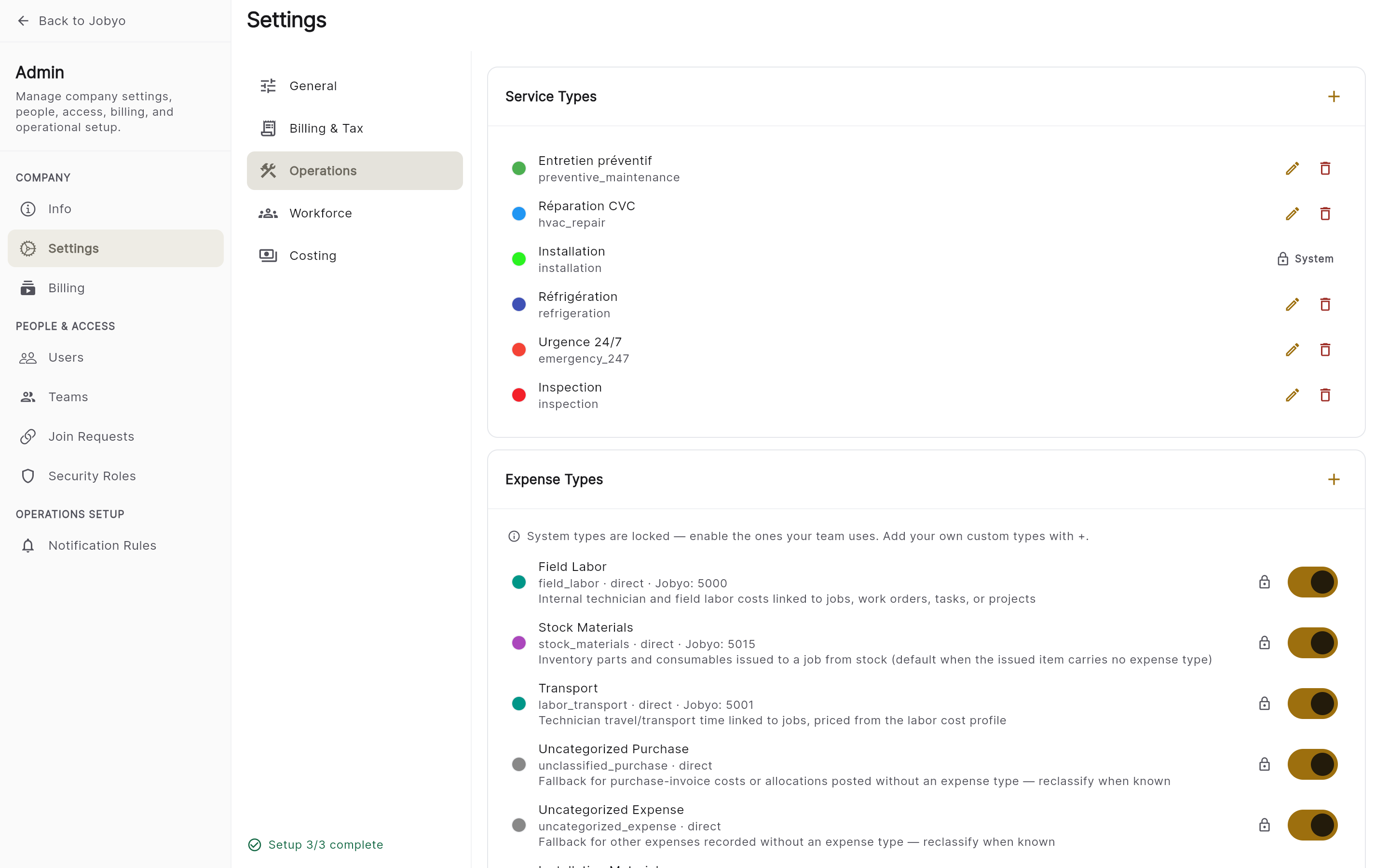
Operations — Service types list with an Add action Add a service type
Choose Add service type, enter a name (e.g. HVAC Inspection), and optionally pick a colour to identify it on screen. Select Save.
Edit or remove
Select an existing type to rename it, recolour it, or remove it, then Save.
Jobyo seeds three service types when your account is created — Service, Maintenance, and Installation. These are company-owned, so you can rename, recolour, or remove them freely.
Expense types
Expense types are the categories used when recording actual costs on work orders and other cost-entry screens. Jobyo ships a set of built-in (system) types, and you can add your own on top.
Add a custom expense type
Open the Expense types section
In Company Settings → Operations, scroll to Expense types.
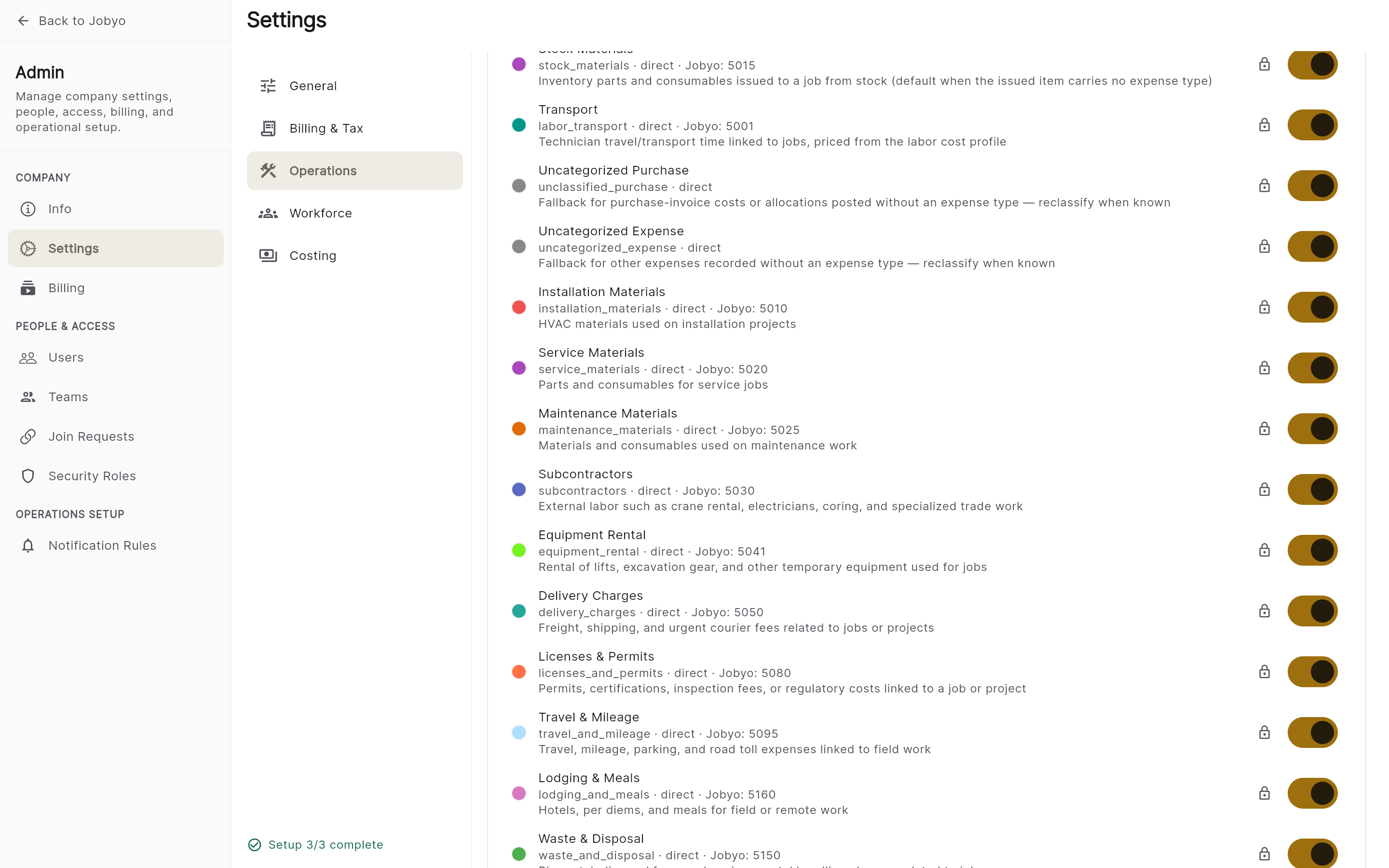
Expense types — system types with a lock badge, plus custom types Add your type
Choose Add expense type and enter a name (required). Optionally add a description, a custom code for your own reference, a colour, and a cost class — Direct cost, Overhead, or Adjustment.
Save
Select Save. The type becomes available on cost-entry forms.
Enable or disable a system expense type
When a built-in type isn't relevant to your business, hide it without deleting it. In Expense types, find the system type — it carries a lock or System badge — toggle it to Disabled, and Save. It disappears from cost-entry drop-downs and can be re-enabled any time.
Built-in (system) expense types can't be renamed, recoloured, or deleted — only enabled or disabled. Jobyo enforces this and it can't be overridden. You can freely add, edit, and delete the custom types your own company creates.
Set up purchase order approval
Require purchase orders to be reviewed and approved before they're issued to suppliers — either for every PO, or only above a set amount.
Two settings work together to make this happen:
- Company approval threshold (this setting, below) controls when a PO needs approval — every PO, or only ones above an amount you choose. This is a company-wide rule.
- Per-role approval ceiling (set per role under Users & roles) controls who can approve — an approver's ceiling must be at or above the PO's total for their approval to count. A role with a $5,000 ceiling can't approve a $6,000 PO; someone with a higher (or unlimited) ceiling has to sign it off instead.
Example: set the threshold to $1,000. A $500 PO can be issued directly — no approval needed. A $3,000 PO requires approval, and only an approver whose ceiling is $3,000 or higher can approve it.
Open the Approvals card
In Company Settings → Operations, find the Approvals card.

Approvals — the PO-approval toggle and the optional amount threshold Turn on approval
Turn on Purchase orders require approval before issue.
Set a threshold (optional)
To require approval only above a certain amount, enter it in Only require approval for orders above (in your company's currency, set under General). Leave it empty to require approval on every PO.
Save
Select Save. The setting applies immediately to new POs — a PO at or below the threshold (or with approval turned off) can be issued directly; one above it needs an approval step first.
Turn off Purchase orders require approval before issue and save to remove the requirement entirely — POs then go straight to issued.
Set procurement rules
Require every purchase order to be linked to a worksite before it goes out, or — on plans that include it — control whether a supplier credit must reference its original invoice.
Open the Procurement card
In Company Settings → Operations, find the Procurement card.

Procurement — the worksite-required toggle and, on eligible plans, the supplier-credits toggle Require a worksite (optional)
Turn on Require a worksite on purchase orders if every PO should be linked to a ship-to worksite or a project before it can be created, submitted, or issued. A PO linked to a project satisfies the rule even without a worksite. Off by default; existing POs stay editable either way.
Supplier credits without an invoice (plan-dependent)
On plans that include it, you'll also see Allow supplier credits without an original invoice — on by default. With it on, a supplier credit can be saved without pointing back to its original invoice, and its cost reversal goes to the credit line's project or work order (or to unallocated supplier credits if neither applies). Turn it off to require every cost-reversing credit line to reference its original invoice. This only affects new and edited credits; credits already saved are left as-is.
Save
Select Save. POs created, submitted, or issued afterward are checked against the worksite rule you chose.
It's only shown on plans that include it. Ask your administrator or Jobyo support if you think your plan should have it.
If it doesn't work
- No Operations categoryYour role doesn't include the Company preferences permission. Ask an administrator.
- Can't delete a system expense typeSystem types can only be enabled or disabled, never deleted. Toggle it to Disabled instead.
- Expense type won't saveA custom expense type needs a non-empty name. Fill in the name field.
- Removing a service type failsIt may be referenced on existing records. Rename or leave it in place rather than deleting, and have an administrator resolve the references.
- Amount field doesn't appear under ApprovalsTurn on the approval toggle first — the amount field only shows once approval is on.
- A purchase order is stuck waiting for approvalCheck whether any approver's role has an approval ceiling that covers the PO's total. If nobody's ceiling is high enough, raise the relevant role's ceiling under Users & roles, or have a Company Owner approve it directly.
- A purchase order won't create, submit, or issueRequire a worksite on purchase orders is on. Link the PO to a worksite, or to a project — a project link alone satisfies the rule.