Log a service request
A service request is the first stop for any reported issue or service need. Office and dispatch staff capture who's calling, what's wrong, how urgent it is, and where it is — then triage it and convert it into a task for the field team.
When you'd do this
Log a service request whenever a service need comes in — a customer phones about a fault, an email lands, or someone reports a problem through the app. The request holds the details while it's triaged, then becomes a task that carries the work forward to a work order. Because Jobyo snapshots the customer and worksite at the moment of intake, the record stays readable even if those directory entries change later.
What you'll need
- Permission to create service requests. If you can't see the new-request button, your role doesn't include it — ask an administrator.
- Optional: the customer and worksite the request relates to. Both are optional, but linking them pre-fills contact and address details and unlocks site history.
Log a new request
Open the intake form
From Service Requests, start a new request. You can capture the full details here, or use the quick-create panel that slides in from the right of any screen when you need to log something mid-conversation without leaving what you're doing.
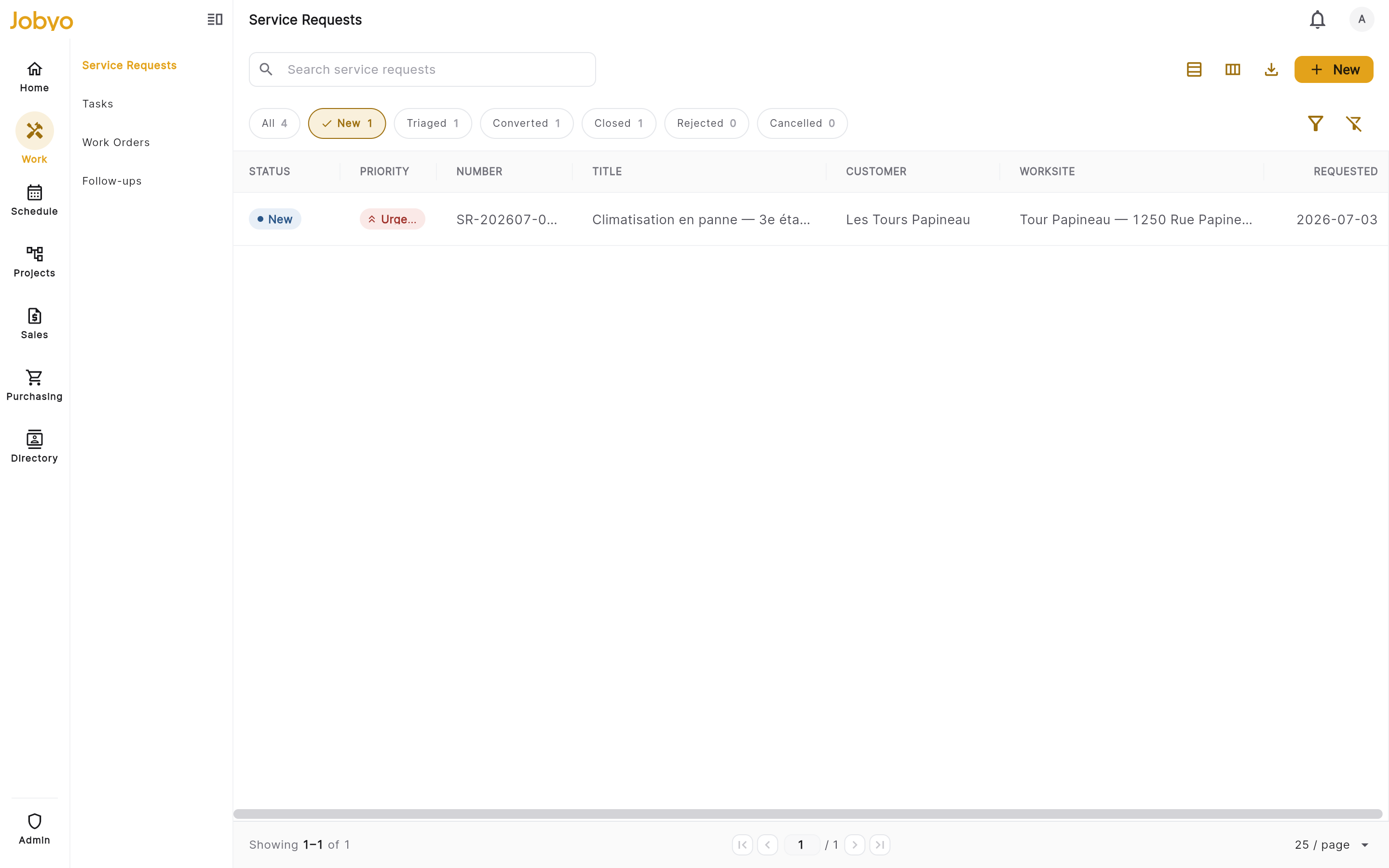
Service requests list — new-request button and status pills Record who's calling
Enter the requester name, and optionally their email and phone. Add an on-site contact if a different person will let the technician in, plus any access instructions (gate codes, key-box location, site hours). Set the requester type — customer, resident, employee, technician, or other.
Link a customer and worksite (optional)
Start typing in the Customer or Worksite field to search your directory. Pick the right record and Jobyo pre-fills any empty contact and address fields from it. Anything you've already typed is left untouched.
Both are optionalYou can log a request without a customer or worksite and add them later. Linking a worksite now, though, is what lets you see that site's history of past requests and work orders.
Describe the problem
Give the issue a short title (for example, "AC unit not cooling") and a fuller description with as much detail as the caller can give.
Set the condition flags and urgency
Toggle the condition flags that apply — system working, system shut down, leak detected, safety concern, previously reported. Choose a priority (low, normal, high, urgent) and the source channel the request came in through (phone, email, portal, app). Add any internal notes — these stay visible to your team only.
Save
Save the request. Jobyo gives it an auto-generated number (for example,
SR-202606-001), sets its status to New, records the intake time, and assigns it to you by default.
What you'll see
The saved request opens on its own detail page with a coloured status and priority header, grouped sections for the problem, requester, and site, the condition flags, internal notes, a timeline, and — once a site is linked — a site history panel showing other requests and work orders for the same worksite.
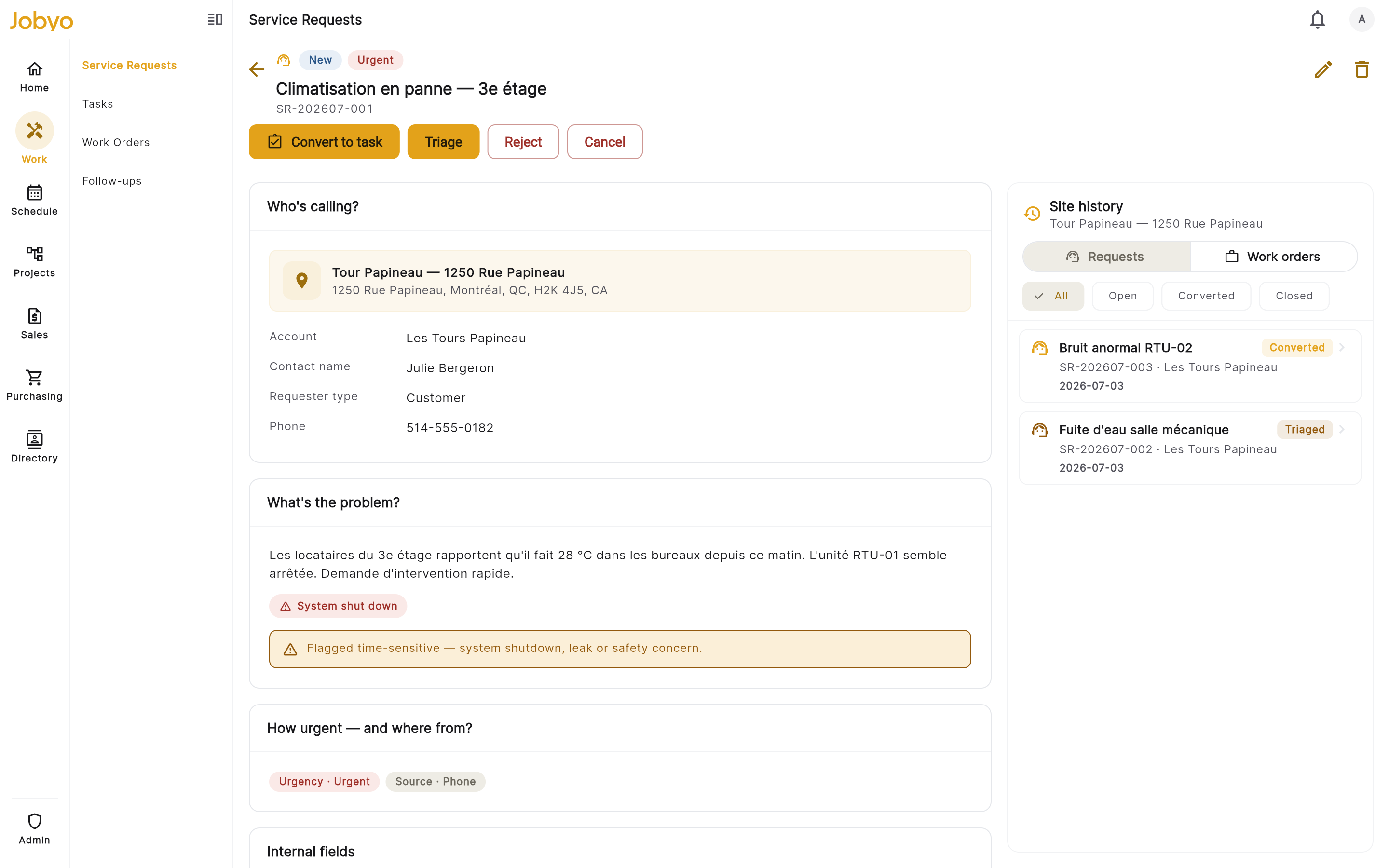
Moving a request through its lifecycle
From the request's action bar you triage it, convert it, or close the loop. Each status controls what you can do next.
Triage
When you've reviewed a New request and it's valid work that needs scheduling, triage it. The status moves to Triaged, which opens up converting, closing, rejecting, or cancelling.
Convert to a task
When you're ready to schedule the fieldwork, convert it to a task — conversion works from either New or Triaged. Jobyo creates a linked task, flips the request to Converted, and shows a task preview on the request. Converting needs both the edit service requests and create tasks permissions.
Converting twice is safeIf you convert a request that's already been converted, Jobyo re-opens the existing task rather than creating a duplicate.
Close, reject, or cancel
Close a request that's been dealt with at the intake stage (for example, resolved over the phone). Reject one you won't action, or Cancel one logged in error — both need a reason, which is saved as an internal note. A closed request can be reopened back to Triaged if it was closed too early.
Once a request is Converted, you can't edit it or move it any further — the task carries the work from there. Rejected and cancelled requests are also final and can't be moved again.
Status reference
| Status | What it means | What you can do next |
|---|---|---|
| New | Just logged — not yet reviewed | Triage, Convert to task, Reject, Cancel |
| Triaged | Reviewed and accepted — ready to schedule | Convert to task, Close, Reject, Cancel |
| Converted | A task has been created from this request | Nothing — locked; work continues on the task |
| Closed | Resolved at intake — no fieldwork needed | Reopen (returns to Triaged) |
| Rejected | Declined — outside scope or erroneous | No further moves |
| Cancelled | Withdrawn or logged by mistake | No further moves |
Finding and editing requests
Use the search bar to find a request by its SR number, title, customer name, or site name — it searches as you type. You can also filter the list by status, customer, worksite, assignee, priority, and requested-date range, switch between card, tile, and column views, and jump to a status group using the count pills at the top.
To change details after intake, edit the request while it's still active — the customer and worksite snapshots refresh from the live records when you save. To remove one created by mistake, delete it.
If a request is linked to an active task, Jobyo blocks the delete. Close or cancel the linked task first, then delete the request.
If it doesn't work
- No new-request buttonYour role doesn't include creating service requests. An administrator can grant it under Users & roles.
- "Customer not found" / "Worksite not found"The linked record was removed. Search again, or leave the field blank and enter the details manually.
- Triage button greyed outOnly New requests can be triaged. Check the status in the header — it may already be past New.
- Can't convert to a taskThe request must be New or Triaged, and you need both the edit-service-request and create-task permissions. An administrator can grant the task permission.
- Reject / cancel won't submitA reason is required for both. Enter one in the dialog before confirming.
- "Record was updated by someone else"Two people edited the same request at once. Refresh the screen and try your change again.
- Can't edit or delete an old REQ- recordRequests created before the current version are read-only. Contact your admin if one needs changing.
Not available yet
A few things aren't part of service requests today: uploading attachments to a request, a comment thread (use internal notes instead), and creating a work order or quotation directly from a request. To reach a work order, convert the request to a task first, then create the work order from the task.