Tasks & My Schedule
A task is the planning and assignment unit of field work — it holds the who, what, where, and when for a job. Tasks can stand alone or sit inside a project phase, they move through a status lifecycle, and they're where a work order gets created. Technicians see only their own tasks in My Schedule; coordinators run the full workspace.
The task workspace
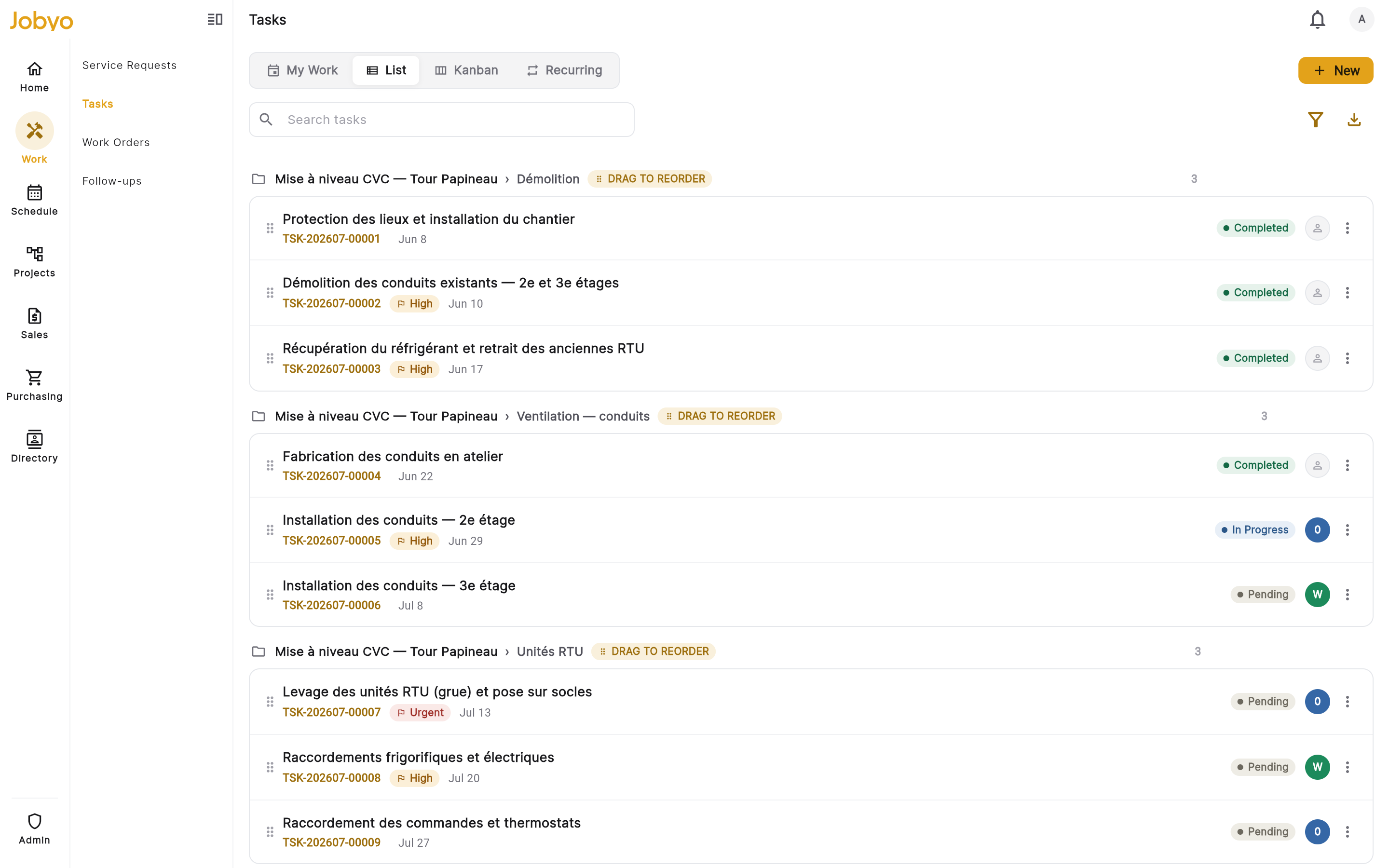
Open Tasks from the main menu. What you see depends on your role and permissions. Coordinators and ops users land in a workspace with a view switch across the top; technicians open straight into My Schedule.
The workspace offers these views:
- List — tasks grouped by project phase, with drag-to-reorder inside a phase.
- Board — kanban lanes by status (Pending, In Progress, Blocked, Completed); drag a card to change its status.
- Gantt — tasks on a timeline; tap a bar to open the task.
- Recurring — repeating "plan" templates only, from which you schedule individual occurrences.
- Schedule (My Schedule) — a technician's own week, in date order.
For technicians — My Schedule
TechnicianJobyo shows you the tasks that are yours — assigned to you (whether you're the primary person or part of a crew), plus any task you created yourself. You never filter for "my tasks"; the app scopes the list to you automatically.
See your week
Open Tasks
From the main menu, open Tasks. The app opens your My Schedule view — the tasks assigned to or created by you, arranged by date.
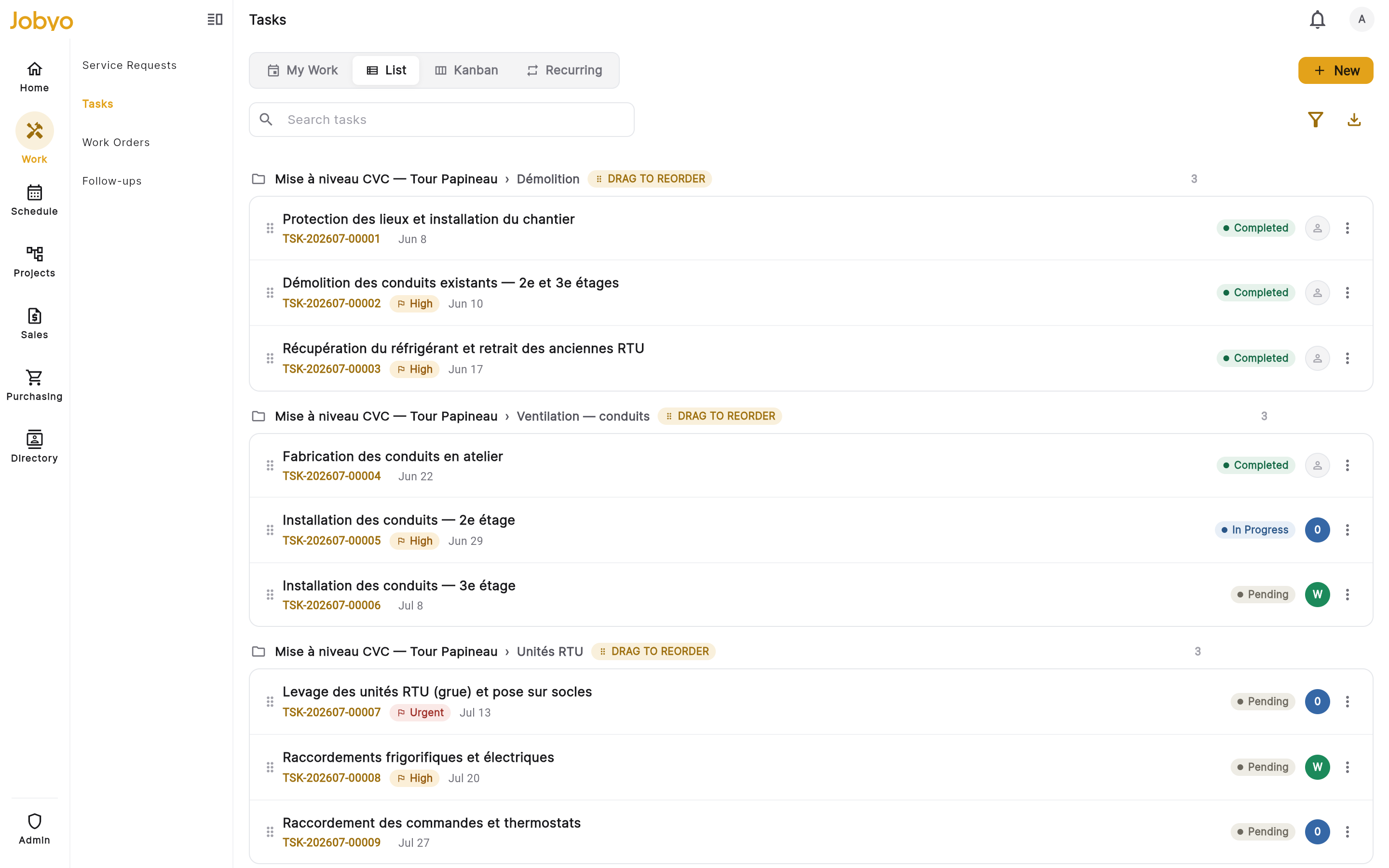
My Schedule — assigned tasks in date order, Unscheduled lane below Scroll through the week
Scroll up or down to move across earlier and later days. Each card shows the task name, its location or project, and its current status.
Check the Unscheduled lane
Tasks that have no scheduled date sit in an Unscheduled lane below the week, so nothing gets lost.
Ask your dispatcher or coordinator to confirm you've been assigned to the work, and that your account has the right role. Visibility is driven by your role — if it's set too narrowly you won't see tasks meant for you.
Open a task and start the job
Tap the task
In My Schedule, tap a card to open the task detail. You'll see the name and number, status, description and notes, the worksite or project location, start and due dates, the assigned crew, and the materials planned for the job — all read-only.
Create the work order
When you're on site and ready to execute, tap Create Work Order on the task detail. Jobyo creates a work order linked to this task and moves the task to In Progress, then takes you to the new work order to record the actual job.
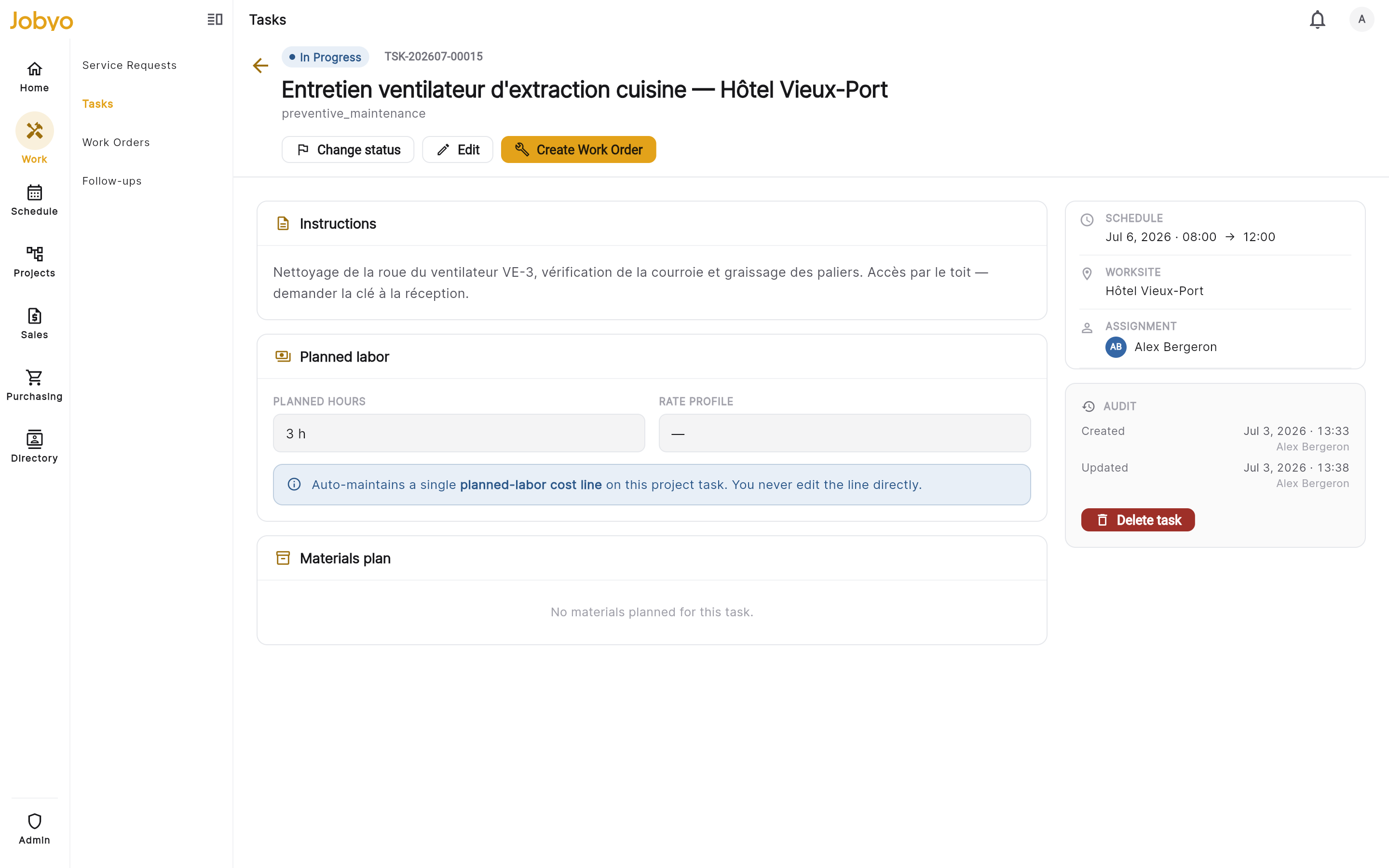
Task detail — Create Work Order action
- Button greyed out — recurring planA recurring plan template can't have a work order directly. Ask your coordinator to schedule you on a specific occurrence.
- Button greyed out — task has subtasksThe subtasks are the work units. Open a subtask and create the work order there.
- No button at allYou may not have permission to create work orders. Contact your administrator.
- "Not found" when opening a taskYou may no longer be assigned to it. Contact your dispatcher.
For coordinators — create and run tasks
OperationsCreate a task
Open the new task form
In the workspace, select New Task.
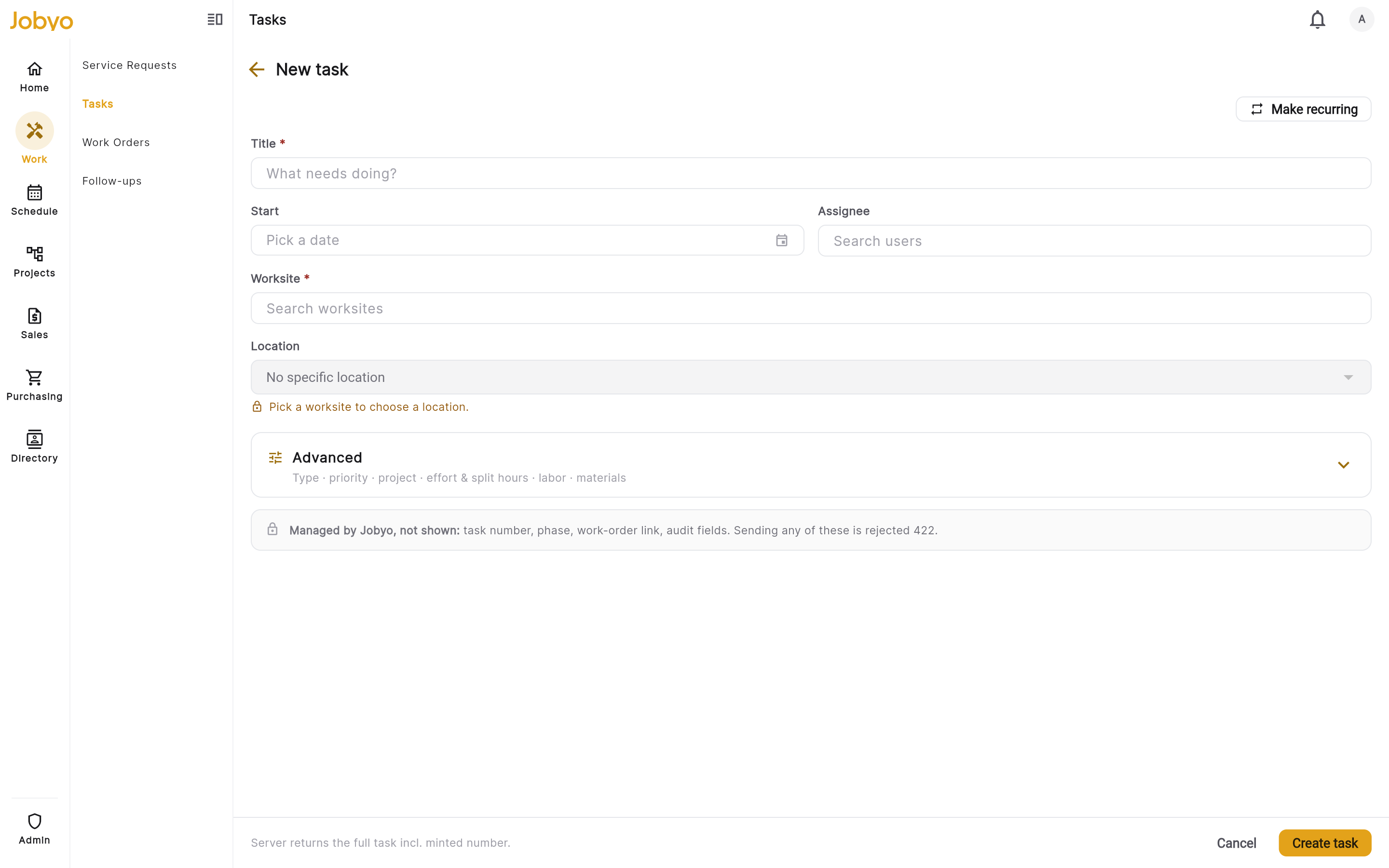
New task form — classification, context, assignment, schedule, materials Name it (the only required field)
Task name is the one hard-required field. Optionally add a free-text task type label (e.g. "Inspection", "Repair"), choose the kind — Ad-hoc for a one-off or Recurring plan for a repeating template — and set the priority (Low, Normal, High, or Urgent).
Give it a location
Choose a worksite (required for a standalone task — the form won't submit without one). You can also set a specific Location — a zone or area within that worksite — from the location picker. If the task belongs to a project, pick the project (the worksite is then inherited from it) and optionally the phase — both set right on this form.
Assign it
Set Assigned to (the primary person), optionally additional crew members, and optionally a team for capacity planning. Assigned-to and crew stay independent lists.
Schedule and plan cost
Plan the effort as a time window: in Plan effort and schedule, pick a start date and time and a due date and time — Jobyo derives the planned hours from that window automatically; there's no hours box to type into. Need finer control? Turn on the split toggle to set total effort, hours per day, and working days, and to divide hours across crew members. Optionally pick a labor rate profile (defaults to the company rate). For project tasks, the derived hours and the resolved rate feed the project's planned cost.
Plan materials
Add a line for each material, part, consumable, or tool needed — each line needs a description, quantity, and unit, with an optional planned unit price. On project tasks these lines also generate planned material cost, so planned-vs-actual variance includes materials.
Save
Select Save. The task is created with an auto-generated number (e.g.
TSK-202606-001) and appears in the list and board.
A task is either attached to a project (worksite inherited) or given a worksite directly. If you leave the project empty, the worksite field becomes mandatory.
Change a task's status
Status changes use a dedicated status control (or a drag on the board) — not the edit form. "Planned" and "Overdue" are display badges only; you can't set a task to them.
| Current status | Can move to |
|---|---|
| Pending | In Progress, Blocked, Completed, Cancelled |
| In Progress | Blocked, Completed, Pending |
| Blocked | Pending, In Progress, Cancelled |
| Completed | Pending, In Progress (reopen) |
| Cancelled | Final — no further moves |
Open the status control
On the task detail, tap the status badge or Change Status — or, on the Board, drag the card between columns.
Pick the new status
Only allowed transitions are offered. Moving to Blocked requires a reason (e.g. "Waiting for parts"). Completing stamps a completion date and time; reopening a completed task clears it.
Cancelling a task is terminal — no further status changes are possible. Cancelling a recurring plan template also cancels its active occurrences. If you need the work back, create a new task.
Reorder and sequence work
- Reorder within a phase — in List view, press and hold a task card and drag it up or down within its phase. The order updates for everyone. Cards snap back if the source and destination aren't in the same project and phase.
- Dependency arrows (Gantt) — draw an arrow from a predecessor bar to a successor bar to visualise the sequence. These links are advisory only: Jobyo never blocks a task from starting because a predecessor is open, and never shifts dates automatically. A task can't depend on itself, and links apply to specific occurrences, not to recurring templates.
Subtasks
Break a complex task into separately tracked steps. Before you can add a subtask, the parent must be active, an ad-hoc task (not a recurring template), have no one assigned and no planned hours, and have no open work orders.
Add the subtask
Open the parent and select Add subtask. The project and phase are pre-filled from the parent and can't be changed. Give the subtask its own assignment, schedule, and materials, then Save.
Once a parent has subtasks: you can't assign the parent directly (assignment lives on each subtask), you create work orders from the subtasks rather than the parent, and you can't delete or move the parent until its subtasks are dealt with. Only one level of subtasks is allowed.
Recurring plans
In the Recurring view, a plan template defines a repeating pattern. Technicians don't see the template in their schedules — you materialize individual occurrences from it, and each occurrence behaves like any other task in the list, board, and schedules.
To change how often a plan repeats, stay in the Recurring view: tap the template card and edit the rule in its panel. The task edit form deliberately has no frequency fields — frequency lives on the template, not the occurrence.
Once any occurrence in the series has been completed, or cost has been posted against the series, the recurrence frequency is frozen — the template panel will tell you. You can still edit its other schedule fields, but a new pattern needs a new template. Templates tied to a maintenance agreement may be generated for you automatically.
Delete a task
Deleting soft-removes the task from all views. The delete is blocked while dependencies remain.
- "Has an open work order"Close or cancel the linked work order first, then delete the task.
- "Has active cost records"Posted cost entries exist for this task — an administrator needs to resolve them.
- "Has planned expense lines"Remove the planned expense/material lines on the task first.
- Task has active subtasksDelete the subtasks first, then delete the parent.
Access & availability
Administrator- Permissions — the tasks permission gates every action: list/search, view, create, edit (including status moves and reorder), and delete. What each person sees is scoped by their permission level — company-wide, team, own, or assigned-to-me — which is exactly how My Schedule shows a technician only their own work without any filter.
- Plan — Tasks is available on every plan, from Starter up.
- Task number prefix — task numbers use a company-configured prefix. If task creation fails with a configuration error, an administrator needs to set the prefix under Company Settings → General → Document numbering.
A few capabilities exist in Jobyo's back-end but aren't surfaced in the app today: snoozing a task, a dedicated Move to another phase control, and the calendar occurrences view for recurring tasks. Use the standard list, board, and schedule views in the meantime.