Join a company & approve members
A join request is how someone gets into a company that already exists in Jobyo. The new person enters the company's shareable code and a secret join key to ask for access; a company admin then approves or rejects the request from a pending queue. This page covers both sides.
Which side are you on?
- Joining a company — you were given a company code and join key by an employer or admin, and you want access to their workspace. Start at Request to join.
- Approving members — you run the company and need to let the right people in (and keep the wrong ones out). Jump to Review the pending queue.
This isn't the right guide. Join requests are only for joining a workspace that already exists — use the registration flow to create a new company instead.
Request to join a company
New memberWhat you'll need
- A Jobyo account. You must be signed in before you can submit a request.
- The company code for the company you want to join — format
JOBYO-ACME-001(the wordJOBYO, a short version of the company name, and a number). - The join key — a secret the admin shares with you. It's separate from the company code and acts as the security gate.
Sign in, then open the join screen
Sign in to Jobyo (create an account first if you don't have one). On the welcome or onboarding screen, choose Join an existing workspace.
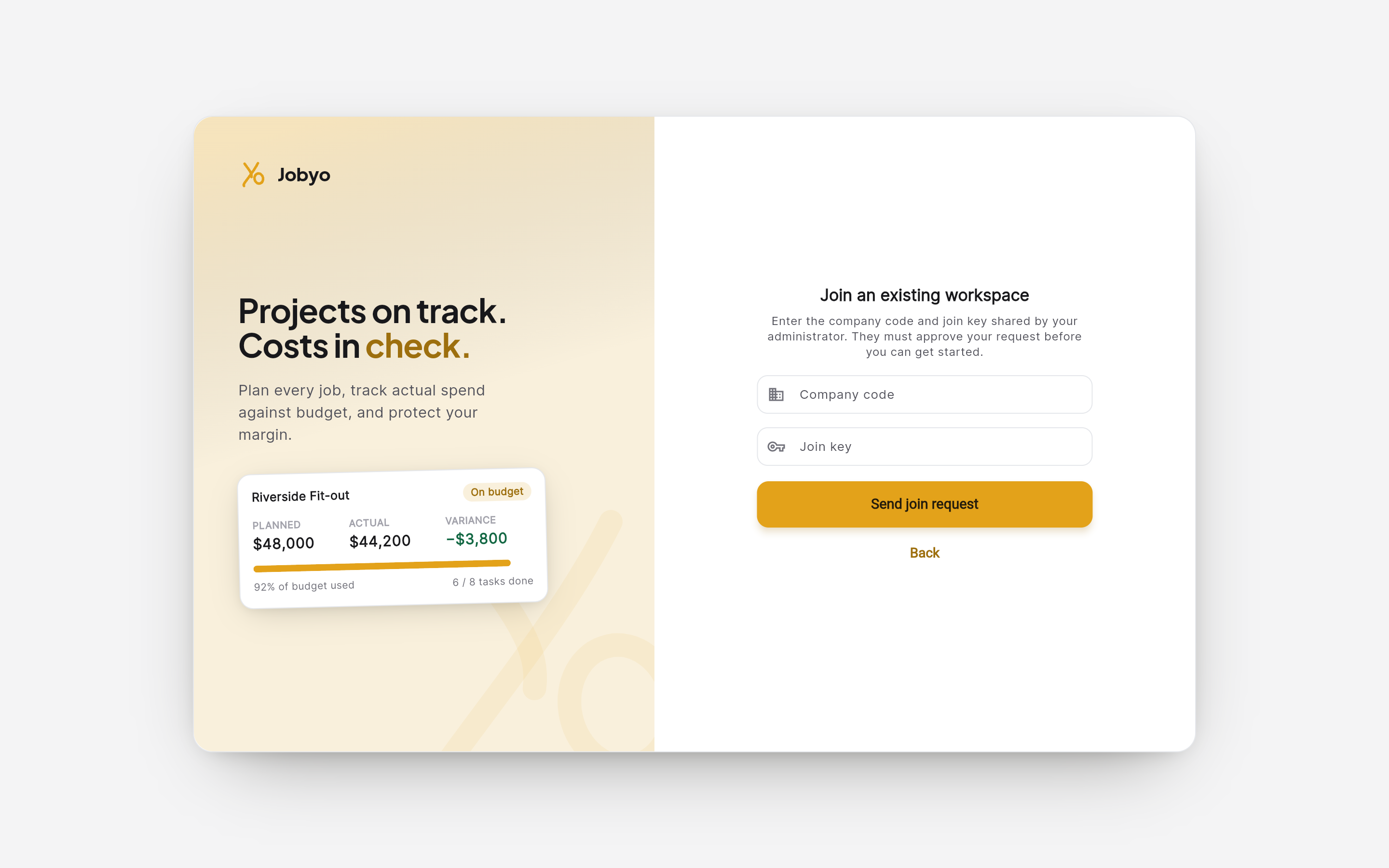
"Join an existing workspace" — Company code and Join key fields Enter the company code
Type the code your admin gave you exactly as written, including the dashes — for example
JOBYO-ACME-001. This is the only way to point your request at the right company; you don't pick the company from a list.Enter the join key
Type the join key the admin shared. It's checked securely against the company's current key, so an old or mistyped key won't get through.
Submit the request
Send the request. Jobyo moves you to a waiting screen — your request is now pending approval, and you can't reach the company's workspace until an admin approves you.
You can only have a single pending request. If you need to fix a mistake (wrong company or a changed key), withdraw the request first, then submit a fresh one — see below.
Withdraw a pending request
New memberIf you submitted a request and changed your mind — or entered the wrong company — you can take it back, as long as it's still pending. You can't withdraw a request that's already been approved (that's now an active membership) or rejected (that record is already gone).
Go to your waiting screen
Open the awaiting-approval screen you were taken to after submitting.
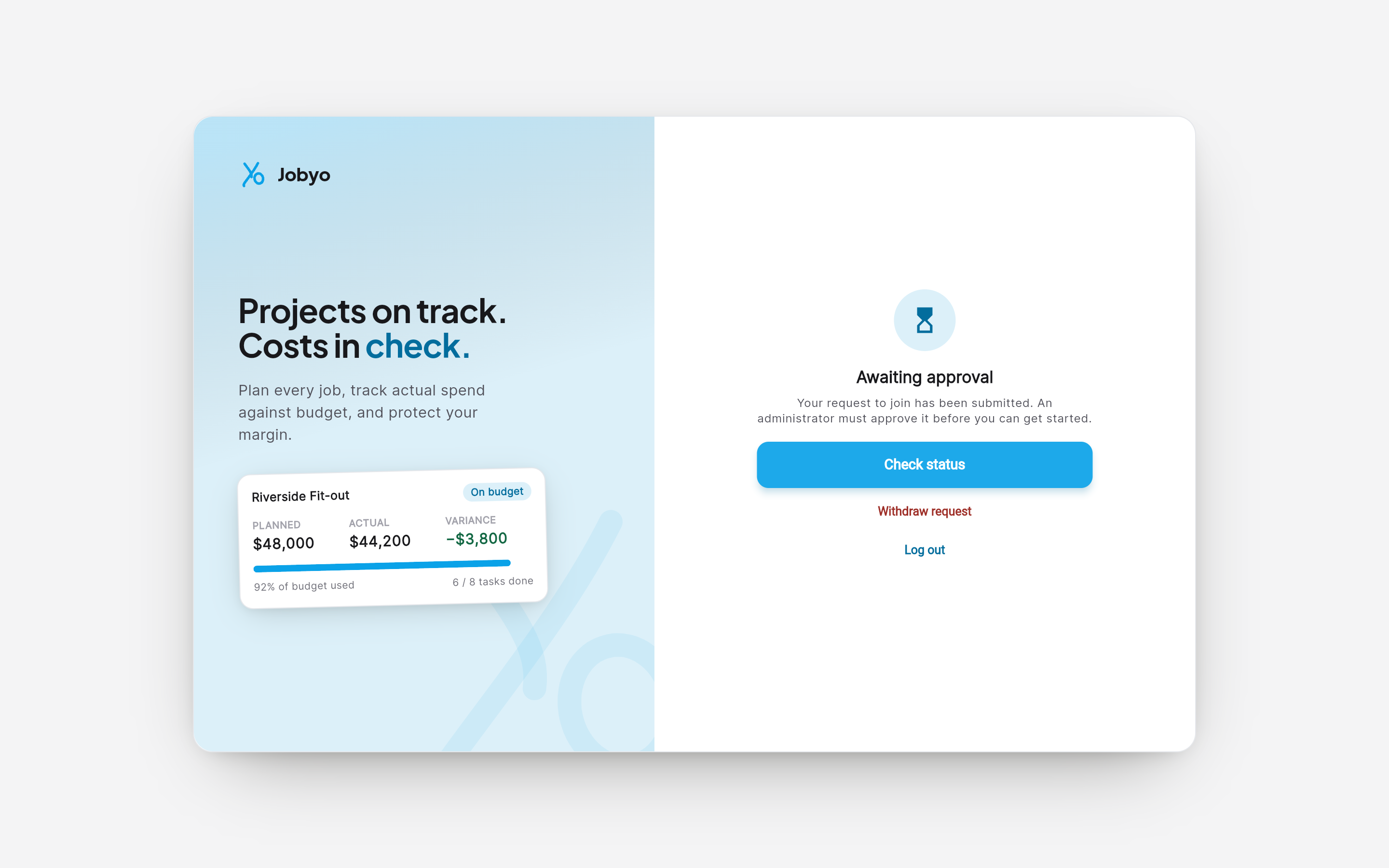
Awaiting-approval screen — option to cancel a pending request Cancel the request and confirm
Choose the option to withdraw or cancel the request, then confirm. The request is removed and your account returns to the state it was in before — you're free to submit a new request, to the same company or a different one.
Review the pending queue
AdministratorAdmins see every request that's waiting for a decision in one queue, and act on them one at a time.
What you'll need
- An admin role with the User Management permission. The list itself needs the list level; approving and rejecting need the approve level (which covers both actions).
Open the Join Requests admin page
From the main menu, go to Admin → Join Requests.
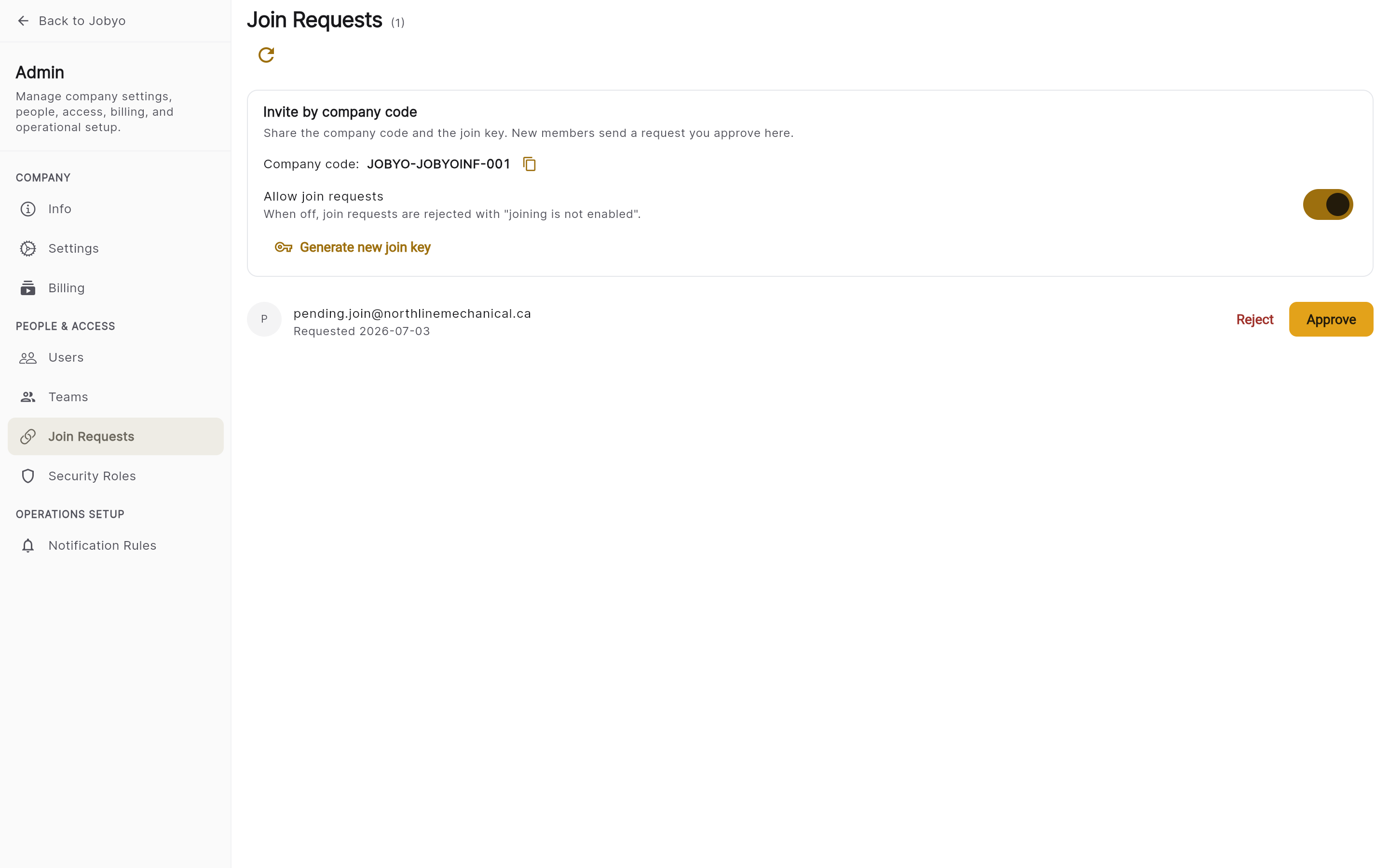
Admin Join Requests — sharing card on top, pending queue below with Approve / Reject per row Read the queue
The page lists all pending requests — each row shows the requester (name or email) and when they submitted. Load more at the bottom if there are many.
This queue shows pending requests and nothing else. Once you approve someone they move to Admin → Users and drop off this list; once you reject someone the record is removed immediately. There is no approved/rejected history tab here.
Approve a request
AdministratorApprove when you recognise the person and want to give them access.
Find the request and approve it
In the pending queue, locate the request and choose Approve on that row, then confirm.
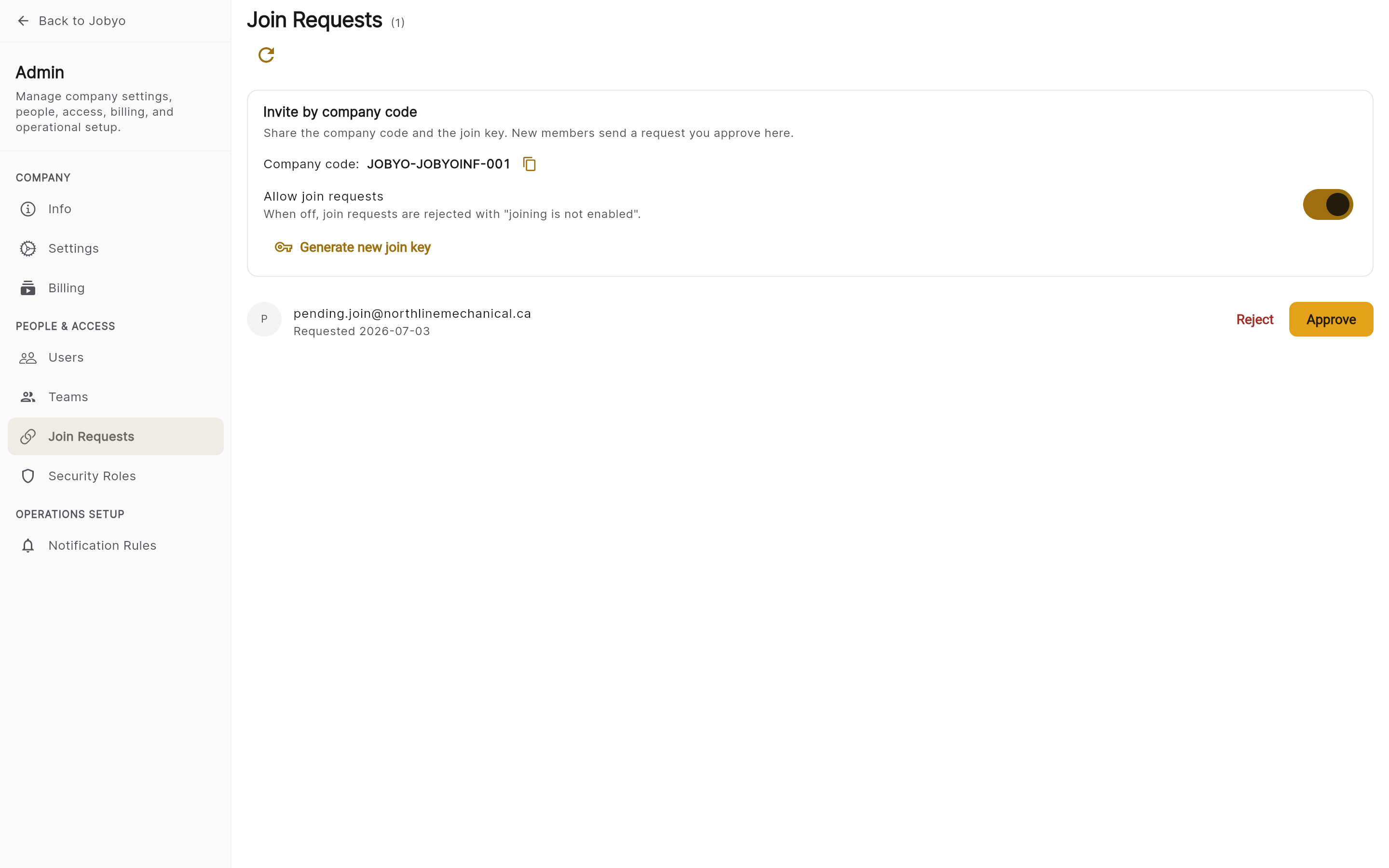
A pending row with the Approve action Access is granted automatically
Jobyo creates the person's account and profile inside your company, assigns them a default access role, and grants access. Their row disappears from the queue and they can sign in to your workspace.
New members get a default role on approval. To adjust their role or permissions, go to Admin → Users and update their access there.
Reject a request
AdministratorReject when you don't recognise the requester, the request came in by mistake, or you don't want to grant access. Rejecting uses the same User Management (approve) permission.
Find the request and reject it
In the pending queue, locate the request and choose Reject on that row, then confirm.
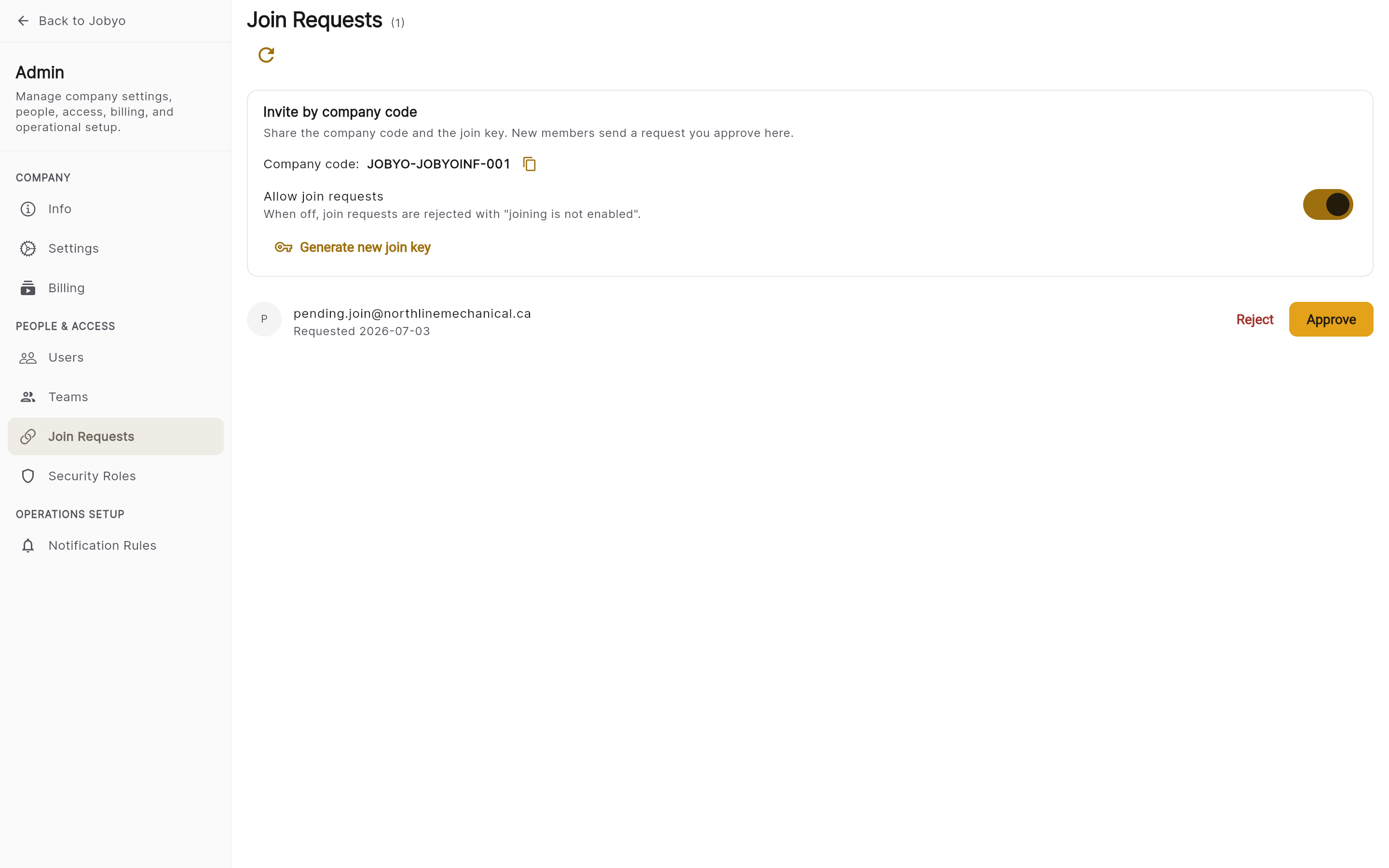
A pending row with the Reject action The request is cleared
The row is removed from your queue right away. The requester's pending state is cleared, so they're free to submit a new request if they think the rejection was a mistake.
There's no place to type a reason when you reject — if you need to explain, contact the person directly. And because rejecting removes the record, rejected requests don't show up anywhere afterward. If the same person re-applies, a new row simply appears in the queue.
Before anyone can join: code & join key
AdministratorPeople can only submit a request once you've turned joining on and set a join key — and both live in Company Settings, not on the Join Requests page. The admin Join Requests screen shows a sharing card with your company code, an enable-joining toggle, and a key-rotation control, but those settings are owned by Company Preferences.
Key things to know:
- Joining must be enabled. If the toggle is off, every submit attempt fails with "joining is not enabled." Turn it on first.
- A join key must be set. Without one, requests can't be submitted. Generate a key and share it with the people you want to invite.
- The join key is shown once. When you rotate it, the new key is displayed a single time — copy it and share it securely. Anyone still using the old key gets an "incorrect join key" error.
- Your company code never changes. Share it freely; it only identifies your company. The join key is the part that actually controls who can request access.
For the full walkthrough of the toggle and key rotation, see Company preferences.
If it doesn't work
- "Company not found"The company code doesn't match any company. Re-check it with your admin, including the dashes.
- "Joining is not enabled"The admin hasn't turned joining on, or hasn't set a join key. Ask them to enable it in Company Settings and share the current key.
- "Incorrect join key"The key doesn't match — keys can be rotated, so an old one stops working. Ask your admin for the current key.
- "You already have a pending request"A request of yours is still waiting. Wait for the decision, or withdraw it and resubmit if something needs to change.
- "You are already a member"Your account is already linked to this company. Just sign in normally; if you're still locked out, contact your admin.
- Approve / Reject greyed outYour role doesn't include the User Management (approve) permission. A company owner can grant it, or approve the request for you.
- Withdraw option missingThe admin may have already decided. If approved, sign in normally; if rejected, your pending state is cleared and you can request again.