Maintenance agreements & contracts
A maintenance agreement is a standing contract with one customer for scheduled service across one or more sites. You define the covered worksites, the equipment serviced at each, the visit cadence, the SLA response targets, and a billing declaration — then let Jobyo generate the recurring work from it.
Who uses this
Maintenance agreements are a back-office surface for operations and admin roles — the people who negotiate contracts and set up recurring service. Technicians don't manage agreements; they meet the work an agreement produces as ordinary recurring tasks and work orders in their queue.
Maintenance agreements are gated behind the contracts feature, seeded from the Team plan upward. On a lower plan the whole area is hidden or returns an access error. See Plans & subscriptions.
What you'll need
- Permission to list and view contracts to browse agreements, and create or modify to add or change them. Remove (a separate permission) is needed to delete an agreement.
- A customer record the agreement belongs to — create it first under Customers if it doesn't exist.
- Optionally, existing worksites to link each covered site to a structured record (you can also just type a site name).
How an agreement is built
An agreement has two parts you manage in different places:
- The header — customer, name, term dates, SLA, billing declaration, and notes. Set on the create and edit form.
- The coverage — the covered worksites and, under each, the covered assets. Managed with their own controls on the agreement's detail page (and inside the edit form), not on the header form.
Keep this split in mind: saving the header never adds coverage, and adding coverage never changes the header.
Create an agreement
Open the new agreement form
From the Contracts & SLA list, select New Agreement. If you don't see the button, your role doesn't include create — ask an administrator.
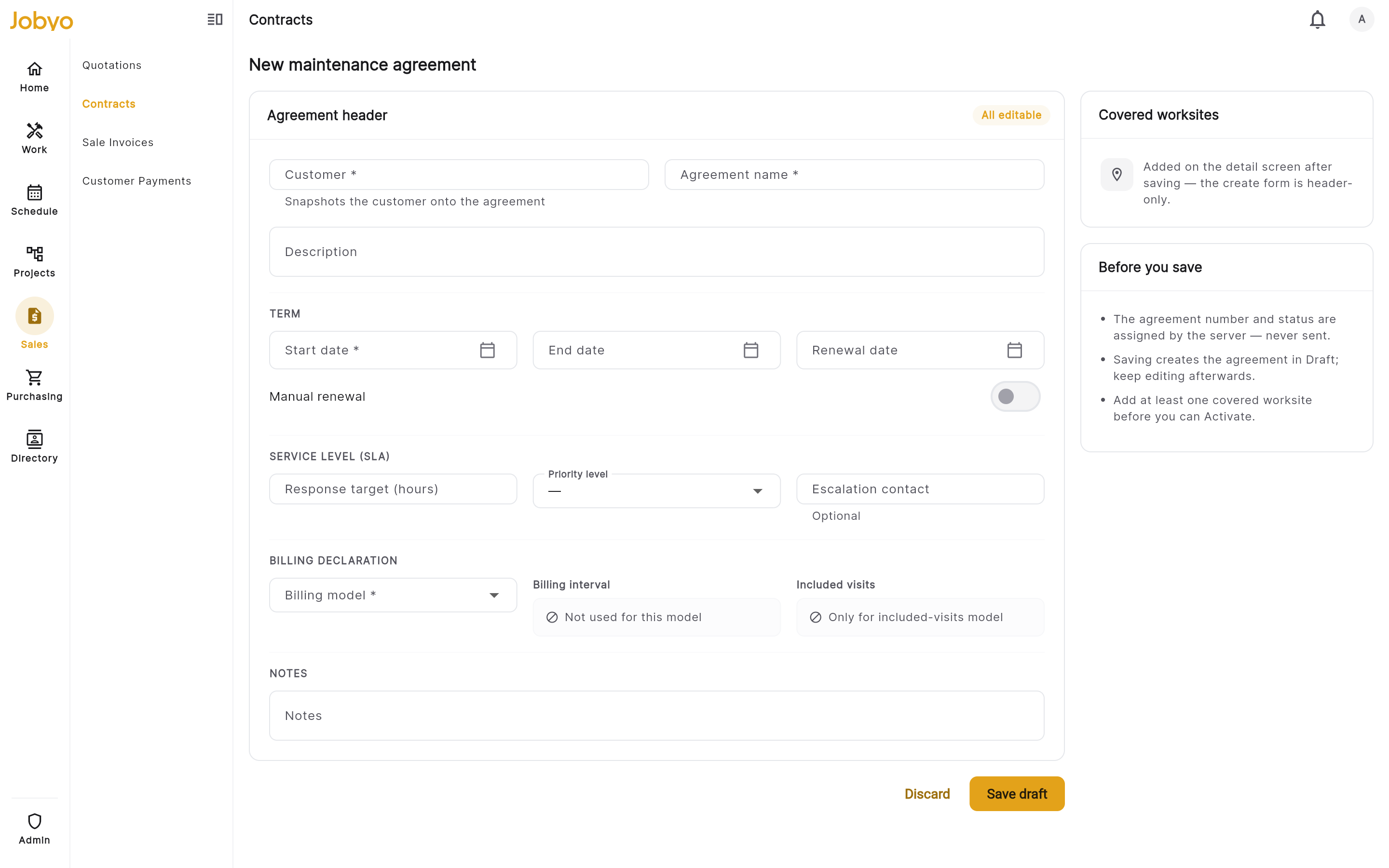
Agreement header — customer, name, term, SLA, and billing declaration Fill in the header
Customer and Agreement name are required. Picking a customer snapshots it onto the agreement. Add an optional description summarising what the agreement covers.
Set the term
Start date is required. End date and Renewal date are optional, and the Auto-renew switch records whether the contract renews automatically or is renewed manually.
Renewal is recorded, not automated yetThe renewal date and auto-renew flag are stored for reference. In the current version Jobyo does not act on them — nothing renews, expires, or notifies you automatically when a renewal date arrives. Track renewals yourself for now.
Set the service level (SLA)
All SLA fields are optional: a response target in hours, a priority level (Standard, Priority, or Emergency), and an escalation contact (a user). The priority you set here also seeds the priority of any recurring tasks the agreement generates.
Declare the billing model
Billing model is required and controls which other billing fields appear:
- Fixed recurring — you also pick a billing interval (Monthly, Quarterly, or Annual).
- Per visit — no interval and no included-visits count (both are hidden).
- Included visits, then billable — you pick a billing interval and an included visits per interval count.
Switching the model clears any values that no longer apply.
Billing is declarative for nowThese fields describe the commercial arrangement, but Jobyo does not yet generate invoices from an agreement. Bill the work the normal way — through sale invoices off the generated work orders.
Save the draft
Add any notes, then select Save draft. The agreement is created in Draft status and opens on its detail page.
No agreement number yetAgreement numbering isn't live in the current version — a new agreement shows a placeholder like "Draft · no number yet" instead of a real contract number.
Add covered worksites
Coverage lives in the Covered worksites & assets section on the agreement detail page. A draft needs at least one covered worksite before it can be activated.
Add a worksite
In the coverage section, select Add worksite (or Add first worksite when the list is empty).
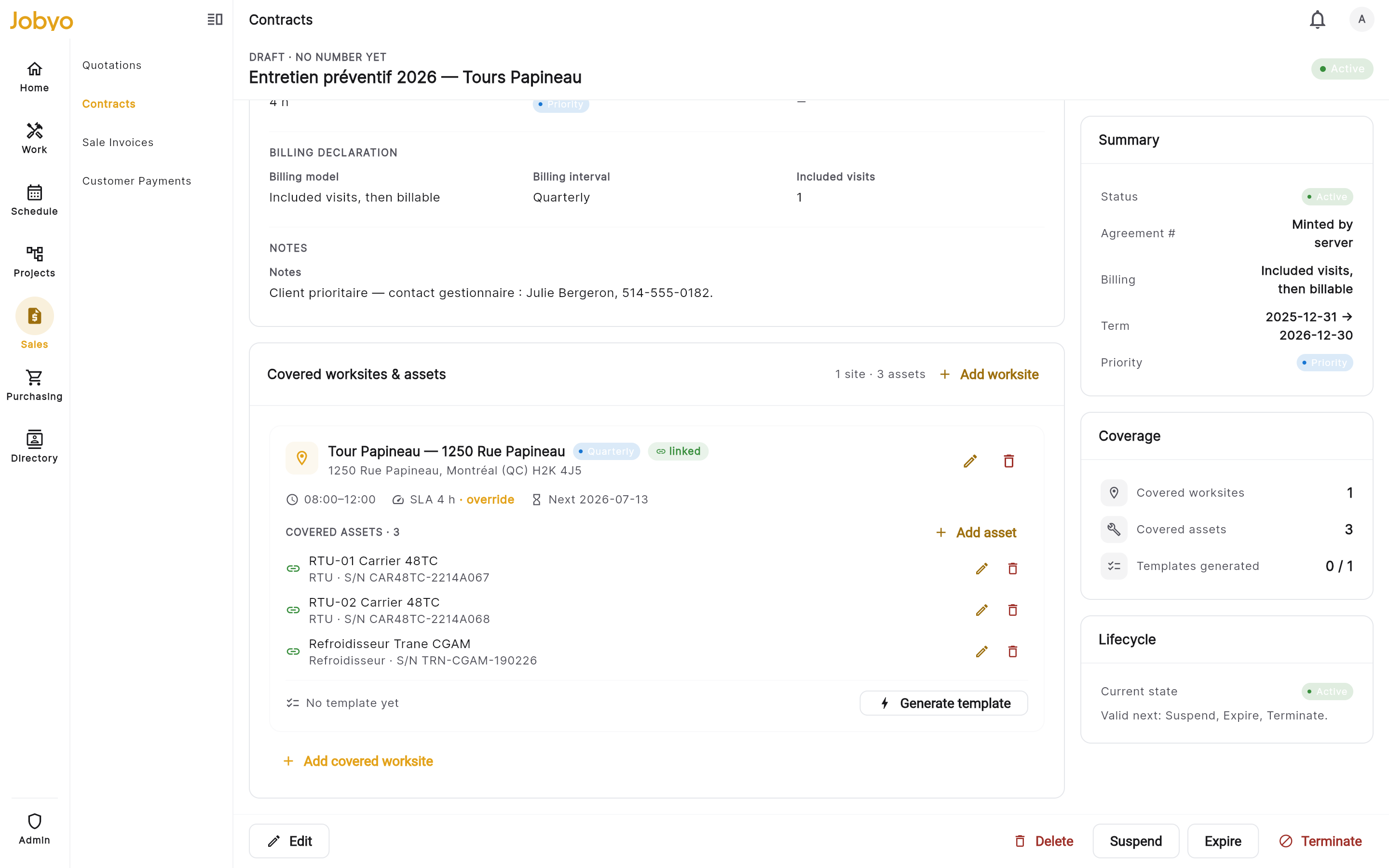
Covered worksites, each with its cadence, assets, and Generate template action Identify the site
Either pick a structured worksite (linking copies its address in for you) or just type a site name as free text. A typed site isn't linked to a worksite record — that's fine, it's optional.
Set the visit frequency
Visit frequency is required: Weekly, Every 2 weeks, Monthly, Every 2 months, Quarterly, Every 6 months, Annual, or On demand. The form then shows the matching schedule field — a visit day of week for weekly cadences, or a visit day of month for month-based ones.
Add optional details
Optionally set a preferred time window (start and end, as HH:MM), an SLA response override in hours (defaults to the agreement's target if left blank), and notes (access notes, gate codes, and so on). Save the worksite.
Choosing On demand hides the schedule and time-window fields, and that site can't generate a recurring task template — its work is created by hand. Use a cadence (weekly through annual) for anything you want Jobyo to schedule automatically.
Add covered assets
Under each covered worksite you can list the equipment serviced there.
Add an asset to a worksite
On a covered-worksite card, select Add asset. Only the asset label is required.
Optionally link it to an equipment record
If this asset already exists in your Jobyo Equipment list, you can link the two. Leave it blank to just enter a free-text label instead.
Describe the equipment
Add an optional free-text type (e.g. Chiller, boiler, elevator), a serial number, an install date, and notes (service history, warranty).
A covered asset can be a free-text label, or linked to an existing record in your Jobyo Equipment list — both are supported on the same form. A dedicated equipment help page isn't published yet.
Activate the agreement
A new agreement starts in Draft. Activating it is what makes it a live contract and unlocks recurring-task generation.
Add at least one covered worksite
Activation is blocked until the agreement has one or more covered worksites. Jobyo will tell you if you try to activate an empty draft.
Select Activate
From the detail page action bar, select Activate. The status moves to Active.
Generate the recurring work
Once an agreement is Active, each scheduled worksite can generate the recurring work it's responsible for.
Generate a template for a worksite
On a covered-worksite card, select Generate template. Jobyo creates a recurring task template seeded from that site's visit cadence and the agreement's SLA priority. From there the work flows into your normal tasks and work orders, where technicians pick it up.
Regenerate if the cadence changes
A worksite can hold one template at a time. If one already exists, Generate template asks you to confirm a regenerate, which creates a fresh template and repoints the worksite to it.
Regenerating a template — or removing a covered worksite — does not automatically cancel the recurring task that was already generated. Cancel the old one yourself in the Task area so you don't end up with duplicate recurring work.
The Generate template action is disabled with a reason when it isn't available — for an On demand worksite (no schedule to generate from), while the agreement is still a draft ("Activate the agreement first"), or when your role lacks modify.
Edit an agreement
Open the agreement detail and select Edit. The header form matches the create form, and the coverage section is embedded so you can manage worksites and assets while editing. You can edit the header and coverage of any agreement that isn't in a terminal status (see below).
- Start date can't be cleared — it's required.
- Only the fields you actually change are sent; clearing an optional field clears it.
- Changing the billing model re-applies the billing-field rules (for example, switching to Per visit drops any interval and included-visits values).
Lifecycle & statuses
Status is never set from the create or edit form — only through the transition buttons on the detail page, and only along the allowed path. The action bar shows just the transitions that are valid from the current status.
| Status | What it means | Where it can go |
|---|---|---|
| Draft | Being set up; not yet live. | Activate (needs at least one covered worksite) or Terminate. |
| Active | Live contract; can generate recurring work. | Suspend, Expire, or Terminate. |
| Suspended | Temporarily paused. | Reactivate, Expire, or Terminate. |
| Expired | Term ended. Terminal — read-only. | — |
| Terminated | Ended early. Terminal — read-only. | — |
In the current version there is no reopen and no renewal flow. Once an agreement is expired or terminated it's read-only — every header, coverage, status, and delete action is rejected. If you need the contract again, create a new agreement. Suspending is the reversible option if you only want a temporary pause.
Browse and search
The Contracts & SLA list is paginated. Use the status pills to filter by one status at a time, the search box to match on agreement name, number, description, or covered-worksite name, and the filter panel to narrow by billing model, SLA priority, auto-renew, or start / renewal / end date ranges. You can also scope by a customer or worksite chip, and sort the results.
Delete an agreement
Deleting removes a non-terminal agreement from the lists. It needs the remove permission and doesn't touch any recurring tasks that were already generated — cancel those separately in the Task area if you no longer want them.
If it doesn't work
- "Customer is required" / "Name is required"The header needs a customer and an agreement name. Fill both, then save.
- Can't activate the draftA draft needs at least one covered worksite before it can be activated. Add a worksite, then Activate.
- "Generate template" is greyed outThe worksite is On demand (no schedule), the agreement isn't Active yet, or your role lacks the modify permission. Use a cadence, activate the agreement, or ask an admin.
- Billing interval or included-visits field disappearedThose fields depend on the billing model. Per visit hides both; Fixed recurring shows the interval; Included visits shows both. Switching the model clears values that no longer apply.
- Edit or status buttons are missingThe agreement is Expired or Terminated — both are terminal and read-only. Create a new agreement if you need to continue the contract.
- No "New Agreement" button, or an access error on the whole areaEither your role lacks the contracts permission, or your plan is below Team. An administrator can grant the permission; a plan change is an account owner action.