Projects overview
A project is the top of the work hierarchy — the planning and financial container that groups phases, tasks, and work orders under one budget, one timeline, and one view of what's been billed. Field teams see individual jobs; project managers see the whole picture.
Where projects fit
Jobyo organises work in three levels: Project → Task → Work Order. A project sits at the top and holds everything underneath it together — the phases it's broken into, the tasks planned against those phases, and the work orders that carry out the field work.
Each project gets its own auto-numbered reference (for example PRJ-00001) that's never reused, a status, a budget header, and a full audit trail of every baseline you publish.
The project workspace
Opening a project lands you on a tabbed workspace. Each tab covers one slice of the project, and most have their own detailed guide:
- Overview / Settings — project name, description, worksite, dates, status, and the budget header.
- Plan — phases, the Gantt timeline, and published baselines with their changelog. See Project planning.
- Cost — actual spend, budget-vs-actual, variance against a published baseline, and expenses. See Project costs.
- Execution — read-only operational roll-ups: the project's work orders, time entries, materials, purchase orders, and other expenses. See below.
- Invoicing — how much of the project's work is billed, reserved, or still unbilled. See Project invoicing.
- Photos — files and photos linked to the project. See Project photos.
- Activity — the project-level audit log.
The budget on a project is a planning figure you type in — an estimate. The cost is built up automatically from the time, materials, expenses, and invoices recorded against the project's work. They live on different tabs and never overwrite each other. See Project budget.
The Execution tab
The Execution tab is a read-only window into everything happening on the project's work — useful for tracking progress and following up, without leaving the project. It has five sections, each a paginated, filterable list:
- Work orders — every work order under the project, with its status (Open / Closed / Cancelled), so you can see what's outstanding at a glance.
- Times — time entries logged against the project's work.
- Materials — materials consumed on the project's work orders.
- Purchase orders — the purchase orders raised for the project, each showing its status — this is where you track order status (draft, issued, received, and so on) as materials are bought and delivered.
- Other expenses — one-off costs recorded against the project.
These lists are read-only. You record work orders, time, materials, purchase orders, and expenses through their own flows — the Execution tab just brings them together so you can follow the project's real activity in one place.
Get started
Open the Projects area
From the main menu, open Projects. The list groups projects by status — Active, Completed, and Cancelled — with a status filter and a name search. Administrators also get a Show deleted toggle.
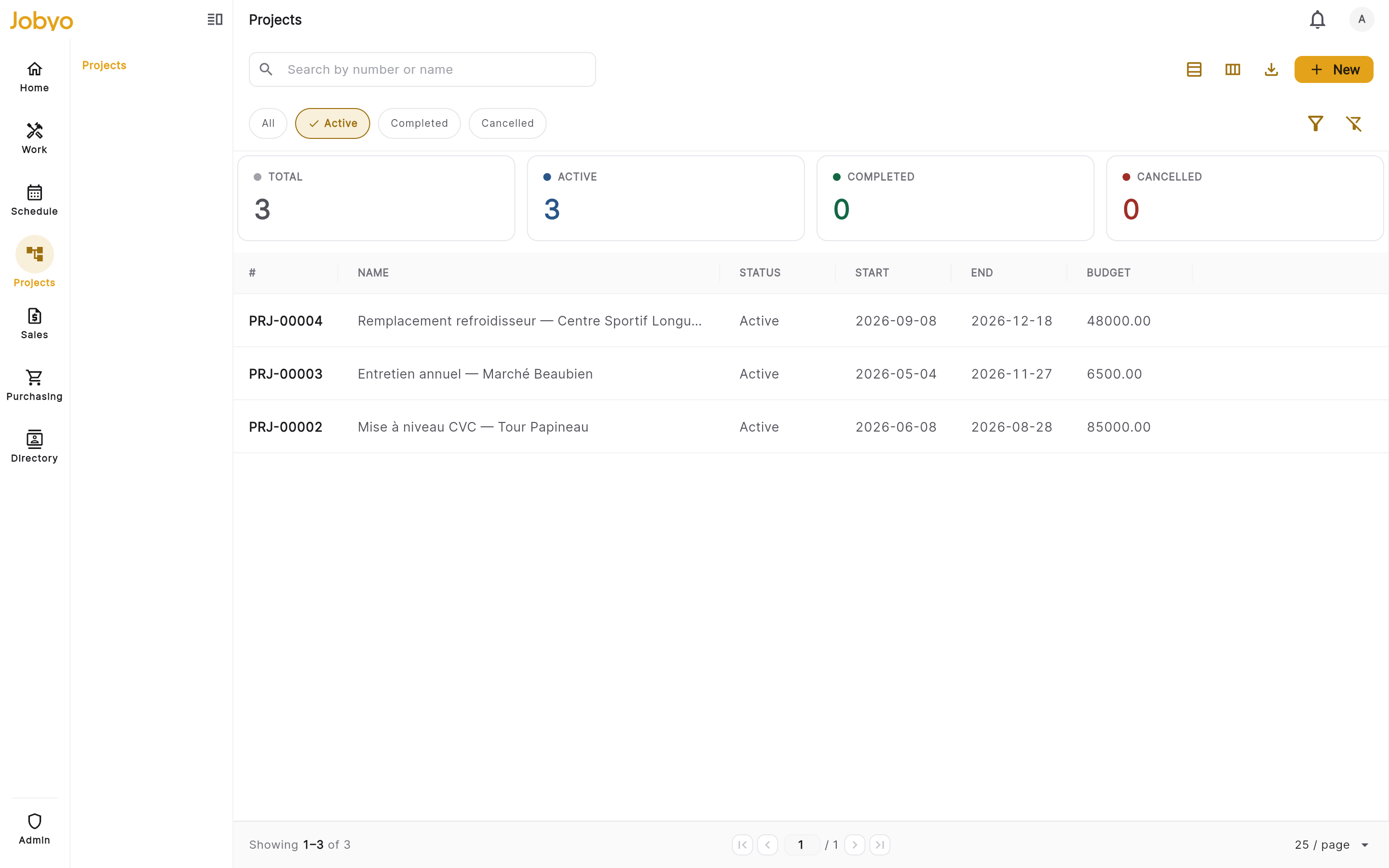
Projects list — grouped by status, with filter and search Create a project
Select New project and fill in the form. The project name is the only required field; the worksite, description, start and end dates, the budget estimate, and an optional quotation reference are all optional and can be added later.
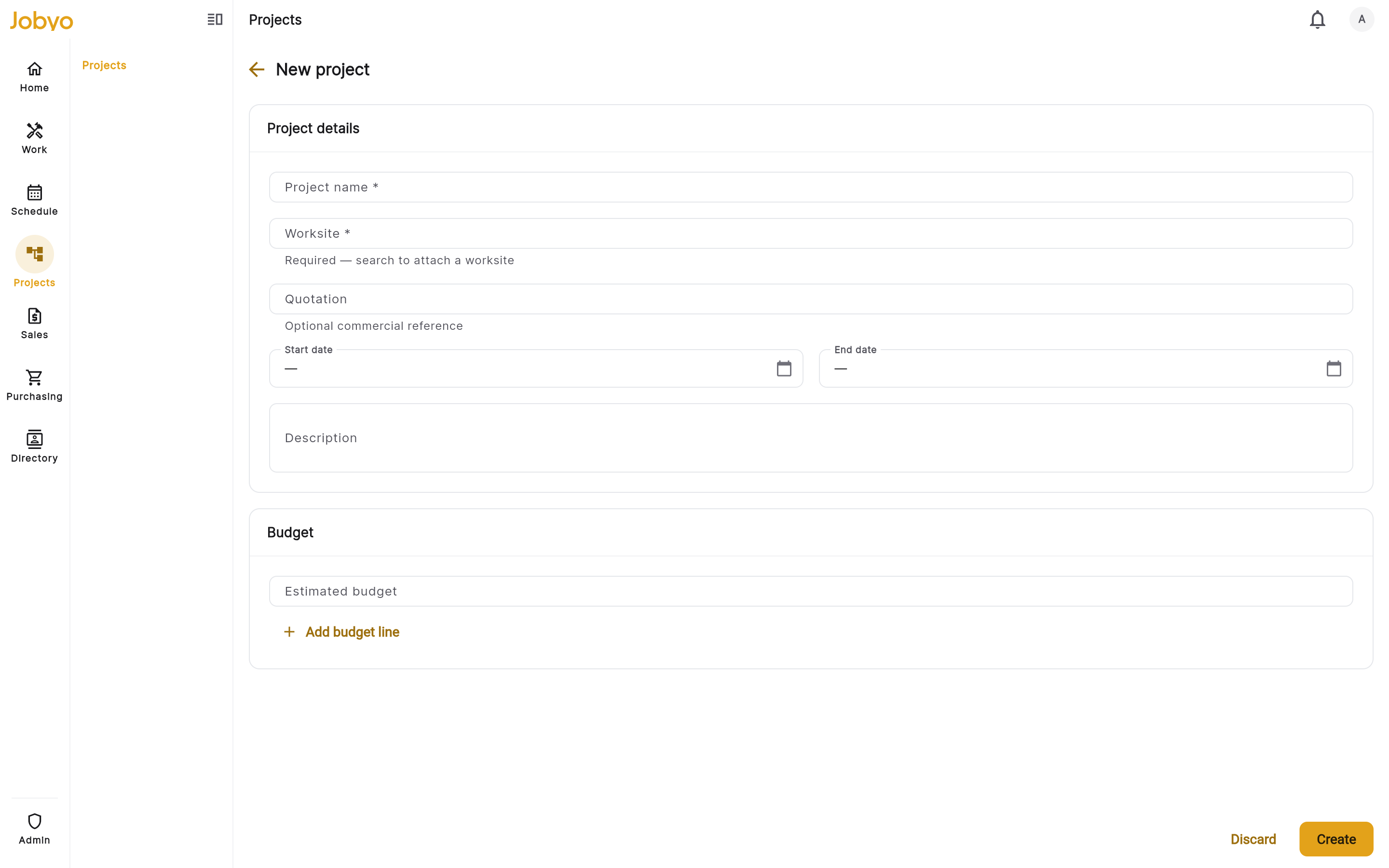
New project form — only the project name is required Save
Save the form. Jobyo mints the next project number (e.g. PRJ-00001) and sets the status to Active. The project opens on its workspace, ready to plan.
Plan and execute
Break the project into phases on the Plan tab, add tasks and work orders underneath, and — when the scope is agreed — publish a baseline to freeze the plan as a reference point. Cost and billing fill in as the work happens.
Key concepts
Status lifecycle
A project is Active, Completed, or Cancelled. Active projects can be marked Completed or Cancelled; both terminal statuses can be reopened back to Active. You cannot move directly between Completed and Cancelled — reopen to Active first, then move to the other. Completing or cancelling is blocked while any work order under the project is still open.
Phases
Phases split a project into stages (for example Foundation, Framing, Fit-out). Project managers can add, edit, and reorder phases; only administrators can delete them. Full steps live in Project planning.
Baselines
A baseline is a permanent, immutable snapshot of the plan at a moment in time. Once published it can't be edited or deleted — if the plan changes, you publish a new version with a different name. Baselines are what the variance report on the Cost tab compares actual spend against.
Jobyo's back end can build a draft project straight from an accepted quotation — but there's no button for it in the current release. The Quotation field on the project form is a reference label only; it doesn't pull anything across. For now, create the project manually and enter the quotation number for the link. See Quotations.
Who can do what
Projects are governed by role, so what you see depends on your permissions:
- Project managers / Ops can create and edit projects, manage phases, change status, and publish baselines — but cannot delete projects or phases.
- Administrators can do everything a project manager can, plus delete projects and phases and view soft-deleted records.
- Technicians can look up projects (to link their work) but don't manage them.
Deleting a project is a soft delete — it's hidden, not erased — and it's blocked if the project still has open work orders or posted cost records. See Roles overview.