Your profile & settings
Your profile is how your name and contact details appear to everyone else in Jobyo. Your personal settings — theme, accent colour, language, Home shortcuts, and saved list views — change how the app looks and works for you alone. Both live in My Account, and neither affects your colleagues.
Who uses this
Everyone. Every signed-in user has their own profile and their own settings — there's nothing to unlock and no permission to request. This page is about your record. Changing other people's profiles, roles, or teams is a separate, admin-only surface covered in Users & roles.
What you'll need
- To be signed in. That's the only requirement for everything on this page.
- Nothing else — no plan, no special permission. Your profile and settings are always available to you.
View and edit your profile
Your profile carries your display name, phone number, photo, and email. You can edit the first three yourself; email and the admin-managed fields are read-only for you (see What only an admin can change).
Open My Account
Tap your avatar or name in the top corner of the app to open My Account, then open the My Profile section.
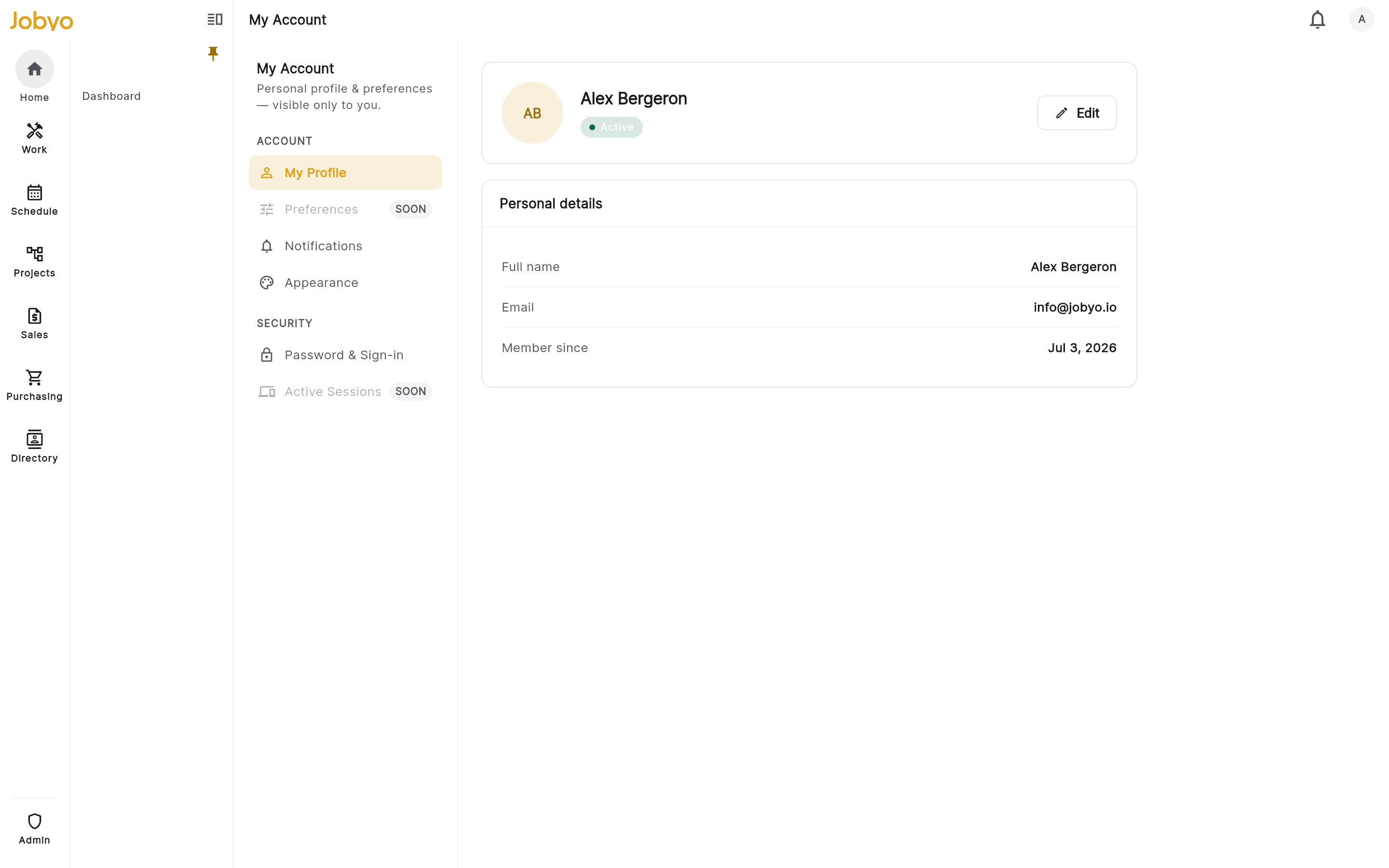
My Account — My Profile section (display name, phone, email) Switch to edit
Select Edit on the profile section. The form lets you change your display name and phone number.
Update your details
Change your display name and/or phone number. Both are free text and optional — but leaving the display name completely empty is what usually blocks a save.
Save
Select Save. Your new name flows through the app — task assignments, work order records, and the dashboard greeting — the next time each screen refreshes.
Your profile has space for a photo, but there's currently no in-app way to upload one — the camera/file picker hasn't shipped. If a photo is already stored on your profile it's shown as your avatar; otherwise your initials are shown instead.
Password & Sign-in
Your sign-in email is shown (read-only) in the Password & Sign-in section of My Account, alongside a Reset password button — tap it and Jobyo emails a password-reset link to your sign-in address. There's no way to change the sign-in address itself from here; see below.
What only an admin can change
These fields are on your profile but are read-only for you. If any need updating, ask an administrator:
- Email — an administrator can update the email shown on your profile, but that does not change the address you actually sign in with. Changing your sign-in identity itself isn't possible in the app yet (use Reset password above if you just need to recover access).
- Job title and department — admin-managed profile fields.
- Security role — the permission set assigned to you.
- Team membership — the team(s) you belong to.
- Labor cost profile — used for job costing.
Editing your own profile is limited to display name, phone, and photo. If the form ever complains about a field you didn't change (such as email), it's because that field can only be set by an admin — the app rejects the change rather than silently dropping it. Ask an administrator to make it.
Personalise the app (Appearance)
Appearance settings change how Jobyo looks and reads for you. They're saved to your account and follow you to every device you sign in on.
Open the Appearance settings
From My Account, open the Appearance section.
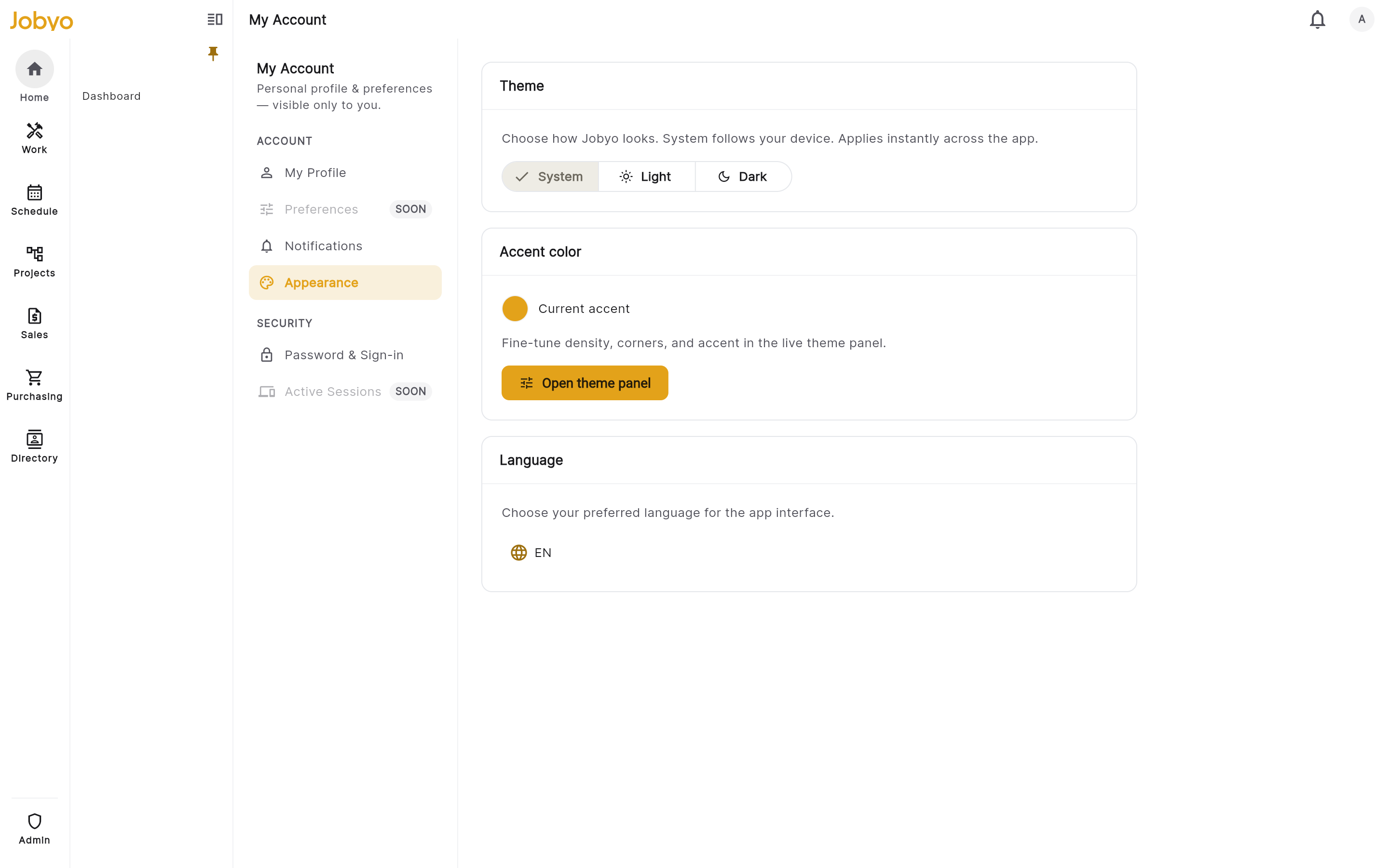
My Account — Appearance (theme, accent colour, language, side-nav) Choose a theme
Under Theme, pick one:
- System — follow your device's light/dark setting. This is the default.
- Light — always the light look.
- Dark — always the dark look.
The change applies across the whole app straight away.
Pick an accent colour
The accent colour (also called the primary colour) is used on buttons, active states, and highlighted controls. Choose a colour and the app repaints those elements immediately.
Set the display language
Choose your preferred language. This changes the app's own labels and menus only — it doesn't translate your company's data (job descriptions, notes, and so on).
Collapse the side navigation (desktop)
Toggle Collapse side navigation to shrink the left panel to an icon bar and free up space. This only has a visible effect on desktop and larger tablet layouts; on a phone the navigation is a bottom bar or drawer and the setting is ignored.
Home shortcuts
Your Home screen can hold up to 12 shortcuts to the screens and actions you use most. When you first sign in, Jobyo suggests a starter set — those are just defaults and aren't saved until you make your own change.
- Pin a shortcut from the Home screen's edit/customise mode. Only shortcuts for parts of Jobyo your role can access appear in the picker.
- Reorder by dragging tiles in edit mode.
- Remove a shortcut to unpin it — this doesn't delete anything, and you can add it back anytime.
If a pinned shortcut is hidden or greyed out after syncing to another device, your role or permissions changed since you pinned it. The shortcut is still saved, but Jobyo hides ones you can no longer access. Ask an administrator if that seems wrong.
There's no single "reset to defaults" button — once you've saved your own shortcuts, Jobyo won't re-apply the original set automatically. To get a default back, add it again from the picker.
Saved list views
On most list screens — Work Orders, Tasks, Projects, and others — you can choose which columns are visible, apply filters and a sort order, and save that layout as a named view that reloads next time.
- Column choices and saved views are remembered per screen — changing the Work Orders list doesn't touch the Tasks list.
- Each screen can hold up to 20 saved views; each view name can be up to 200 characters.
- Some screens also let you toggle between a list and a tile/grid layout. That choice is remembered per screen and per device size, so your phone and tablet can each keep their own preferred layout.
How your settings sync
Your profile and settings live in your Jobyo account, not just on one device.
- Sign in anywhere and your theme, shortcuts, and saved views are already there.
- Change something on your phone and it shows on your desktop within moments.
- Offline: the app keeps your latest choices locally and works normally, then uploads them automatically once you're back online.
If you edit the same setting on two devices at the exact same moment, the last save wins — one set of changes overwrites the other. It's uncommon in everyday use, but if your shortcuts or view suddenly look off, just re-apply them on the device you're using now.
Your settings belong to your account within one company's workspace. If you also belong to a different company on Jobyo, that workspace keeps its own separate profile and settings for you.
If it doesn't work
- Save is greyed outCheck you haven't left the display name completely empty, then save again.
- Error about a field you didn't changeThat field (e.g. email, job title, role, or team) is admin-only. Ask an administrator to change it for you.
- Can't change your emailYou can't edit it yourself, and nobody can change your sign-in address in the app yet — an admin can update the email shown on your profile, but that's separate from what you sign in with. Use Reset password in Password & Sign-in if you need to recover access.
- No way to upload a photoPhoto upload isn't in the app yet. The field exists but the upload control hasn't shipped.
- A pinned shortcut vanished on another deviceYour permissions changed and Jobyo hid a shortcut you can no longer access. It's still saved; contact an admin if that's unexpected.
- Side-nav toggle does nothingCollapsing the side navigation only affects desktop and larger tablet layouts — on a phone it has no visible effect.