Signing in & your dashboard
Jobyo opens on the Home board — a single dashboard that pulls together open tasks, today's work orders, follow-ups, and financial summaries, each one filtered to exactly what your role permits. Here's how to sign in and read what you land on.
Who this is for
Everyone. The Home board adapts to your role: a field technician sees today's worklists and their timesheet, while an owner or ops manager sees financial rollups. Nobody has to configure anything to get a useful board — it's built from your permissions.
Sign in
Open Jobyo
Go to the app. The sign-in screen shows a Log in tab and a Create account tab.
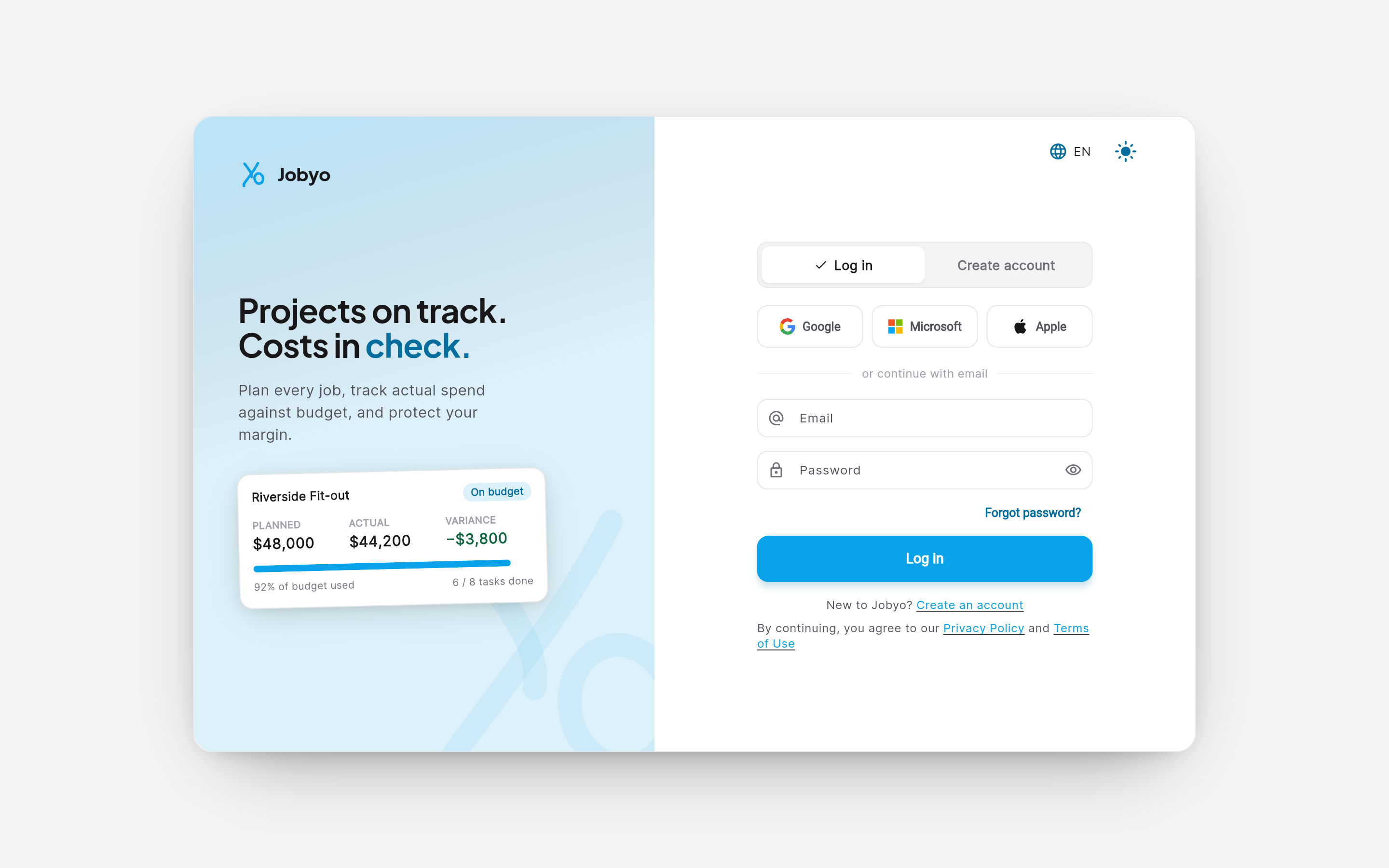
Sign-in screen — Log in / Create account tabs, social providers, email and password Choose how you sign in
Sign in with your email and password, or use a social provider — Google, Microsoft, or Apple. Use whichever your account was set up with.
Forgot your password?
On the Log in tab, select Forgot password? to start a reset. If your company signs in with a social provider, use that button instead of the password field.
Land on Home
After signing in you arrive on the Home board. It greets you by name (or by your role while your name is still loading — for example "Good morning, Company Owner") and shows today's date.
If you don't have an account yet, use Create account and enter a display name, email, and password. Joining an existing company instead is covered under Join requests.
What you see on the Home board
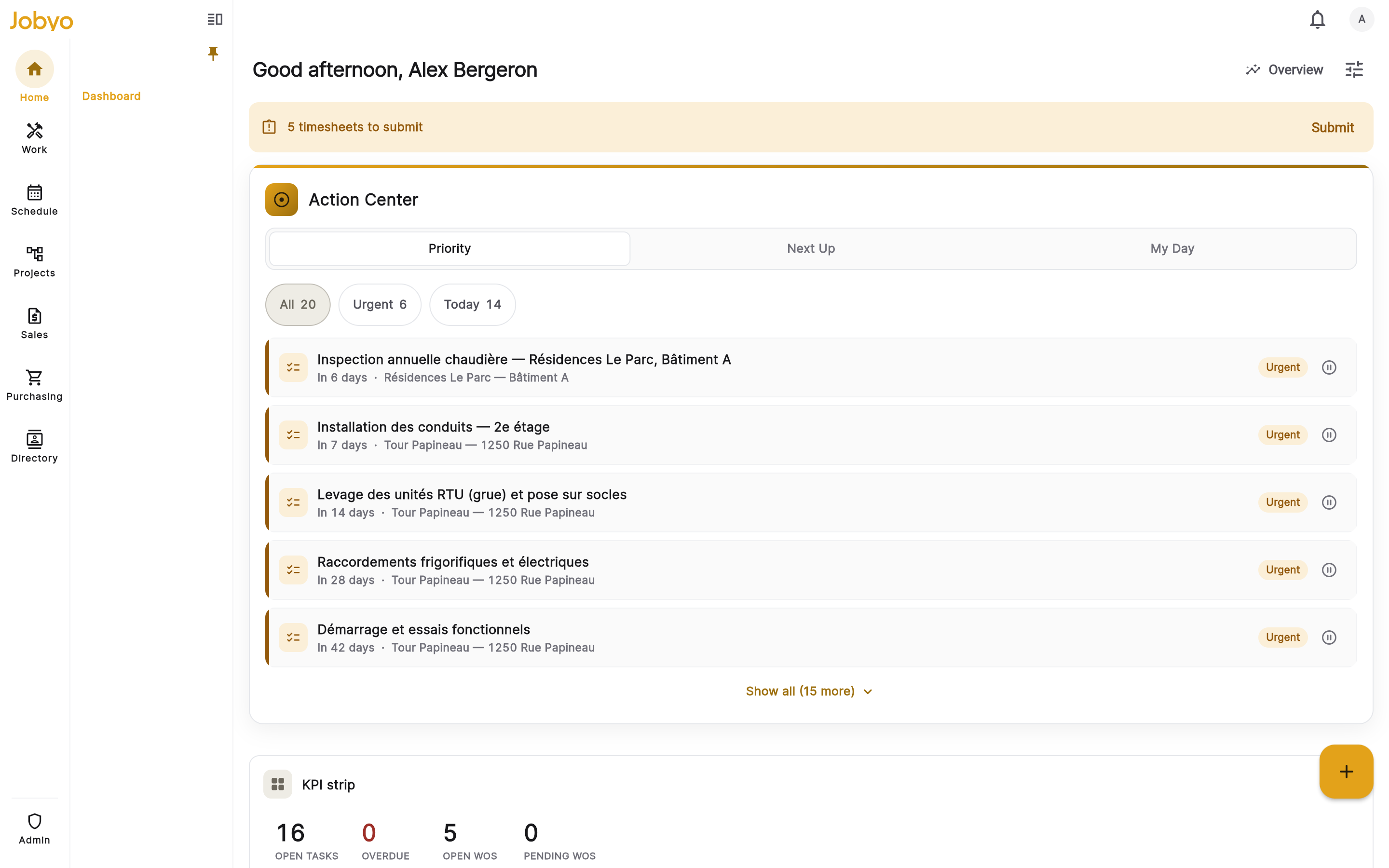
The board is laid out top to bottom:
- The Action Center — always first, full-width, and pinned. It answers "what needs me right now?" by combining your open tasks, today's work orders, and follow-up items into one prioritised stream.
- A grid of widgets below it — worklists and summaries chosen for your role and your own saved layout.
- Navigation — a bottom bar on mobile, a side rail on tablet and desktop.
A slim strip can appear at the very top when it's relevant: if you're currently checked in, an "On the clock" strip shows a running timer; if you have an unsubmitted timesheet from an earlier day, a nudge strip offers a Submit shortcut. When neither applies, the top of the screen stays clean.
Widgets are gated to your role
Widgets you don't have permission for are simply not shown — there are no greyed-out tiles, "access denied" messages, or locked placeholders. If a widget isn't on your board, your role doesn't include that type of information. That's normal. If you believe something is missing that you should have, ask an administrator to review your role.
Depending on your permissions, your board can include:
| Widget | What it shows | Roughly who sees it |
|---|---|---|
| Action Center | Open tasks, today's work orders, and follow-ups in one prioritised stream | Anyone with task or work-order access |
| KPI strip | Compact counts — open/overdue tasks, open/pending work orders, open projects | Anyone with task, work-order, or project access |
| My Tasks | Your assigned tasks, sorted by priority | Task viewers |
| Today's Work Orders | Work orders scheduled or assigned for today | Work-order viewers |
| Follow-ups (Job Feeds) | Feed and recommendation items on your jobs | Feed viewers |
| My Timesheet | Your clock state and hours logged today | Anyone with attendance access |
| My Schedule | Your scheduled stops in time order | Anyone with attendance access (scheduling view) |
| Approvals Inbox | Items waiting for your approval (timesheets first) | Approvers |
| Team Capacity | How booked the team is over the coming days | Schedulers, supervisors, ops |
| Service Requests | New requests waiting to be triaged | Service-request viewers |
| Project Health | Spend vs budget and margin across active projects | Project viewers at company level |
| Unbilled | Completed work not yet invoiced | Invoice viewers at company level |
| Purchase Invoices | Supplier invoices awaiting verification | Purchase-invoice viewers |
| Owner / Stakeholder Overview | Company-wide financial rollups (a separate screen) | Company-scope owners |
Project Health and the Owner / Stakeholder Overview show company-wide financials, so they appear only for viewers whose access is company-level. If your access is limited to your own or your team's work, these are hidden by design — not a fault.
There's no "Quotations Pending" widget in the app's widget catalog today — it isn't on any board and can't be added from the widget picker, even though the backend can already compute the figures. To see quotations waiting for a decision, open the Quotations screen directly, or — if you have owner-level access — check the quotes block on the Owner / Stakeholder Overview (open quotation value, count, and win rate).
Move around from the board
The Home board is a starting point, not a copy of every module.
- Drill in — tap a widget row or its call-to-action to open the full screen for that item. My Tasks opens a task, Today's Work Orders opens a work order, "Review pending" opens Work Orders with a pending filter.
- Quick-create — a floating + button (above the bottom bar on mobile, in the side rail on desktop) opens a menu of actions your role permits: check in, log time, new task, new work order, new service request. Each entry appears only if you have the matching permission — Check in just needs attendance access, while the others need their module's create permission (for example, attendance create access for Log time).
Your layout is saved per user. Use the edit (pencil) control to reorder or remove widgets, and the Add widget tile at the end of the grid to add ones your role permits. The Action Center is always pinned to the top and can't be removed. Reset to your role's default at any time from edit mode.
If something looks off
- A widget I expected isn't thereYour role may not include it, or you removed it. If it isn't in the Add-widget picker either, it's a permissions matter — ask an administrator.
- Financial figures show zeroThese reflect time, materials, expenses, and invoices actually recorded. A quiet period or brand-new account with nothing logged yet reads zero, and fills in as work is recorded.
- A widget shows an error with RetryIt took too long to load. Tap Retry; if it keeps failing, contact support. This is different from a permission-hidden widget, which never shows an error.
- No Owner Overview optionYou don't have the company-level permissions it requires. It's intentionally restricted so company-wide finances aren't exposed to narrower roles.