Create and send sales invoices
A sales invoice is the document you bill a customer with. Build it from scratch, from a closed work order's costs, or as one consolidated project bill — it starts as an editable draft, then you send it to assign the official number and lock it for good.
When you'd do this
Raise an invoice when there's work to bill for — a completed job, a consulting fee, a set of parts, or a whole project's worth of activity. Jobyo keeps the invoice linked to its customer, source work order, and project so the record stays traceable for reporting.
What you'll need
- Permission to create sales invoices (
saleInvoices.create). If you can't see the New invoice button, your role doesn't include it — ask an administrator. - An active customer to bill. Their billing details are captured onto the invoice at creation and frozen from then on.
- For a work-order or project bill: a closed, billable work order (or a project whose worksite has an active customer).
The ways to create an invoice
| Start from | Use it when | Where you begin |
|---|---|---|
| Manual draft | Billing something not tied to a work order — a fee, a one-off supply, any custom charge | New invoice in the invoice list |
| A work order | A single closed, standalone job is ready to bill | Create invoice on the work order |
| A whole project, phase, or set of work orders | Consolidating many jobs into one customer bill | The project's Invoicing tab → Bill this project — see Project invoicing |
| An accepted quotation | Turning a won quote into a bill | Not yet a button in the app — see the note below |
The back end can convert an accepted quotation into a draft, but no in-app trigger exists in the current release. To bill an accepted quote today, create a manual draft for the same customer and type the quote number into the invoice's Quotation (reference) field. That links the records for traceability — it does not copy the quote's lines, so you still enter them yourself.
Create a manual invoice
Open the New invoice form
From Customer Invoices, select New invoice. The list shows every invoice for your company — each row carries its number (a dash while still a draft), customer, status badge (Draft or Sent), total, and due date.
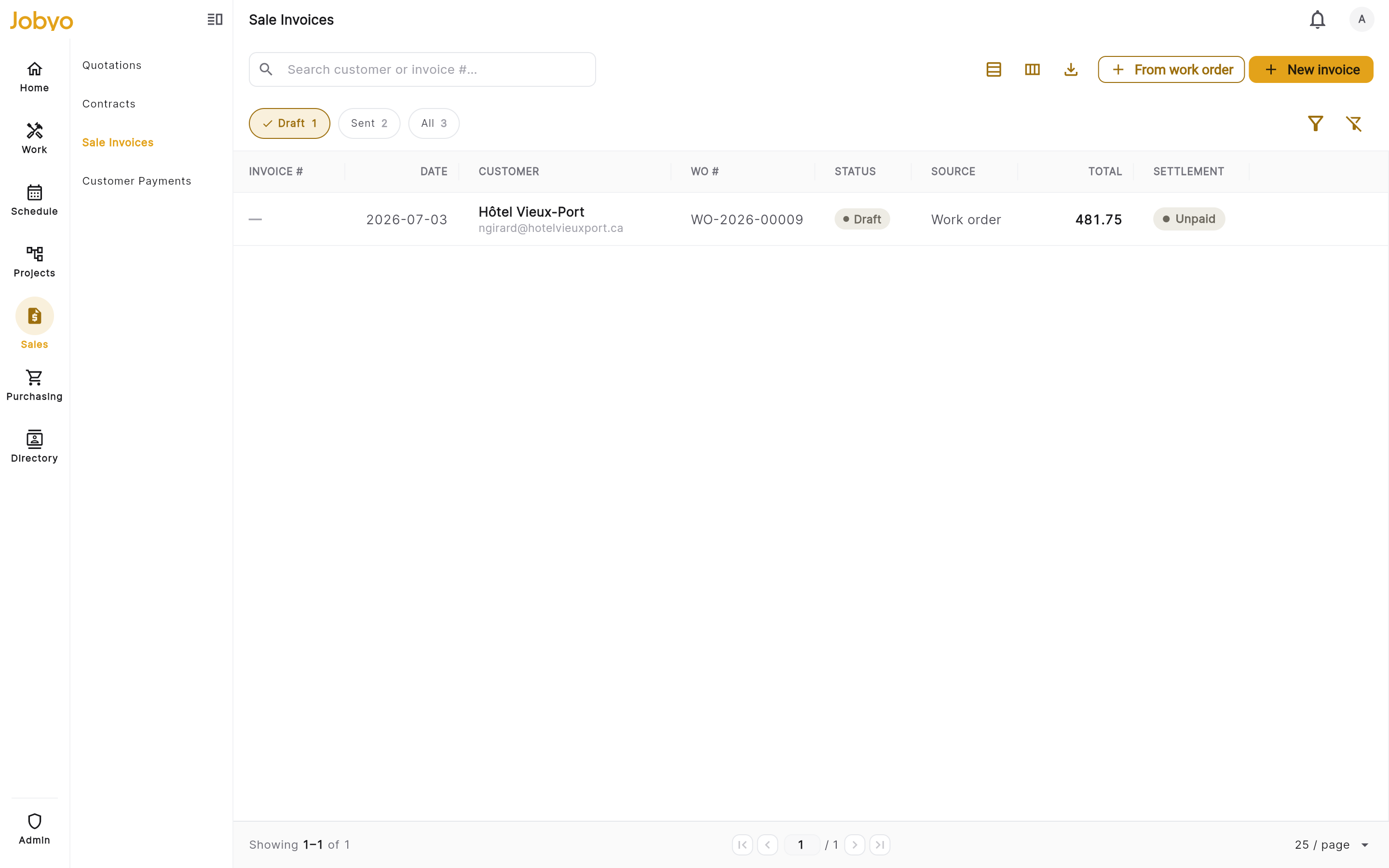
Invoices list — "New invoice" button Fill in the header
Pick the customer (required — an active one). Optionally set the invoice date, due date, a tax profile (leave blank to use the company default), terms, and notes. You can also link a project / phase / task for reporting; that's a reference label only.
Add line items
Add at least one line. Each needs a description, a quantity (0 or more), and a unit price (0 or more). Optionally add a discount (a percent — 100 or under — or a fixed amount) and toggle taxable off for an exempt line. Use Add line for more; the delete icon removes one.
Totals are an estimate until you sendJobyo shows a running subtotal and tax as you type, but the server recomputes the final totals — and the tax — at the moment you send. The draft figures are a preview.
Save the draft
Select Save draft. The invoice appears in the list with a Draft badge and no number yet — the official invoice number is minted only when you send.
Invoice a closed work order
This one starts from the work order, not the invoice list.
Open the closed work order
The work order must be closed, standalone (not part of a group-billing project), and set to billable — its billing status shows Pending invoice.
Select Create invoice
Jobyo builds a draft from the costs recorded on that job — each eligible cost entry becomes a line. The work order's billing status moves to Draft invoice while the draft is open.
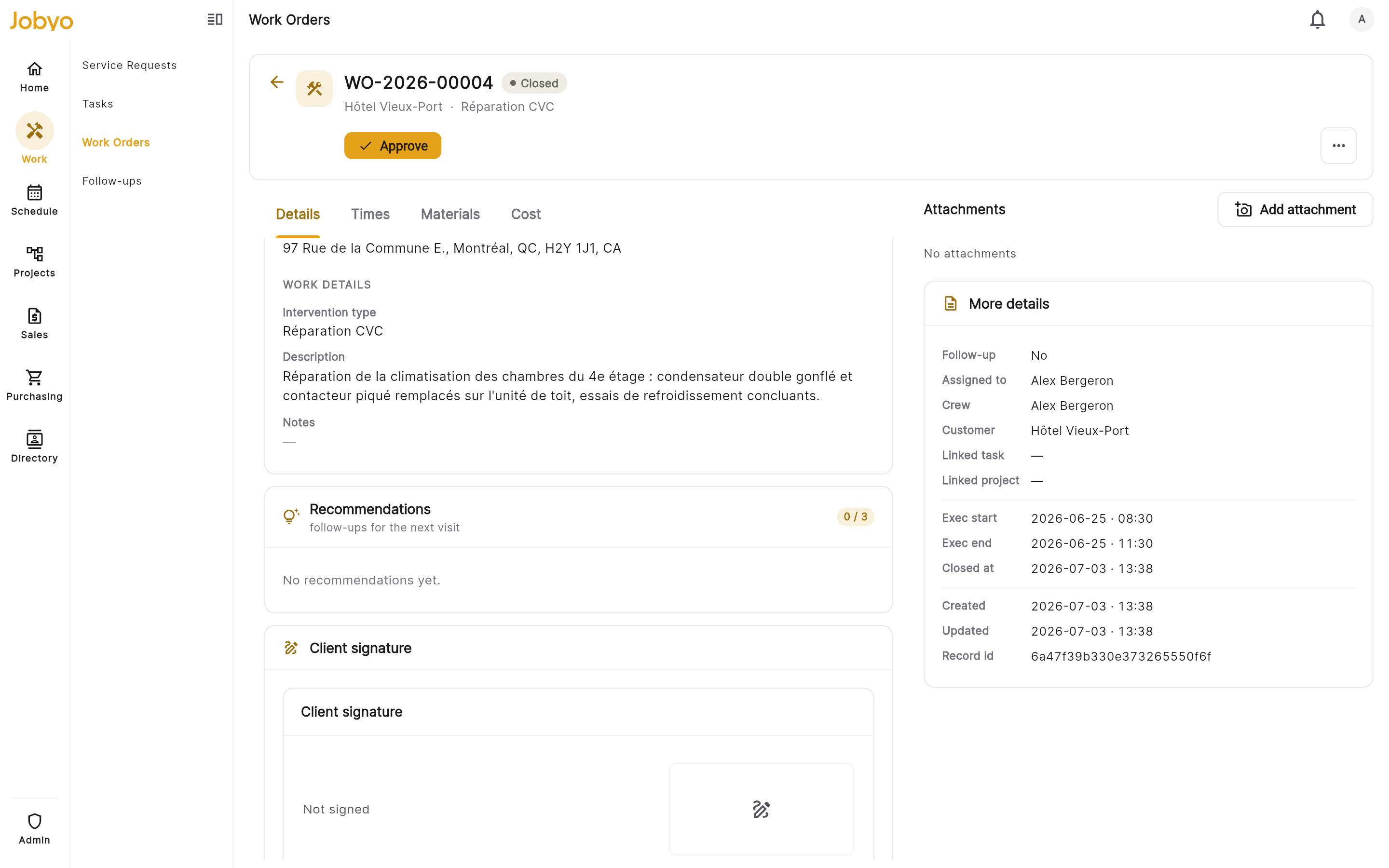
Closed work order — "Create invoice" action Label the lines and send
Work-order lines arrive without a customer-facing name, so open Edit and label each one before sending. When you send, the job's billing status becomes Invoiced.
If the job has no recorded costs yet you'll see "Nothing to invoice on this work order yet" — add costs and try later. If it doesn't meet the billing criteria (already invoiced, or not billable) you'll see "This work order isn't eligible for invoicing" — check its billing settings.
Bill a whole project (group billing)
Group billing consolidates the unbilled cost of many closed work orders — plus any project-level cost not tied to a specific work order — into one draft. Everything runs from one place: open the project's Invoicing tab and select Bill this project to open the Pre-Bill Review panel. There you pick the scope — the whole project, a single phase (progress billing), an explicit set of work orders, or hand-picked individual line items — and see what's unbilled versus already billed, broken down by phase and by work order, before you commit.
Two scope rules worth knowing: project-level costs not attached to any work order bill only with the whole project — a phase bill never includes them — and a partially billed work order stays billable: it remains available for future billing runs until its last cost entry has been consumed by an invoice.
The bill-to customer is the customer on the project's worksite. If none can be resolved, billing is blocked until you set one.
The whole project-billing flow — pre-bill review, whole-project / phase / selected-work-order billing, and the "nothing to bill" states — is covered on its own page. See Project invoicing.
Edit a draft, then control what prints
While an invoice is a draft you can open Edit to relabel lines, adjust prices/quantities/discounts, add extra manual lines (an admin fee, a call-out charge), remove lines, and update dates and notes. Changing a sell price only changes what you charge — it never touches the underlying cost records.
You also control how the PDF reads:
- Show on invoice (per line) — hide a line from the customer's PDF while it still counts toward the total.
- Document display mode — Itemized prints each shown line plus the total; Summary prints one labelled catch-all line plus the total. In summary mode fill in the Summary label (e.g. "Work order #123 — Services").
Most current work orders don't yet have a printed work-order number, so the PDF falls back to your Summary label rather than an automatic "WO #" reference. Give it a descriptive label so the customer can identify the work. Display settings, like all invoice content, freeze when you send.
Send the invoice
Review one last time
Open the draft, check the lines, totals, and display settings. Remember: totals and tax are recomputed fresh at send from live company preferences.
Select Send
Jobyo assigns the official invoice number, recomputes and freezes the totals and tax snapshot, and (for a work-order bill) marks the source job Invoiced. The invoice is now immutable.
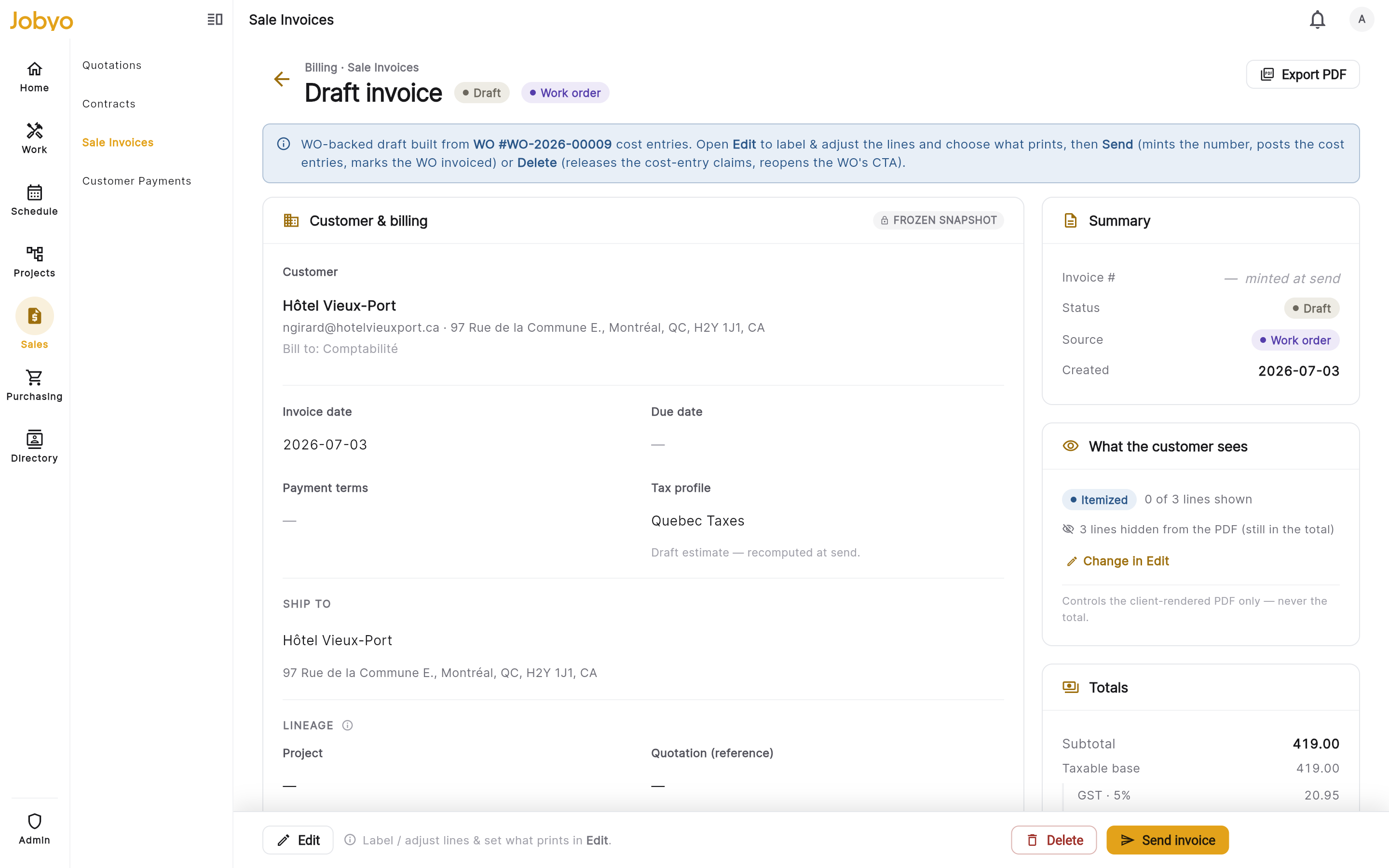
Draft invoice — Send action
Lifecycle is Draft → Sent, full stop. There is no void, reverse, or credit-note path — a sent invoice is permanent. Only draft invoices can be edited or deleted, and deleting is Owner/Administrator only.
Payment status and export
- Payment status is read-only here. The settlement card shows paid amount, remaining balance, and last-payment date, but you record payments in Customer Payments — once recorded there, they show up on the invoice automatically.
- The PDF is generated on your device. Use the export / share action on the detail screen (draft or sent) to save, email, or share it. The layout reflects the display settings at the time you export.
If it doesn't work
- No "New invoice" buttonYour role lacks create permission. An administrator can grant saleInvoices access under Users & roles.
- "Customer is required"Pick an active customer before saving. If the one you chose is inactive, choose another or ask an admin to reactivate it.
- "At least one line is required"Add a line with a description, quantity, and unit price before saving.
- "These costs are already on another draft invoice"A draft for this work order already exists. Filter the list by work order to find it, or have an admin delete it.
- "A work order invoice must keep at least one cost line"You removed all cost-backed lines. Keep one, or delete the draft and use a manual invoice instead.
- "Line removal is not supported for group invoices"Group invoice lines can't be removed one by one. Delete the draft and recreate it over just the work orders you want.
- "This invoice's tax profile is no longer active"The profile on the draft was deactivated since creation. Edit the draft, pick an active tax profile, then send again.
- "Sent invoices can't be changed"The invoice is already sent and is permanent — it can't be edited or deleted.
- "This work order must be approved before it can be invoiced"Your company has a setting requiring a work order to be approved before it can be invoiced — this applies to group/project bills too. Ask someone with the approve permission to approve the work order, then try again. Most companies don't have this setting on.