Check-in & attendance preferences
View
The Workforce category controls how attendance and time tracking behave for your company — whether technicians can enter time by hand, whether a manager approves timesheets, how time is rounded, and whether check-in is fenced to the worksite location.
What you'll need
- The Company preferences: modify permission — this is an administrator area.
- Your time-tracking policy: manual entry, approvals, rounding, overtime, and any location rules.
Configure attendance rules
Open Workforce
From the main menu, select Company Settings, then Workforce.
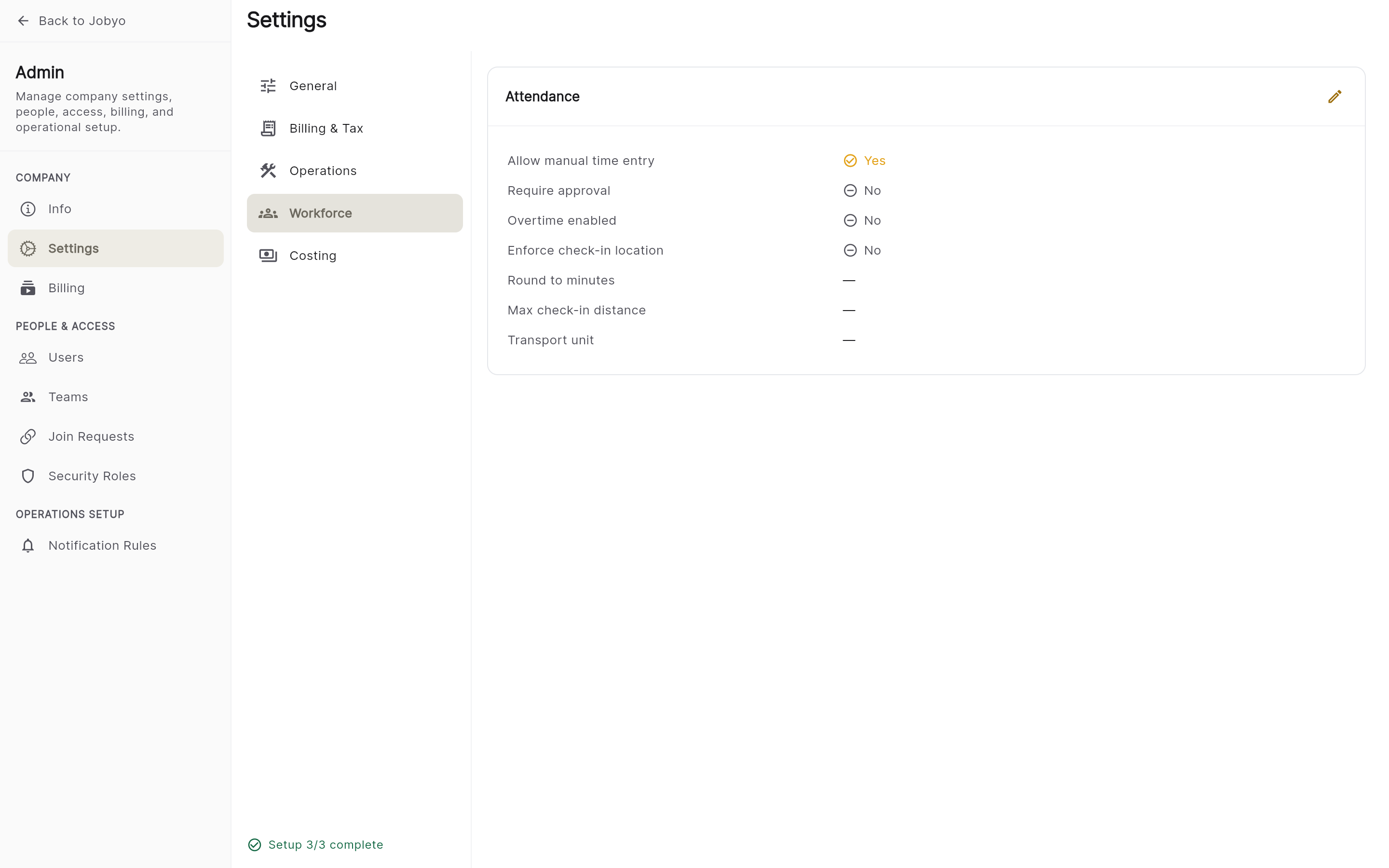
Workforce — attendance and time-tracking rules Set time-entry rules
- Allow manual time entry — when on, technicians can type their start and end times instead of using live check-in / check-out. On by default.
- Require approval — when on, timesheets must be reviewed and approved by a manager before they're final. Off by default.
Set rounding and overtime
- Round to minutes — enter a number (e.g. 15) to round recorded time to that interval. Leave blank for no rounding.
- Enable overtime — when on, time beyond standard hours is marked as overtime. Off by default.
Set the transport unit
- Transport unit — the unit for travel on cost records: minutes, km, miles, or per trip. Leave blank if you don't track transport costs.
Set location enforcement (geofencing)
- Enforce check-in location — when on, technicians must be within a set distance of the worksite to check in or out.
- Maximum check-in/out distance — the allowed radius in metres (e.g. 200). This applies only when location enforcement is on.
Save
Select Save. The rules take effect for subsequent time entries; already-submitted timesheets aren't changed.
Geofencing depends on the mobile app
Check-in location enforcement is applied by the technician's mobile app. If enforcement is on but technicians can still check in from anywhere, confirm with your implementation team that location checking is active in the app version they're running.
If it doesn't work
Common blocks & how to fix them
- No Workforce categoryYour role doesn't include the Company preferences permission. Ask an administrator.
- Location fence not enforcedConfirm "Enforce check-in location" is on, a maximum distance is set, and technicians are on an app version that supports location checking.
- Distance seems wrongThe maximum check-in/out distance is in metres, not kilometres or feet. Enter 200 for a 200 m radius.
- Rules did not apply to a timesheetChanges affect new time entries only. Already-submitted timesheets keep the rules that were in force when they were entered.