Job feed
The job feed is Jobyo's internal activity and recommendation log — where your team records what needs attention (observations, issues, follow-ups, alerts, recommendations), discusses each item in a comment thread, and turns a recommendation straight into a task. Here's how to use it.
What the feed is for
Every entry in the feed is a feed item. Each item has a type (what it is), an optional source (the job or place it relates to), a priority, and a status that tracks it from first raised through to resolved. Field work feeds it automatically: when a work order is saved with a recommendation, Jobyo creates a linked recommendation item. Feed items never block a work order from closing — a job can close with items still open, and they stay workable afterwards. What open items do block is deleting that work order: items still in Open or In review must be resolved before the work order can be deleted.
The feed shows up in two places:
- The standalone Feed screen — a top-level menu destination. Your "what needs my attention" inbox across the company (or across the items your access allows).
- Embedded feed panes — inside a work order, project, worksite, task, or equipment detail. These show only the items linked to that record.
The whole feed lives under one surface even though its address still reads "recommendations" internally. That base serves all item types — recommendations, notes, issues, alerts, follow-ups, and system items — not just recommendations. Only the Convert to task action is limited to recommendations.
Item types
| Type | What it means |
|---|---|
| Recommendation | A suggestion for future work at a site or on equipment. The only type that can be converted into a task. |
| Note | A general observation or piece of information worth recording. |
| Issue | A problem that was found and needs to be tracked. |
| Alert | Something that requires immediate attention. |
| Follow-up | A reminder to do something after a job. |
| System | Generated automatically by Jobyo (for example, when a work order is saved with a recommendation). You can't create system items yourself. |
What you'll need
- Permission to work with the feed — the feeds permission. Roles can carry list/view (browse and read), create (raise items), modify (edit, move through the lifecycle, comment, convert), and remove (delete an item).
- To convert a recommendation to a task, you also need permission to create tasks — this is a separate permission on top of feed modify access.
- The feed is not on a plan tier — there's no upgrade gate. Access is controlled entirely by your role.
If you open the feed and every action is refused — even ones you'd expect to have — your company's roles may need a one-time setup to switch the feeds permission on. This is an operator action, not something you can fix from the app. Ask your administrator.
Browse and filter
Open the feed
Select Feed from the main menu. The list opens newest-first. Each row shows the type chip, a title or body preview, a status chip, the priority (if set), the source (on the global list), and the assignee and age.
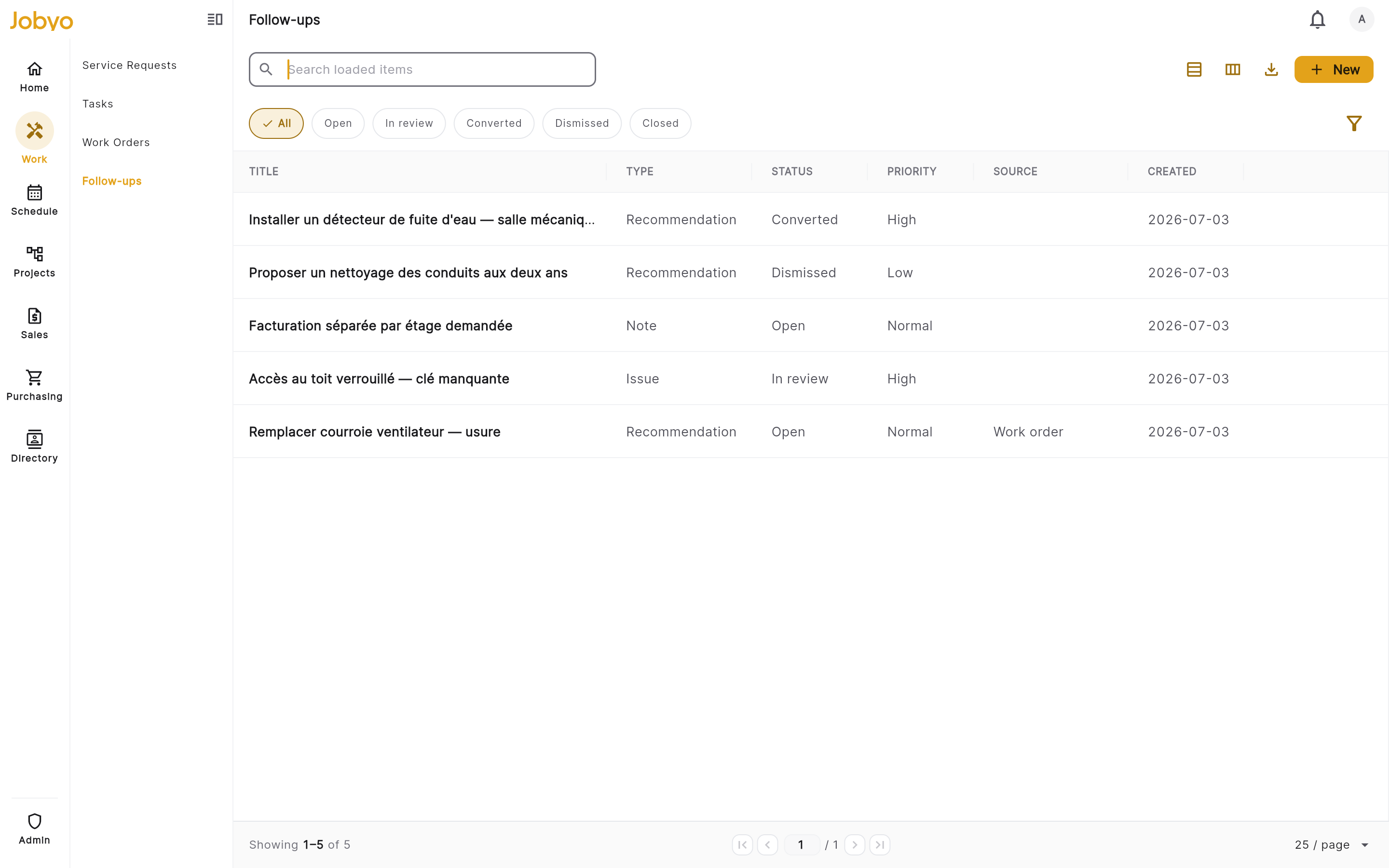
Feed list — type chips, status pills, priority, and the New button Narrow the list
Use the filter panel to filter by status (Open · In review · Converted · Dismissed · Closed), priority (Low · Normal · High · Urgent), assignee (including a "my items" shortcut), and source / context (the work order, project, worksite, task, or equipment the item is linked to).
Open an item
Tap any row to open its detail.
There's no server-side text search yet — the toolbar search only matches items already loaded on the current page, so narrow with the status and context filters first. You also can't filter by item type; the type chip is shown on each row, but use status or source filters to narrow instead.
Read an item
Open an item to see it in three sections:
- Details — type, title, full body, priority, assignee, due date, and status.
- Source — the linked work order, project, worksite, task, or equipment, with a deep link to open that record.
- Activity — the comment thread (see below).
Resolved items also show an audit section: dismissed items show who dismissed them and any reason; closed items show who closed them; converted items show a Converted to task link straight to the task that was created. Resolved items open read-only — the action buttons are hidden.
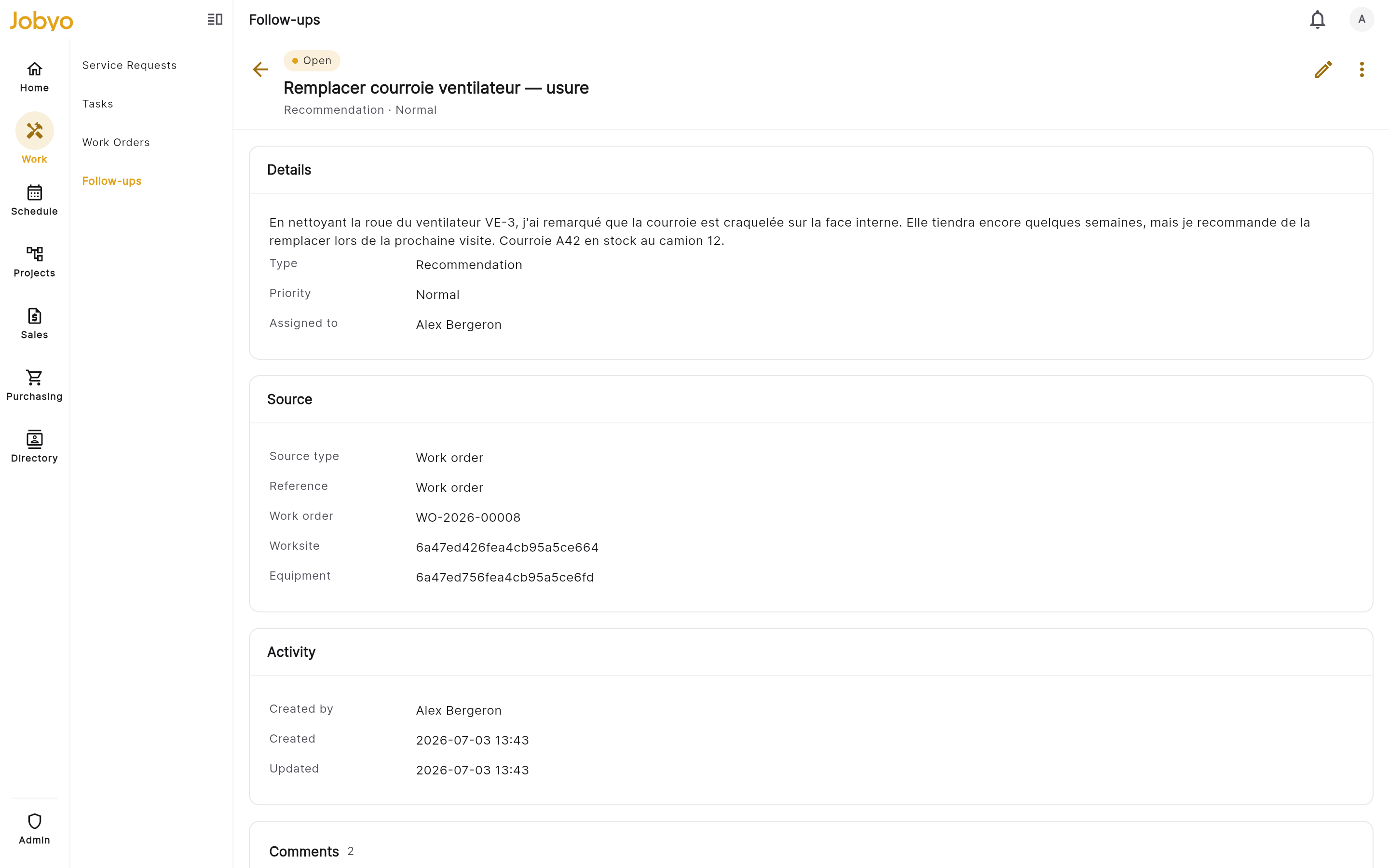
Who sees which items
What you see depends on your account scope:
- Company-wide scope — you see every feed item for your company.
- Restricted scope — you see only items you created yourself or that are assigned to you. A colleague's item that isn't assigned to anyone won't appear for you.
If your feed looks empty when you expect items, check with your admin whether your account has the scope you need.
Raise a new item
Start the item
To link the item to a specific job or place, open that work order, project, worksite, task, or equipment record first and select Add in its feed pane — the source is filled in for you. To raise a general item, open the standalone Feed screen and select New.
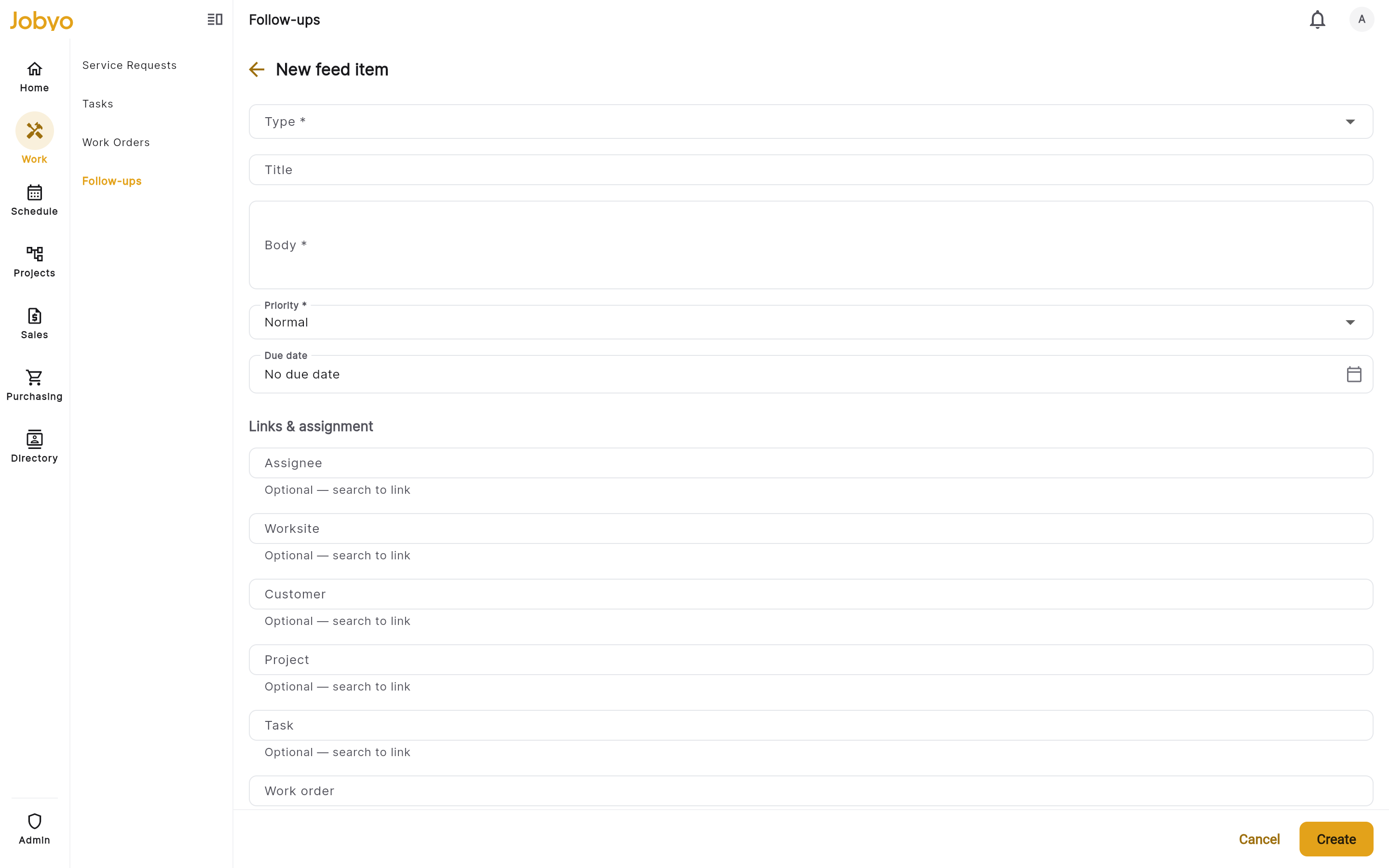
New feed item form — Type required, Source pre-filled when raised from a record Fill in the fields
Set the type (required — Recommendation, Note, Issue, Alert, or Follow-up; it can't be changed after saving). Then optionally add a title, a body (the main content — recommended), a priority, an assignee, and a due date. If you raised the item from the global feed, the source is empty; you can leave it blank or link a context record.
Save
Select Save. The item appears at the top of the feed with a status of Open. If you raised it from a work order, it also shows in that work order's feed pane.
You can't change an item's type or the source it was originally linked to after it's created — everything else stays editable while the item is open. Choose the type carefully, since only recommendations can later be converted to a task.
Edit an open item
Open the item and select Edit. You can update the title, body, priority, assignee, due date, and context links. Editing needs the modify permission, and the item must be Open or In review — resolved items (Dismissed, Closed, Converted) are locked and can't be edited.
Move an item through its lifecycle
Every item starts Open and moves forward only. The three resolved statuses are final — there's no reopen.
| From | Action | To |
|---|---|---|
| Open | Mark in review | In review |
| Open · In review | Dismiss (optional reason) | Dismissed (final) |
| Open · In review | Close | Closed (final) |
| Open · In review | Convert to task | Converted (final — recommendations only) |
- Mark in review signals the item is being looked at. You can still edit, dismiss, close, or convert it.
- Dismiss is for items that need no action (raised in error, already handled). You can add a reason, which is shown in the audit section.
- Close is for items that are fully resolved.
Dismiss and close are safe to repeat — re-issuing on an already-resolved item just confirms the current state.
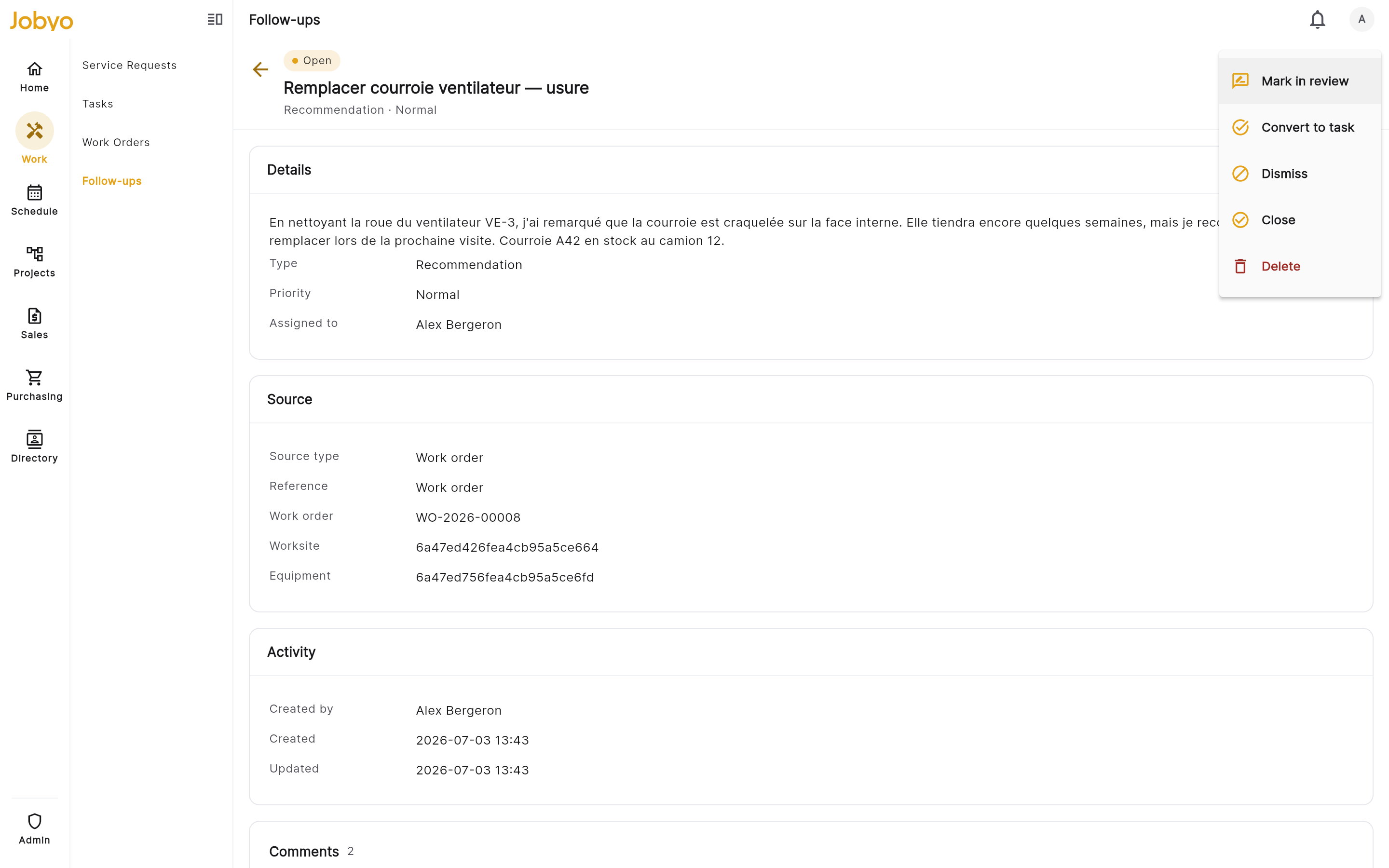
Dismissed, Closed, and Converted items can't be edited or moved to another status, and there's no reopen. You can still read them (including the full comment thread) and, with remove access, delete them. If work needs to continue on the same topic, raise a new item.
Convert a recommendation to a task
Open a recommendation
The Convert to task action only appears on Recommendation items that are Open or In review. It needs both modify access to the feed and permission to create tasks — if you have feed access but not task creation, the option won't show.
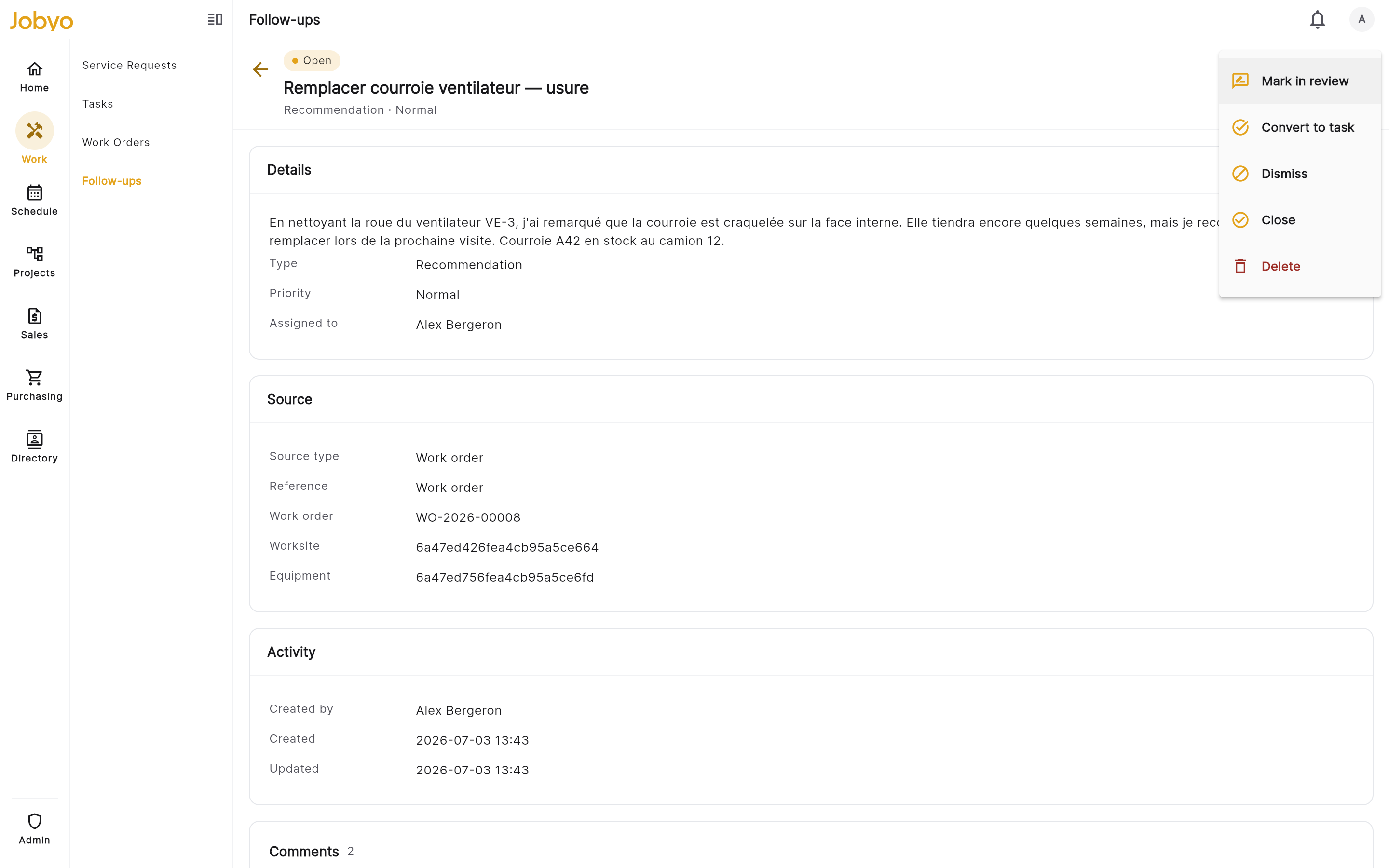
Recommendation detail — Convert to task in the header menu Confirm the conversion
Select Convert to task and review any details Jobyo pre-fills for the new task, then confirm. Jobyo creates the task first, then moves the recommendation to Converted.
Open the new task
A Converted to task link appears on the item — follow it to open the task, which is now live in the Tasks screen ready to schedule and assign.
If the task creation fails, the recommendation stays Open and no task is created — just try again. If the item was already converted (for example, a double-tap), Jobyo returns the existing task link rather than making a duplicate. Only recommendations can be converted, and only to a task — there's no feed-to-work-order conversion yet.
Comment on an item
Comments live in the Activity section and are visible to everyone who can view the item. Posting needs the modify permission — read-only users can read the thread but not add to it. Threads are one level deep: you can reply to a comment, but not to a reply.
Post a comment
Open the item, scroll to Activity, type in the composer at the bottom of the thread (up to 4,000 characters), and send. Your comment appears immediately with your name and the time.
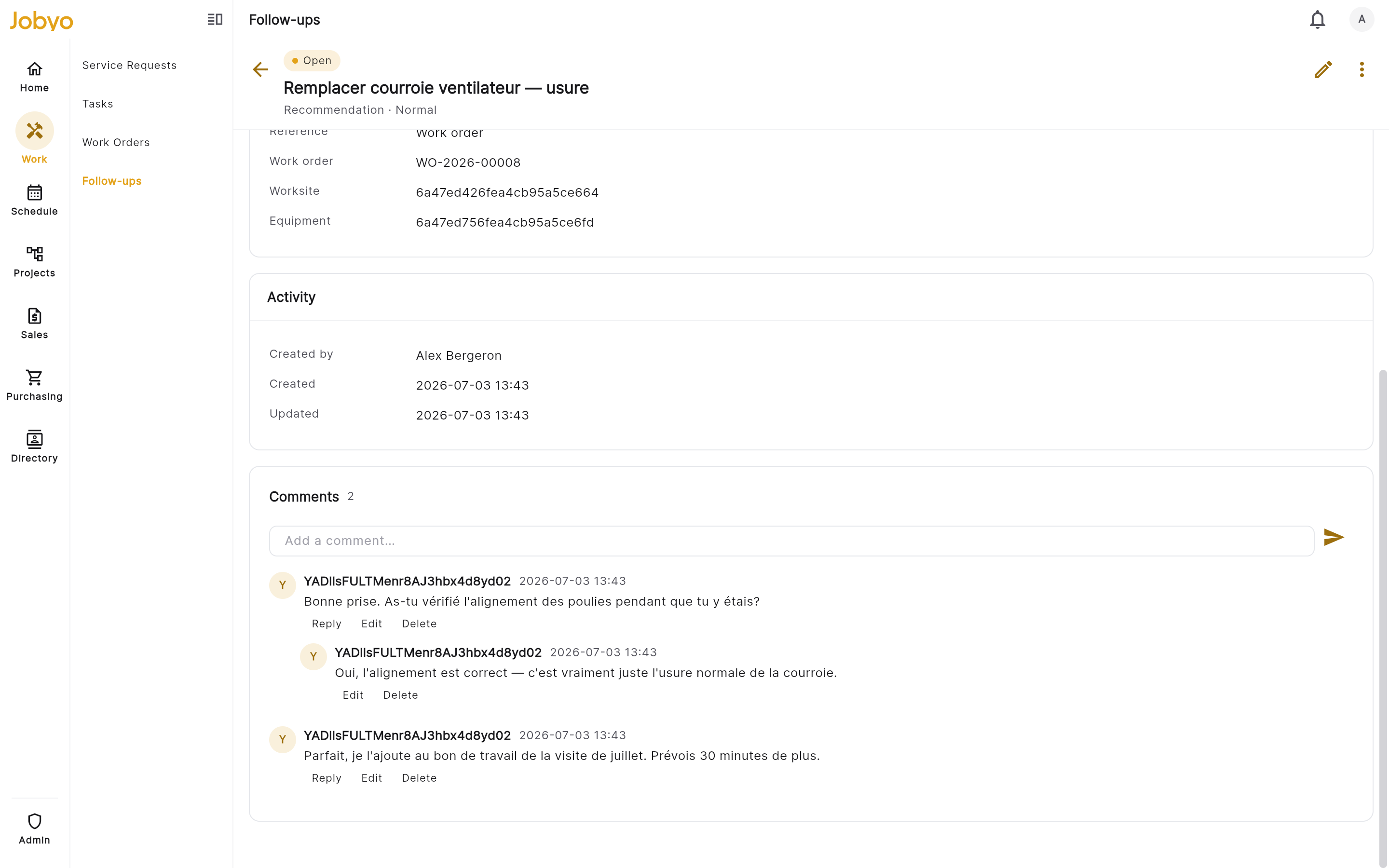
Activity section — comment thread with a reply and the composer Reply
Select Reply on a top-level comment, type, and send. Your reply nests under that comment.
Edit or delete your comment
Use Edit to correct the text (an "edited" marker appears next to the timestamp) or Delete to remove it from the thread.
Comment threads work on feed items only — there are no comment threads directly on work orders, tasks, or projects yet. Comments on resolved items stay readable, but the composer is hidden, so you can't add new comments to a resolved item.
Feed items on a work order
When a technician records a recommendation while saving a work order, Jobyo creates a Recommendation feed item linked to it, which also shows in the work order's Recommendations pane.
A work order can be closed even while it has Open or In review feed items linked to it — they stay open after the close and can still be worked and resolved. It's good practice to review them before closing so nothing important is left hanging, but Jobyo won't stop you. Deleting the work order is different: it's blocked until every linked item is resolved — dismiss them, close them, or convert them to tasks first. Items already Dismissed, Closed, or Converted never block anything.
Remove an item
Removing an item takes it out of the active feed. It needs the remove permission — typically admins only, so authors and operators can manage items but not delete them. Open the item, choose Remove from the header menu, and confirm. Remove is a soft-delete: the item is hidden from lists and filters but kept for audit, and it can't be undone from the app. You can remove even a resolved item — the lock on resolved items applies to editing and transitions, not to removal.
If it doesn't work
- Access denied on every actionYour company's roles may need the one-time feeds permission enabled. It's an operator step — ask your administrator.
- "Type is required"You saved without choosing a type. Pick Recommendation, Note, Issue, Alert, or Follow-up first.
- Edit is missing or greyed outThe item is resolved (Dismissed, Closed, or Converted). Resolved items are locked — raise a new item to continue the topic.
- No "Convert to task" optionEither the item isn't a recommendation, or you don't have permission to create tasks. Ask an administrator if you should have it.
- "Reply not allowed"You're replying to a reply. Threads go one level deep — reply on the top-level comment or start a new one.
- Action fails after someone else changed itThe item's status changed in another session (e.g. a colleague dismissed it). Refresh the item and check its current status.
Not available yet
- Convert a feed item to a work order — you can convert a recommendation to a task, but not to a work order.
- Reopen a resolved item — Dismissed, Closed, and Converted items are permanently locked; raise a new item instead.
- Filter the feed by item type — the type chip is shown per row, but you can't yet filter to a single type.
- Server-side text search — the toolbar search covers only the loaded page, not every item.
- Comment threads on work orders, tasks, and projects — comments work on feed items only.
- Notifications and unread badges — Jobyo doesn't yet notify you when an item is raised or assigned, and there's no unread count. Check the feed regularly and use the "my items" filter.