Scheduling & dispatch
The dispatch board shows who is booked across the days ahead, laid out as one lane per technician, so a coordinator can balance workload, assign or reschedule a task, and preview upcoming maintenance — with a soft overbooking check that warns before a day goes over capacity.
Who uses this
Scheduling is a coordinator surface. Anyone with the scheduling permission can open the board and read it — technicians included — but only roles with modify (ops managers and project managers in the default setup) can actually assign or reschedule. Without modify, the board opens in a View only mode: you can browse lanes, filter, and open Insights, but the dispatch actions are hidden.
The board is a view over your tasks and work orders. It owns no schedule of its own: every assign or reschedule you do here is written straight onto the underlying task. Work orders appear only as read-only context — you can't dispatch a work order from this screen.
What you'll need
- Permission to view scheduling to open and read the board and the Insights panel.
- Permission to modify scheduling to assign and reschedule tasks. Missing it shows the View only banner.
- Permission to create tasks to add a new task from the board, or to turn a forecast maintenance occurrence into a real task.
- Permission to create work orders to launch a work order from a task chip.
- No plan or package upgrade — scheduling isn't an entitlement-gated feature, so it's available on every tier your role can reach.
Read the board
Open Scheduling
Select Scheduling from the main menu. The board loads the current week by default, with work orders switched off so it leads with tasks.
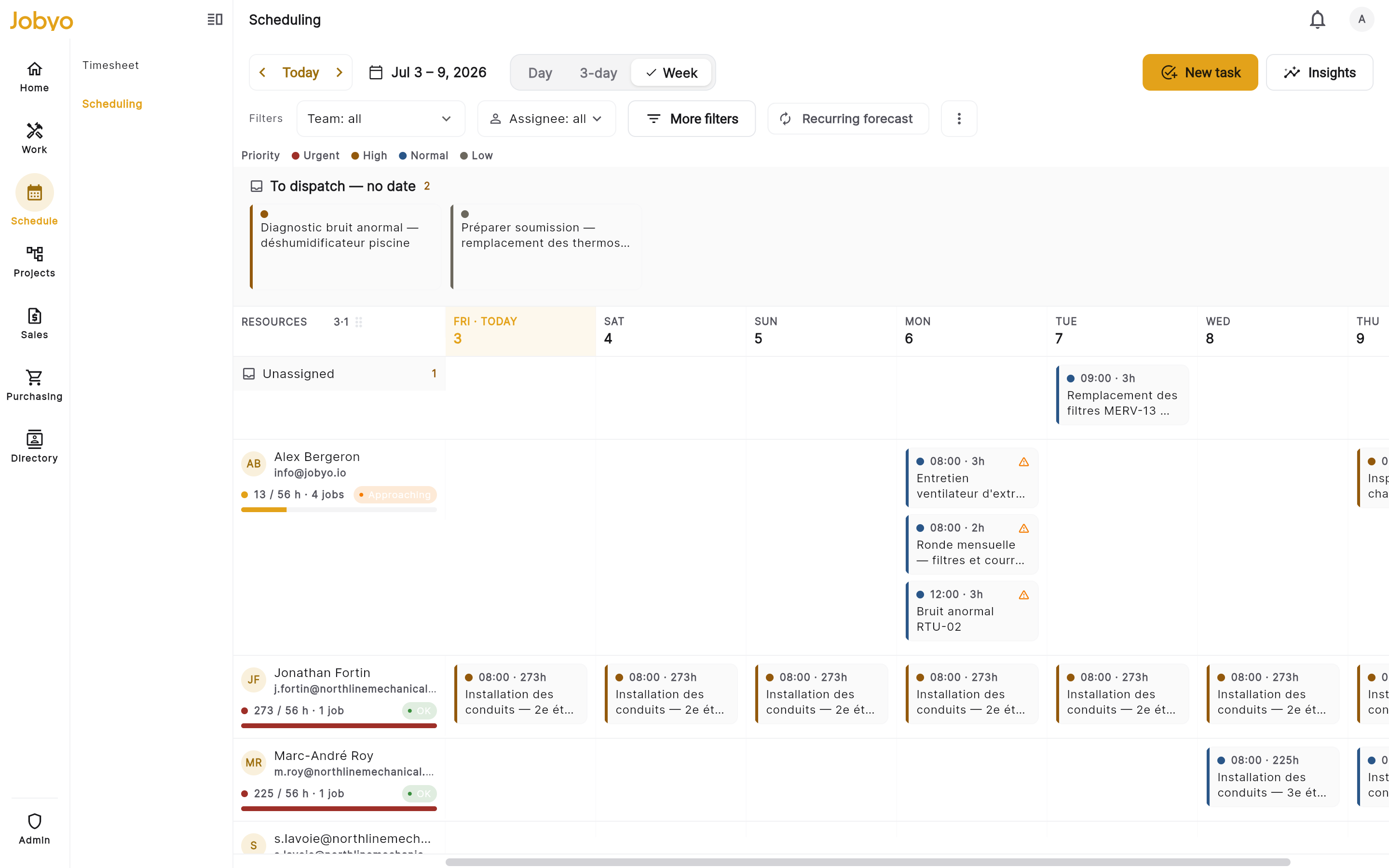
Dispatch board — technician lanes across day columns, Unassigned pinned on top Choose a time window
Use the Day, 3-day, and Week view tabs, or tap the date label to pick a custom range (up to 31 days). The ‹ Today › control shifts the window by whatever span you're on. In Day view the columns become working hours (07:00–18:00) so you see time-of-day; the wider views use day columns.
Read the lanes
Each row is a technician, drawn from your resource roster. A lane header shows the person, their booked-vs-capacity bar, a job count, and a conflict badge when a day is tight or over. The frozen left column stays put while the day columns scroll; drag its edge to widen it.
Find the work that needs a home
An Unassigned lane is pinned at the top for tasks with nobody on them. Above the grid, a To dispatch — no date strip collects tasks that have no scheduled window yet (they can't sit in a day cell). Both are the queues you work down.
Filter to what you're planning
Narrow the board by team, assignee, worksite, project, and task status. Turn on Include work orders to add open work orders as read-only context. Turn on the forecast lens to overlay projected recurring-maintenance occurrences as read-only ghost chips.
The dot on a task chip is its priority (see the legend above the grid). The bar in each lane header is planned hours against a nominal daily capacity — it turns amber as a technician nears the limit and red when over. That capacity is a fixed assumption (480 minutes a day per person), not a real per-person shift calendar, so treat it as a guide rather than gospel.
Turning on the forecast lens clears any task-status filter, and picking a status turns the lens back off — the two are mutually exclusive. Forecast ghost chips are projections, not committed jobs, so they don't count toward a lane's booked hours.
Assign a task
Assigning is done from a task chip — the board doesn't use drag-and-drop.
Open the task
Tap a task chip (in a lane, in Unassigned, or in the To dispatch strip). A detail sheet opens with the available actions. Work-order chips don't offer these actions.
Choose Assign
Select Assign to open the assignment dialog, pre-filled with whoever is currently on the task.
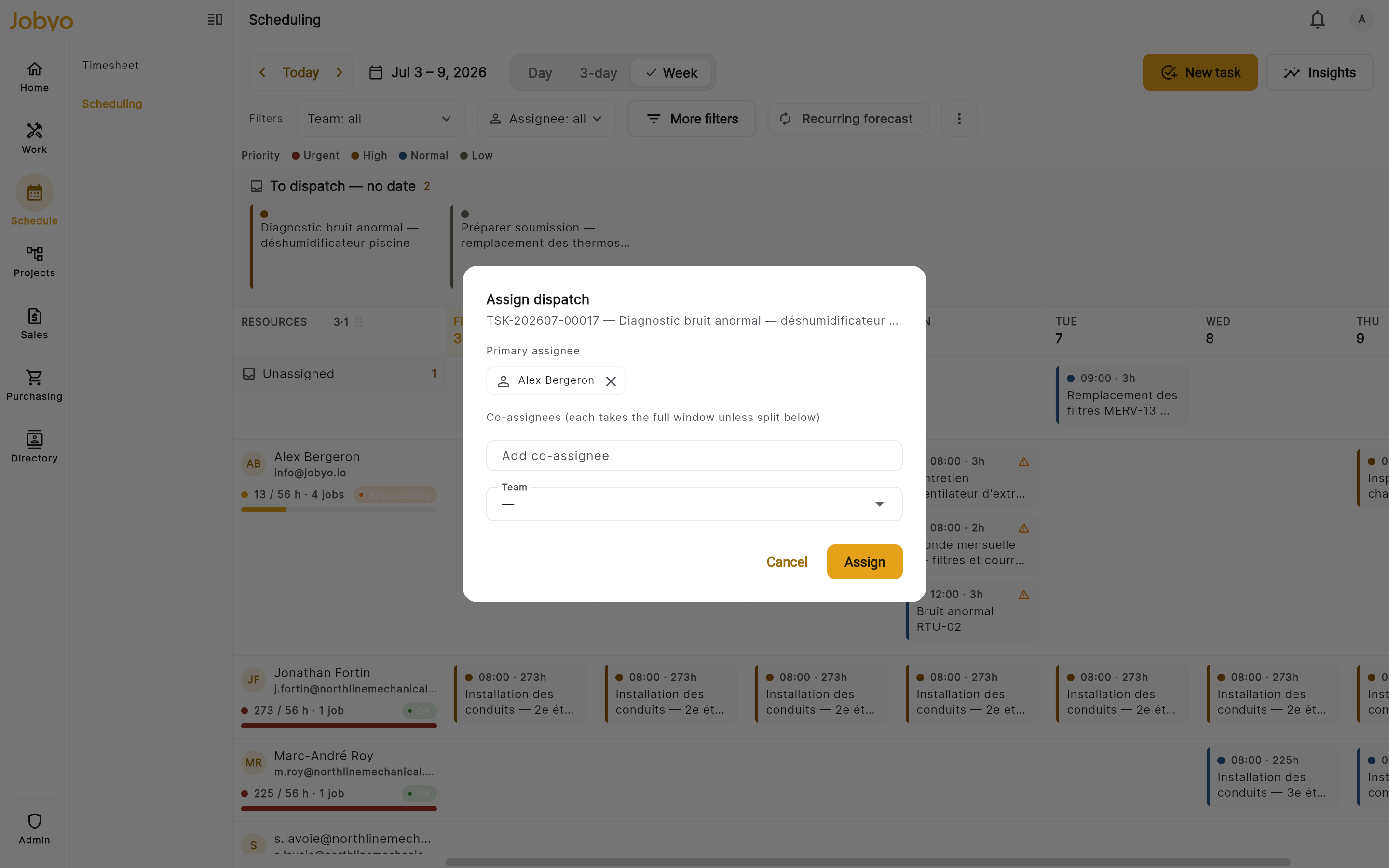
Assign dialog — primary assignee, co-assignees, team, optional time split Set the people
Pick a primary assignee, add any co-assignees, and optionally assign a whole team (a team fans out to its members with an even per-day split). Each co-assignee takes the full window unless you split the time.
Optionally split the allocated time
When the task has allocated hours and scheduled days, a Split allocated time section lets you enter hours per person; leave a row blank to keep that person on the full window. The hours are spread evenly across the task's scheduled days.
Save
Select Assign. The whole assignment is replaced at once, so editing one field never silently drops the others.
Reschedule a task
Open the task and choose Reschedule
Tap the task chip, then Reschedule. The task's assignment is kept — only its window moves.
Quick move
Change the day and start time. The task's duration is carried, so the end time follows automatically. Save with Reschedule.
Or plan the effort in detail
Expand Advanced — plan effort to set allocated hours, working days, and a per-day split with a live preview. This saves the full plan in one write.
A quick move runs the soft overbooking check before it writes (see below). The Advanced planner is a deliberate effort-allocation action, so it writes the plan directly and any resulting overbooking shows up afterward as the amber/red conflict flags on the board — never hidden, just not blocked up front.
When a day is overbooked
Assign and quick-reschedule both run a soft capacity check. If the move would push a technician's day over capacity, Jobyo stops and asks you to confirm rather than blocking outright.
Read the warning
A dialog explains the overbooking with the server's own reason. When your tenant runs the forecast-aware guard mode, it also shows a per-day booked / forecast / available breakdown.
Assign anyway (or don't)
Choose Assign anyway / Reschedule anyway to override and proceed, or cancel and adjust the plan. After a successful override you may also see a brief warning with a Details link to review the pressure.
By default the guard blocks only on real, booked-load overbooking — it doesn't count projected maintenance. A forecast-aware mode exists but is off for every company today and isn't self-service — there's no setting in the app to turn it on. It can only be switched on for a company by the Jobyo operations team, so unless yours has asked for and received that, only committed work trips the warning.
Add or convert work from the board
- New task — the New task button opens the task create form; unscheduled tasks land in the To dispatch strip when you return.
- Create a work order — from a real (non-forecast) task chip, launch a work order pre-linked to that task. Needs the create-work-orders permission.
- Schedule a forecast occurrence — with the forecast lens on, a ghost chip offers Schedule, which materializes it into a real task on the board. Needs the create-tasks permission.
Insights: capacity and maintenance preview
Open the Insights panel (a side panel on desktop, a full-screen view on mobile) for two read-only forecasts. Pick a subject first — a Technician or a Team — and its own date window; the two sub-tabs share that subject.
Capacity
The Capacity tab shows planned-vs-available minutes per day, flags overbooked days, and puts a warning banner at the top when the window has any. Use it to see, at a glance, where a person or team is stretched.
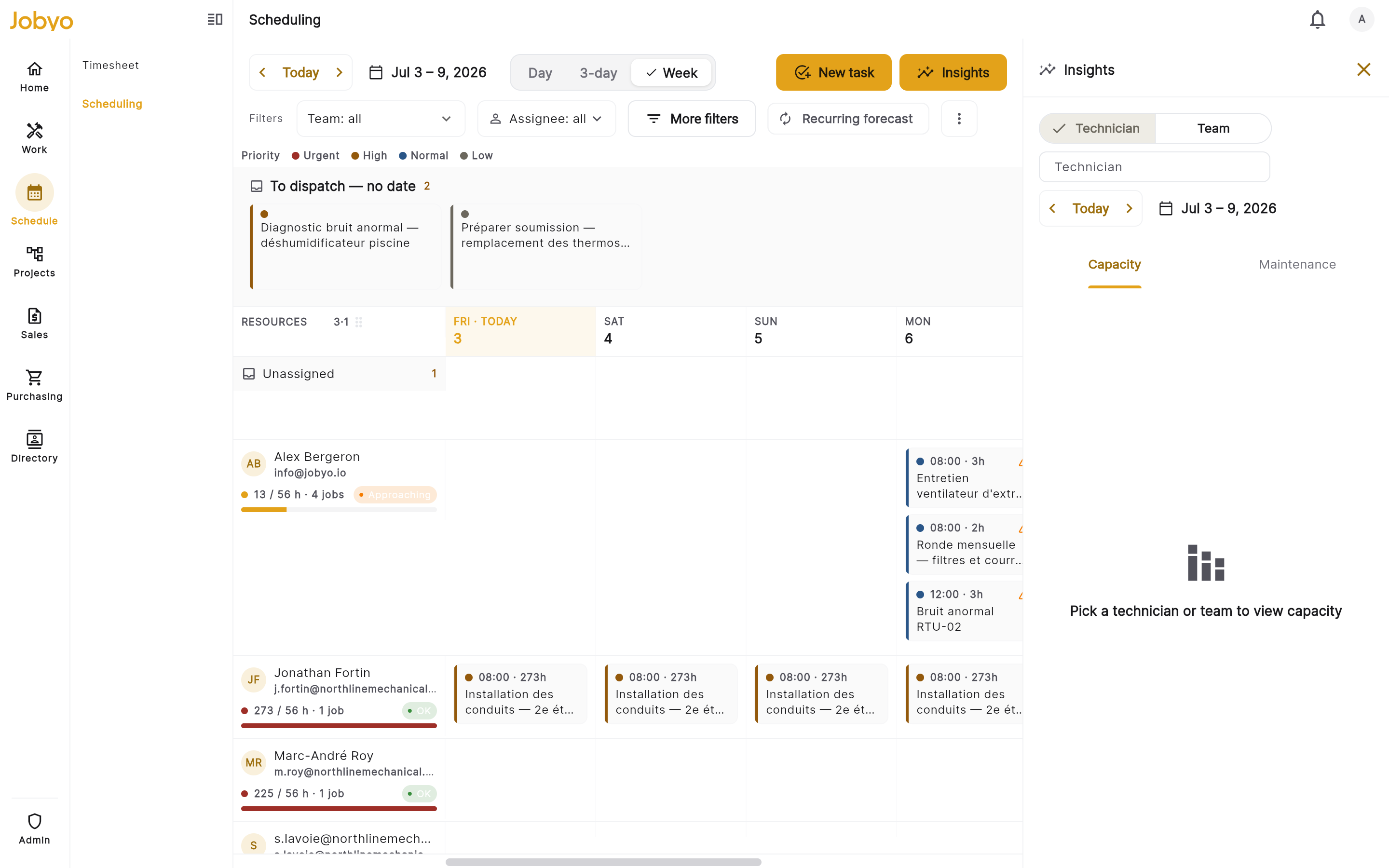
Insights — daily capacity rows with overbooked-day flags Maintenance
The Maintenance tab projects daily load including recurring maintenance, and lists the recurring templates that feed it with each template's occurrence count in the window. It's a preview only — nothing is created until you materialize an occurrence from the board.
Reference
| Element | What it means |
|---|---|
| Unassigned lane | Dated tasks with no technician yet, pinned at the top of the grid. |
| To dispatch — no date strip | Tasks with no scheduled window — assign or schedule them to move them onto the grid. |
| Lane capacity bar | Planned hours vs a nominal 480-minute day; amber near the limit, red over. |
| Conflict badge | An aggregated overbooked / near-capacity flag for the lane, independent of the bar. |
| Forecast ghost chip | A projected recurring-maintenance occurrence — read-only until materialized. |
| Work-order chip | Read-only context; not dispatchable from this screen. |
If it doesn't work
- The board says "View only" and I can't assignYour role has view but not modify on scheduling. An administrator can grant modify under Users & roles (default: ops-manager and project-manager).
- No "New task" button, or no "Create work order" on a chipThose actions need the create-tasks and create-work-orders permissions respectively — separate from scheduling.modify.
- A work-order chip offers no assign or rescheduleBy design — work orders are read-only context on the board. Dispatch the underlying task instead.
- Overbooked warning when I try to assign or move a taskThe day would go over capacity. Choose "Assign anyway" / "Reschedule anyway" to override, or pick a different day or person.
- A just-scheduled task isn't on a laneUndated tasks live in the "To dispatch — no date" strip until they get a window. Reschedule it to place it on the grid.
- My date range won't applyA custom window can span at most 31 days. Shorten the range and try again.
- Insights shows "Pick a technician or team"Capacity and Maintenance need a subject. Choose a Technician or a Team at the top of the panel.