Subscriptions & plans
Jobyo uses a plan-plus-seat model. Your company's subscription plan decides which features are switched on, and each active user needs a seat — a slot that comes with your plan — to log in and use them. This page explains what your plan controls and how administrators manage seats.
Who uses this
Viewing the plan and managing seats is for company owners and administrators. Regular users don't see subscription or seat controls — but every user is affected by them, because the plan and their seat together decide which screens they can open.
How access is decided
When anyone logs in, Jobyo resolves their effective entitlement in one step and uses it to show or lock each screen. Two things must both be true for a user to have full access:
- Your company's subscription is active.
- That specific user holds an assigned seat.
If either isn't true, the user sees a blocked or locked state instead of the feature.
These are three separate gates. The plan decides which features exist for your company. A seat decides whether a given user can log in at all. Roles and permissions then decide what a logged-in, seated user can do inside those features. A locked feature panel means the plan gate — not a permission problem.
View your current plan and seat usage
Open User Management
Seat and subscription information live inside User Management, not a separate billing screen. Open it from the main menu.
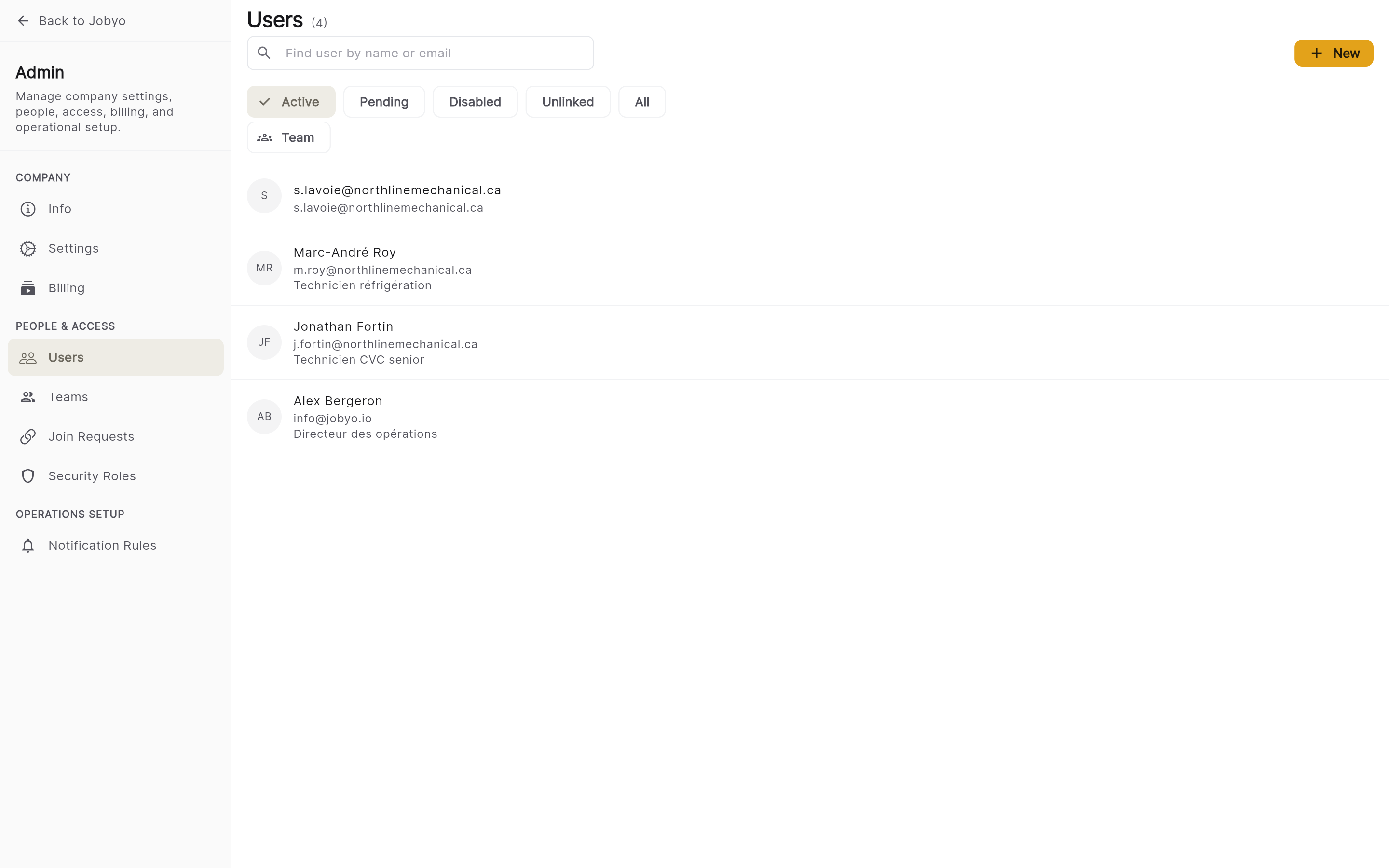
User Management — the admin surface where plan and seat info appear Find the plan / subscription summary
Look for the Subscription or Plan area. It shows your active plan name, how many seats are in use, and your total seat allowance — for example, "Business — 8 of 10 seats used."
Trust the seat count
The used-seat figure is computed live from the actual number of active seat assignments, so it's always accurate — it isn't read from a cached counter.
Plan and seat details currently surface within User Management rather than a dedicated billing section. If your build shows them somewhere else, follow the same steps there.
What your plan controls
Your plan is a named tier — in the production vocabulary: Starter, Team, Pro, Business, Enterprise. Each tier switches on a set of feature areas and sets numeric limits (such as how many purchase-invoice scans the AI can process each month). When a feature is off for your plan, its screens are hidden or shown as a locked panel.
The feature areas group roughly as follows.
Core operations
| Feature | What it unlocks |
|---|---|
| Dashboard | The role-personalised home screen. |
| Tasks | Create, assign, and track field work. |
| Work Orders | Execute field jobs and record labour and materials. |
| Service Requests | Log and manage incoming customer requests. |
| Projects | Group tasks into phases and track project progress. |
| Scheduling | The dispatch calendar and resource board. |
Invoicing & quoting
| Feature | What it unlocks |
|---|---|
| Sale Invoices | Customer invoice management. |
| Sale Invoices — manual / from work order (simple) | Straightforward customer invoices, including directly from a completed work order, without needing cost records. |
| Sale Invoices from actual costs | Invoices derived from recorded actual costs. Requires Actual Costs to be enabled. |
| Quotations (full and simple) | The quotation workflow, including simple manually entered quotes. |
| Quotation to project plan | The quote-to-project lifecycle (server-side today; no in-app convert button yet — see the Quotations guide). |
Cost & financial visibility
| Feature | What it unlocks |
|---|---|
| Actual Costs | View actual-cost records and cost summaries on jobs. |
| Actual Cost Reports | Cost reporting and analysis screens. Requires Actual Costs. |
| Margin / Profitability | Margin and profitability analysis. Requires Actual Costs. |
Jobyo may record cost data internally (labour time, materials, purchase invoices) even when your plan doesn't include actual-cost visibility. That internal capture keeps records accurate; the reporting and margin screens are what the plan actually unlocks.
Procurement & inventory
| Feature | What it unlocks |
|---|---|
| Purchase Orders | Create and manage supplier purchase orders. |
| Purchase Invoices | Manage supplier invoices (accounts payable). |
| Purchase Allocations | Allocate purchase costs to work orders, projects, or expense types. |
| Goods Receipts | Record receipt of purchased goods. |
| Items | The item and material catalogue. |
| Inventory Stock | Stock management and tracking. |
AI-assisted processing
| Feature | What it unlocks |
|---|---|
| Purchase Invoice AI Processing | Scan a supplier invoice and extract its data automatically. Count-controlled — your plan includes a monthly allowance of scans. |
AI processing covers both the scan (OCR) and the line-item extraction, drawing on the same monthly allowance. When you reach the limit, the AI scan option is unavailable until the next month. It's available from the Team plan and up (Starter doesn't include it) — allowances scale with plan: Team 50 · Pro 100 · Business 200; Enterprise has no fixed monthly limit.
Documents, assets & platform
| Feature | What it unlocks |
|---|---|
| PDF Export · Excel Export | Generate PDF documents and export data to spreadsheets. |
| Assets | The asset registry — track equipment and property. |
| Contracts | Maintenance contracts and service-level agreements. Contracts · Team plan and up |
| Role-Based Access · Reporting · Integrations | Custom roles, reporting surfaces, and integration settings (today: QuickBooks export). |
| Customer Portal | A self-service portal for your customers. Available on Business and above. |
| Online Payment Collection | Collect invoice payments online via Stripe. Included on every plan. |
The lists above describe what each area does. Which named plan enables which area — and the exact numeric limits — is configured on your subscription, not fixed in the app. Confirm specifics against your own plan.
Seat management
A seat is a user's personal access slot. Your plan includes a set number of seats, and every user who needs to log in must hold one. A user without a seat is blocked on login even when the subscription is active.
Seat administration is part of User Management — open a user's detail screen to see and change their seat.
Assigning a seat to someone who already has one doesn't consume an extra seat, and revoking a seat from someone who doesn't have one has no effect. Both are safe to run more than once.
Assign a seat
Open the user's detail screen
From User Management, find the user and open their profile. You need administrator-level user-management permission.
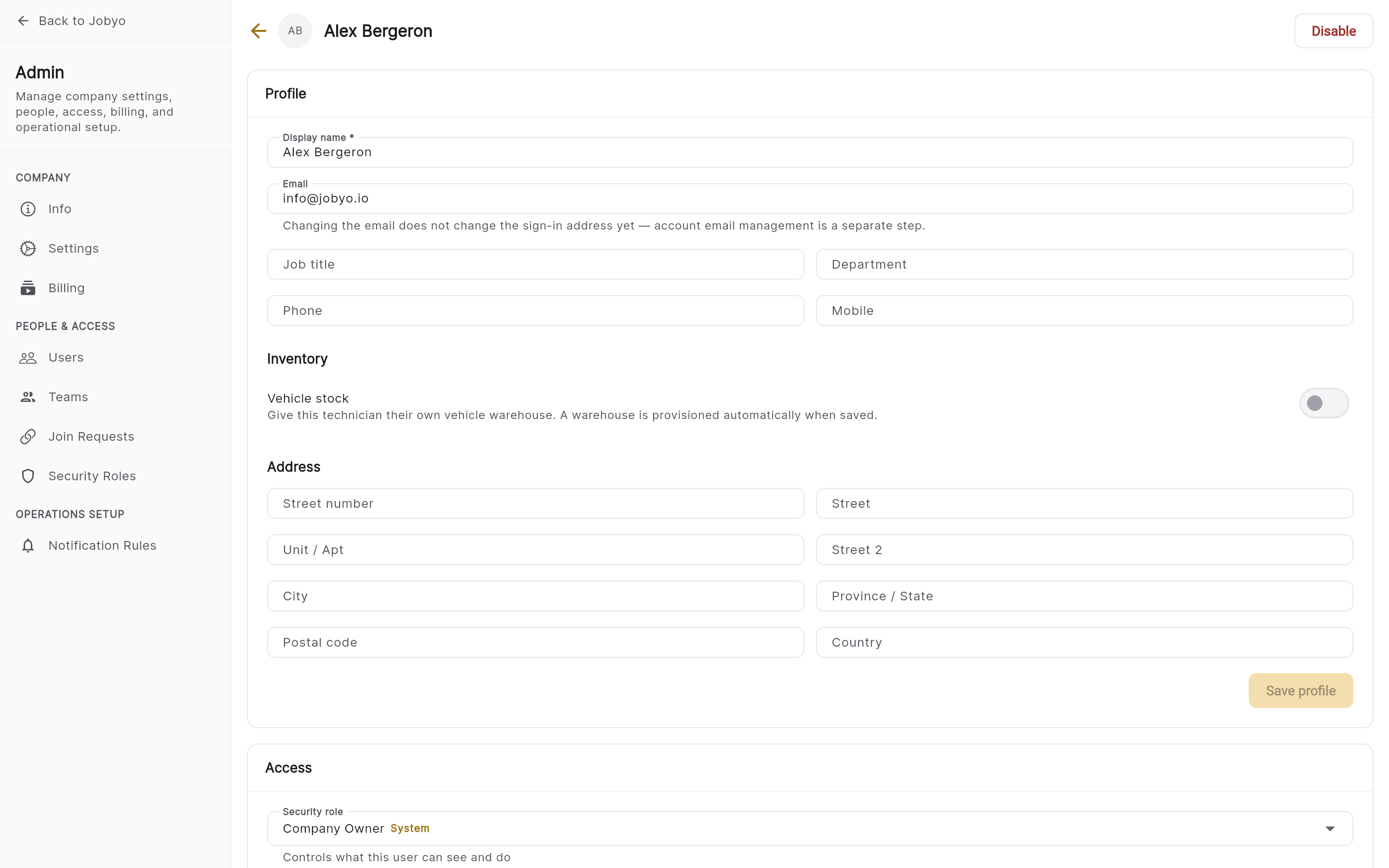
User detail — seat status and the assign / revoke control Assign the seat
In the Seat section, use the toggle or Assign seat control. The status updates to Assigned and the used-seat count goes up by one.
- "All seats are in use"Your plan's seat allowance is full. Revoke a seat from someone who no longer needs access, or contact your account manager to add seats.
- "Subscription is not active"The company subscription is inactive, cancelled, or unpaid. Resolve the billing issue before any seat can be assigned.
Revoke a seat
Open the user's detail screen
Find the user in User Management and open their profile.
Revoke and confirm
In the Seat section, choose Revoke seat and confirm. The status changes to Unassigned, the user can no longer log in, and the used-seat count drops by one.
Revoking removes only the user's ability to log in. Their account and all their historical work — work orders, tasks, timesheets, cost entries — stay in Jobyo untouched.
Check whether a user has a seat
Open the user's detail screen and read the Seat section:
- Assigned — the user has an active seat and can access Jobyo (assuming the subscription is also active).
- Unassigned — the user has no seat and is blocked on login.
Reconcile the seat count
The used-seat figure is normally kept accurate automatically. In rare cases — for example a network interruption during an assign or revoke — the displayed count can drift. Reconcile recomputes it from the live list of active seats and corrects any difference.
The reconcile action recounts seats and returns a short report (for example, "corrected from 12 to 9" or "already accurate"). It never causes data loss. Its exact placement in the admin menu can vary by build — look in the User Management admin actions or overflow menu.
When access is blocked
If Jobyo can't confirm an active subscription or a valid seat, it shows an explanatory message instead of the feature. The reason depends on what went wrong.
| What you see | What it means | What to do |
|---|---|---|
| No subscription found | The company has no active Jobyo subscription. | Contact your account manager. |
| No seat assigned | The subscription is active but this user has no seat. | Ask an admin to assign a seat. |
| Subscription cancelled | The subscription was cancelled. | Contact your account manager to reactivate. |
| Subscription unpaid | A payment failed or is overdue. | Update payment details with your account manager. |
| Account suspended | The account has been suspended. | Contact Jobyo support. |
| Billing error | More than one active subscription was found — an unusual state. | Contact Jobyo support to resolve it. |
If you're the billing administrator and the subscription is inaccessible, Jobyo grants you a limited recovery mode: billing and subscription settings stay reachable even while other features are locked, so you can fix the problem yourself. Other users don't get recovery mode — they see a blocked screen until an admin resolves it.
What a locked feature looks like
When a screen isn't included in your plan, Jobyo shows a locked panel in place of the content — distinct from a permission error. It looks like this:
Purchase Orders isn't on your plan
Purchase Orders isn't on your current plan. Ask a company owner or administrator to arrange an upgrade to unlock it.
View plansUpgrading your plan
When you first set up a new company, registration includes a plan-selection step with a checkout (and, when eligible, a free trial). For an existing company, there's no in-app self-serve flow yet to change plans, add seats, or buy add-on credits — a locked feature shows an upgrade prompt but doesn't open a purchase screen. To make those changes, contact your Jobyo account manager directly.
Add-on credits — such as extra AI invoice-processing credits beyond your monthly allowance — are a planned feature and aren't available yet. When they arrive, you'll be able to top up capacity without changing your base plan.