Manage customers
Customers is Jobyo's address book of billable accounts — the companies and people you sell to and invoice. Every work order, quotation, sale invoice, worksite, and maintenance agreement points back to a customer record. Here's how to create and maintain them.
Who uses this
Customers is a back-office surface for operations and admin roles. Technicians don't get a customer list or detail view — but they do meet the customer picker when filling in other forms (like a work order), which uses the same records.
What you'll need
- Permission to list and view customers to browse the directory, and create or modify to add or change records.
- The remove permission to archive a customer — this is separate from edit, so a user can update records without being able to archive them.
- A unique company name for each new customer. Everything else is optional.
Browse and search
Open the customer list
Select Customers from the main menu. The list opens with all active and inactive customers, sorted by company name. Archived customers don't appear here.
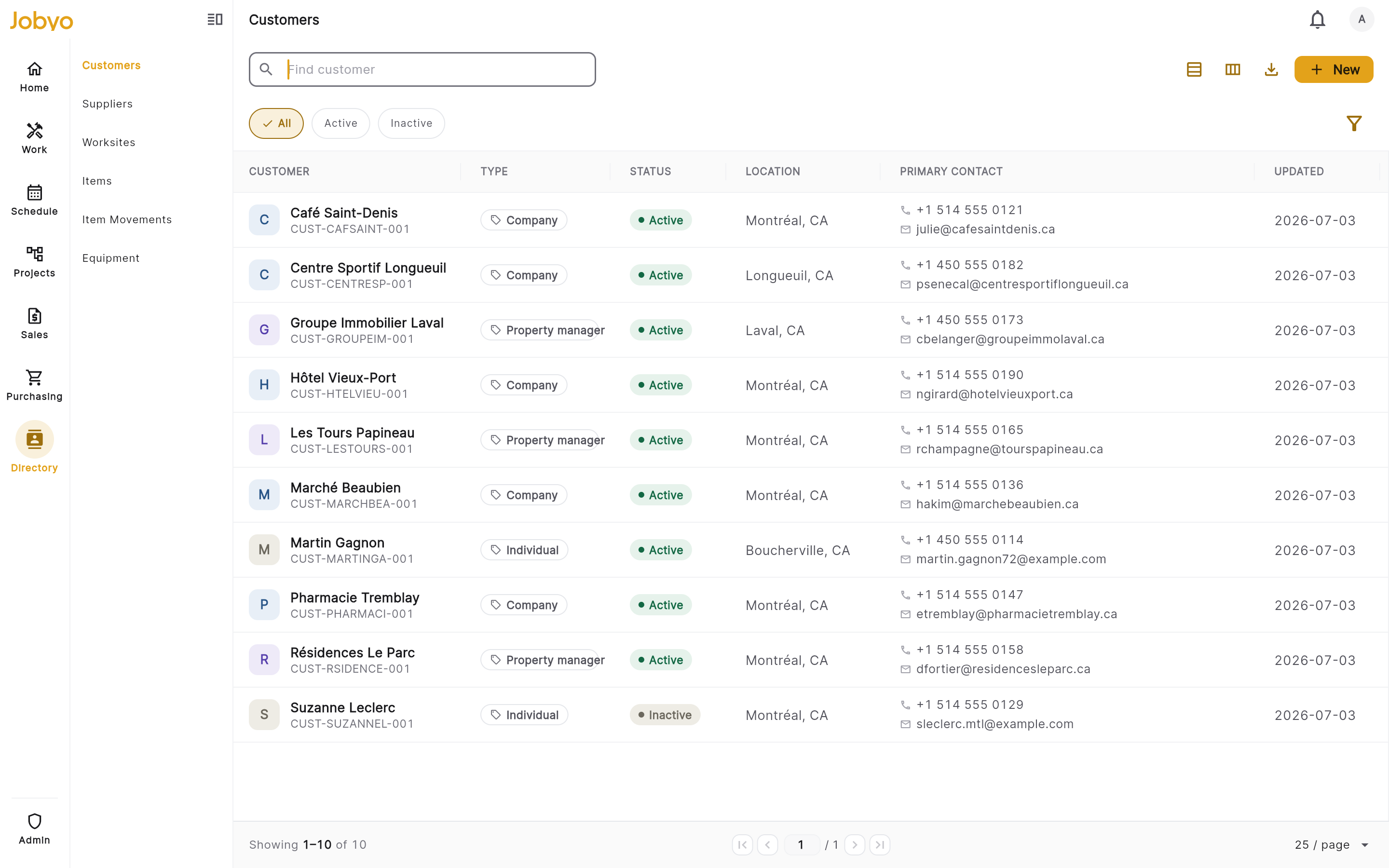
Customer list — search box, filter row, status badges Search and filter
Type in the search box to match on company name. Use the filter row to narrow by type (Company · Individual · Property Manager · Internal), status (Active · Inactive), city, or country. Click a column header to sort.
Switch views, page, or export
Toggle between the table and tiles views in the top right. Page through results at the bottom (up to 100 rows per page). Export applies the filters you currently have set.
Open a record
Click any row to open the customer detail — identity, contact and billing blocks, status, and audit history.
Create a customer
Open the New customer form
From the customer list, select New customer. If you don't see the button, your role doesn't include create — ask an administrator.
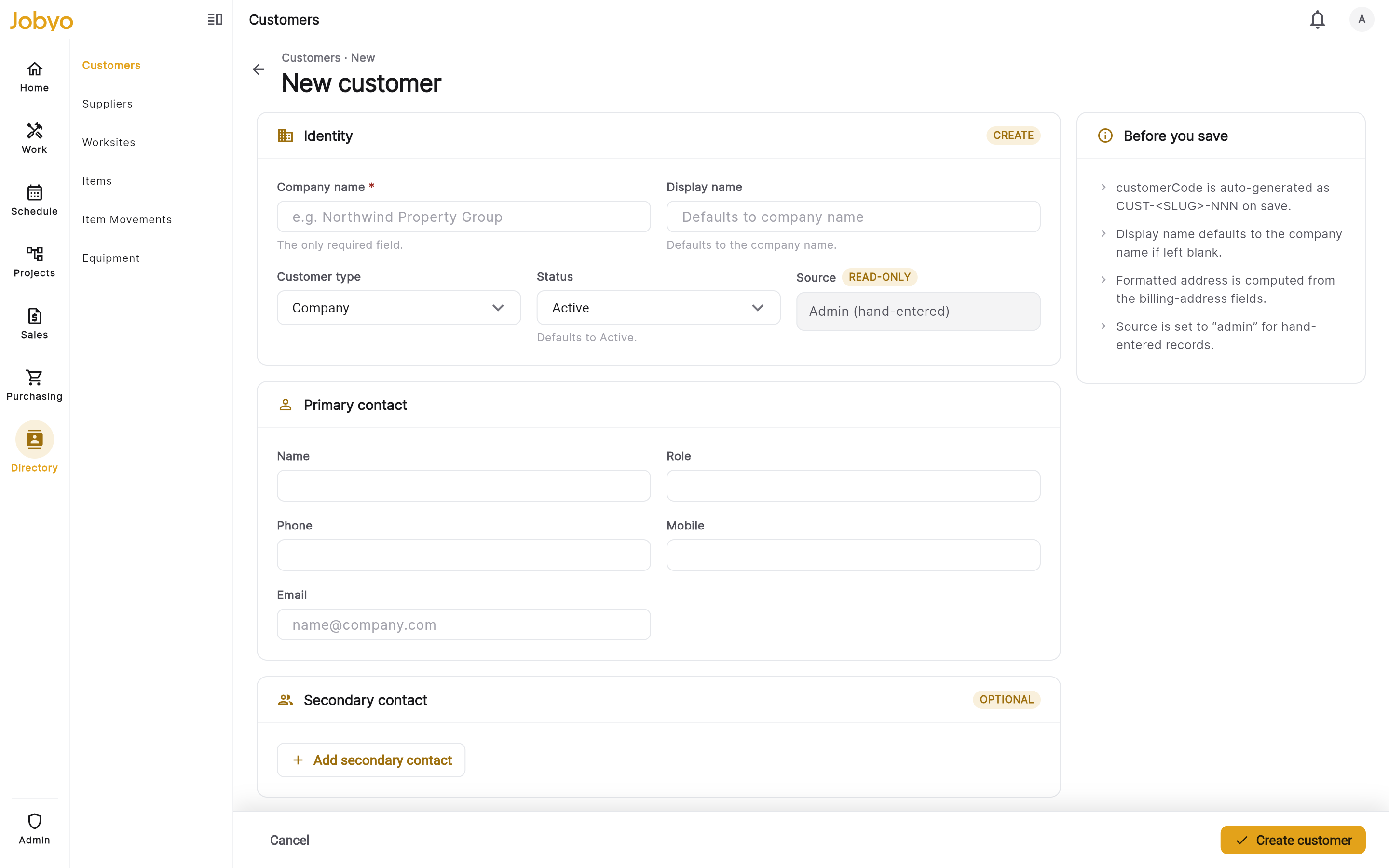
Create form — Identity section, Company name required Fill in the identity
Company name is the only required field and must be unique across your customers. Optionally add a display name (a shorter name for lists and pickers — falls back to the company name if blank) and a customer type.
Add contact, billing, and communication (optional)
Fill in any of the grouped blocks: primary and secondary contact (name, role, phone, mobile, email), billing contact (name, phone, up to two emails), billing address, and communication (general email, preferred channel: Email · Phone · SMS). All optional.
You don't type the formatted addressJobyo builds the single-line formatted address from the parts you enter. Fill in street, city, province/state, postal code, and country — the formatted version is generated for you.
Save
Select Save. Jobyo generates a unique customer code (for example
CUST-ACME-001) and opens the new customer's detail page.
If another customer already has the same company name, the form won't save. Search the list first if you're unsure whether the account already exists.
Edit a customer
Open the customer detail and select Edit. The form sections match the create form.
- You can update one field in a contact or address group — the other fields in that group are kept automatically.
- To wipe an entire contact or address block at once, use its Remove option.
- The customer code and the formatted address line are system-generated and don't appear as editable fields.
Once a customer is archived, Edit is disabled. If you need to change an archived record, you can't — archiving is permanent (see below).
Deactivate and reactivate
A customer's operational status is a simple on/off switch that's independent of archiving.
- Deactivate an active customer to signal "don't use for new work." They stay in the list and remain selectable in pickers; existing records aren't affected. The button flips to Reactivate.
- Reactivate an inactive customer to return them to normal use.
Both actions need the modify permission and you can switch back and forth as often as you like.
Archive a customer
Archiving hides a customer from every list and picker in the app.
There is no restore in the current version of Jobyo. Once archived, a customer can't be brought back — make sure you no longer need the record before you archive it.
Open the detail and select Archive
You need the remove permission. Existing records that reference the customer (past work orders, invoices, and so on) are not affected by archiving.
Confirm
Read the confirmation — it explains the customer will be hidden from all lists and pickers and can't be restored — then confirm. The record disappears from the list; if you open it directly, an archived banner is shown.
You can't archive a customer that still has open or active work orders, quotations, sale invoices, worksites, or maintenance agreements. Close or resolve those first. The app shows a general message — it doesn't yet name the specific records blocking the archive, so check each area manually.
Pick or quick-create from another form
When a form elsewhere in Jobyo (work order, quotation, sale invoice) asks for a customer:
- Pick — start typing at least two characters of the company or display name. Suggestions appear with the name and, where available, the billing address. The picker shows active and inactive customers but not archived ones. Looking up customers uses the lookup permission, which most roles — including technicians — have.
- Quick-create — if no match appears and you have create permission, choose the Create new customer option. A side panel opens with the company name pre-filled; add any details you have, then save. The new customer is selected on the form immediately, and you can complete its record later.
Add worksites from a customer
From the customer detail, open the Worksites panel to see every worksite linked to that customer. Select Add worksite to open the worksite form pre-filled from the customer's primary contact and billing address — adjust as needed, then save. Adding a worksite also requires permission to create worksites.
The two customer states
A customer has two independent states that combine in any way — an inactive customer can still be archived, and an archived customer keeps whatever status it last had.
| Customer state | Edit | Deactivate | Reactivate | Archive |
|---|---|---|---|---|
| Active, not archived | Yes | Yes | — | Yes |
| Inactive, not archived | Yes | — | Yes | Yes |
| Archived (any status) | No | — | — | — |
If it doesn't work
- "Company name is required"The Company name field is blank. Fill it in and save again.
- "A customer with this company name already exists"Company names are unique. Choose a different name, or search the list for the existing record.
- No "New customer" buttonYour role doesn't include creating customers. An administrator can grant it under Users & roles.
- Edit is greyed outThe customer is archived. Archived records cannot be edited, and archiving is permanent.
- "Cannot archive — this customer has active records"Close or resolve the linked work orders, quotations, sale invoices, worksites, or maintenance agreements first, then archive.
- Action fails after someone else changed itThe record was updated in another session (e.g. deactivated or archived). Refresh the page and try again.