Manage company details
Your company details are your business identity in Jobyo — trade name, legal name, contact info, mailing address, and logo. This is the information that appears on the documents you send to customers, like invoices and quotes. Here's how to keep it up to date.
Who uses this
Any member of your company can view the company profile. Only company admins can change it. If you don't see an edit option, your role doesn't include admin access — ask a Jobyo administrator.
This screen covers your business identity. Operational defaults — currency, tax, invoice numbering, labor cost rates, and service types — live on a separate Company preferences screen.
What you'll need
- A company admin account (the
companyPreferencesadmin permission). - The details you want to set: business name, contact info, mailing address, and a logo file if you have one.
Open the Company Details screen
Open the Admin hub
From the main navigation, open the Admin hub.
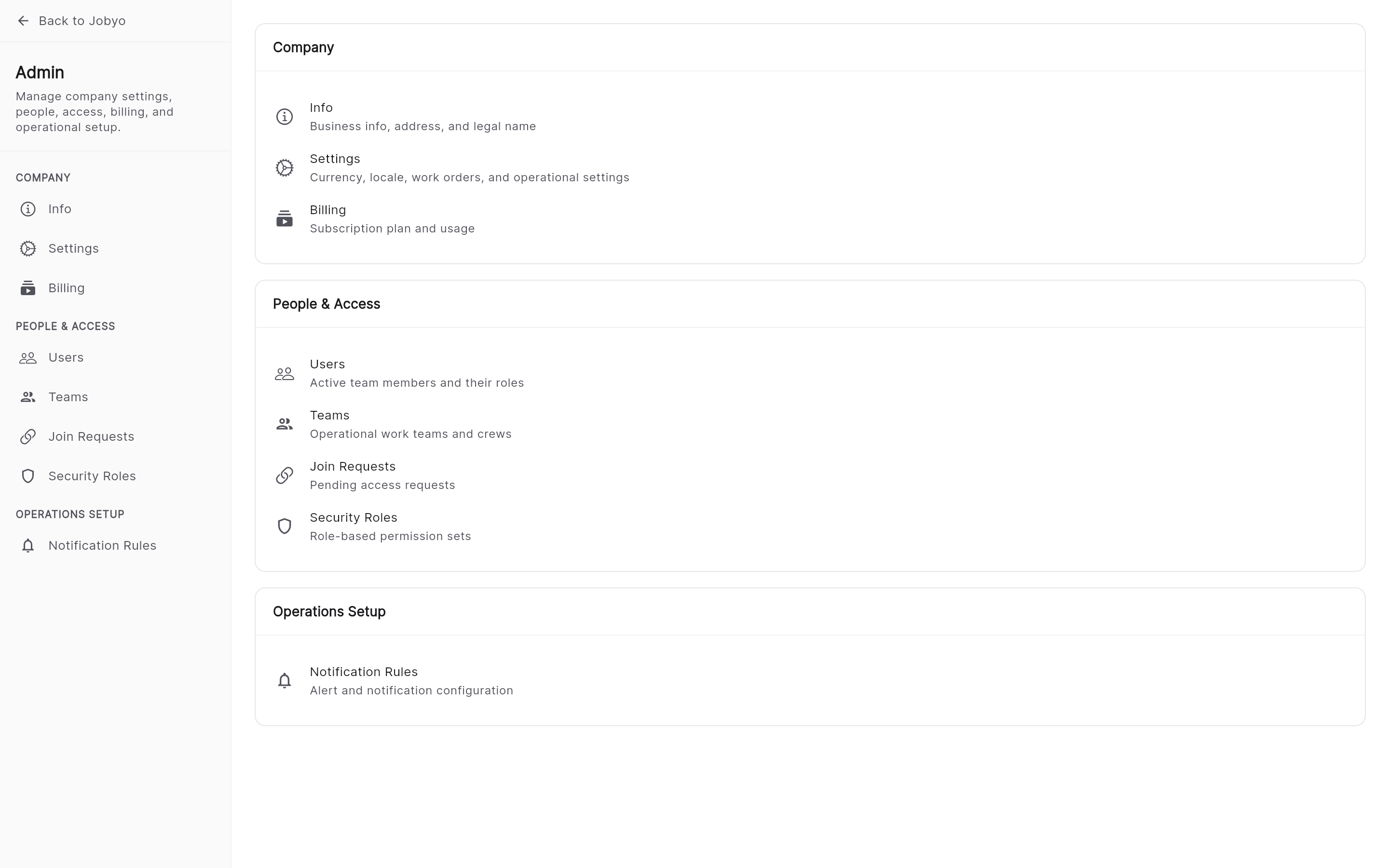
Admin hub — navigation links including Company Details Select Company Details
Choose Company Details. The screen opens with your current profile in an editable form.
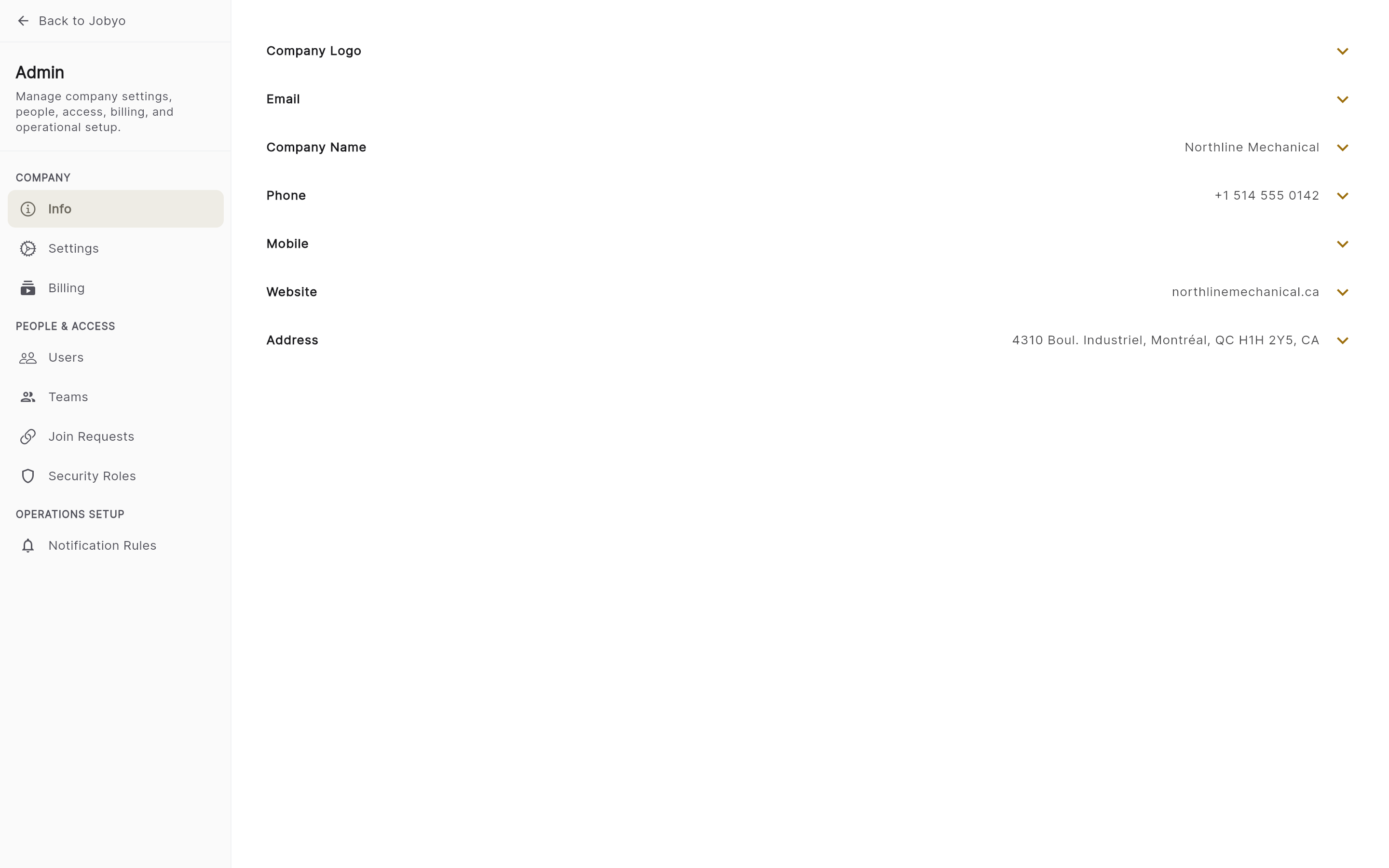
Company Details — name, contact, address, and logo, all editable
Edit name and contact info
Update the fields you need
In the name and contact section, edit any of:
- Trade name — the name your business operates under (shown on documents).
- Legal name — your registered legal business name.
- Phone — main company phone number.
- Mobile — mobile or secondary number.
- Invoicing email — the email address printed on your invoices and quotes.
- Website — your company website.
Save
Select Save. Your changes apply immediately and appear on new documents you generate.
Jobyo doesn't force any single field to be filled in, and it doesn't check the format of email, phone, or website entries — enter what fits your business. You just need to change something recognized for a save to go through (see below).
Edit your mailing address
Update the address parts
In the address section, edit any of: street number, street (line 1), street line 2 (suite/floor), unit or apartment, mail box / PO box, city, province or state (and its code), postal code or ZIP, country (and country code), and region.
Save
Select Save. The address is updated and appears on future documents.
Jobyo doesn't enforce a particular address layout, so you can fill in whichever fields suit how your address is written.
Upload or replace your logo
Your logo appears on invoices, quotes, and other customer-facing documents.
Open the Logo section
Find the Logo section of the form. It shows your current logo, or a placeholder if none is set.
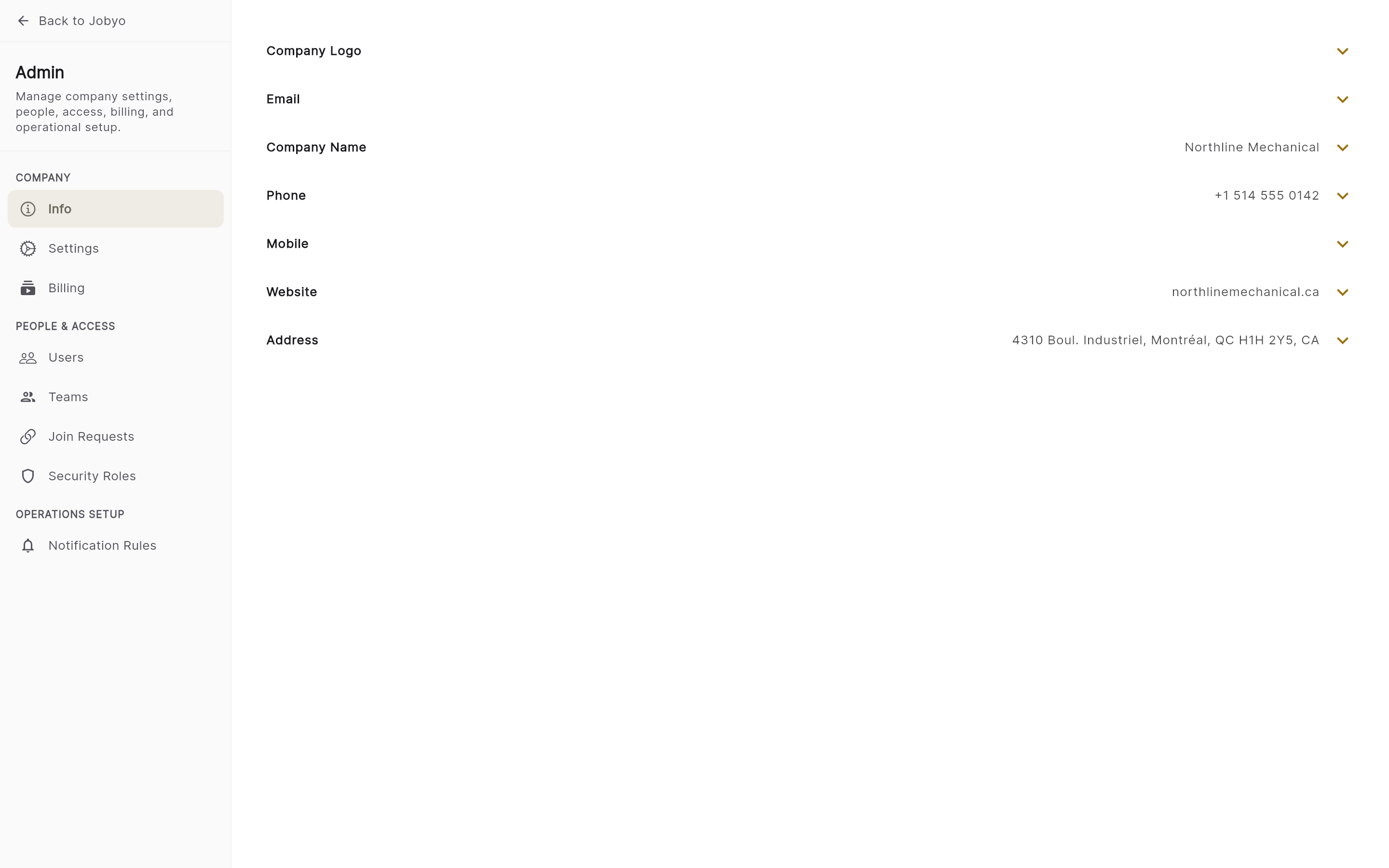
Logo section — current logo (or placeholder) and the Add / Change logo control Choose a file
Select Add logo (if none is set) or Change logo (to replace it), then pick your logo file from your device.
Save
Select Save. Your logo uploads, shows in the Logo section, and starts appearing on documents going forward.
Logo file requirements
Jobyo checks the file itself, not just its name — renaming a file to change its extension won't get it past these rules.
| Requirement | Rule |
|---|---|
| Allowed formats | PNG, JPEG, WEBP, or GIF |
| Maximum size | 4 MB |
| SVG files | Not accepted |
Jobyo only accepts raster images (PNG, JPEG, WEBP, GIF). An SVG is refused even if it looks correct in your browser — convert it to one of the accepted formats first.
What you can't change here
The Company Details screen is for your business identity. A few fields are owned by other parts of Jobyo and don't appear as editable here:
| Field | Where it's managed |
|---|---|
| Sign-in email address | Your account / identity settings, not the company profile |
| Company join code | Set automatically at registration; read-only |
| Billing and subscription details | Managed by Jobyo billing |
| Account status (active / inactive) | Managed by Jobyo operations |
For currency, tax, invoice numbering, labor cost, and service types, see Company preferences — a separate settings area.
If it doesn't work
- No edit option on the screenYour role doesn't include company admin access. Any member can view the profile, but only admins can change it — ask a Jobyo administrator.
- Save is rejected with "no changes"The form was saved without changing a recognized field. Edit at least one editable field (name, contact, or address) and save again.
- "Invalid file type" on logo uploadThe file isn't a PNG, JPEG, WEBP, or GIF. Convert it — SVGs are not accepted even if they look right in a browser.
- "File too large" on logo uploadThe logo exceeds 4 MB. Resize or compress the image and try again.
- "No file received" on logo uploadNo file was attached to the upload. Select the file again.