Billing & tax preferences
The Billing & Tax category is where you define the tax rates your company charges. A tax profile is a named bundle of rates — GST + PST, for example — that you can select on invoices and quotations. You can keep several and mark one as the default.
What you'll need
- The Company preferences: modify permission — this is an administrator area.
- The tax rates your company charges, and any tax registration numbers you want recorded.
Create a tax profile
Open Billing & Tax
From the main menu, select Company Settings, then Billing and Tax.
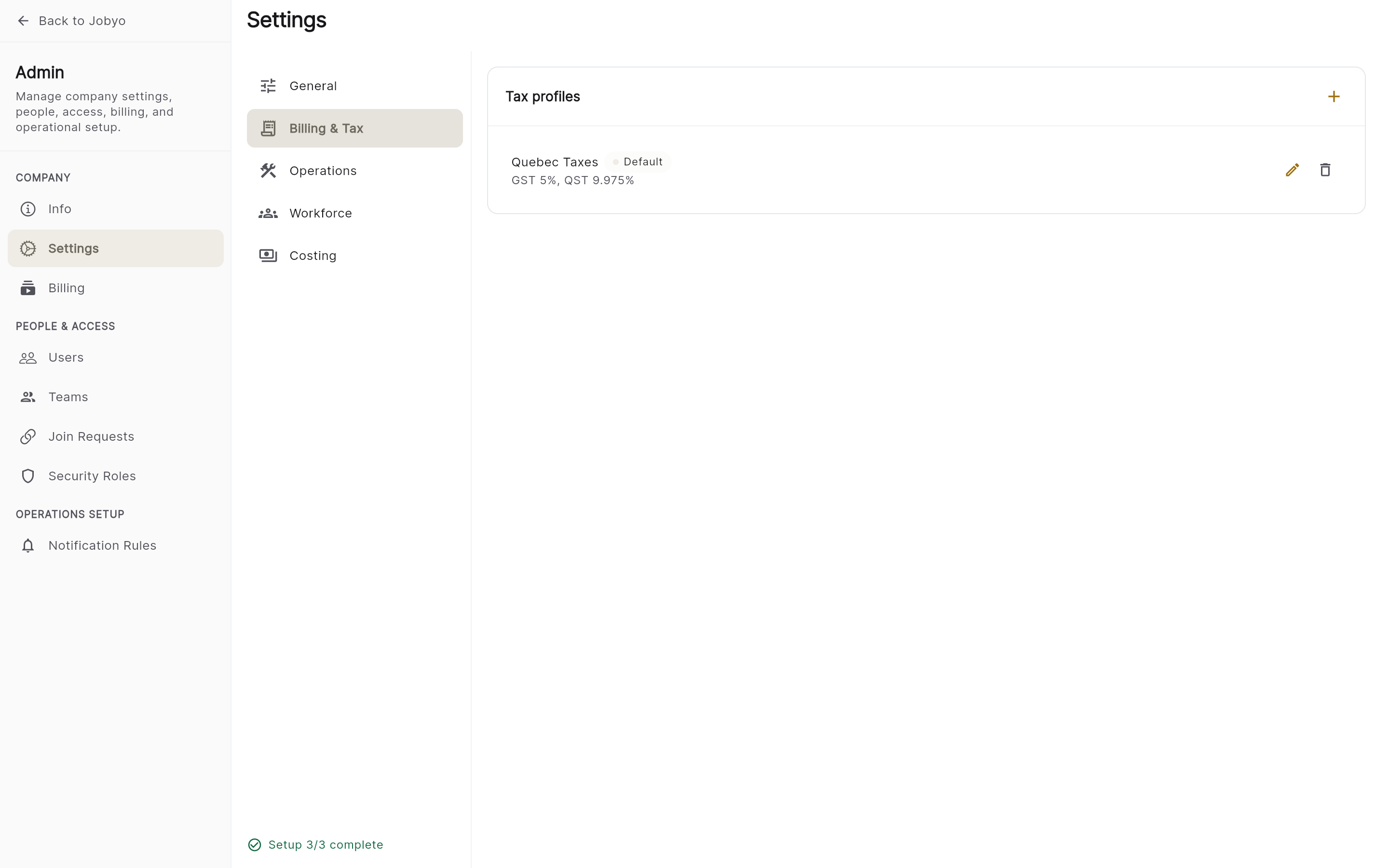
Billing and Tax — existing profiles list and Add profile action Add a profile and name it
Choose Add tax profile and give it a clear name, such as Standard — GST + PST. A profile must have a name to save.
Add one or more rates
For each rate, enter a tax name (e.g. GST), an optional tax number (your registration number for that tax, e.g. RT0001), and the rate as a percentage (enter
5for 5%). Add another rate to the same profile to combine taxes.Save
Select Save. The profile appears in the list and is now selectable on invoices and quotations.
Edit a tax profile
Open Billing and Tax, select the profile, update its name, rate values, or tax numbers, then Save.
Updated rates apply to new invoices. Invoices that were already issued keep the rates that were in effect when they were created.
Set the default tax profile
Mark one profile as the default so it pre-selects on new invoices and quotations and you don't pick it every time. Open Billing and Tax, mark the profile you want as the default on its row, and Save.
Deactivate a tax profile
When a profile no longer applies but you want to keep it for history, open it and toggle it to Inactive, then Save. An inactive profile can no longer be chosen on new documents but stays visible in settings and on the documents that already used it.
A note on the two tax flags
Jobyo stores two extra tax settings — Prices include tax and Show tax number on invoice — but be aware of their current status.
Both flags can be saved, but they are not currently applied by invoice calculations or PDF generation. Setting them has no effect on invoice totals or document output at this time. This is an open decision; they'll begin working when the invoice/PDF layer is updated to read them.
If it doesn't work
- Profile won't saveA tax profile must have a name. Check the profile name field is filled in.
- No Billing and Tax categoryYour role doesn't include the Company preferences permission. Ask an administrator.
- Tax flags seem ignored"Prices include tax" and "Show tax number on invoice" are stored but not yet enforced — see the note above.