Record an expense
"Other expenses" is Jobyo's one input form for miscellaneous, manually-entered costs — permits, disposal fees, equipment rentals, parking, sundries. You attach an expense to a work order or a project, and it flows straight into actual cost so the spend shows up in reporting immediately.
When you'd do this
Record an expense when a job picks up a cost that isn't labour or a stocked material — a permit, a dumpster rental, a third-party fee — and you want it counted against the job's real cost. There's no separate "expenses" screen: you add expenses from inside a work order or a project, right where the rest of the cost lives.
What you'll need
- The actual costs feature on your plan. Every expense route requires it — without the entitlement the cost area is unavailable.
- Permission to record cost on the surface you're using: modify work orders for the work-order cost tab, or the other expenses permission for project-context expenses.
- A work order or project to attach the expense to. One context is required and it's fixed once the expense is created.
The dollar figures on an expense are actual-cost data, governed by the actual-costs view permission. Roles without it don't see the cost totals or roll-ups. On top of that, if your role is scoped to own / assigned / team work, you only see the expenses you created — not everyone's.
Add an expense to a work order
The work-order cost tab is the full-lifecycle surface — you can add, view, edit, and delete expenses here.
Open the work order's cost tab
From the work order, open the Cost tab and find the Other expenses section.
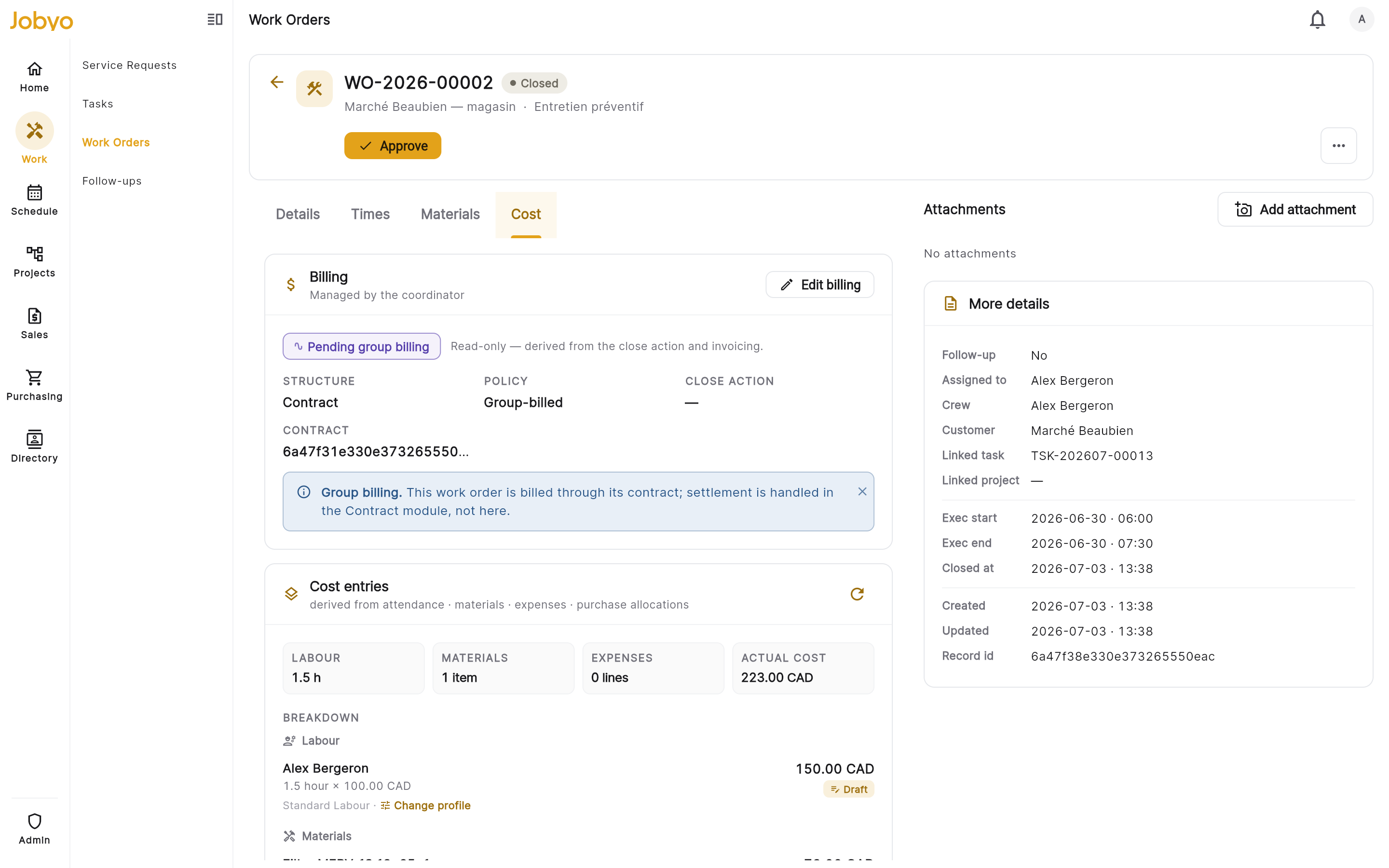
Work order cost tab — Other expenses section with Add Fill in the expense
Enter a description and the amounts — quantity, unit price, and an optional total. Leave the total blank to let Jobyo compute quantity × unit price, or type a total to override it. Set a date if it isn't today.
Pick an expense type (optional)
Choose an expense type from your company's list. This is what classifies the cost — Direct, Overhead, or Adjustment — and the dialog shows the resulting class live before you save. Leave it blank to keep the safe default (Direct, "Other Expense").
Save
Save the expense. Jobyo writes it and, in the same step, creates a matching actual-cost entry — so the spend appears in cost reporting straight away.
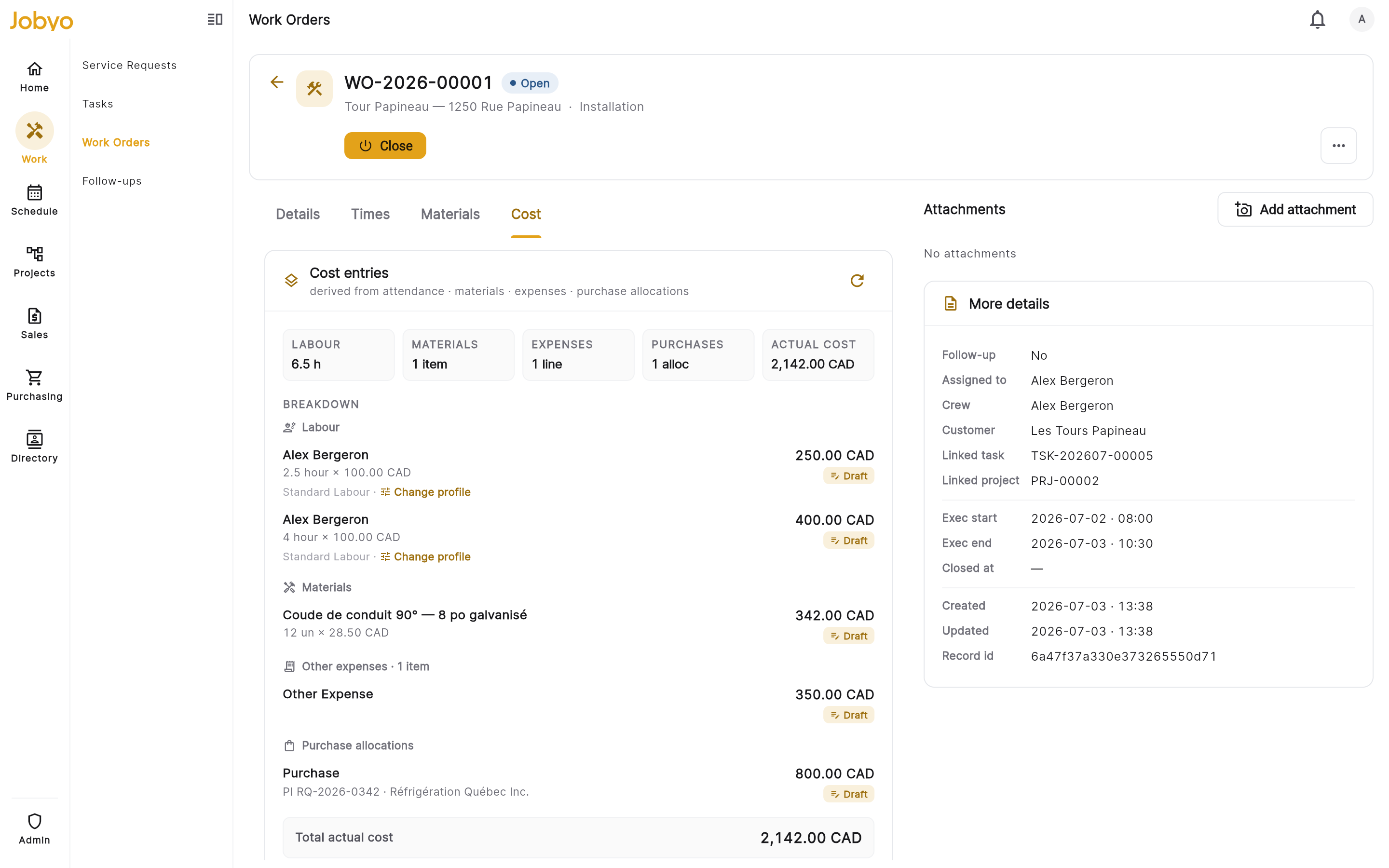
Add expense — description, quantity, unit price, total, type
On a work order, an expense inherits the job's site, location, and work-breakdown lineage from the work order itself — you don't type any of it. If the work order has exactly one piece of equipment, the expense is pinned to it automatically.
Add an expense to a project
From a project's cost tab, use the Add expense dialog. It works the same way — description, amounts, date, and expense type with the live class preview.
The project cost tab currently lets you create an expense but not list, edit, or delete project-scoped ones from that screen. To view or change an expense after saving, work from the work-order cost tab, which has the full add / edit / delete lifecycle.
What the amounts do
- Quantity, unit price, total — all must be zero or positive. Negative amounts are rejected (see below). If you don't supply a total, Jobyo derives it from quantity × unit price; supply one to override.
- Currency is set for you — expenses are recorded in CAD and the field isn't editable.
- Expense type is the only thing that changes how the cost rolls up. Everything else — description, category, notes — is for your own reference.
Fields you can't set
Some fields are filled in by Jobyo and can't be entered on the form:
- Site, location, and work-breakdown lineage — copied from the parent work order.
- Currency — always CAD.
- Who created / changed it and all the audit and date-stamp fields — system-managed.
If it doesn't work
- No cost tab or expenses section at allThe actual-costs feature isn't on your plan, or your role lacks the actual-costs view permission. An administrator can check both.
- Can't add an expenseYou need modify permission on the work order (WO cost tab) or the other-expenses permission (project). Ask an administrator to grant it.
- Can't enter a negative amountRefunds and credits aren't supported here. Correct the original expense on its work order instead of entering a negative line.
- Expense type is rejectedThe chosen type isn't in your company's expense-type list. Pick a listed type, or leave it blank to use the default.
- An expense you saved isn't in the project listThe project cost tab is add-only. Open the work-order cost tab to see, edit, or delete the expense.
- Can't find someone else's expenseIf your role is scoped to own / assigned / team work, you only see expenses you created. Company-scope roles see them all.