Invoice Inbox
Give your company its own email address for receiving supplier invoices. Forward your accounting mailbox to it (or have suppliers send straight there), and every invoice email lands as a message you can read with AI and turn into a purchase invoice — nothing is created in your books automatically.
What it is
The Invoice Inbox is a dedicated email address for your company. Suppliers — or a forwarding rule on your own accounting mailbox — send invoice emails to that address, and each one shows up as a message in your inbox. Nothing is created in your books until someone reviews the message and turns it into a purchase invoice. Until then, you can read it with AI, check what it found, and save it as a draft invoice, or discard it if it isn't needed.
Who can use this
Only company owners and administrators can turn on the Invoice Inbox and use it day to day, by default. There's no option in Company Settings today to extend access to other roles — if your team needs that, contact Jobyo support.
Set up the Invoice Inbox
Set up and turn on the Invoice Inbox a single time. The address is permanent — you don't need to repeat these steps.
Get your intake address
Open Invoice Inbox from the main menu. You'll see a setup card explaining that Jobyo gives your company a private address for receiving invoices. Under 1. Get your company's intake address, select Get intake address. Your company's dedicated address appears, something like
inv-yourcode@inbox.jobyo.io.Copy the address
Tap the address to copy it to your clipboard. You'll need it for the forwarding step below.
Turn on receiving
Under 2. Turn on receiving, select Enable receiving. The inbox turns on, and the next time you open the screen you'll see the message list instead of the setup card.
You don't need to copy it down somewhere safe — once receiving is on, the address stays visible in a strip above the status filters at the top of the Invoice Inbox list, so you can come back and copy it again anytime.
- "Enable receiving" fails with a note about permissionsYour company's roles aren't ready for this feature yet — contact Jobyo support.
- You don't see this screen, or the buttons are greyed outYou need to be a company owner or administrator — ask one of them to do this step.
Forward your accounting mailbox
Right after turning the Invoice Inbox on, set up forwarding in whichever mailbox your company already uses to receive supplier invoices, so those emails reach Jobyo too.
Microsoft 365 / Outlook
Sign in to Outlook on the web, go to Settings > Mail > Forwarding, turn on forwarding, and enter your Jobyo intake address. Keep Keep a copy of forwarded messages on if you still want a copy in your own mailbox, then save.
Gmail
In Gmail, open Settings > See all settings > Forwarding and POP/IMAP, add your Jobyo intake address under Forwarding, choose to forward matching mail, and save.
Many Microsoft 365 companies block automatic forwarding to outside addresses by default, as a security setting. Ask your IT administrator to allow forwarding to the Jobyo Invoice Inbox address if it doesn't seem to be arriving.
Gmail sends a confirmation code to approve the new forwarding address before it starts working, and that code can't be read inside Jobyo. If you're not able to complete that confirmation yourself, contact Jobyo support for help, or set up forwarding at the mail-server level instead.
What happens to an email
- Each email that arrives becomes one message in the inbox — Jobyo doesn't split or merge emails, even when several files are attached. If a supplier puts two different invoices in the same email, you'll still need two purchase invoices: create the second one by hand, or ask the supplier to send future invoices as separate emails.
- Jobyo keeps every PDF or image attachment on the email, up to 20 files, but reads only the one you pick — see Choose which file to read below. Small images embedded in the email itself, like a signature or a company logo, are ignored.
- Supported attachment types are PDF, PNG, JPEG, WEBP, or GIF, up to 15 MB each. Other file types are ignored when Jobyo looks for an invoice to read.
- An email with no usable attachment moves straight to status Failed, with a plain-language reason next to it — no PDF or image attachment found, or the document could not be read.
- An email that fails Jobyo's security checks is held as Quarantined instead of appearing as a normal inbox message, with a reason next to it — sender could not be verified, flagged as spam, or possible virus detected. Nothing is lost, it's just held back.
Daily use
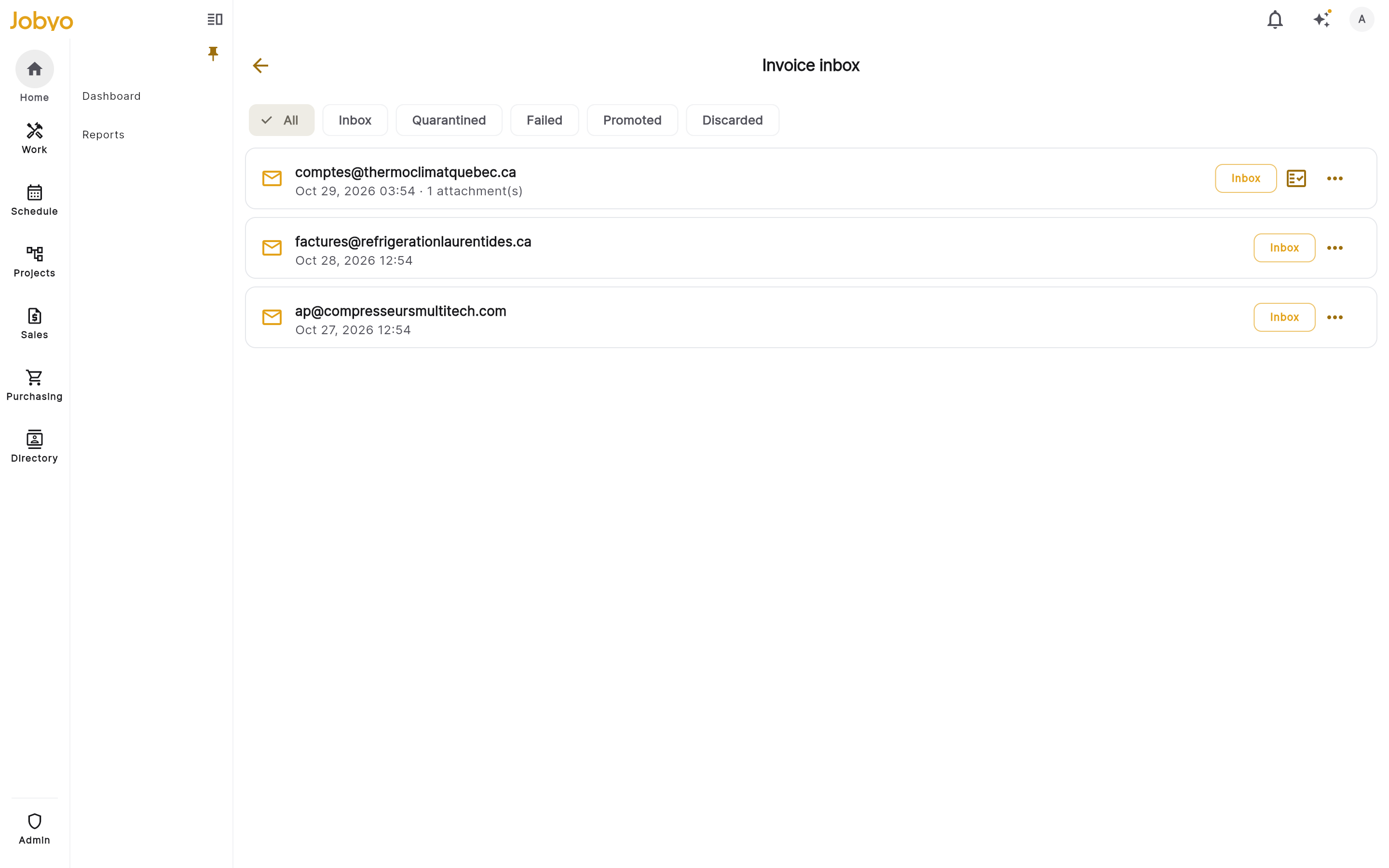
Use the filter chips at the top of the list to narrow what you see: All · Inbox · Quarantined · Failed · Promoted · Discarded.
Choose which file to read
When a message has more than one attachment, tap its attachment count (or choose Attachments from its … menu) to open the list of files before reading or reviewing it.
The first time you open it, Jobyo prepares the files ("Preparing attachments…"). Each file then shows its name, size, and whether it's already been read by AI. On desktop the list sits beside a preview; on mobile, tap a file to preview it full-screen. Selecting Read with AI on a file that hasn't been read yet asks you to confirm — it uses one AI scan; a file that's already been read is free to open or read again. This also works on a Failed message: try a different attachment instead of discarding it.
Read a message with AI
Find a message with status Inbox, open its … menu, and choose Read with AI. With one qualifying attachment, Jobyo reads it right away. With more than one, it asks which file is the invoice — the likeliest one is pre-selected — and reads only the one you confirm. This takes a few seconds, and the message stays in the list while it works.
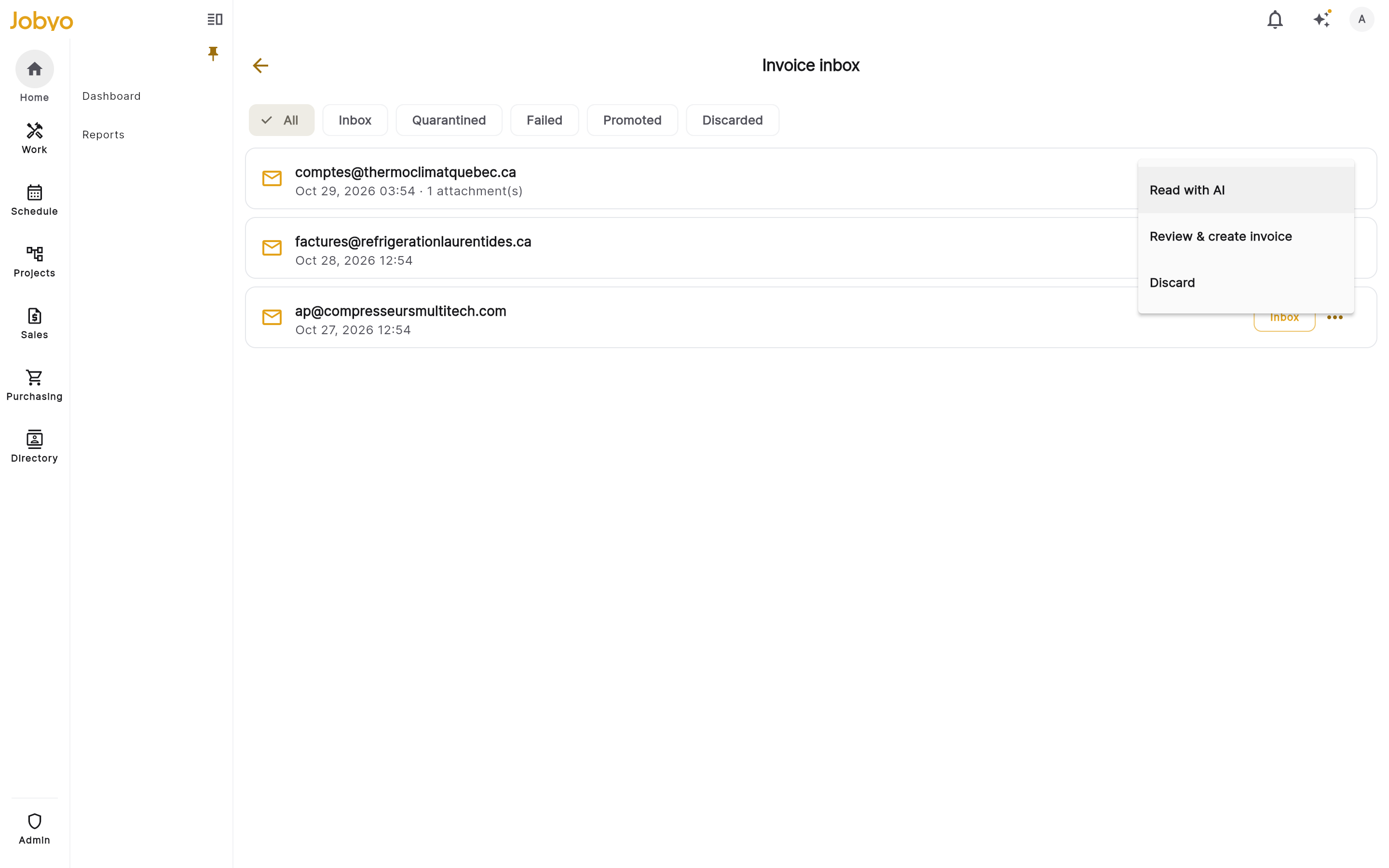
Message row menu — Read with AI, Review & create invoice, and Discard Review & create invoice
Choose Review & create invoice from the menu (or the checkmark on the row). This opens the Verify invoice screen with the source document alongside the form, prefilled by AI.
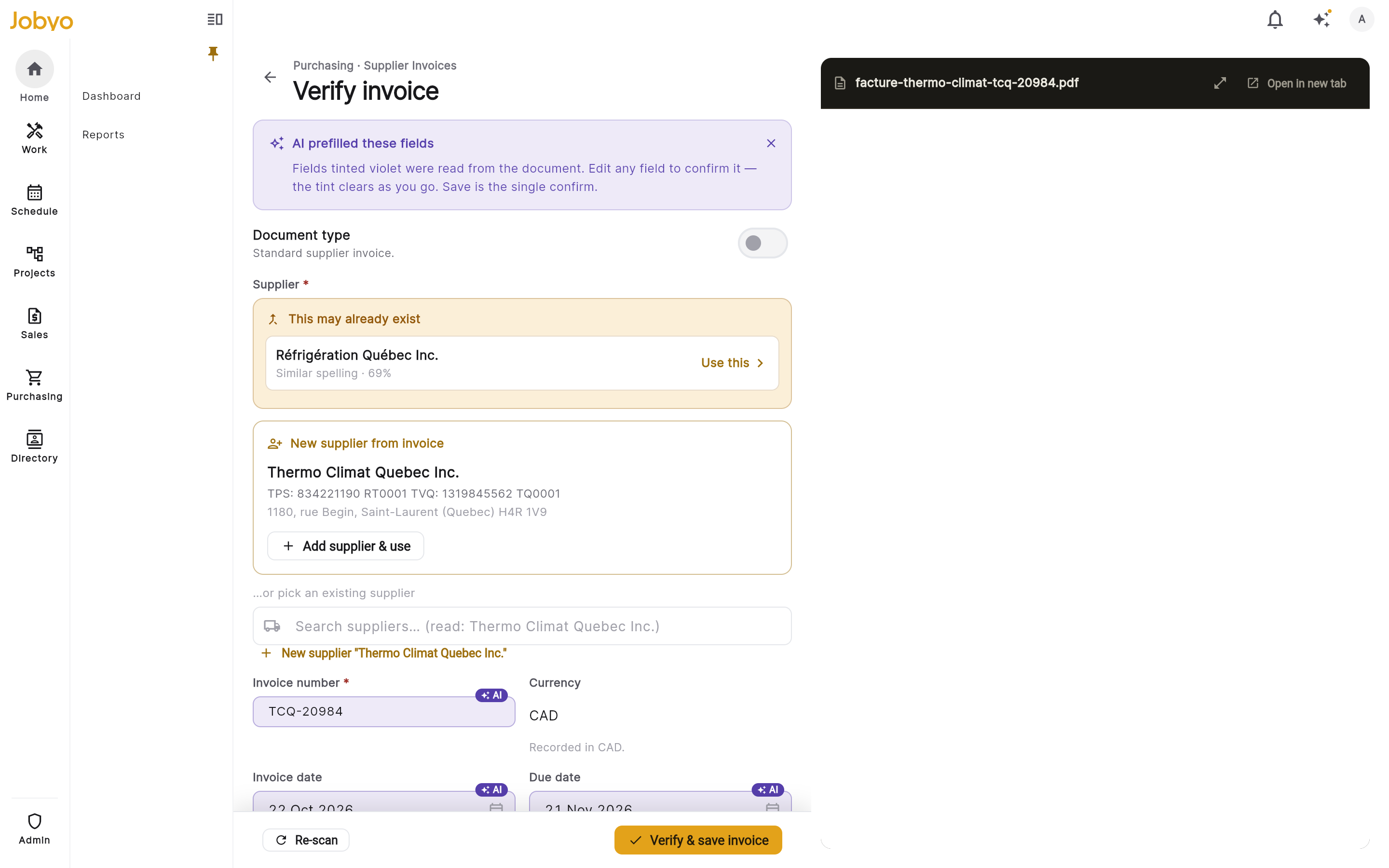
Verify invoice — AI-prefilled fields beside the source document Switch documents if needed
If the message has more than one attached file, a document switcher ("Document 1 of 3") lets you look at each one. To base the invoice on a different file instead, select Read this one instead and confirm — this replaces the AI-filled header, lines, and taxes with what's read from the new file, but keeps the supplier you already chose and any notes you typed. Reading a file for the first time this way uses one more AI scan; re-reading an already-read file is free.
Confirm the supplier
Jobyo suggests a matching supplier when it's confident, but you always confirm it yourself — select Add supplier & use to create one from the details it read, or pick an existing supplier instead.
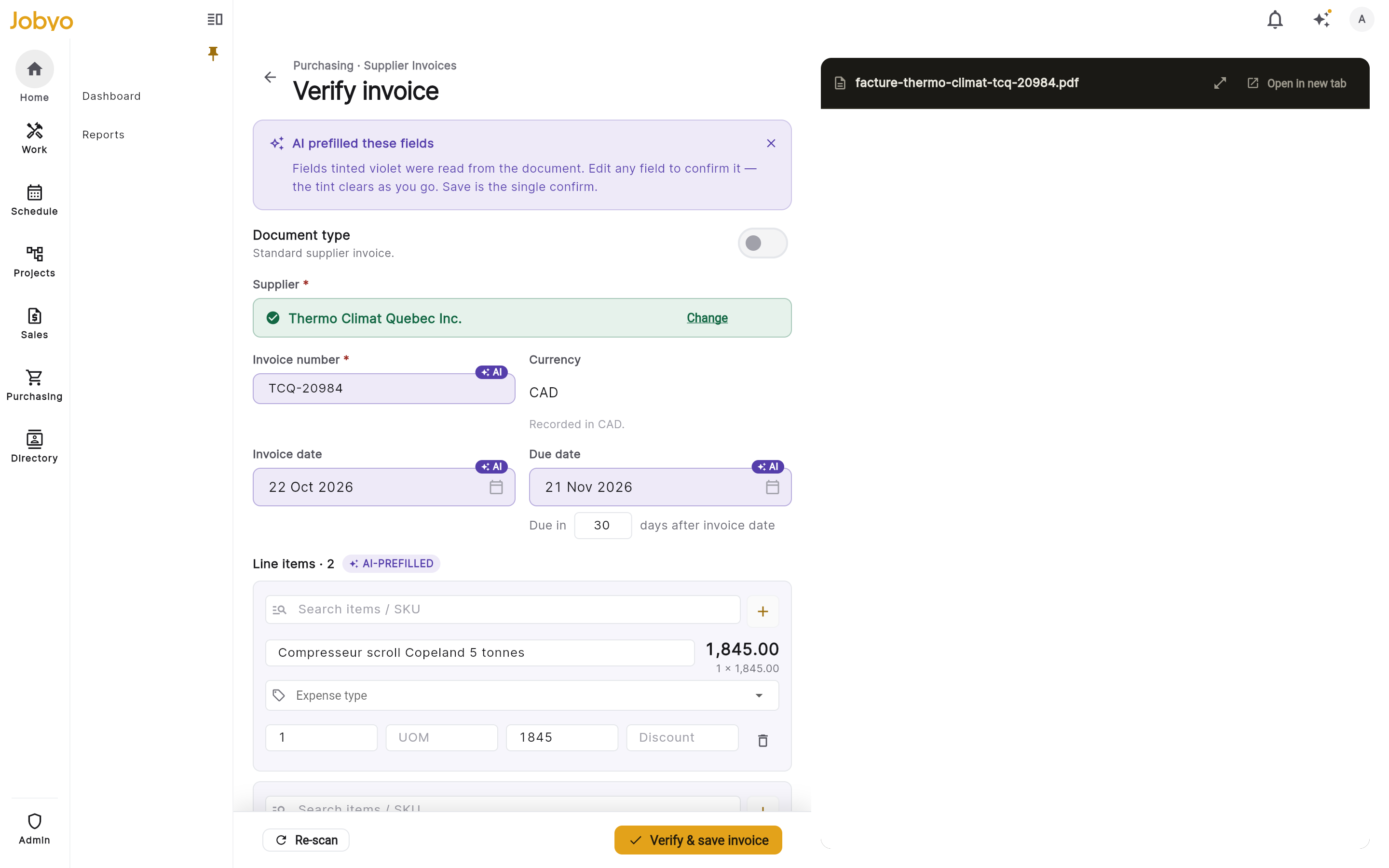
Verify invoice — supplier resolved and ready to save Verify & save invoice
Check every other field, then select Verify & save invoice. If you've already paid the bill, turn on Paid directly first to record the supplier payment in the same step. All of the message's attachments — not just the one Jobyo read — are attached to the new purchase invoice. The message's status changes to Promoted, and its menu now offers Open invoice to jump straight to the new purchase invoice draft.
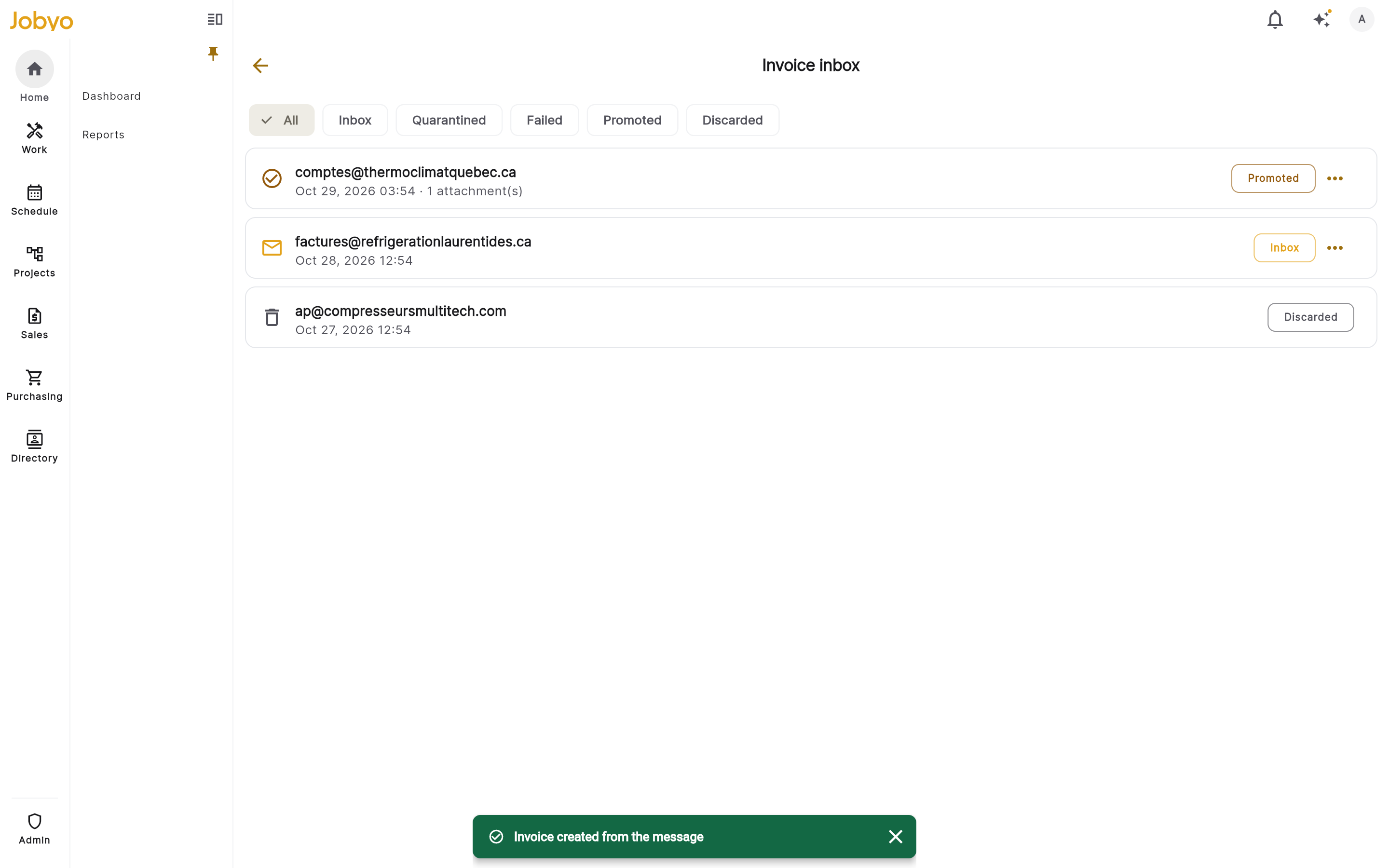
A promoted message, with Open invoice in its menu 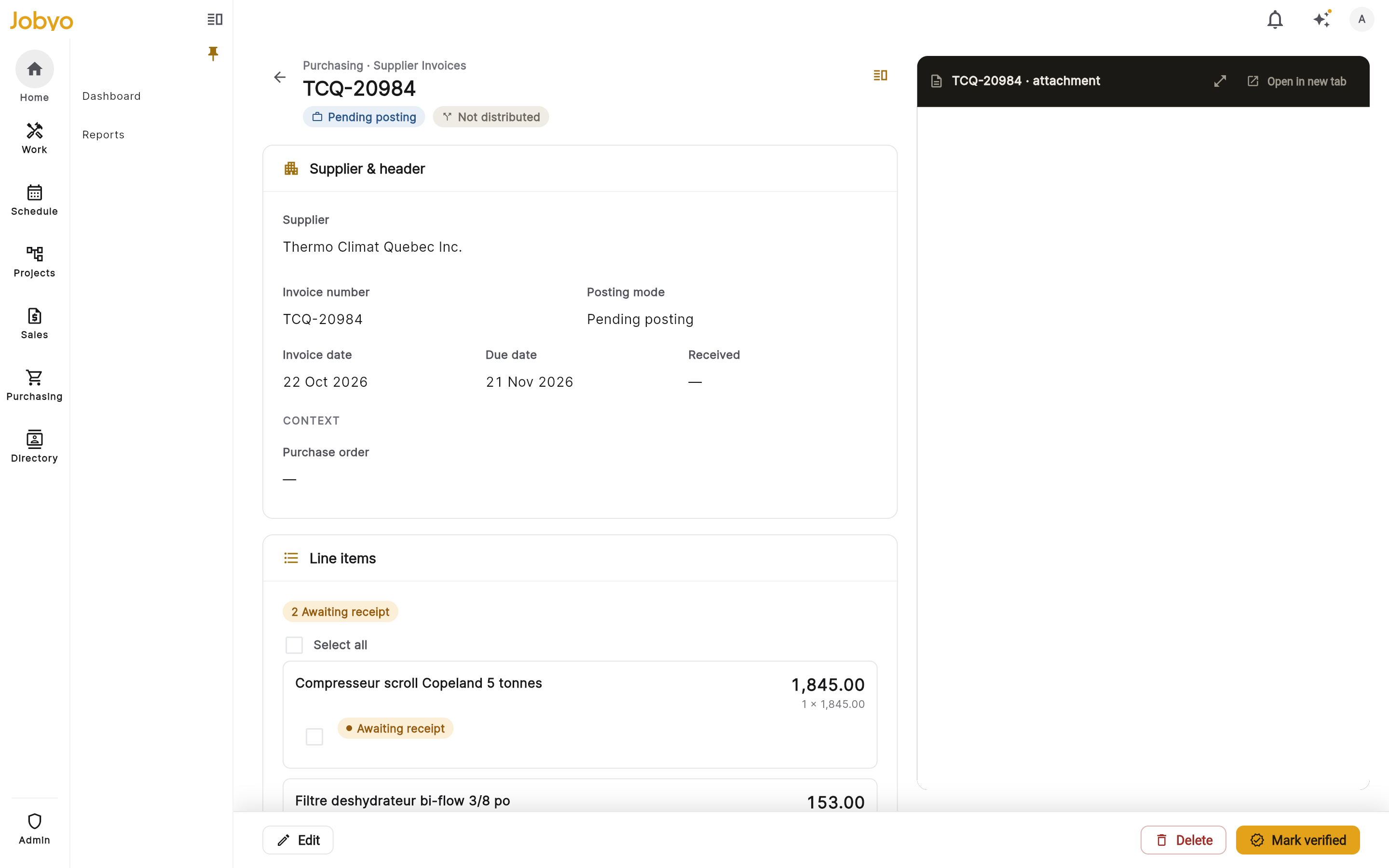
The purchase invoice draft created from the message
From here, the invoice behaves like any other purchase invoice — the same Verify screen you'd see scanning an uploaded document, the same cost distribution, the same payments.
Discard a message
Open the menu and choose Discard
On a message with status Inbox or Failed, open its … menu and choose Discard. You can optionally enter a reason.
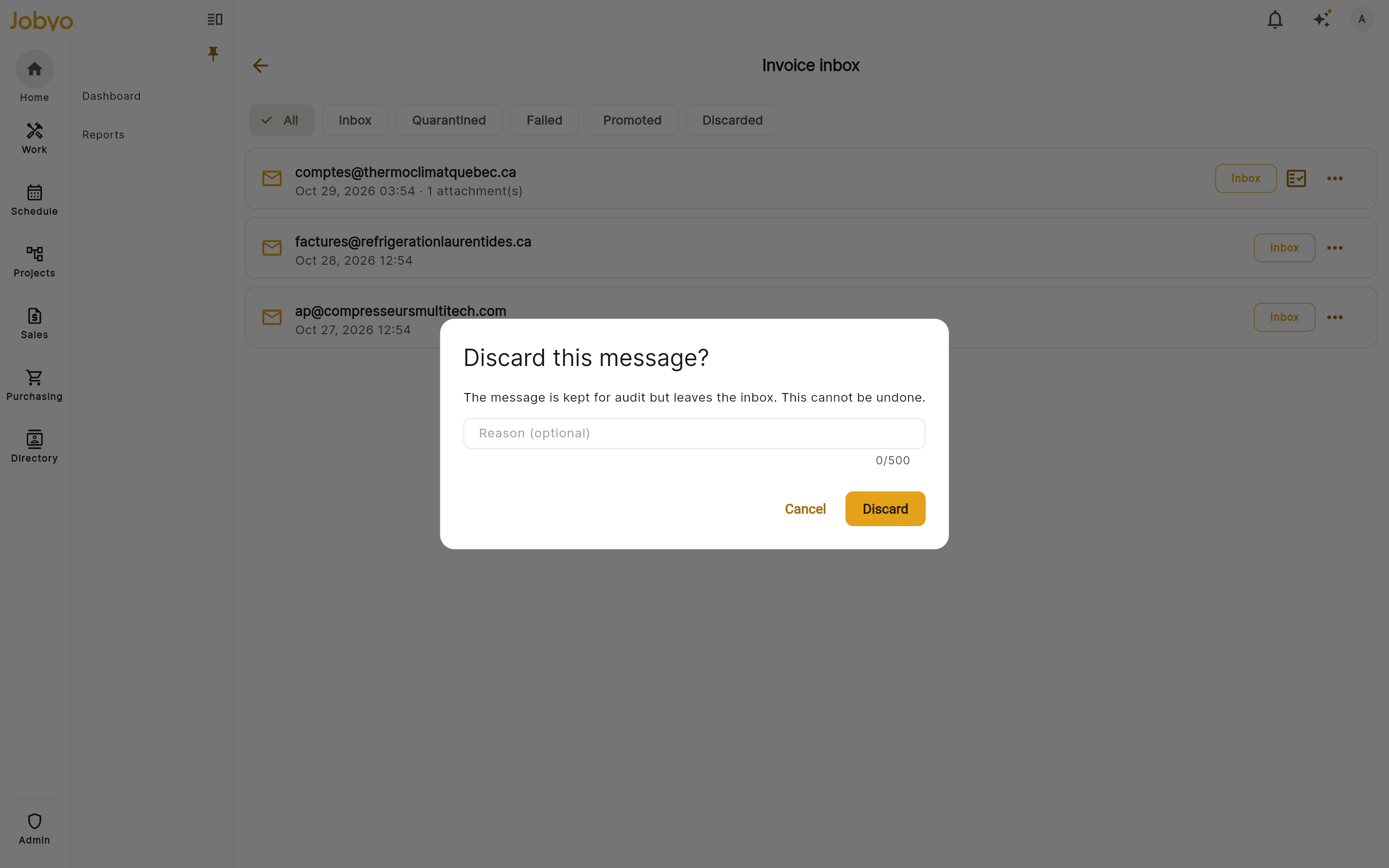
Discard dialog — optional reason before confirming Confirm
The message moves to status Discarded. It stays visible in the list — filter by Discarded to find it again — for audit purposes, but this can't be undone and no further action can be taken on it.
A message held as Quarantined can't be released yet, but nothing about it is lost. If you're expecting a genuine invoice you believe was held in error, ask the supplier to resend it, or enter the invoice manually in Purchase invoices for now.
Monthly AI reading limit
Reading a message with AI draws from the same monthly AI-scan allowance as scanning an uploaded purchase invoice — it isn't a separate quota. Reading or preparing a message's attachments also needs permission to create purchase invoices (owners and administrators have this by default). If your plan doesn't include AI invoice scanning, the Read with AI action won't appear on a message; you can still open its attachments and create the invoice manually. If you hit the monthly limit, the message stays in the inbox and you can try again next month, or review it by hand.