Record customer payments
A customer payment records money you've received and applies it against the customer's sent sales invoices. You capture the receipt once — amount, method, reference — then split ("allocate") it across one or more invoices, and Jobyo advances each invoice's paid balance for you. Recording a payment is final: there's no edit, cancel, or refund in this version.
Who uses this
Customer payments is a back-office receivables surface for finance, billing, and admin roles. It's where you log a cheque, bank transfer, card, cash, or Interac receipt and clear the invoices it pays down. Technicians don't get this screen.
What you'll need
- The list and view permissions on customer payments to browse recorded payments and open one; the create permission to record a new payment. These map to the
customerPaymentspermission — if you don't see the New button, your role doesn't include create. - The customer's id and the id of each invoice you want to pay down. This version has no customer or invoice picker yet, so you paste raw ids (see the note below).
- Each invoice you allocate to must already be sent and belong to the same customer as the payment.
The record-payment form asks for a Customer ID and an Invoice ID on each allocation row — you paste the id rather than picking from a list. Pickers are a planned follow-up. Until then, open the customer or the invoice in its own screen first and copy its id. A helper line on the form reminds you: "Paste the customer id (picker coming soon)."
Record a payment
Open the record-payment form
From Customer Payments, select New. If the button isn't there, ask an administrator to grant you create on customer payments.
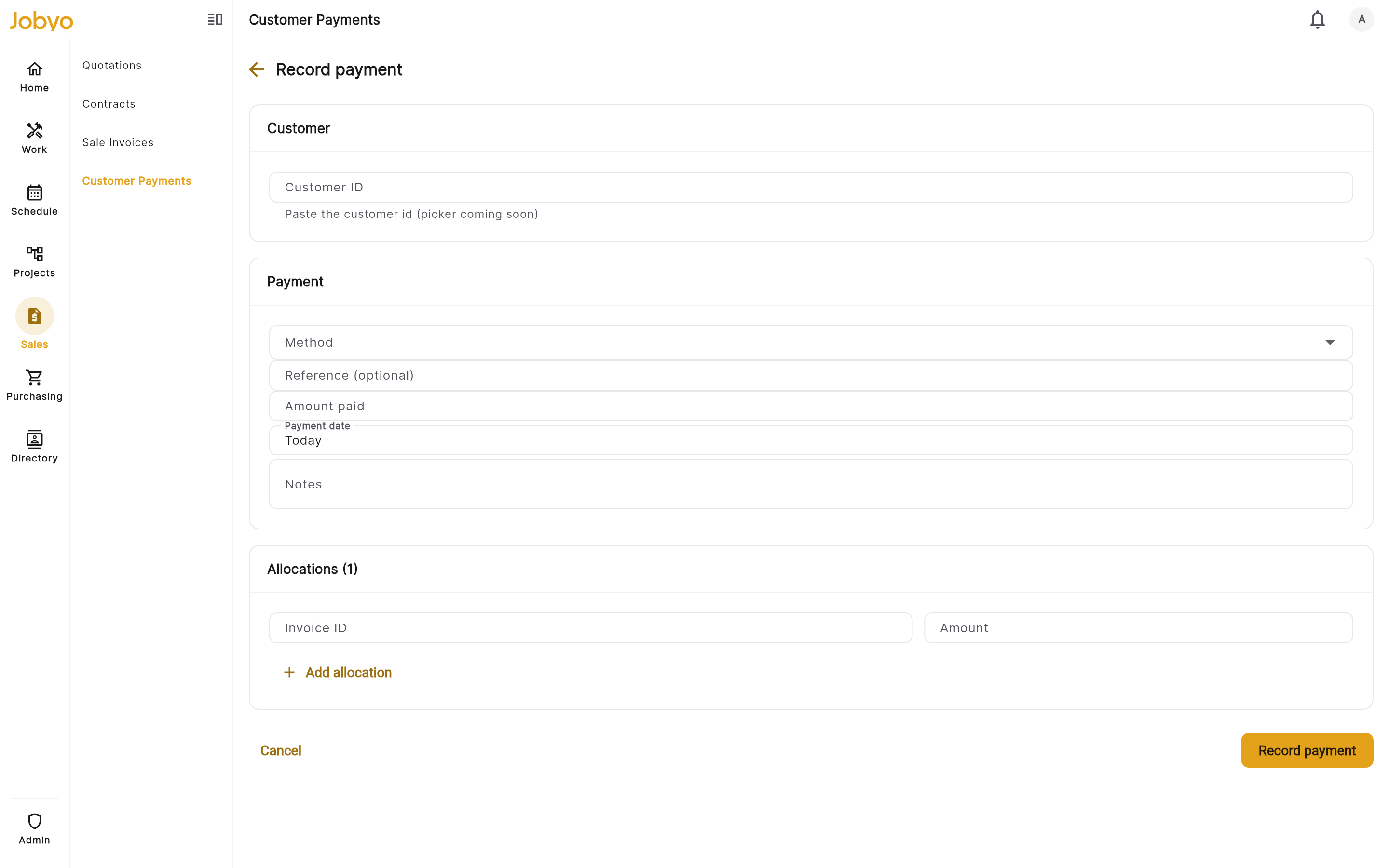
Record payment form — Customer, Payment, and Allocations sections Enter the customer
Paste the Customer ID of the account that paid. This is required.
Choose the payment method
Pick a Method: Credit card, Bank transfer, Cash, Cheque, or Interac. There's no "other" option — one of these five is required.
Add the reference
Enter a Reference (cheque number, transfer confirmation, card authorization, and so on). It's required for every method except Cash — for cash the field is optional. The form relabels the field and shows "Required for Bank transfer" (or whichever method you picked) so you know when it's needed.
Enter the amount paid
Amount paid is the total cash actually received and must be greater than 0. This figure caps how much you can allocate across invoices.
Set the date (optional)
Payment date defaults to Today. Change it if the receipt landed on a different day — it records the date the payment applies, not necessarily today. Clear it to fall back to the moment of recording.
Add notes (optional)
Use Notes for any free-text context. Optional.
Allocate across invoices
The Allocations section is where you decide which invoices this payment pays down. You need at least one row.
Fill in the first allocation row
Each row has an Invoice ID and an Amount. Paste the invoice's id and enter how much of the payment to apply to it (greater than 0).
Add more rows as needed
Select Add allocation to split one receipt across several invoices. Use the × on a row to remove it — you can't remove the last remaining row.
Keep the total within the amount paid
The sum of all allocation amounts must not exceed the amount paid. You can allocate less than you received — a short allocation is fine, and the leftover simply stays unallocated. You can't allocate more than you received.
Surplus is allowed; over-allocation isn'tIf a customer pays 1,000 and you only clear an 800 invoice, allocate 800 and leave the other 200 unallocated — the payment detail shows both an Allocated and an Unallocated figure. But if your rows add up to more than the amount paid, the form blocks the save with a message like "Allocations (1,200.00) exceed the amount paid (1,000.00)."
Record the payment
Select Record payment. Jobyo settles every allocation in one step, assigns a transaction number (a
TXN-prefixed number that resets each year), and opens the new payment's detail.
Each allocation must point at an invoice that is sent, not deleted, and owned by the same customer as the payment. Draft invoices, deleted invoices, and another customer's invoices are rejected — the whole payment fails with "one or more invoices could not be found." Send the invoice first, or check you've pasted the right id and customer.
How settlement works
When you record the payment, Jobyo applies each allocation to its invoice and moves the invoice's paid balance. Two rules govern this, and the whole thing is all-or-nothing.
| Rule | What it means |
|---|---|
| No over-payment of an invoice | For each invoice, its existing paid amount plus what you're applying must not exceed the invoice's billed total. If any single allocation would push an invoice past its total, the entire payment is rejected (nothing is saved). |
| Fully paid only when covered | An invoice flips to fully paid (and gets its paid-date stamped) only when its running paid total reaches its billed total. A partial payment just advances the paid amount and leaves the invoice unpaid — there's no separate "partially paid" label, only the numbers. |
| All-or-nothing | The payment and every allocation are saved together in a single transaction. If one invoice fails its balance check, none of the allocations apply and no payment is recorded — fix the offending row and submit again. |
Settling a payment moves an invoice's paid balance — not its status. A sent invoice stays sent; it doesn't become "paid" as a status. Whether an invoice is fully covered is tracked by its paid amount and paid-date, and the invoice's own send/lifecycle is managed on the invoice, not here. See Create and send sales invoices.
Browse recorded payments
Select Customer Payments to see every recorded payment, newest first, in a table or tiles view. Columns cover the transaction number, method, amount, number of invoices paid, status, and date. Use the column chooser (list view) to show or hide columns, and page through the results at the bottom.
Open any row to see the full payment — method and reference, amount paid, the allocations with the amount applied to each invoice, the allocated and any unallocated total, notes, and an audit timeline (created / updated, and by whom).
The payments list has no search box and no status or method filter — it's a straight, newest-first list. Those controls are deliberately left off because the current version doesn't support filtering the list on the server. Page through to find a payment, or note its transaction number when you record it.
What you can't do yet
This is a record-and-read feature. The following are not built in the current version:
- Edit, cancel, void, or refund a payment. A payment has a single status — Processed — and never changes. If you recorded something wrong, there's no in-app correction path yet.
- Filter or search the payments list, or filter it by customer, method, or status.
- Pick a customer or invoice from a list — you paste raw ids.
Because there's no edit or cancel, double-check the customer, amount, method, and every allocation before you select Record payment. Once it's recorded, it stays.
If it doesn't work
- "Reference is required for Cheque" (or Bank transfer / Credit card / Interac)Every method except Cash needs a reference. Enter the cheque number, transfer confirmation, or authorization — or switch the method to Cash if there genuinely is no reference.
- "Allocations exceed the amount paid"Your allocation rows add up to more than the amount received. Lower a row, remove one, or raise the amount paid. Allocating less than you received is fine; more is not.
- "One or more invoices could not be found" (CP_INVOICE_NOT_FOUND)An allocated invoice is not a sent, non-deleted invoice for this customer. Confirm the invoice id, that the invoice has been sent, and that it belongs to the same customer as the payment.
- "Insufficient invoice balance" (CP_INSUFFICIENT_INVOICE_BALANCE)An allocation would pay an invoice beyond its billed total. Reduce that row to the invoice's remaining balance. Because settlement is all-or-nothing, the whole payment was rejected until you fix it.
- A validation error on save (CP_VALIDATION)A field is missing or invalid — amount paid must be greater than 0, each allocation amount greater than 0, at least one allocation, and the allocation total within the amount paid. Correct the flagged field and submit again.
- No "New" button on the payments listYour role doesn't include creating customer payments. An administrator can grant the create permission under Users & roles.