Supplier Payments
The Supplier Payments section is where you record money paid to a supplier and apply it against that supplier's outstanding purchase invoices (bills). Recording a payment in Jobyo does two things at once: it creates a permanent payment record and it updates the balance on each purchase invoice you allocate the payment to.
This is the accounts-payable (AP) counterpart to the Customer Payments section — instead of recording money coming in, you are recording money going out to your suppliers.
This guide is split by role. Jump to your section:
Billing / Finance user
As a billing or finance user, you can record payments to suppliers, view the full payment history, and open any individual payment to see its details.
What you should know before you start
How settlement works
When you record a supplier payment, Jobyo applies the amount you specify to each purchase invoice (bill) you list. For each bill:
- The paid amount on that bill goes up by what you allocated.
- If the allocated amount covers the bill's full GROSS (tax-inclusive) balance, the bill is marked as fully paid and a paid date is recorded automatically.
- If the payment only partially covers a bill, the bill's paid amount increases but the bill is not yet fully paid — there is no separate "partially paid" label, just a running balance.
GROSS balance: supplier payment settlement is based on the tax-inclusive total of each bill (the grand total including taxes), not the pre-tax subtotal. Make sure the amount you allocate to a bill does not exceed its remaining tax-inclusive balance.
Everything is all-or-nothing
If any part of the payment cannot be applied — for example, one bill belongs to a different supplier, or the amount you allocate would exceed a bill's remaining balance — the entire payment is rejected. Nothing is saved until every allocation passes.
Payment reference
You must enter a reference number or identifier for every payment method except cash (for cash, a reference is optional). For credit card payments, this is typically the transaction or authorisation number. For cheques, the cheque number. For bank transfers and Interac, the transfer confirmation or trace number.
Supplier and bill selection
Unlike the Customer Payments form, the supplier payment form includes a supplier typeahead picker and shows you the supplier's open bills automatically. You do not need to type bill IDs manually — you select the supplier first, then the app loads their unpaid bills for you to allocate against.
Applying a supplier's credits
If this supplier has any open credits (for example, from a returned purchase), the form shows them in their own step below the bills, and applying one reduces the cash you need to pay. See step 4 in the procedure below for how this works.
Record a payment to a supplier
When you'd do this: when you pay a supplier and need to apply the payment against one or more of their outstanding bills. You'll need: permission to create supplier payments (the "Supplier Payments — Create" permission in your role).
-
Open Supplier Payments from the main menu — it sits in the Purchasing group of the navigation menu, alongside Purchase Orders, Goods Receipts, and Supplier Invoices.
-
Tap or click New (or the equivalent create button) to open the record-payment form.
-
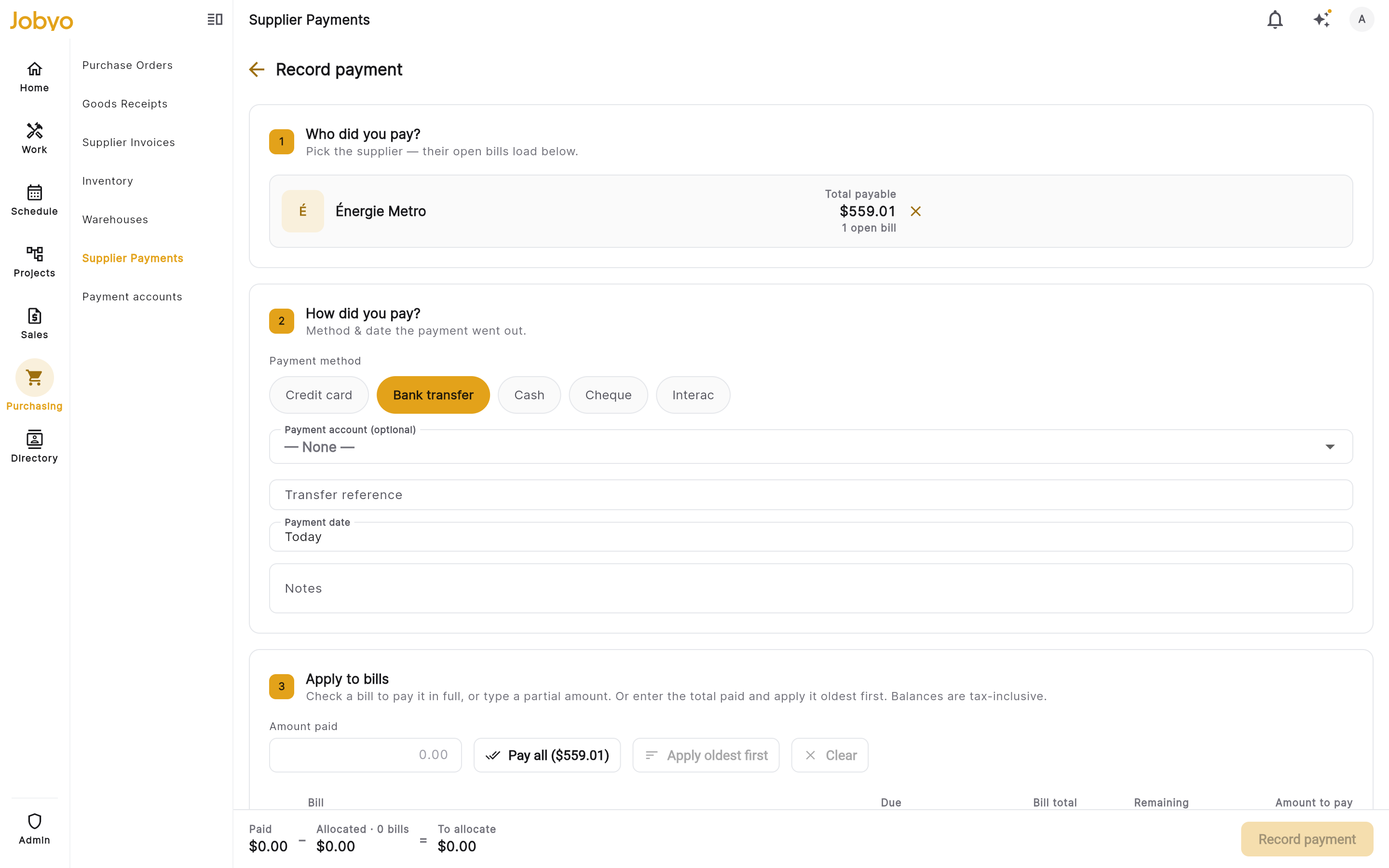
Step 1 — Select a supplier. In the Supplier field, start typing the supplier's name to search. The picker shows matching suppliers. Select the correct supplier.
Search results show each supplier's name and address (when one is on file). After you select a supplier, the field collapses to a summary row showing the supplier's Total payable amount and open-bill count, with an × button to change supplier.
-
The rest of the form appears below once a supplier is selected — the three numbered steps all sit on one scrolling page, so simply continue down to Step 2.
-
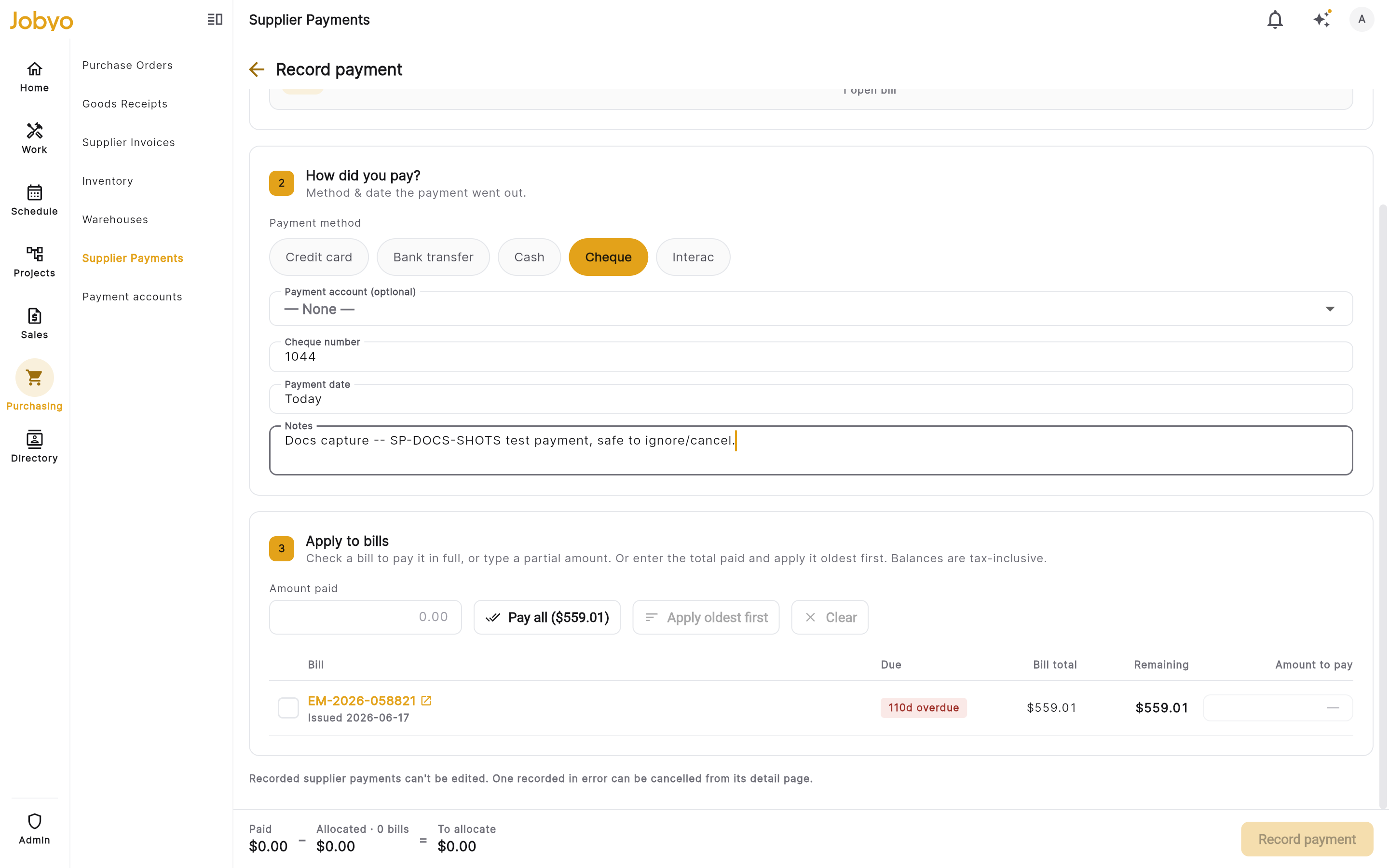
Step 2 — Payment details. Fill in how and when you paid:
-
In Payment method, choose one of the five options:
- Credit Card
- Bank Transfer
- Cash
- Cheque
- Interac
-
In Payment reference, enter the reference number or identifier for this payment.
- Required for Credit Card, Bank Transfer, Cheque, and Interac.
- Optional for Cash.
- If required, the field must not be blank.
-
Payment account (optional) — if your company has set up any payment accounts, a dropdown appears here so you can record which company card, bank account, or cash box the money came out of. See Choose the payment account below for how the list is filtered and where the choice shows up afterward.
-
In Date, enter the date the payment was made. If you leave this blank, Jobyo uses today's date. This is the application date of the payment, not necessarily today.
-
In Notes, add any internal notes you want to record alongside this payment (optional).
-
-
Continue down to Step 3 — Apply to bills.
-
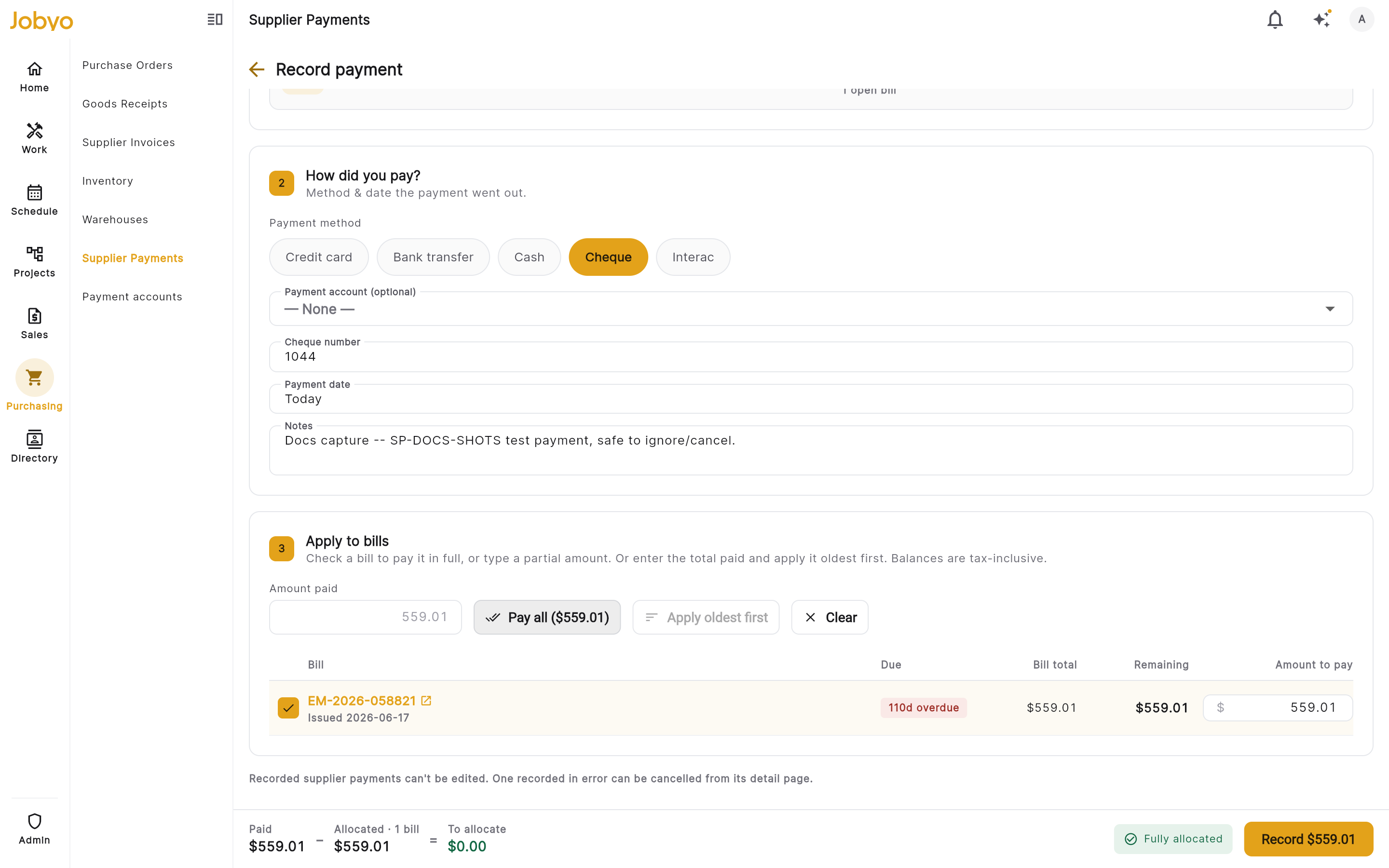
Step 3 — Apply to bills. The form lists the supplier's outstanding purchase invoices (bills):
- In Amount paid, enter the total amount of money you paid this supplier. This must be greater than zero with no more than two decimal places. You cannot allocate more than this total across the bills below.
- Tick a bill's checkbox to pay it in full, or type a partial amount against that bill (each allocated amount must be greater than zero). You can also tap Apply oldest first to spread the amount paid across the open bills automatically, starting with the oldest.
- The form shows the remaining GROSS balance per bill and a running summary of how much you have allocated versus the total amount paid.
You can allocate one payment across multiple bills. You do not need to allocate the full amount paid — any surplus simply stays unallocated on this payment record.
Important rules:
- The total of all your allocation amounts must not exceed the Amount paid entered in this step.
- Each bill must belong to the same supplier you selected. Bills from other suppliers will cause the whole payment to be rejected.
- You cannot over-pay a bill. If a bill's remaining GROSS balance is $500 and you try to allocate $600 to it, the whole payment is rejected.
- A bill does not need to be in any particular status to be payable — it just needs to be an active, non-deleted purchase invoice for this supplier.
-
If this supplier has any open credits, the form shows a Step 4 — Apply supplier credits section below the bills (it only appears when the supplier has at least one credit available). A credit can only be applied against bills you've already applied in step 3 above — if you haven't applied any bills yet, a note tells you to select bills first.
- Each row is one credit, showing its number, date, the original bill it came from, and how much of it is still Available.
- Tick a credit's checkbox to apply its full available amount, or type a partial amount in Amount to apply. A credit works the same way whether its original bill is still unpaid or already fully paid.
- The summary bar updates to Bills applied − Credits = Cash payable, so you can see at a glance how much cash you actually still need to pay after the credits are applied.
- You cannot apply more in credits than the total of the bills you've applied above — credits lower what you pay in cash, they do not create a cash amount owed to you.
- If the credits you apply cover the bills exactly, Cash payable shows $0 and the form records the payment with no cash movement — the payment method on the record becomes Credit application automatically, and the button at the bottom reads Apply credits instead of Record payment.
Known limitation: if your supplier refunds a credit to you in cash instead of you applying it to a future bill, Jobyo doesn't currently have a way to record that cash refund with a date. Track cash refunds outside Jobyo for now — the credit itself stays visible as available until it's applied to a bill.
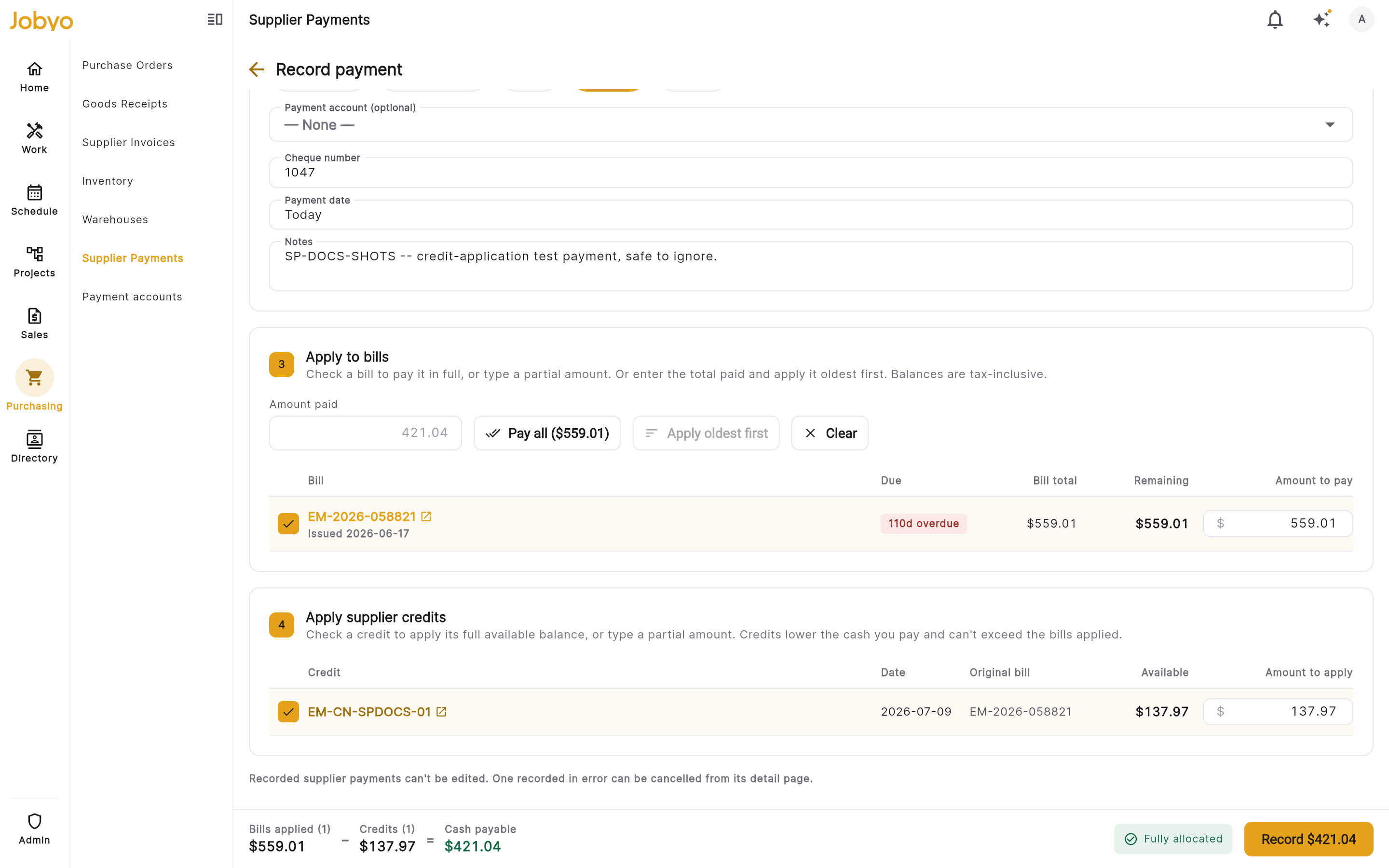
- Review the summary bar at the bottom of the screen, then tap Record payment (once an amount is entered, the button shows the amount being recorded; it reads Apply credits instead when credits alone cover the bills).
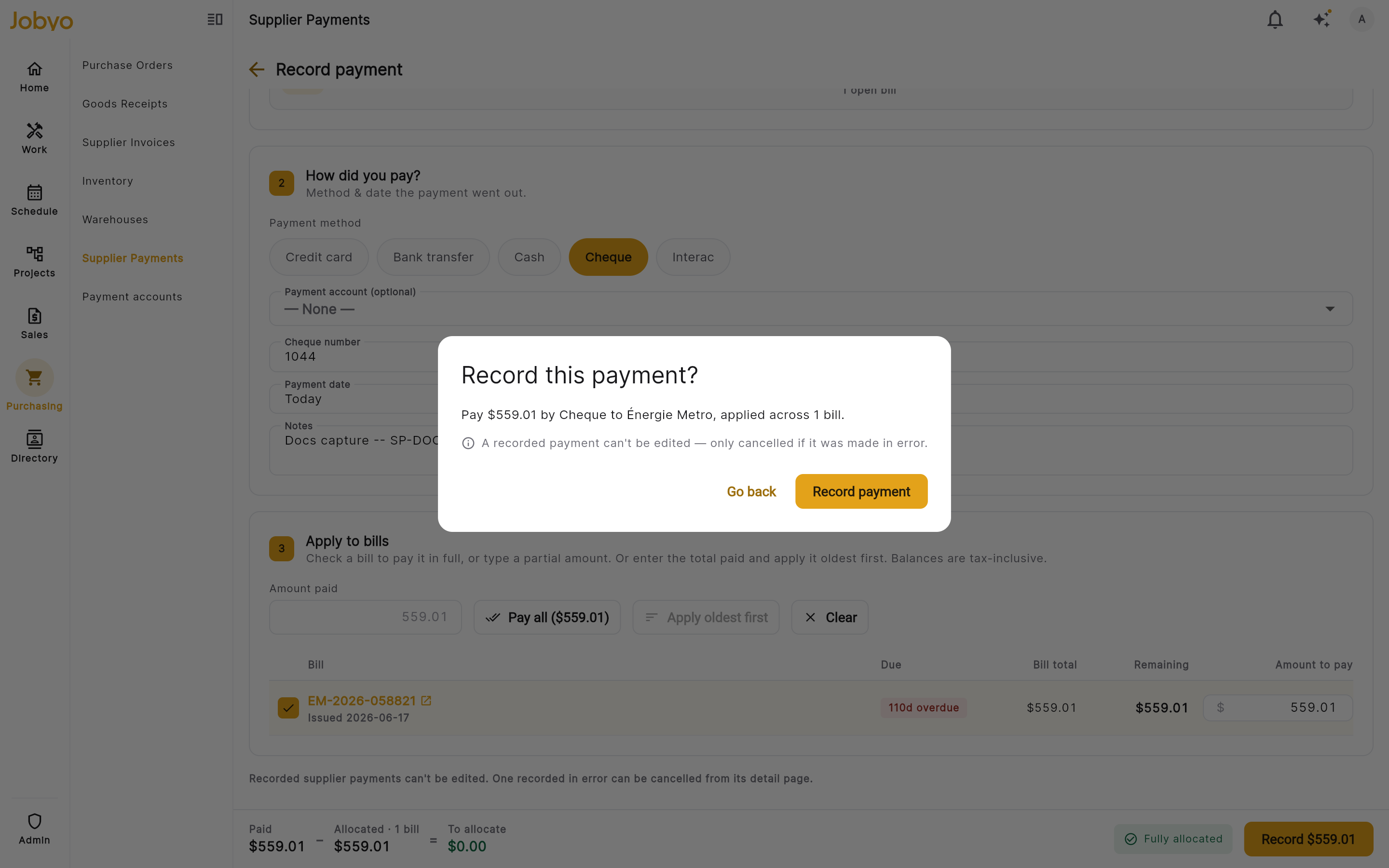
What you'll see: the payment is saved immediately. Jobyo assigns it a transaction ID (in the format TXN-NNNNN, resetting each year) which you can use to look it up later. Each bill you allocated to has its paid amount updated right away. If any bill is now fully paid (GROSS balance reached), it is automatically marked as paid with today's date. If you applied any credits, each credit's available amount goes down by what you applied — if a credit is used again later for a different payment, only its remaining available amount can be applied.
If it doesn't work:
- "Supplier is required" — you did not select a supplier. Go back to step 1 and choose one.
- "Amount paid must be greater than zero" — enter a positive amount greater than zero. (Not shown when credits alone cover the bills — in that case the amount paid is $0 and that's expected.)
- "Payment method is required" — choose one of the five payment method options.
- "Payment reference is required" — for Credit Card, Bank Transfer, Cheque, and Interac payments you must provide a reference. Enter the relevant confirmation or identifier.
- "At least one allocation is required" — you must allocate the payment to at least one bill. Go to step 3 and enter an amount for at least one bill.
- "Bill not found" — one or more of the bills selected no longer exists or belongs to a different supplier. Refresh the bills list and try again.
- "Allocation exceeds bill balance" (
SP_INSUFFICIENT_INVOICE_BALANCE) — the amount you allocated to one bill exceeds its remaining GROSS (tax-inclusive) balance. Reduce the amount for that bill.- "Total allocated exceeds amount paid" — the sum of your bill allocations is more than the total amount paid you entered. Reduce one or more allocation amounts.
- A credit you tried to apply is no longer available, or the amount you applied to it is more than it has available — reload the form to refresh the credit's current balance and try again with a lower amount.
- If none of the above explains the problem, check that your account has been set up with the Supplier Payments permission — see your admin.
Choose the payment account
When you'd do this: your company tracks which card, bank account, or cash box pays for things, and you want this payment tied to the right one. You'll need: your company must have at least one active payment account set up, and your role needs the Payment Accounts list permission (most roles that can create supplier payments already have this — see Who can do what).
Payment accounts are the company's own cards, bank accounts, and cash — set up once under Payment Accounts (reached from the Admin hub, or the Purchasing section of the main menu) and reused across every supplier and customer payment. See Payment accounts for how to create and manage them.
- In Step 2 of the record-payment form, after you choose a Payment method, a Payment account (optional) dropdown appears below it.
- The dropdown only lists accounts that are active and whose kind matches the method you
picked:
- Credit Card → credit card accounts only.
- Bank Transfer, Cheque, or Interac → bank accounts only.
- Cash → cash accounts only.
- Pick an account, or leave it on — None — to record the payment without one. Choosing an account is always optional — it never blocks recording the payment.
What you'll see: the chosen account's label and last four digits are shown on the payment's detail screen (see Open a payment to see its details) as soon as the payment is recorded.
Note on the account shown later: Jobyo captures a snapshot of the account's label and last four digits at the moment you record the payment — the same way it freezes the supplier's name (see the note below). If the account is later renamed, deactivated, or deleted, this payment still shows the account exactly as it was when you chose it.
If you don't see the dropdown: either your company has no payment accounts set up yet, your role doesn't have the Payment Accounts list permission, or no active account matches the payment method you selected. None of these block recording the payment — the account is simply left blank.
Browse the payment list
When you'd do this: to see all recorded supplier payments, or to find a specific payment. You'll need: permission to list supplier payments.
-
Open Supplier Payments from the main menu (under the Purchasing group).
-
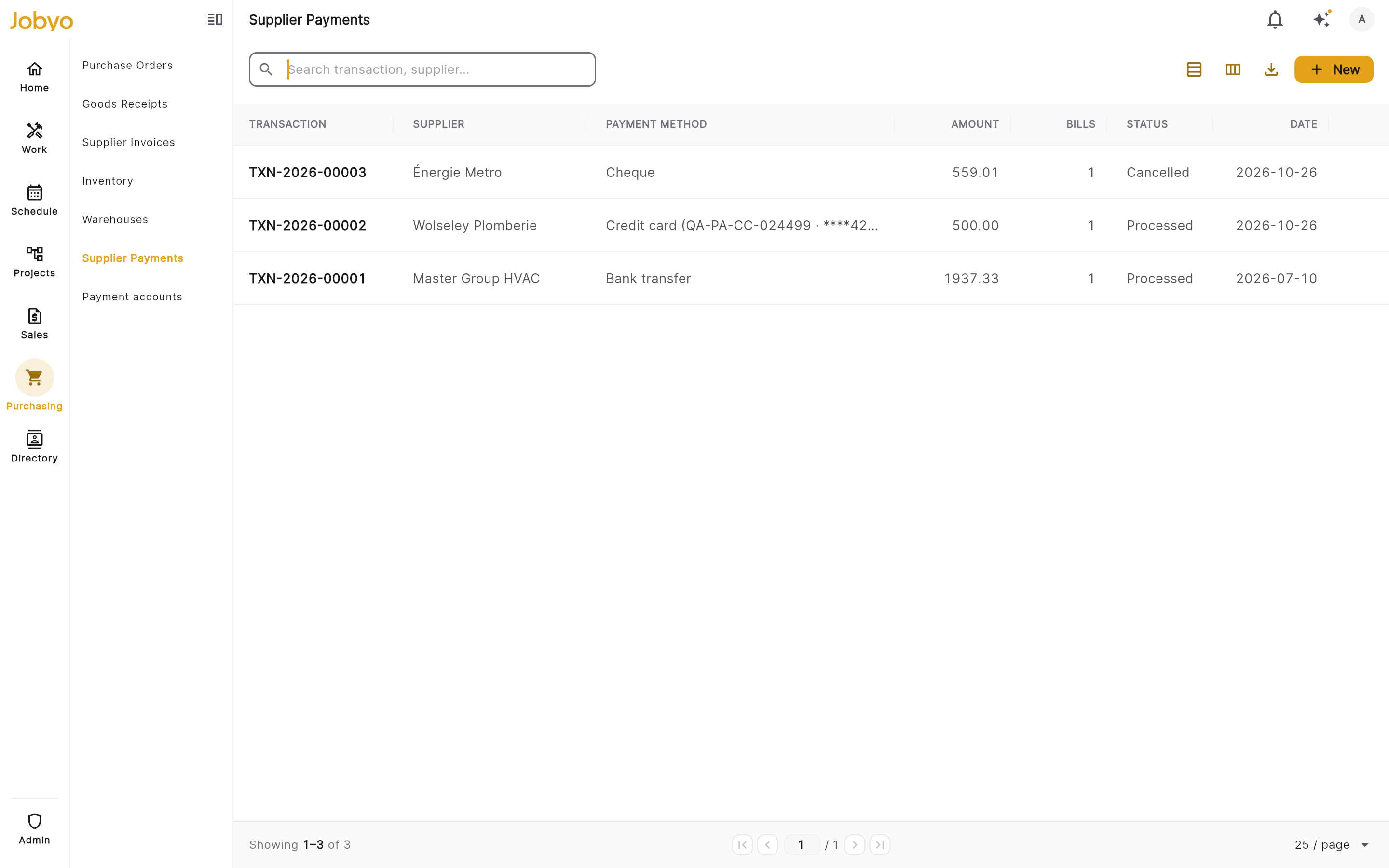
The list shows payments in order from newest to oldest. Each row shows the transaction ID, supplier name, total amount paid, payment method, and date.
-
To find a specific payment, type in the search box in the toolbar — it matches the transaction ID, supplier name, payment reference, and notes of the rows on the current page. There is no supplier filter panel on this screen in the current version: the back end supports filtering the list by supplier, but the app does not yet expose that filter in the interface.
-
Scroll down or use the page controls to move through older payments.
Note: the search box filters only the currently loaded page — it does not search the full payment history. To find an older payment, page through the list. Full-history search is planned for a future release.
Open a payment to see its details
When you'd do this: to review a specific payment — what was allocated to which bills, who recorded it, and when. You'll need: permission to view supplier payments.
-
In the Supplier Payments list, tap or click the payment row you want to open.
Alternatively, if you know the transaction ID (in the format TXN-NNNNN), you can navigate directly to that payment by ID.
-
The detail screen shows:
- Transaction ID
- Supplier name (frozen at the time the payment was recorded — see note below)
- Total amount paid
- Payment method (shows Credit application if the payment was settled entirely with supplier credits, with no cash paid)
- Payment account (if one was chosen when the payment was recorded) — shown as a label and last four digits; see Choose the payment account above
- Payment reference (if provided)
- Date of payment
- Notes (if any)
- The list of bill allocations — which purchase invoices were paid and how much was applied to each, with the purchase invoice number shown where available
- A Credits applied section, if any supplier credits were used on this payment — one row per credit, with its number and the amount applied
- A Cancel payment button (see below)
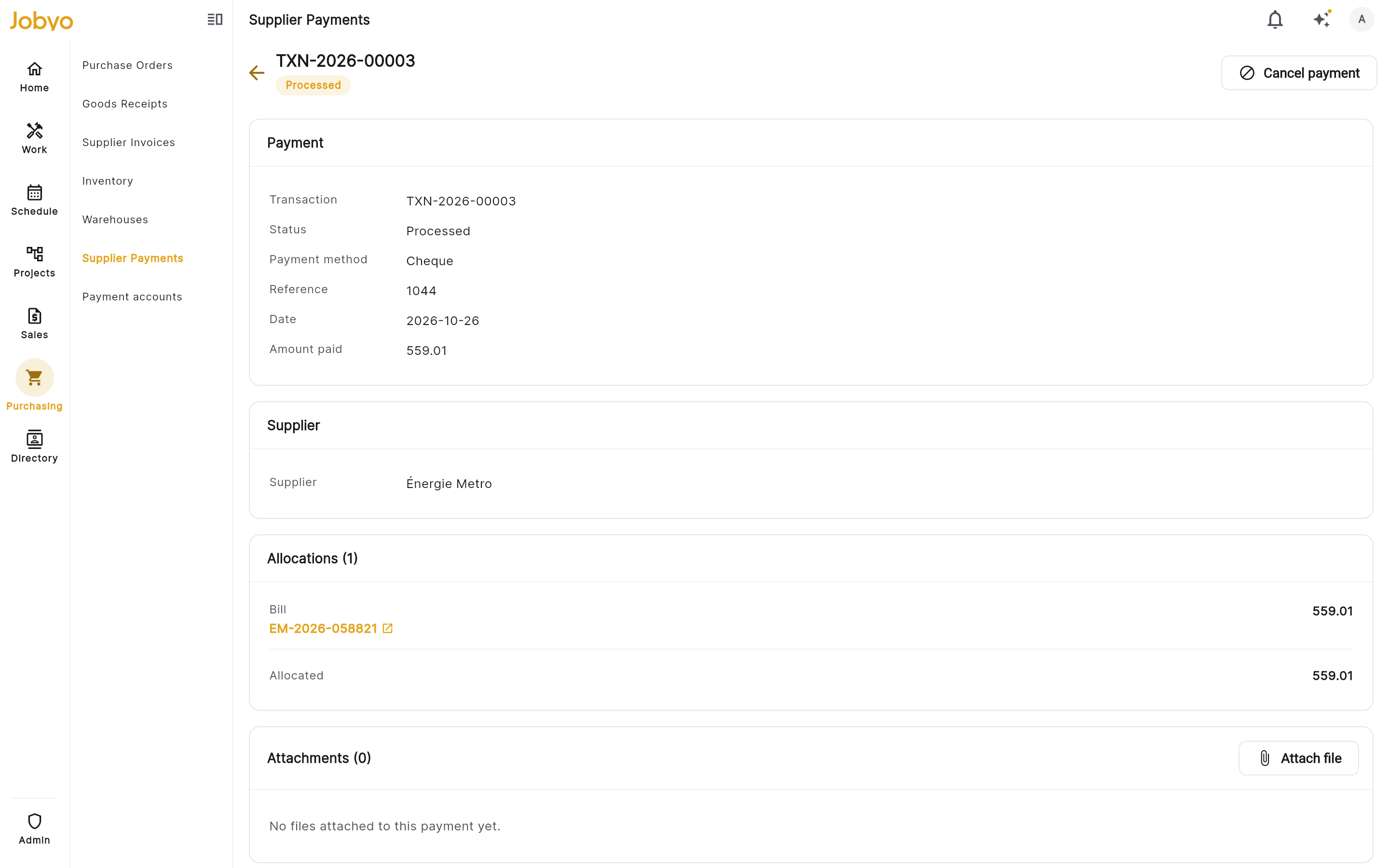
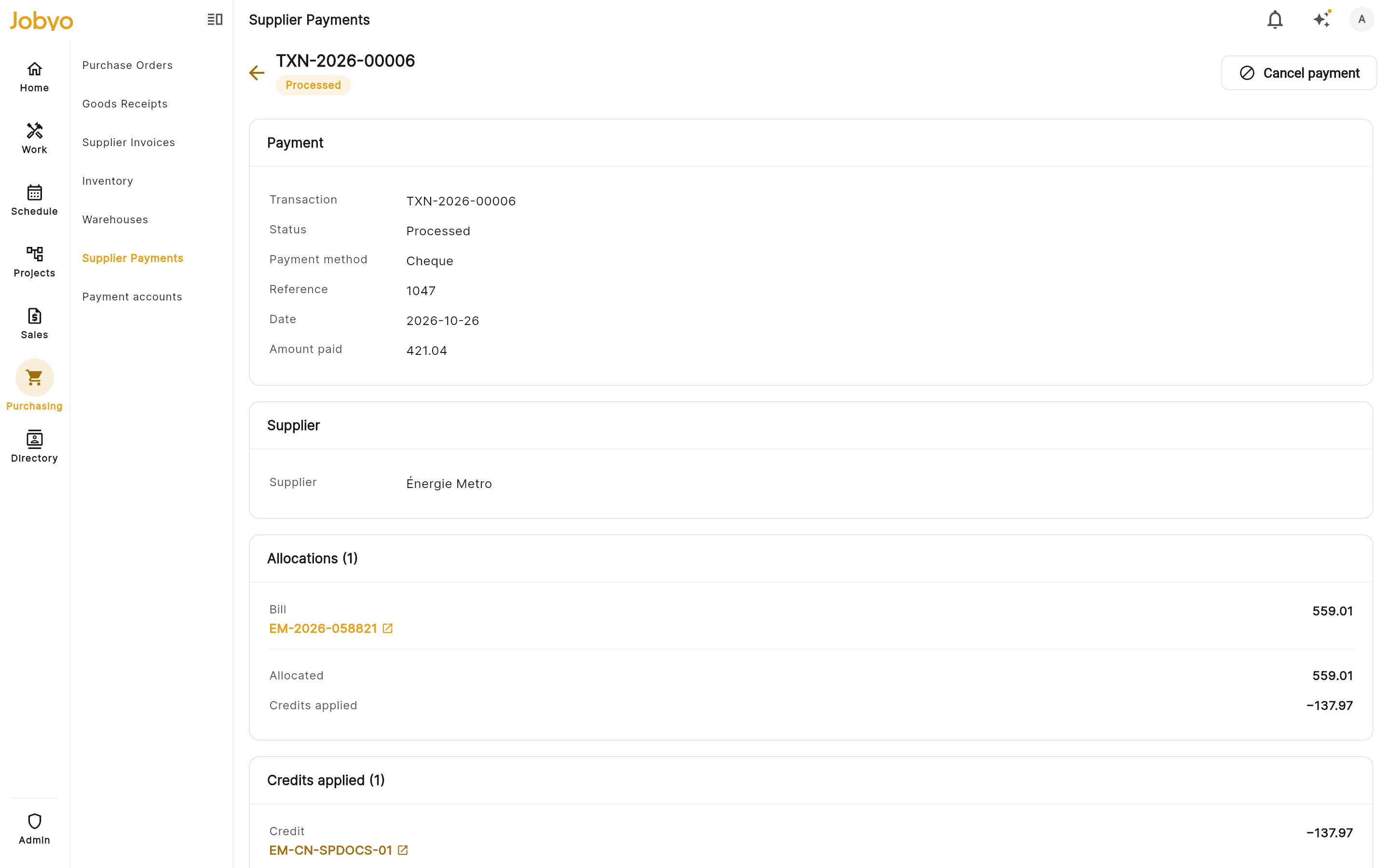
What you'll see: the full payment record in read-only view.
Note on supplier name: Jobyo captures a snapshot of the supplier's name when you record the payment. If the supplier's name is changed in the supplier master later, the name shown on this payment record will still reflect the original name at the time of payment. This is by design.
Attach a document to a payment
When you'd do this: to keep proof of payment (a remittance advice, cheque scan, bank confirmation) or another supporting file with the payment record — including as evidence after you've cancelled one. You'll need: permission to view attachments, to see the card; permission to create attachments, to attach a file; permission to delete attachments, to remove one. The payment must already be recorded — you cannot attach a file while recording a new payment; add it afterward from the payment's detail screen.
Works on a cancelled payment too: attaching files isn't blocked by the payment's status. If you've cancelled a payment, you can still attach a file to it afterward — for example, a note or document explaining why it was cancelled. The same attachments permissions apply; there's no extra permission for a cancelled payment.
- Open the payment (see Open a payment to see its details).
- Find the Attachments card on the detail screen.
- Tap Attach file and choose the file from your device.
- The file uploads and appears in the list. Tap a file to preview it, or tap the open icon to view/download it.
What you'll see: a "File attached" confirmation, and the file appears in the Attachments list with its file count in the card title.
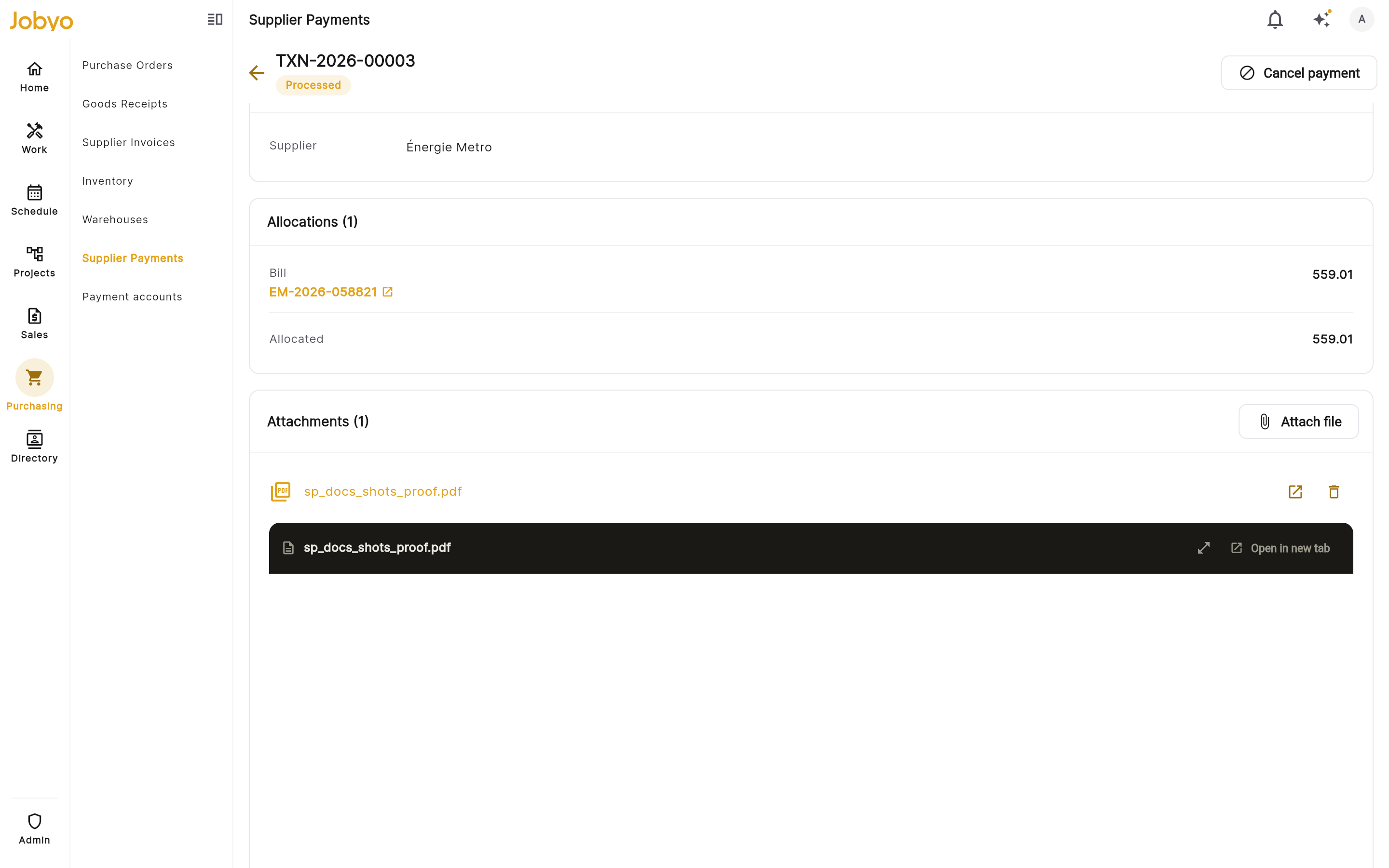
To remove an attachment:
- Tap the delete (trash) icon next to the file.
- Confirm in the "Delete attachment?" dialog — the file is removed from this payment.
If it doesn't work: if the Attach file button is greyed out, you do not have the attachments create permission — ask your admin. The same applies to the delete icon, which only appears for users with the attachments delete permission. If you don't see the Attachments card at all, your role does not have permission to view attachments.
Cancel a payment made in error
When you'd do this: you recorded a supplier payment by mistake — wrong amount, wrong bills, wrong supplier — and need it undone. You'll need: the Supplier Payments Approve permission. Owner and Administrator roles have this by default; other roles need it added by an admin (see Admin — additional controls).
-
Open the payment's detail screen (see above).
-
Click Cancel payment.
If the button looks greyed out, hover over it — a tooltip explains that cancelling requires the supplier payments approve permission. Ask your admin if you need this payment reversed.
-
In the Cancel this payment? dialog, type a Reason explaining why the payment is being cancelled. A reason is required — you can't confirm without one.
-
Click Cancel payment in the dialog to confirm, or Keep payment to back out without changing anything.
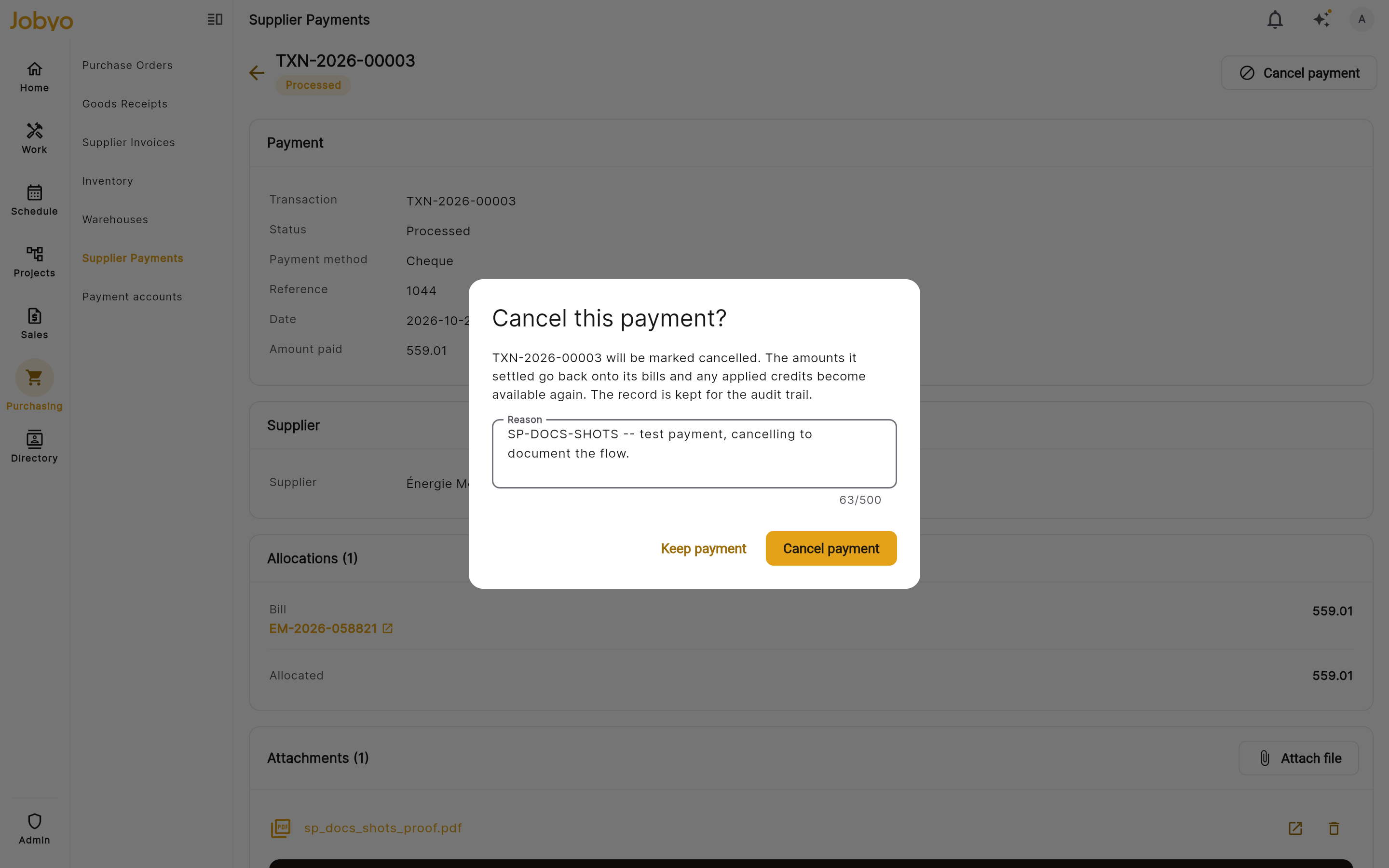
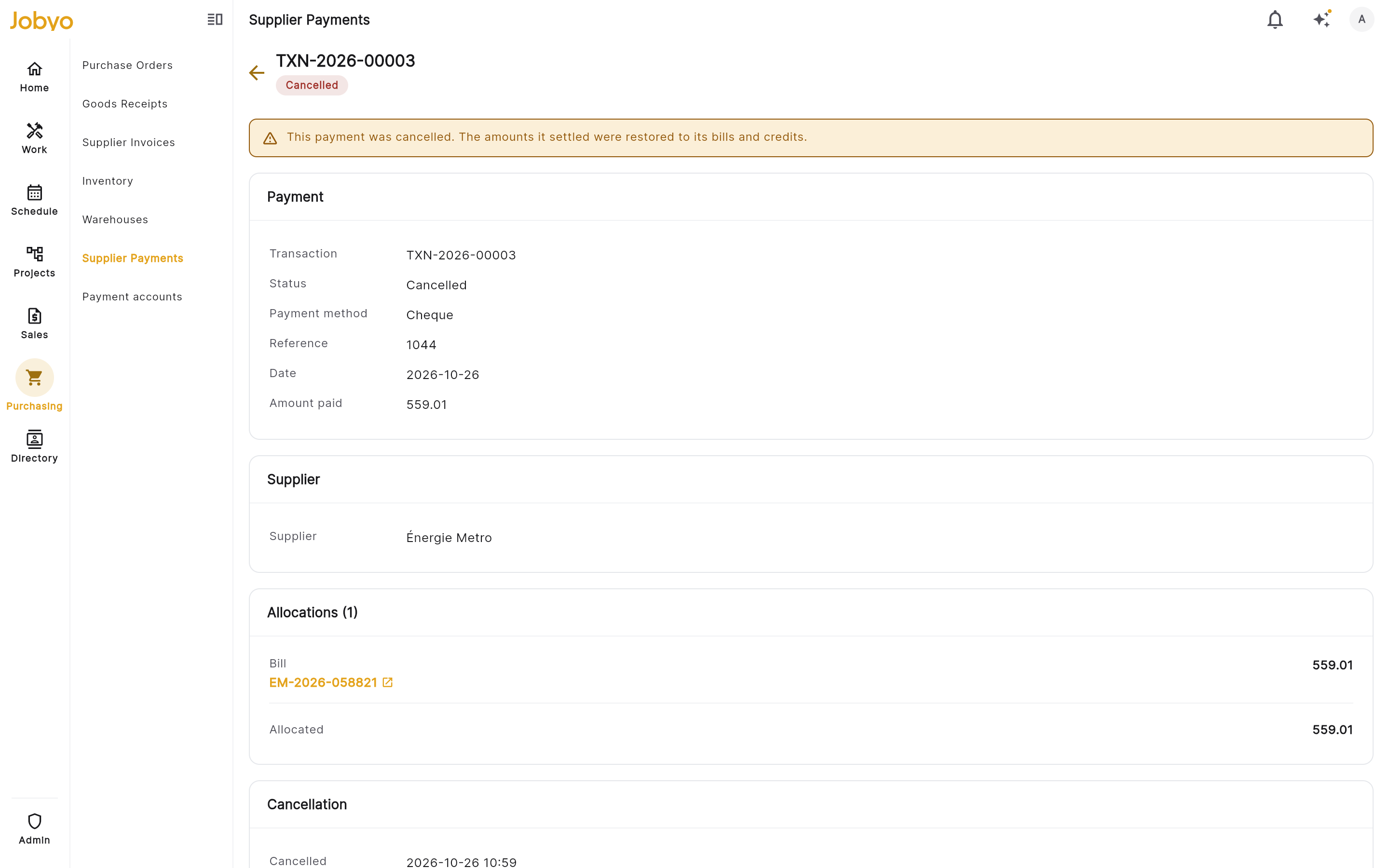
What you'll see: the payment record is kept, not deleted — it now shows a Cancelled status with the reason you entered, who cancelled it, and when. Every bill this payment was applied to has that amount removed from its paid total (so the bill's balance goes back up), and any supplier credits this payment used become available again for the supplier's next bills.
If it doesn't work:
- The Cancel payment button is disabled with a tooltip — your role does not have the Supplier Payments Approve permission. Ask your admin.
- "This payment was already cancelled." — someone already cancelled this payment; there is nothing more to do.
- "A bill or credit on this payment changed since it was recorded, so it can't be reversed automatically. Nothing was changed." — one of the bills or credits this payment touched has since changed in a way that blocks an automatic reversal. Contact your admin.
- "This payment was recorded in the previous system and can't be cancelled here." — this payment was created before Jobyo's current version and cannot be cancelled from this screen.
Understand a payment's status
A supplier payment is either:
- Processed — the normal state for a payment that settled bills (and possibly credits) and hasn't been reversed.
- Cancelled — the payment was undone using Cancel payment (see above). The record stays on file, with the reason, who cancelled it, and when, but no longer counts toward any bill's or credit's balance.
There is still no way to edit a payment once it's recorded, and no way to record a cash refund from a supplier directly on a payment or credit — see Feature availability notes.
If you recorded a payment in error, cancelling it (above) is the way to undo it. If you don't have the Approve permission needed to cancel, ask your admin.
Admin — additional controls
Admins have the same access as billing and finance users. In addition, admins are responsible for ensuring that the Supplier Payments section is enabled for your team.
Enable the Supplier Payments section for your team
When you'd do this: if the Supplier Payments section is missing from your menu, or if staff report getting an "access denied" message when they try to open it.
Important: Supplier Payments requires a one-time setup step by a system administrator before it becomes available on your Jobyo account. Until this step is completed, all users — including admins — will receive an access denied message when they try to use this section, regardless of their role permissions.
This setup is a role permissions update that must be applied to your account by your Jobyo system administrator or a Jobyo support contact. It cannot be completed inside the app itself.
Once the setup is done, go to your user roles configuration and assign the following permissions to the appropriate roles:
- List — allows users to see the Supplier Payments list
- View — allows users to open and read a payment detail
- Create — allows users to record new payments
- Approve — allows users to cancel a processed payment (see Cancel a payment made in error). Owner and Administrator roles have this by default; other roles do not unless you add it.
Feature availability notes
The following capabilities are not yet available in this version of Jobyo:
- Edit a payment — recorded payments cannot be changed. If something is wrong with a payment, cancel it and record a new one.
- Cash refund of a credit — if a supplier refunds you cash for a credit instead of you applying it to a future bill, Jobyo doesn't currently have a way to record that cash refund with a date.
- Full-dataset search on the payment list — the search box on the list screen filters the currently loaded page only. Searching across the entire payment history is planned.
- Filter by payment method or status — the list can be filtered by supplier only; filtering by payment method or payment status is not yet available.