Goods receipts
A goods receipt (GR) is your receiving record. You open one against a purchase order (or a purchase invoice), enter how much of each line actually arrived, route each line to stock or direct cost, then post it. Posting is the moment it counts — it assigns a receipt number, moves stock lines into inventory, and writes the received quantity back to the purchase order.
Who uses this
Goods receipts are a back-office procurement surface for operations and admin roles — the same people who raise purchase orders. It sits under Goods Receipts in the app.
What you'll need
- Permission to list and view goods receipts to browse them.
- The create permission to record a new receipt against a purchase order or invoice — this is a separate permission from purchase orders.
- The modify permission to edit a draft, and approve to post, correct, or cancel a receipt (these are the actions that touch inventory and cost).
- The remove permission to delete a draft.
- A purchase order that isn't cancelled to receive against — a receipt is never created from scratch.
Create and Modify cover the draft stage — making and editing a receipt. Approve is the separate commit-stage permission that posting (and correcting or cancelling a posted receipt) actually needs. A role with only Create can see the Post button but will be refused when pressing it. See the Security roles guide for how Create and Approve work together.
Every line you receive goes to one of two places: Stock (into your inventory ledger — needs a stock-tracked catalog item) or Direct (no inventory movement — the cost is allocated from the supplier invoice later). You'll choose one per line before you can post.
Browse and search
Open the goods receipts list
Select Goods Receipts from the main menu. Each row shows the receipt number (a dash until it's posted), the supplier, its origin, the status, and the received date.
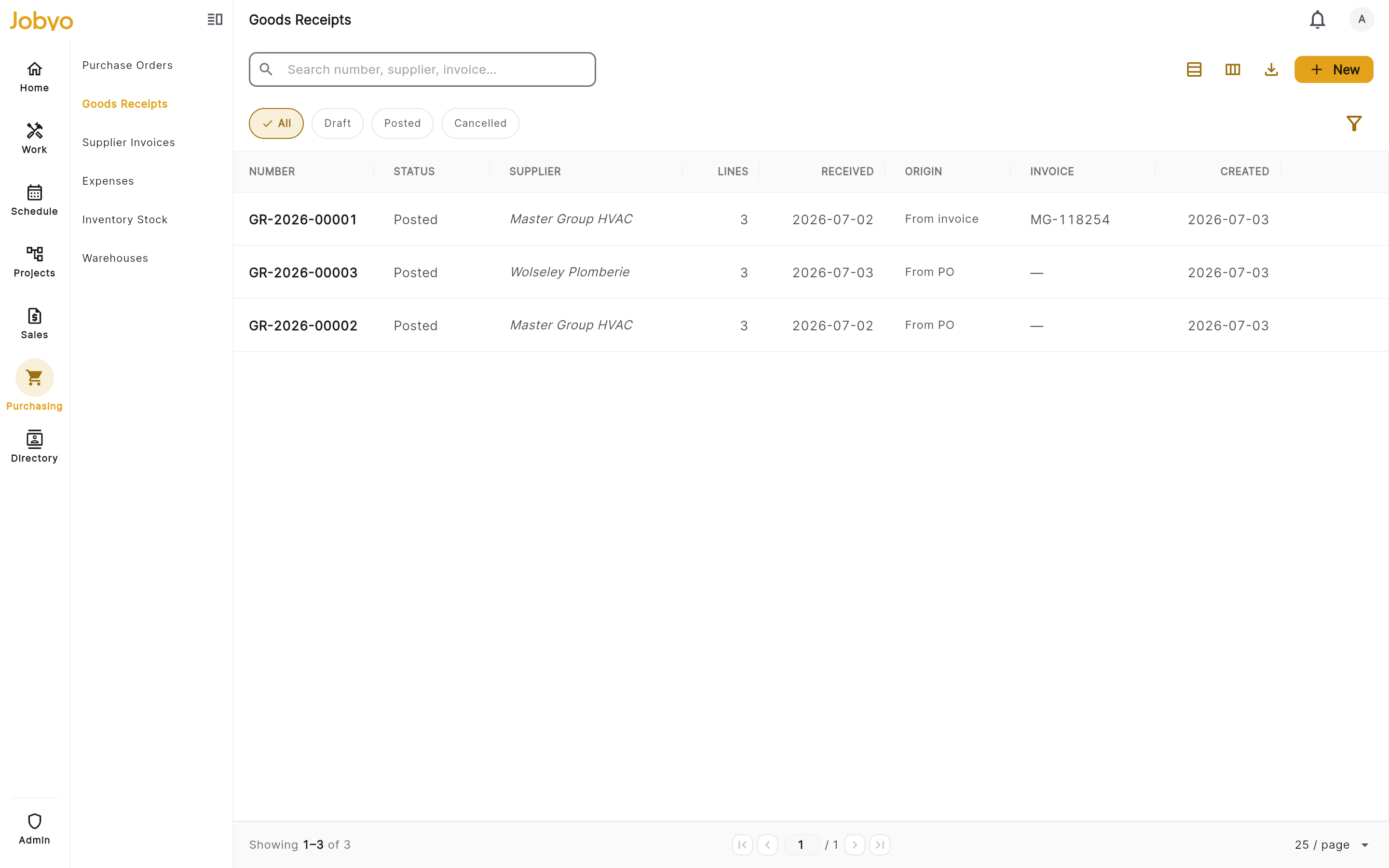
Goods receipts list — status pills, supplier and date filters, list/tiles views Filter by status, date, or supplier
Use the status pills — Draft · Posted · Cancelled — to narrow the list. Open the filter panel to set a received-date range and a supplier.
Page through or export
Page through the results. Export respects the filters you have set.
Open a record
Click any row to open the receipt detail — supplier and origin, received lines, correction history, attachments, and activity timestamps, plus the lifecycle actions available for its current status.
Record a receipt against a purchase order
This is the main receiving flow. Everything — create the draft, route the lines, and post — happens in one modal.
Start a new receipt
Select New on the goods receipts list (or Record receipt on an issued PO's detail page). Both open the same receive flow.
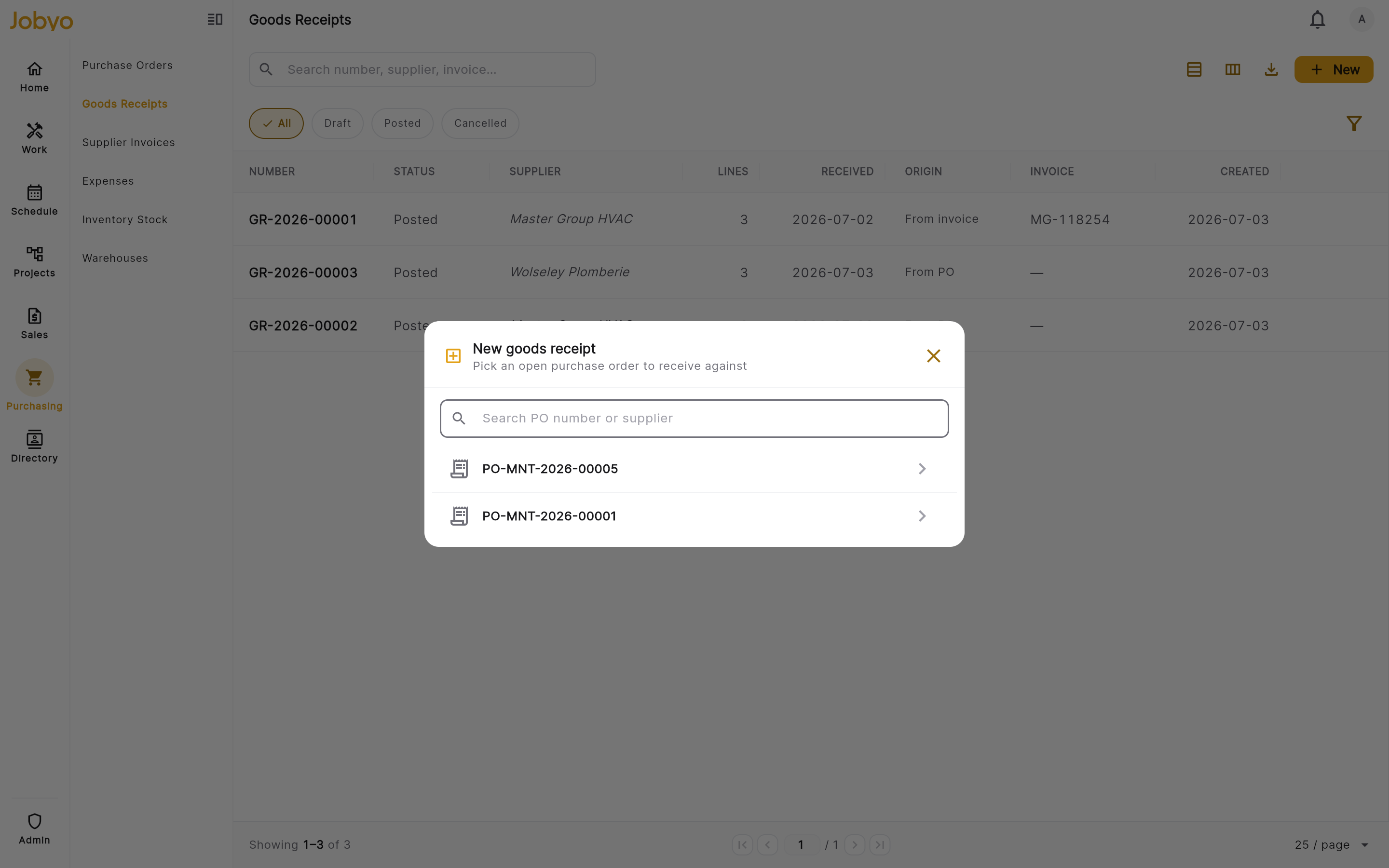
New goods receipt — pick an open purchase order to receive against Pick the purchase order
If you started from the list, pick the purchase order to receive against. The picker lists POs that aren't cancelled — search by PO number or supplier.
Enter what arrived, per line
The modal lists every line on the PO with its ordered and already-received quantity. In the Receive now box, enter how much arrived on each line (it pre-fills with the outstanding remainder). Set the received date at the top. Leave a line at zero if nothing came for it.
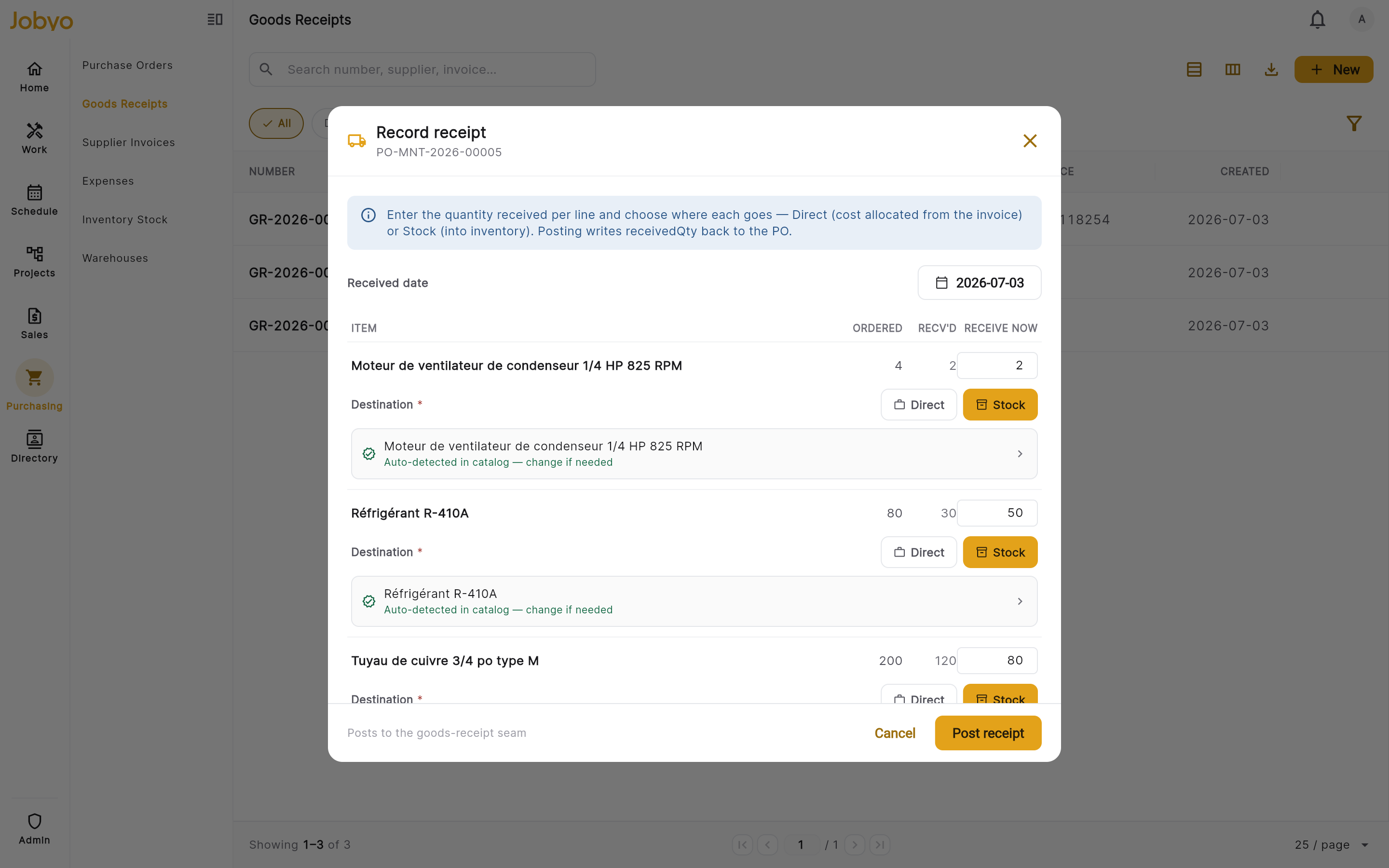
Record receipt — per-line quantity, Direct/Stock destination, catalog item for stock lines Route each received line — Direct or Stock
Any line you're receiving needs a destination (marked required):
- Direct — no inventory movement. Use this for materials consumed on a job or expensed directly; the cost is allocated from the supplier invoice later.
- Stock — goes into your inventory ledger. A stock line must point at a stock-tracked catalog item. Jobyo auto-detects a matching item by code or name and pre-selects Stock for you — a green "auto-detected" hint confirms it. If nothing matches, tap to pick an item or create one on the spot.
Post the receipt
Select Post receipt. Jobyo creates the draft, applies your quantities and destinations, and posts it — assigning the receipt number, moving stock lines into inventory, and writing the received quantity back to the PO, all in one action.
If more units arrived than were ordered on a line, Jobyo flags an "over-receipt" warning but records the actual quantity rather than blocking you. The extra quantity is kept.
Each Stock line shows a destination warehouse field, pre-filled from the warehouse set on the PO line (or left blank, meaning your company's Main Warehouse). Tap it to pick a different active warehouse before you post. You can also still change it afterwards from the draft edit form, up until the receipt is posted — see below.
Receive against a purchase invoice (PI-assisted)
Jobyo never moves stock straight from a purchase invoice — stock always arrives through a goods receipt. So when a supplier bill arrives before (or instead of) a PO receipt, you can record a receipt against the invoice. This flow is started from the purchase invoice screen.
- The server derives the supplier and the lines from the invoice, so you don't re-enter them.
- Invoice-derived lines reference their items by code, not by a catalog link — so before you post a line to Stock, pick the matching stock-tracked catalog item for it (Direct lines don't need one).
- Once posted, the receipt links back to the invoice and drives its line-cost recognition.
The purchase-order receive modal is the fully self-contained flow documented above. Recording a receipt from an invoice is initiated on the purchase invoice detail — see Purchase invoices for that entry point.
The binary destination model
Every received line resolves to exactly one of two destinations. This is the core rule of the module.
| Destination | What happens on post | Requirements |
|---|---|---|
| Stock | An inventory movement is written — the item lands in a specific (item, warehouse) row in your ledger. | The line must reference a stock-tracked catalog item and resolve to an active warehouse. |
| Direct | No inventory movement. The cost is allocated from the supplier invoice afterwards. | None — a description is enough. |
A draft line can sit without a destination while you're still working. The check happens when you post: every received line must have a destination, and every Stock line must have a valid stock-tracked item. Jobyo blocks the post (and tells you which line) until that's true.
Destination warehouse (stock lines)
A stock line can carry a destination warehouse — the exact warehouse the goods go into.
- It's inherited from the warehouse set on the PO line, pre-filled on the line when you record the receipt. You can set or override it there, or later from the draft edit form.
- Leave it blank and stock lands in your company's Main Warehouse when you post.
- If you set one explicitly, it must be an active warehouse — otherwise the post is rejected.
- Once the receipt is posted, the warehouse is locked — it can't be changed by correcting the receipt. To fix a wrong warehouse, cancel the posted receipt and receive it again.
See Warehouses for how stock locations are set up.
Edit a draft receipt
Open a draft receipt and select Edit to open the draft form. You can change:
- Header — received date, received by, notes, and attachments.
- Per line — received / accepted / rejected quantity, destination, catalog item, destination warehouse, condition, and notes.
The origin (the linked PO or invoice) and the supplier are set from the source and can't be changed on the draft. Only draft receipts are editable — once a receipt is posted, use Correct instead.
Post a receipt
Posting is the financial event. Open a draft and select Post.
Confirm the post
Jobyo warns that posting records inventory entries for stock lines and can't be undone — use Correct to adjust quantities afterwards. Confirm to proceed.
What posting does
In one step, Jobyo:
- assigns the receipt number (minted only now — draft receipts have no number; the format comes from your company's numbering settings, defaulting to a
GRprefix and resetting annually), - writes inventory movements for every stock line into its destination warehouse,
- writes the accepted quantity back to the purchase order per line — which is what flips a PO from Issued to Received once every line is fully received,
- and snapshots the supplier onto the receipt.
- assigns the receipt number (minted only now — draft receipts have no number; the format comes from your company's numbering settings, defaulting to a
Only Stock lines create inventory movements. Direct lines are recorded on the receipt but write nothing to your stock ledger — their cost flows through the supplier invoice.
Correct a posted receipt
Made a counting mistake after posting? You don't cancel and start over — you correct in place. Open a posted receipt and select Correct.
Adjust the quantities
Per line, adjust the received, accepted, or rejected quantity, the condition, or the notes. A reason is required — explain why the correction is needed.
Apply
Select Apply correction. The receipt stays Posted, and every change is written to an audited correction history — each entry records who changed what, the before-and-after value, when, and the reason.
A correction only re-touches inventory and the PO when the accepted quantity changes — Jobyo then reverses and recreates the inventory movements and re-writes the PO quantity. Correcting only a condition, note, or the received/rejected figure leaves stock untouched.
A line's destination (Stock vs Direct), its catalog item, its unit of measure, and its destination warehouse can't be corrected. Re-routing committed stock means cancelling the receipt and receiving it again.
Cancel a receipt (reversal)
Open a receipt and select Cancel receipt, then confirm.
- A draft is simply marked cancelled — nothing was posted, so there's nothing to reverse.
- A posted receipt is fully reversed: its inventory movements are backed out and the purchase order's received quantities are reset. This is how you undo a receipt that was posted in error.
There is no reopen — cancelling is a one-way exit.
Delete a draft
Open a draft (or already-cancelled) receipt and select Delete, then confirm. The receipt is soft-deleted and drops out of the list.
Once a receipt is posted it can't be deleted — it has moved stock and updated the PO. If you need to undo a posted receipt, Cancel it first (which reverses everything), then it can be removed.
The goods receipt lifecycle
A receipt has three states. There is no reopen from a terminal state.
| Status | What it means | What you can do |
|---|---|---|
| Draft | Being prepared; nothing posted yet | Edit, post, cancel, delete |
| Posted | Committed — number assigned, stock moved, PO updated | Correct (in place), cancel (reverses everything) |
| Cancelled | Reversed or abandoned | Read only; delete |
Key points:
- The receipt number is minted only at post — before that it shows as a dash.
- Quantities drive everything — the accepted quantity is what moves stock and writes back to the PO.
- Posted receipts are corrected, not edited — use Correct for an audited quantity change, or Cancel to reverse the whole thing.
If it doesn't work
- No "New" button on the listYour role doesn't include creating goods receipts (a separate permission from purchase orders). Ask an administrator.
- No open purchase orders to receive againstA cancelled PO can't be received against. Check that the PO you expect isn't cancelled.
- "You do not have permission" when recording or posting a receipt, even though you have the Goods Receipts permissionThe block may be about the purchase order instead of your permission: its project is Completed (restricted for members scoped to their own projects — ask an admin or have the project reopened), it isn't one of your projects, or it's still awaiting approval — or shows a **Re-approval required** label after a revision — so ask an approver to approve the PO first.
- "You do not have permission" on Post, but you can create and edit the draftYour role has Create on Goods Receipts but not Approve. Posting (and correcting or cancelling a posted receipt) needs Approve, a separate permission from Create/Modify. Ask an admin to grant it.
- Post button is disabledA line being received has no destination, or a Stock line has no stock-tracked item. Set a destination on every received line and pick a catalog item for each Stock line.
- "A stock line requires an item" on postA line routed to Stock needs a stock-tracked catalog item. Pick one, or route the line to Direct instead.
- "Item is not inventory-tracked"The catalog item on a Stock line isn't marked as stock-tracked. Pick a tracked item, mark that item as inventory-tracked, or send the line to Direct.
- Warehouse rejected on save/postThe chosen destination warehouse is inactive. Pick an active warehouse, or leave it blank to use the Main Warehouse.
- Can't delete the receiptIt's posted. Cancel it first (which reverses stock and the PO), then delete.
- Can't change a line's destination after postingDestination, item, unit of measure, and destination warehouse aren't correctable. Cancel the receipt and receive it again to re-route.
- Correction won't applyA reason is required and at least one value must actually change. Fill in the reason and edit a quantity, condition, or note.