Quotations
A quotation is a priced offer you prepare for a customer. It lists the work or goods you're proposing as line items, lets Jobyo calculate the totals, and records whether the customer accepts or declines. Once accepted, a quote is a committed commercial document that can be turned into a sale invoice or a project.
When you'd do this
Create a quotation when a customer asks for a price proposal — you want to document the expected scope and pricing before work starts or before an invoice is issued. The same quote can later feed a sale invoice for billing or a project for execution planning.
What you'll need
- Permission to create quotations. If you can't see the New quotation button, your role doesn't include it — ask an administrator.
- A customer that already exists in Jobyo. This is the only required header field.
- Optional: a worksite, project, and tax profile to attach to the quote.
The quotation lifecycle
Every quotation moves through a fixed set of states. There's no reopen path — once a quote leaves Draft, its content is locked.
| Status | What it means | What you can do |
|---|---|---|
| Draft | Being prepared — content is editable | Edit, Send, Cancel, Delete |
| Sent | Issued to the customer — content is locked | Accept, Reject, Cancel |
| Accepted | Customer agreed — committed document | Convert downstream (see below) |
| Rejected | Customer declined | No further actions |
| Cancelled | Withdrawn | No further actions |
There's no way to reopen a quotation once it's been sent, accepted, rejected, or cancelled, and no "new version" flow. If a sent quote needs to change, cancel it and create a fresh one.
Create a quotation
Open the New quotation form
From Quotations, select New quotation. Jobyo will assign the quotation number for you when you save.
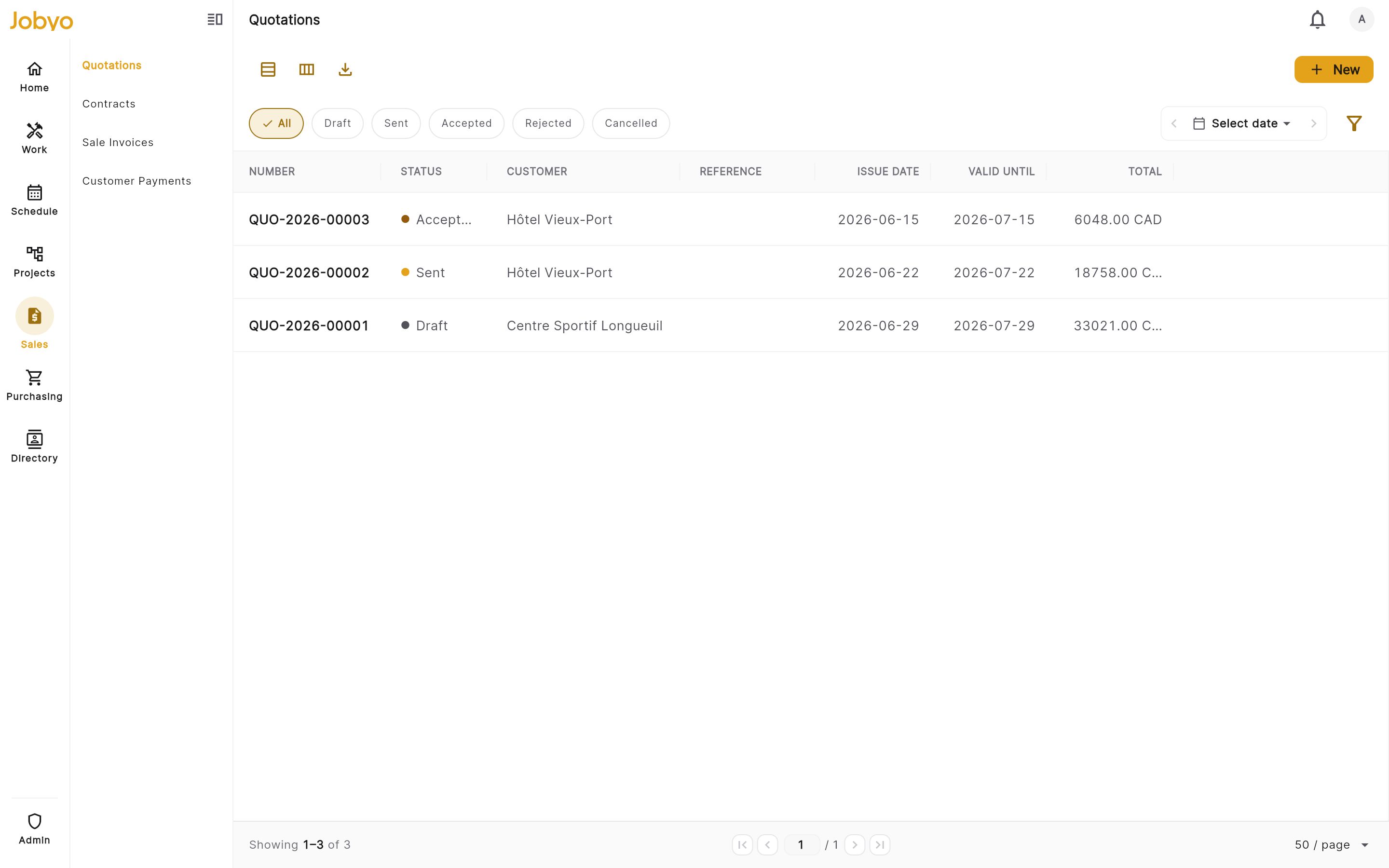
Quotations list — "New quotation" button, plus the status/customer/project filters and table/tiles toggle Fill in the header
Choose the customer (required — start typing to search). Optionally attach a worksite, link a project, and pick a tax profile. Add a title, reference number (your customer's PO), issue date, validity date, payment terms, and any notes. Currency defaults to CAD.
The customer is locked after savingJobyo captures a frozen snapshot of the customer, worksite, and tax profile when you create the quote. The customer can't be changed afterwards — even while the quote is still a draft — so the record stays accurate if those details change later.
Add line items
Add at least one line. Per line you set a description (required), plus optional quantity, unit, unit price (the selling price the customer sees), discount (percent or amount), and whether the line is taxable (on by default). You can group lines under a section label and add a long description.
Review the totals and save
A live totals preview shows at the bottom, but the authoritative subtotal, discount, tax, and grand total are always computed by Jobyo when you save. Select Save.
The quote is saved as Draft with a system-assigned number (for example QUO-2026-00001 — the exact format depends on your company's document-numbering settings), and you're taken to its detail page.
Notes marked as internal are never shown to the customer or on any document sent externally — use them freely for context your team needs.
Edit a draft
You can edit a quotation only while it's in Draft. Open it, select Edit, and change any header field except the customer, or edit the line items.
When you save, Jobyo replaces every line item with exactly what's in the editor at that moment. Make sure every line you want to keep is present before saving — the totals are then recalculated from your saved lines and the stored tax profile.
Send, accept, reject, cancel
Send to the customer
On a draft, select Send. The status moves to Sent and the content locks — you can no longer edit the header or line items. The action bar now shows Accept, Reject, and Cancel.
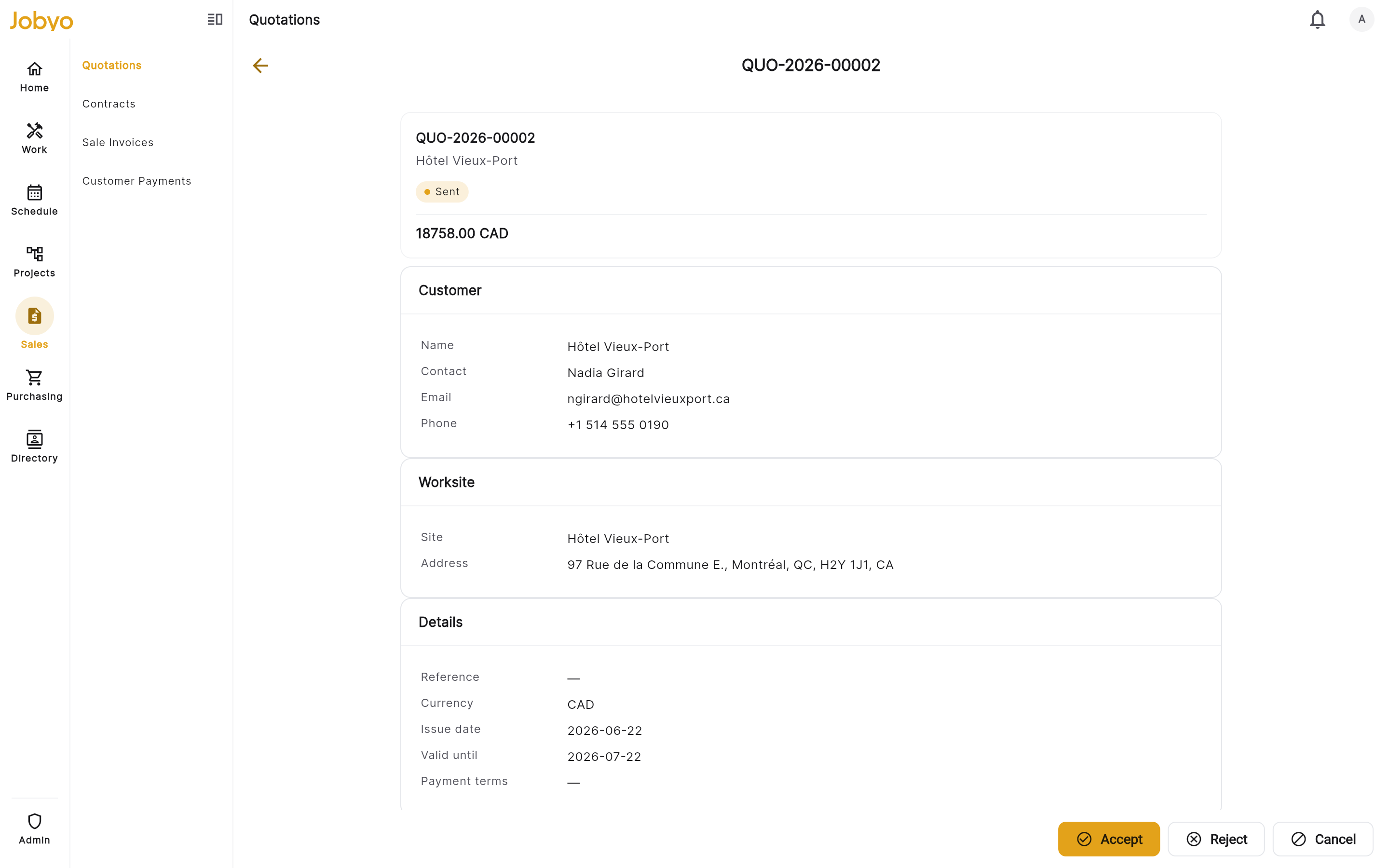
Sent quotation — locked content with Accept / Reject / Cancel in the action bar Record the customer's decision (Manager)
On a sent quote, select Accept or Reject. Accepting stamps the acceptance date and marks the quote a committed document; rejecting stamps the rejection date. Both are terminal.
Cancel if needed
Select Cancel to withdraw a quote. Cancel is available from both Draft and Sent. Cancelled is terminal — the quote can't be re-sent or reopened.
If two people accept the same sent quote at the same moment, only one succeeds — the other sees "already accepted". Reload and the quote shows as Accepted.
Delete a quotation
Deleting removes a quotation from the list. It's available while a quote is Draft, Rejected, or Cancelled. It's blocked once a quote is Sent (cancel it first) or Accepted — an accepted quote is a committed commercial document that no role can delete.
Convert an accepted quotation downstream
An accepted quotation can seed two downstream records:
- a sale invoice — pre-fills a draft invoice with the customer, line items (selling prices only — internal costs are never carried over), and totals;
- a project — creates a draft project and seeds planned-cost lines from the quote's cost-bearing lines.
Both conversions are live on Jobyo's server (converting is only ever allowed from an Accepted quote), but there's no one-tap "Create invoice" or "Create project" action on the quotation screen in the current release. To bill or plan an accepted quote today, create the sale invoice or project manually and type the quotation reference into its Quotation field. That reference is a traceability label only — it links the records but does not copy line items or totals across.
When the convert buttons do ship, they'll block creating a duplicate from the same quote — the back end allows only one active invoice and one active project per quotation.
Cost and margin
Each line can carry an internal cost (the cost basis per unit, entered by an estimator) alongside the customer-facing selling price. Jobyo derives margin automatically as (selling price − cost) / selling price.
- Cost and margin are gated by the cost-view permission (
pricingCost). Without it, those values are stripped from what you see, and you can't set or overwrite a line's cost. Project Managers don't hold this permission — they see and edit selling prices only. - They are never shown to the customer and never appear on any external document, regardless of your role.
The back end fully supports per-line cost and margin, but the current quotation screens don't yet display or let you edit the Cost and Margin columns — even if you hold the permission. This is a known UI gap; the columns will appear once the interface is updated.
If it doesn't work
- "Customer is required"You didn't choose a customer — it's the only required header field. Pick an existing customer and save again.
- "Add at least one line item"A quotation needs at least one line in the editor before it can be saved.
- "Description is required"One of your lines has an empty description. Every line needs one.
- "Must be 0 or more"A quantity, price, or discount is negative. Correct the value and save again.
- "This quotation can no longer be edited"It's been sent (or is in another non-draft status). You can't edit it — cancel it and create a new quote instead.
- "You can't edit line items on a quote with internal costs"The lines carry internal costs and you don't have cost-view permission — replacing them would erase those costs. Header-only edits still work; ask a finance manager or admin to change the lines.
- Send button missingSending is only possible while the quote is in Draft. Check the current status.
- Delete button missingDelete is blocked on Sent and Accepted quotes. Cancel a sent quote first; an accepted quote can't be deleted by any role.