Manage suppliers
A supplier is a company you buy from — a vendor, subcontractor, manufacturer, distributor, or service provider. The Supplier directory is the single record every purchase order and purchase invoice points at, so keeping it tidy keeps your procurement documents on the right legal entity and billing details.
When you'd do this
Reach for the Supplier directory when you need to add a new vendor before raising a purchase order, look up a supplier's contact or accounts-payable email, keep their details current, or retire a company you no longer deal with. You can also add a supplier on the fly from inside a purchase order or invoice form without leaving what you're working on.
What you'll need
- Permission on suppliers for the action you want: list to browse and search, view to open a record, create to add one, modify to edit, and remove to archive. If a button is missing, your role doesn't include that action — ask an administrator.
- For a new supplier, the only thing you must have is the company name. Everything else is optional and can be filled in later.
Browse and find a supplier
Open the Suppliers directory
From the main menu, open Suppliers. It opens on your active suppliers. Each row shows the company name, supplier code, type, and primary contact. Switch between the list and tile views, and use the column chooser to pick which columns show.
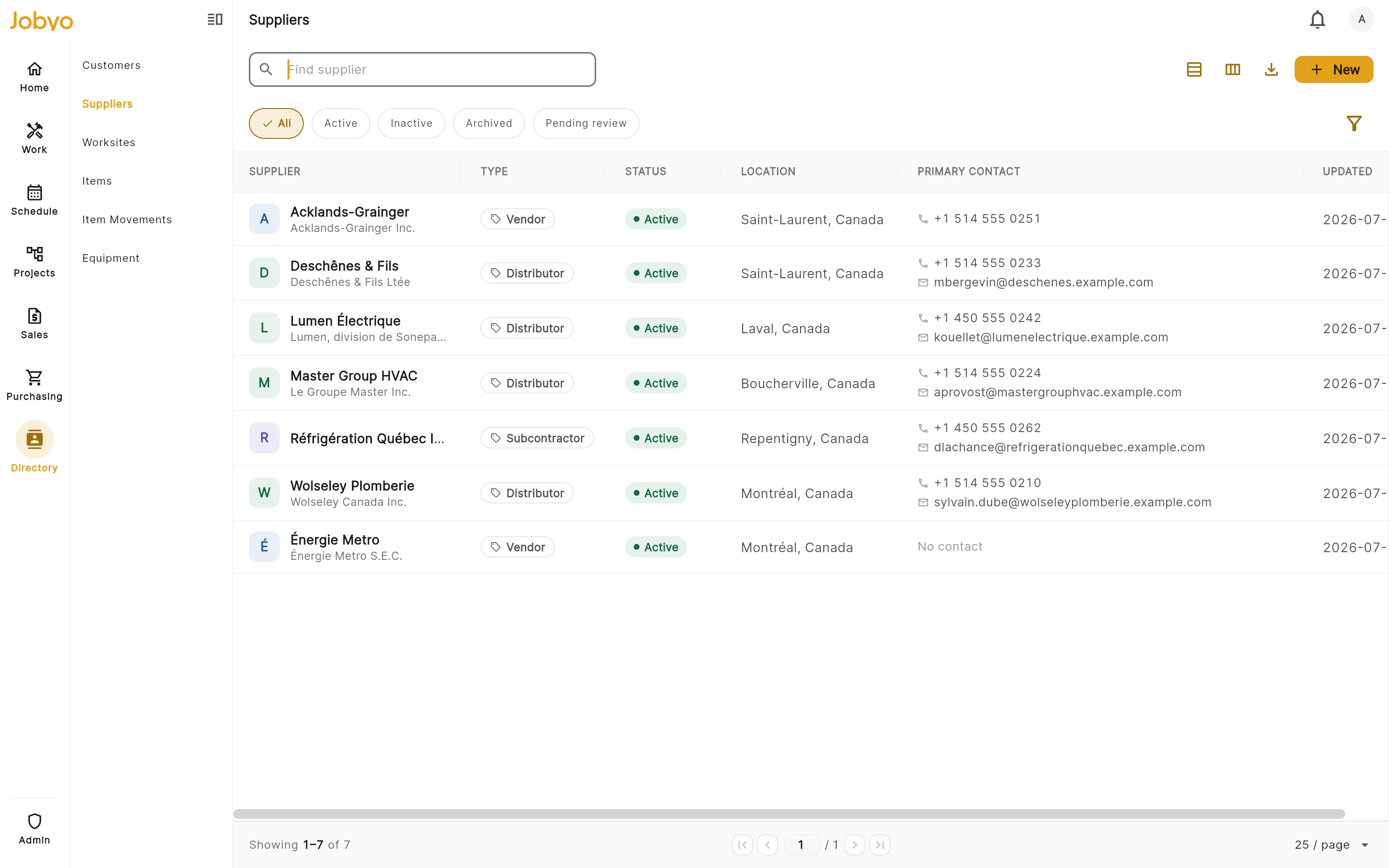
Supplier directory — active suppliers, search bar and filter pills Search by name
Type in the search bar to narrow the list to suppliers whose company name or legal name contains your text (not case-sensitive). Clear the bar to return to the full list.
Filter and sort
Use the status pills to switch to the Archived view, or filter by supplier type (Vendor, Subcontractor, Manufacturer, Distributor, Service Provider, Other). Sort by tapping a column header.
Archived suppliers show up when you switch to the Archived view, but they open a read-only panel from the row itself — there's no full detail screen for an archived record. That's by design.
Add a supplier
Open the new supplier form
In the directory, select Add supplier. The form is grouped into sections — Identity, Primary contact, Company channels, Accounts payable, and Address.
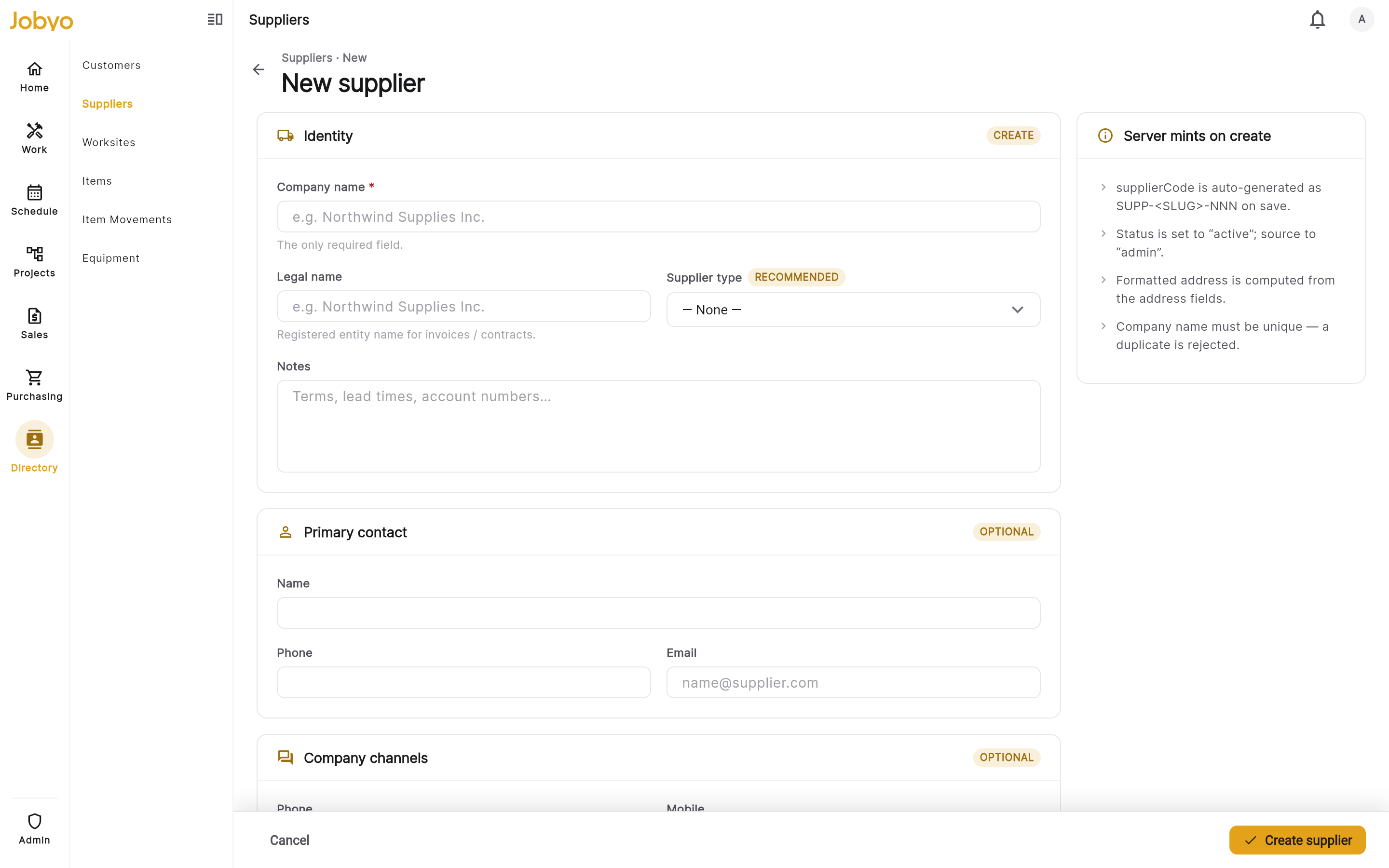
Create form — Identity section with the required Company name field Fill in the identity
Enter the Company name (required, and it must be unique). Optionally add the legal name, tax number (the supplier's tax registration number, used when matching supplier invoices), a supplier type, and any notes.
Add contacts and address
Optionally capture the primary contact (name, phone, email), company channels (general phone, mobile, email, website, mailbox), the accounts-payable invoices email, and the address. Jobyo combines the address parts into a single formatted line for you — you don't type that yourself.
Save
Select Save. Jobyo assigns a unique supplier code (for example
SUPP-ACMEINC-001) and opens the new supplier's detail screen.
Filling in a purchase order or invoice and the supplier isn't in the directory yet? In the supplier picker, type the name and choose the New supplier option. A side sheet opens pre-filled with the name and address you'd started; save it and Jobyo drops the new supplier straight back into the form you came from.
Edit a supplier
Open the record and edit
Open the supplier from the directory, then select Edit. Change any field, including the company name — but it must stay unique.
Save your changes
Select Save. The formatted address refreshes automatically if you changed any address fields. If you didn't actually change anything, the form simply cancels — make at least one change before saving.
Archive a supplier
Archiving removes a supplier from active lists and from the picker in procurement forms. It is one-way — there's no restore. The record stays visible in the Archived view for reference.
Open the record and archive
Open the supplier and select Archive, then confirm in the dialog.
Clear any open documents first
If the supplier still has open purchase orders or purchase invoices, the archive is blocked and a dialog shows the counts (for example, "2 open purchase orders and 1 open invoice"). Close, cancel, or reassign those documents, then try again.
Once a supplier is archived it can't be brought back to active. If you need it again, create a fresh supplier record. Archived suppliers also disappear from the autocomplete picker in purchase orders and invoices.
If it doesn't work
- No "Add supplier" buttonYour role doesn't include creating suppliers. An administrator can grant the suppliers create permission.
- "A supplier with this name already exists"That exact company name is already in the directory. Search for the existing record, or use a slightly different name such as a location suffix.
- Archive is blockedThe supplier has open purchase orders or invoices. Close, cancel, or reassign each one, then archive again.
- Can't open an archived supplierArchived records are read-only — the row opens a panel rather than the full detail screen. This is expected.
- Supplier not in the pickerType at least 2 characters. Archived suppliers never appear — if one was archived by mistake, an administrator can add it back as a new record.
- "Inactive" badge on a rowThat record came in from a data migration. There's no deactivate/reactivate control in the app; the badge is shown for information only.