Stock movements
Stock movements (item transactions) are the signed ledger of every piece of material that moves against a work order — issued into the job, received, returned, transferred, adjusted, or booked as a service line. Each movement carries a signed quantity and a cost, and together they feed what a job actually cost. This page is where you read that ledger.
There is no Add movement button, and there never will be on this screen. Movements are created automatically by the flows that actually move material: the work order (issuing and returning material), goods receipts (receiving stock), and stock adjustments (correcting counts). This ledger only shows what those flows recorded. If you're hunting for a way to type in a new movement, you're on the wrong screen — go to the work order, goods receipt, or stock adjustment instead.
Who uses this
- Technicians and operators see the movements for a work order they can already open — no extra permission beyond viewing the work order.
- Administrators get an extra cross–work-order ledger that lists movements across every job, with filters.
- Cost figures (unit cost, extended, net total) are shown only to roles that are allowed to see cost. Other roles see the same movements with the money columns hidden.
The two ways to view movements
There are two ledgers. Which one you land on depends on where you came from and what your role allows.
| Ledger | Where you reach it | Who can see it | What it shows |
|---|---|---|---|
| Per–work-order ledger | From a work order | Anyone who can view that work order | Every movement recorded against that one job |
| Admin cross–work-order ledger | From master data / admin | Administrators only (Phase 1) | Movements across all work orders, with filters |
Read the per–work-order ledger
This is the ledger most people use. If you can open the work order, you can see its movements.
Open the work order's movements
From a work order, open its Material movements ledger. It lists every movement for that job, newest first, with a Read-only badge — nothing on this screen is editable.
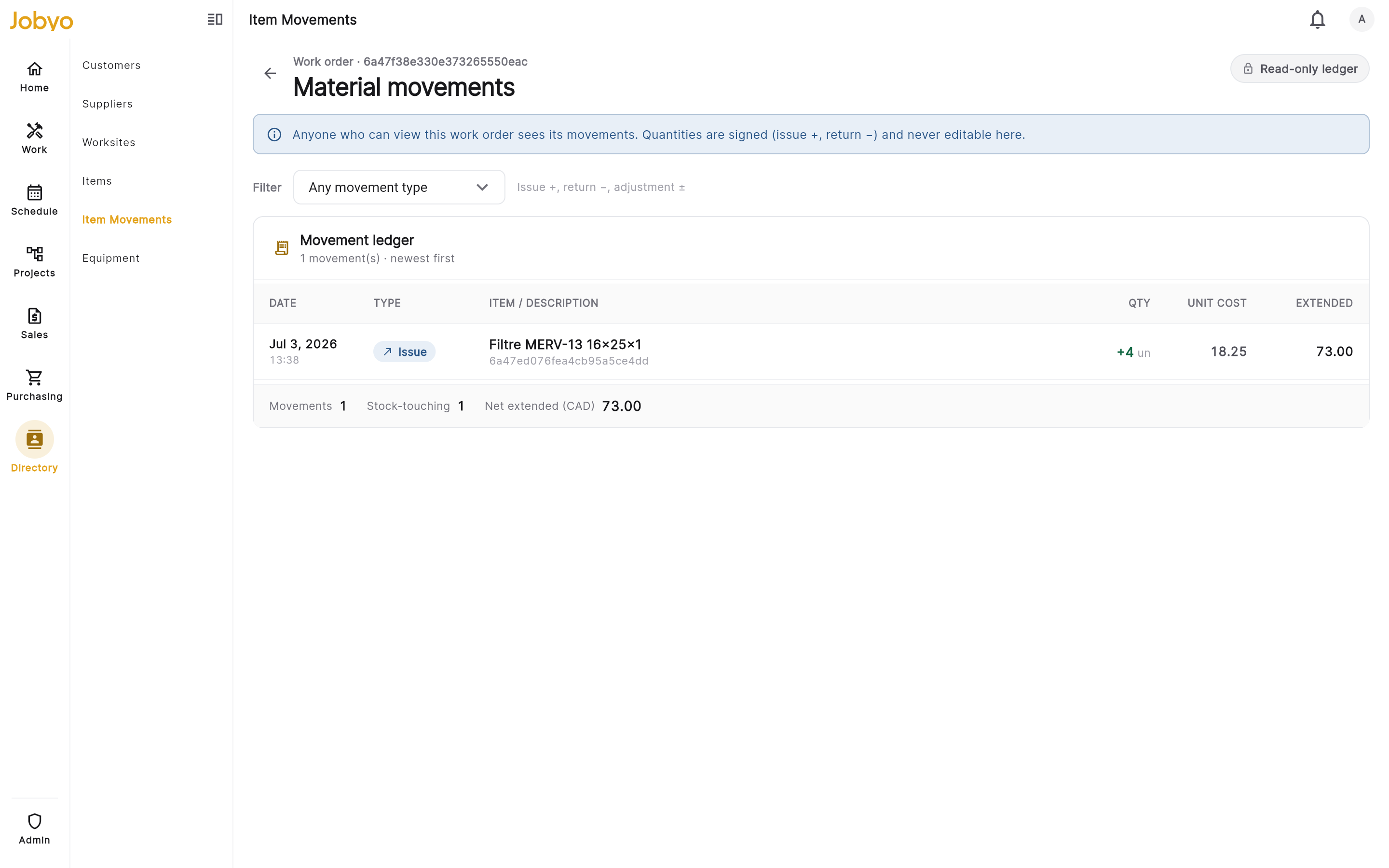
Per-work-order ledger — type filter, signed quantities, running totals Read the rows
Each row shows the date, movement type (a coloured chip), the item or description, the signed quantity, and — if your role sees cost — the unit cost and extended amount. A line with no item code shows as a general line.
Filter by type
Use the Filter dropdown to narrow to one movement type (Issue, Receipt, Return, Transfer, Adjustment, or Service), or leave it on Any movement type. The legend next to it reminds you of the sign convention: issue +, return −, adjustment ±.
Read the totals strip
The footer sums the ledger: how many movements, how many touched stock, and the net extended (the signed cost total). When the ledger spans multiple pages, the totals are labelled (this page) so a page sum is never mistaken for the grand total.
Read the admin cross–work-order ledger
Administrators get a second ledger that spans every job — useful for auditing material and cost across the whole operation.
Open the movement ledger
Open Movement ledger from master data. It's marked Read-only · admin and carries a banner explaining it's an admin-scoped, cross–work-order view.
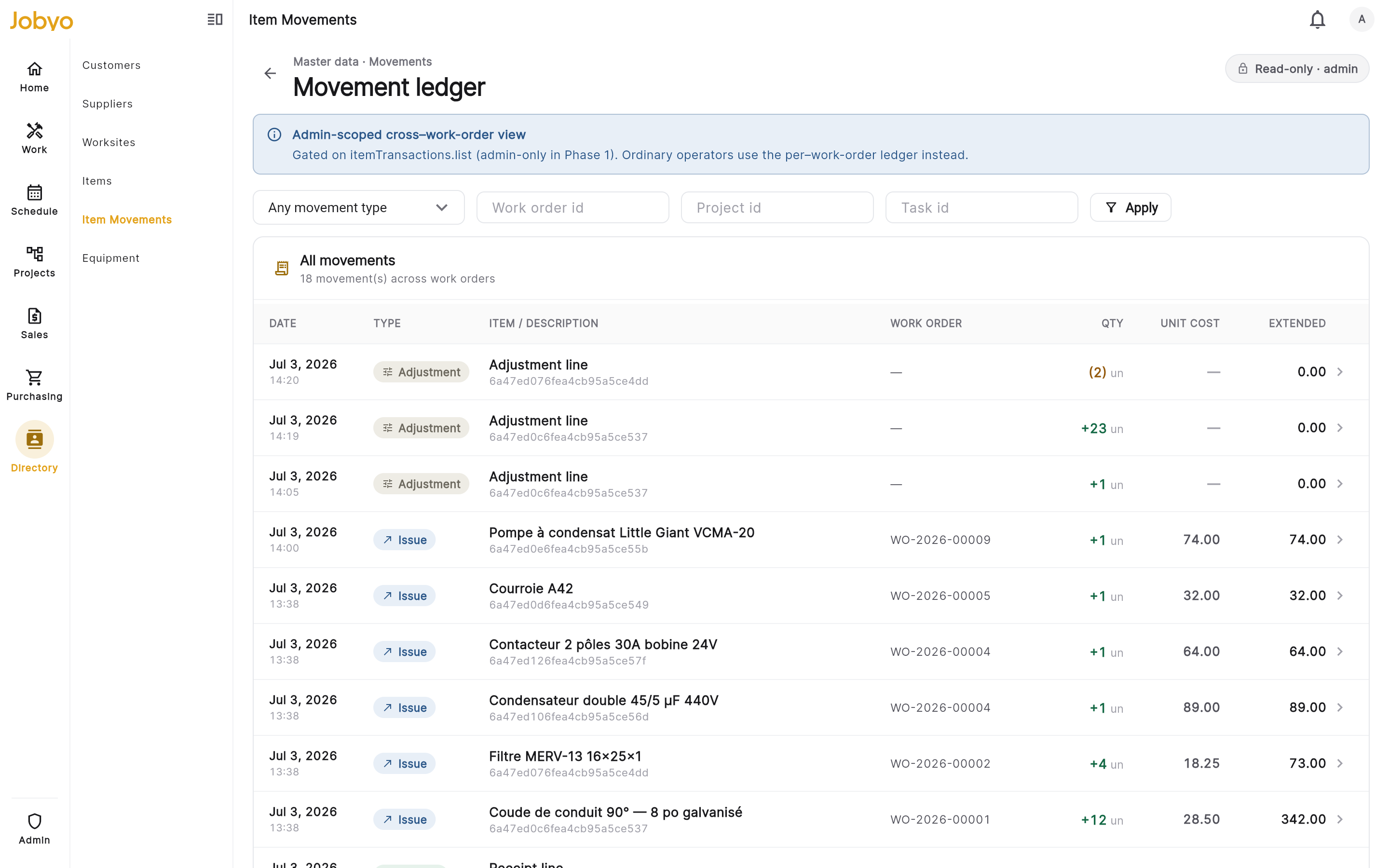
Admin ledger — filter by type, work order, project, or task Filter and apply
Filter by movement type, or paste a work order id, project id, or task id to scope the list, then select Apply. Use Clear to reset the filters. Results page 50 at a time.
Open a movement
Each row is clickable — select one to open its full movement detail (see below). The per–work-order ledger rows are not clickable; the admin ledger's are.
The cross–work-order ledger is admin-only in the current version. If your role doesn't include it, you'll see a lock panel instead of the list — this is expected, not an error. Use the per–work-order ledger from the job itself, which any work-order viewer can open.
Read a movement
Opening a movement (admin-only) shows the full record. It's read-only — every field reflects what was recorded when the movement was written.
The signed quantity
Every movement has a signed quantity, and the sign is the whole point of the ledger:
- A positive quantity means material went into the job (an issue).
- A negative quantity means material came back (a return).
- The sign is fixed when the movement is written — it is never editable here.
The detail screen shows a plain-language explainer for the movement's type and sign, so you don't have to remember the convention.
A return has a negative quantity, so its extended cost is negative too — that's the ledger crediting cost back to the job. A negative extended is correct, not a bug.
Movement types
Every movement is one of six types. The "typical sign" is a guide — the real sign always comes from the recorded quantity.
| Type | What it means | Typical sign |
|---|---|---|
| Issue | Material consumed into the work | positive (greater than 0) |
| Receipt | Material received | positive |
| Return | Material returned / restored | negative (less than 0) |
| Transfer | Moved between locations | either sign |
| Adjustment | A correction — an increase or a decrease | either sign |
| Service | Service / labour line | positive |
Each movement also shows whether it touched stock (adjusted an on-hand count) or had no stock impact.
The costing block
If your role sees cost, the movement shows a costing block:
- Unit cost — the cost per unit.
- Extended — unit cost × quantity, calculated by the system (display-only; you can't type it).
- Provenance — where the cost came from: Manual, Price list, AP-linked, or Revalued — plus the currency.
Roles without cost visibility see the same movements with the money columns and totals hidden — the ledger shows what moved, not what it cost. This is a display policy on the screen; it doesn't change the movement itself.
Lineage
A movement inherits its context from its parent work order and freezes it: work order, project, task, phase, worksite, location, and equipment. These are read-only links to the owning work — they explain where the movement belongs and are never editable on the movement.
Facts and audit
The detail also lists movement facts (type, touched-stock, unit, currency, movement date) and an audit block (created date and by whom, last updated, and the movement id).
Where movements come from
Because this ledger is read-only, every movement you see was written by one of these flows:
- Work order — issuing material into a job, or returning it, records
issueandreturnmovements. This is the main source. - Goods receipts — receiving stock against a purchase records
receiptmovements. - Stock adjustments — correcting an on-hand count records
adjustmentmovements (these have no work-order context).
Every one of those writes also updates actual cost, which is why the movement ledger and the cost figures on a job stay in step.
If it doesn't work
- There's no button to add a movementCorrect — this screen is read-only. Record material through the work order, a goods receipt, or a stock adjustment; it then appears here.
- "Not available for this role" on the cross-work-order ledgerThe all-jobs Movement ledger is admin-only. Open the per-work-order ledger from the job instead — any work-order viewer can see it.
- No cost / price columns, or "hidden by policy"Your role isn't allowed to see cost figures. The movements are still fully visible — only the money columns and totals are hidden.
- "Movement not found" when opening a movementThe movement was removed (soft-deleted) elsewhere. Deleted movements are excluded from all views. Refresh the ledger.
- The totals look too smallWhen a ledger spans multiple pages the totals cover the current page only — look for the "(this page)" label. Filter to narrow the list, or page through it.
- A movement shows a negative amountThat's a return or a downward adjustment — the negative quantity credits cost back to the job. It's correct.