Bill a whole project
Project invoicing brings a project's unbilled work together into a single customer bill. Instead of invoicing each work order on its own, you can consolidate a whole project, one phase, or a chosen set of work orders into one draft — after reviewing exactly what's billable first.
When you'd do this
Reach for project invoicing when work is tracked against a project rather than a single standalone job:
- A project is complete and you want one consolidated bill instead of many.
- A phase has finished and you want to bill it now — progress or milestone billing — without waiting for the rest of the project.
- Several jobs are done and you want one invoice covering just those work orders.
- You need to review what's still billable on a project before committing to an invoice.
A single work order that isn't part of a project is billed straight from the work order itself — see Create and send sales invoices. Project invoicing is for consolidating project work.
What you'll need
- Permission to create sale invoices. The same permission covers reviewing the pre-bill summary and every group-billing action.
- The project's worksite must have an active customer — that customer is who the project bill is addressed to. If none can be resolved, billing is blocked until it's set.
- Work orders to be included must be closed and set up for group billing within the project.
Review before you bill (pre-bill summary)
Before committing to anything, open the project's pre-bill summary. It's a read-only preview that uses the exact same rules as the billing step — so it can never show cost the invoice would reject.
Open the project and its billing view
Go to the Project you want to bill and open its billing / invoicing view.
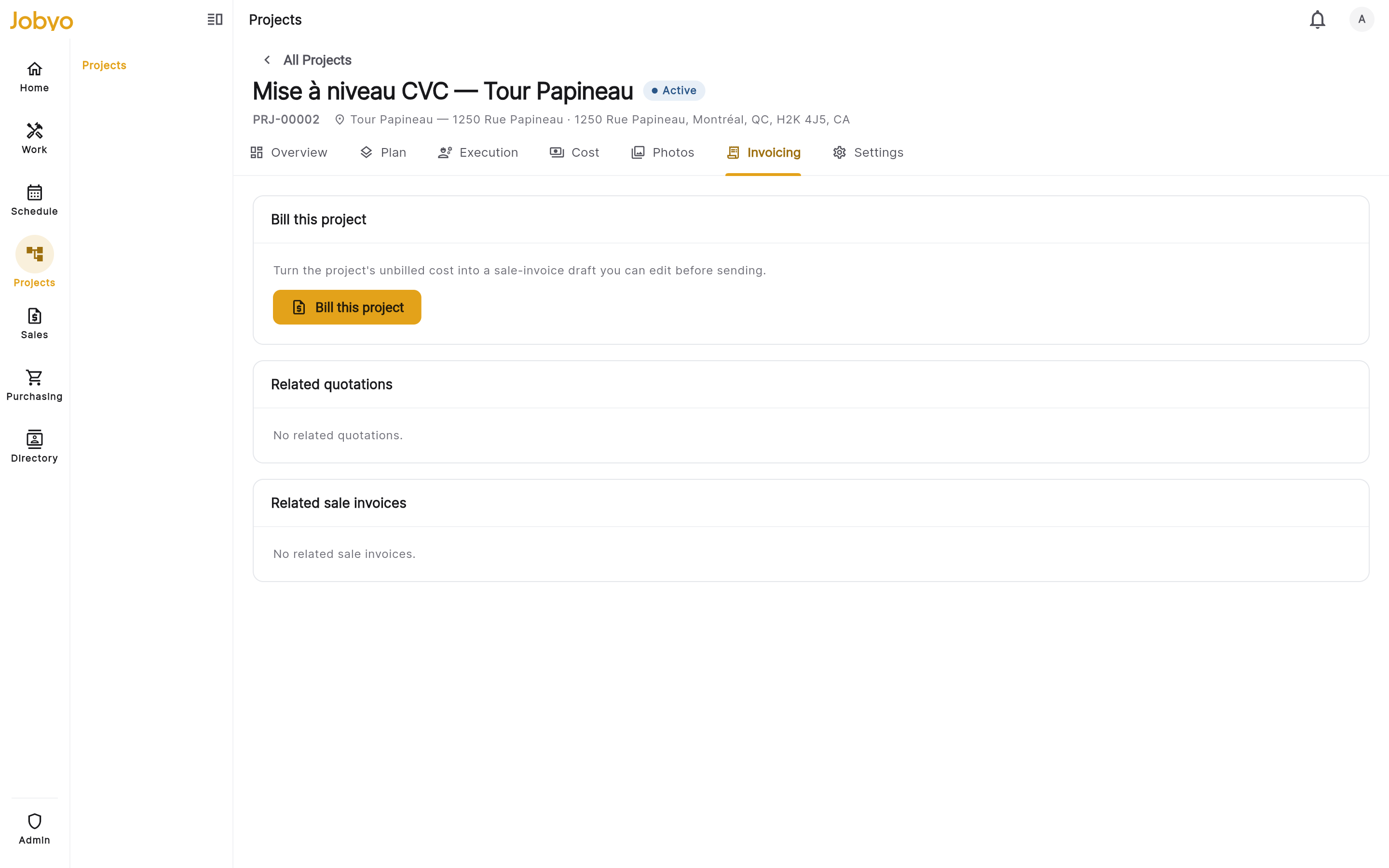
Project detail — billing / invoicing section with the pre-bill summary Read the unbilled vs billed-to-date breakdown
The summary shows, side by side, what's still unbilled and what's already been billed to date, broken down:
- By phase — total unbilled and billed-to-date across each phase's closed work orders.
- By work order — each work order's individual unbilled and billed-to-date amounts.
- Project-direct — costs linked to the project but not to any specific work order.
Confirm the bill-to customer
The summary names the customer the invoice will be billed to, resolved from the project's worksite. If a warning shows that no customer can be found, assign an active customer to the worksite before billing.
Inspect the billable items (optional)
Open the billable items picker to browse and filter the individual cost entries that make up the unbilled amount — searchable and filterable by cost type and month. This is exactly what will land on the invoice.
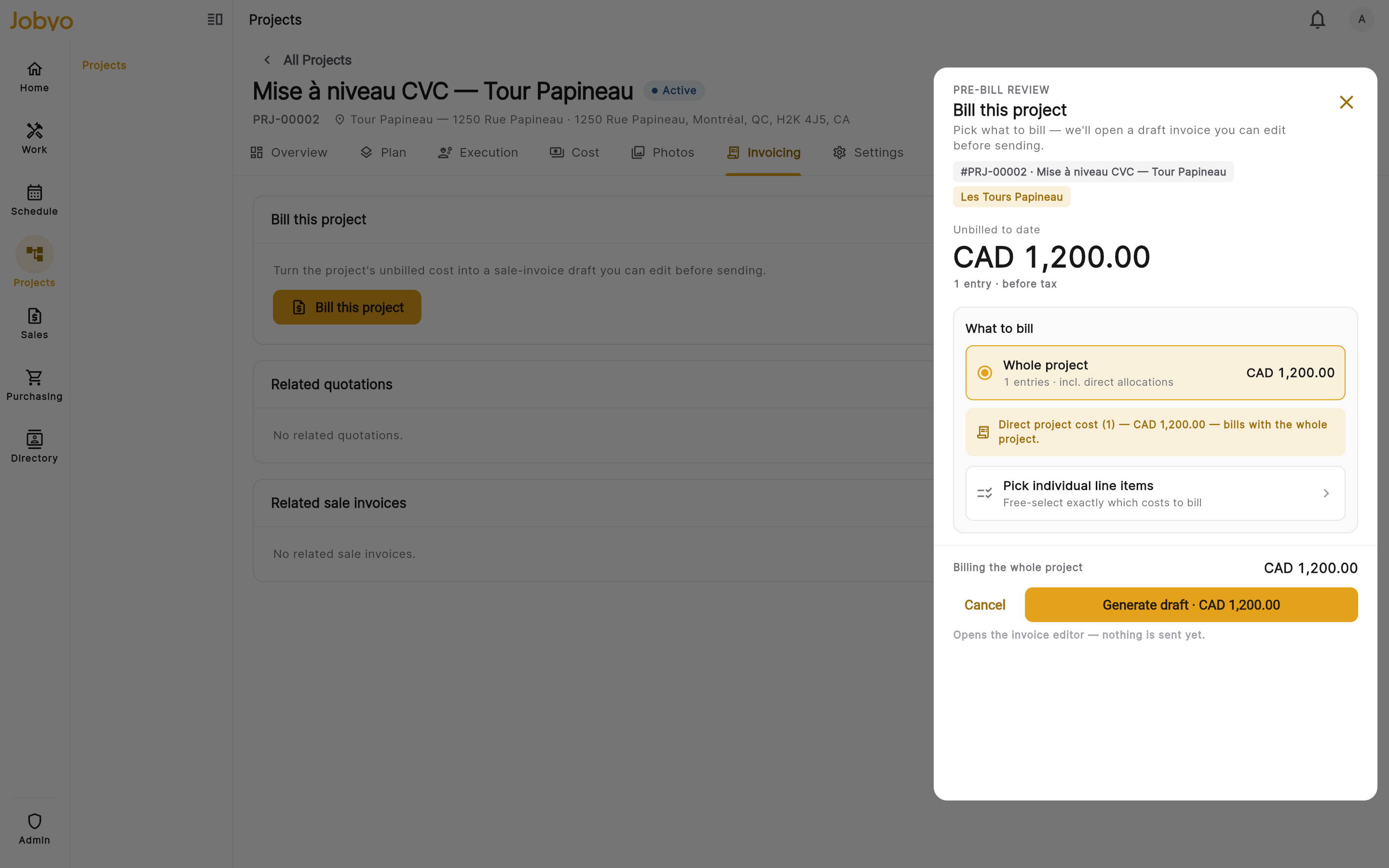
Billable items — searchable list of cost entries eligible for invoicing
Because the summary and the picker share the billing engine's eligibility rules, the amounts are a true preview. Fully-billed work orders still count toward a phase roll-up even when they no longer show their own row.
Choose what to bill
You have four ways to create a project bill. All of them produce a draft invoice you review, label, and send — and all of them simply create nothing (no error) if there's nothing unbilled to invoice.
Bill the whole project
Trigger whole-project billing
From the project's billing section, choose to bill the whole project. Jobyo finds every closed work order with unbilled costs, plus project-direct cost, and consolidates them into one draft. Each cost entry becomes a line.
Review the outcome
A draft invoice opens covering all eligible work orders and project-level costs. Each included work order moves from Pending group billing to Draft invoice while the draft is open. If everything is already invoiced or all work orders are still open, Jobyo tells you there's nothing to bill.
Bill a single phase (progress billing)
Pick the phase
Open the project and choose the phase you want to bill. Only that phase's closed work orders and project-level costs are consolidated — the rest of the project is untouched.
Review the draft
A draft invoice opens scoped to the phase. When you later send it, that phase's work orders are marked invoiced. If the phase has no closed work orders with unbilled costs, Jobyo tells you there's nothing to bill for it.
Bill a chosen set of work orders
Select the work orders
Choose the specific work orders you want to invoice together. They must all belong to the same project — you can't mix work orders from different projects in one bill.
Create the draft
A draft invoice opens covering the selected work orders' unbilled costs. If they span more than one project, Jobyo blocks it — deselect the ones from other projects and try again.
Jobyo can also build a bill from a hand-picked set of cost entries — which lets you partially bill a single work order. This is a more granular tool; use the work-order-set flow above for the common case.
Edit, then send
A project bill behaves like any other draft invoice once it exists: review the lines, give the work-order lines customer-facing labels, add any extra charges, set what prints on the PDF, then send. Sending assigns the official invoice number, recomputes the totals and tax, and locks the document permanently. See Create and send sales invoices for the full edit-and-send steps.
Group / project invoices don't support removing individual cost lines in the line editor. To change which work orders are included, delete the draft and create a new project bill covering only the work orders you want.
Deleting a project bill
Deleting a draft project bill releases every work order and cost entry it covered — their billing status rolls back and their costs become billable again, ready for a fresh invoice. Only drafts can be deleted; once a bill is sent it's permanent. Deleting is typically an Administrator or Company Owner action.
If it doesn't work
- "No customer is set for this project"The project's worksite has no active customer. Assign one to the worksite, then bill again.
- "Nothing to bill right now"All work orders are still open, already invoiced, or have no recorded costs. Check the work order statuses in the project.
- "Selected work orders span more than one project"A project bill covers one project only. Deselect any work orders from other projects.
- Can't remove a lineGroup invoices block per-line removal. Delete the draft and recreate it selecting only the work orders you want.
- No billing action visibleYour role doesn't include creating sale invoices, or Sales invoices isn't on your plan. Ask an administrator.