Manage catalog items
Items are Jobyo's company-wide catalog — the products, parts, materials, consumables, and services your team picks from when building a work order line, a purchase order, or an invoice. Keeping the catalog tidy means every document gets the right code, price, and unit automatically.
When you'd do this
Open the catalog to check a price or part number, to add a product that isn't listed yet, to correct a code or price on an existing record, or to retire an item that's no longer used. Most people meet the catalog indirectly — through the autocomplete search that fills a document line from a catalog record in one tap.
What you'll need
- Permission to work with items. Viewing the list and detail needs list / view; creating and editing need create / modify; archiving needs remove. Looking items up in a document line is granted to most roles, including technicians.
- The Items feature on your plan. If Items isn't in the main menu, your plan may not include it — ask an administrator.
An item's internal cost (default cost) is only shown to cost-viewing roles — Owner, Admin, Finance Manager, and Operations Manager. For everyone else (including Project Manager), the cost field is blank everywhere it would otherwise appear — list, detail, and autocomplete — and that's intentional. Changing a cost additionally needs the cost-edit permission; viewing alone isn't enough. The sale price (default price) is always visible to everyone who can see the item.
Browse and search
Open the catalog
Select Items from the main menu. The list opens showing all active items — code, name, type, category, unit of measure, price (and cost, if your role allows it), and status.
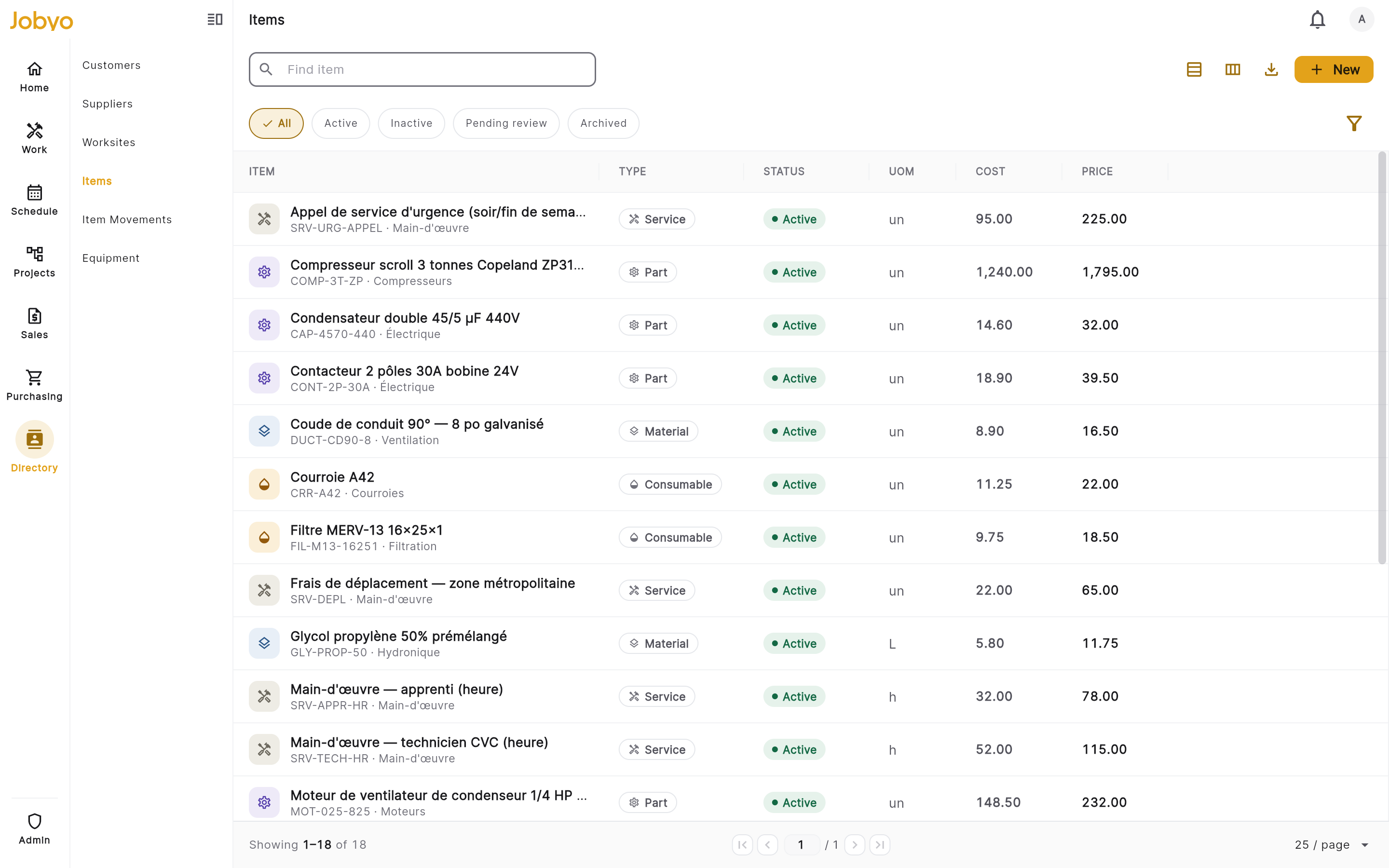
Items list — status pills, type column, filter sidebar Filter and sort
Narrow the list by type, category, or inventory-tracked, and set status to Archived to see retired items (active-only by default). Sort by name, code, date, type, category, or status.
Search
Type in the search bar to match on name or item code — results update as you type. Switch between list and tiles views, choose which columns show, or export the current view.
Open an item
Tap a row to see its full record: identity, pricing and tax, classification and supply, and a lifecycle/audit section. The detail also shows a margin figure derived from price and cost — this is display-only and isn't stored or used by any document.
Item detail — Identity, Pricing & tax, Classification & supply, Lifecycle
On a purchase order, work order material line, or invoice, tap the item search field and type at least 2 characters. A dropdown of matching active items appears; pick one and the line's code, name, unit, and pricing fill in automatically.
Create an item
Open the New item form
In the Items list, select New (top right). Only visible if your role can create items.
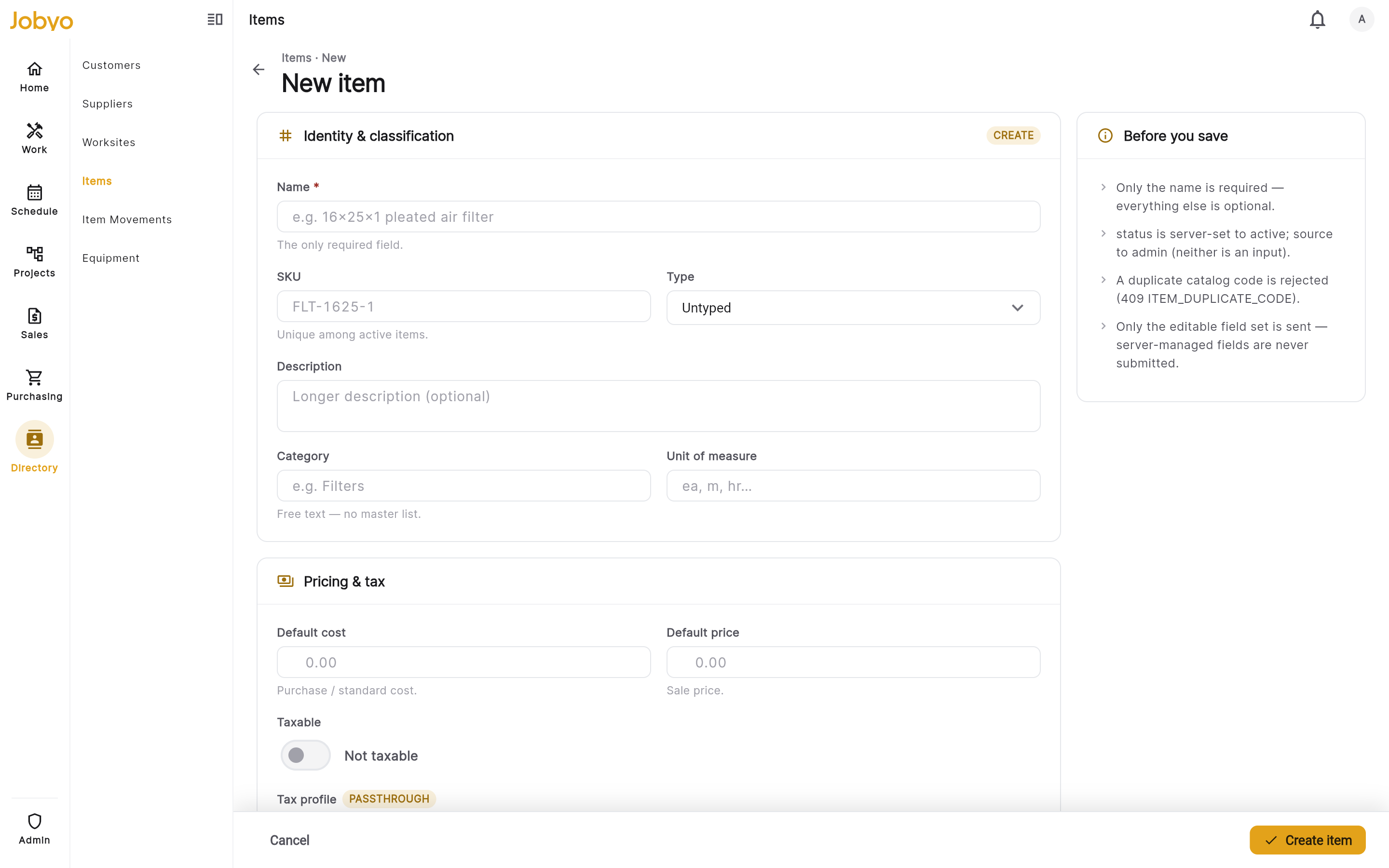
New item form — Identity, Pricing, Classification, Notes Fill in the identity
Name is the only required field. Optionally add an item code (must be unique across active items), a description, a type, and a free-text category (type any label that suits your company — there's no controlled list).
Set pricing and tax
Enter a default price (sale price, must be numeric) and a taxable flag. If your role allows it, enter a default cost (purchase/standard cost). Editing cost needs the cost-modify permission — without it the cost field is unavailable and the rest of the form still saves.
Add classification and supply
Optionally set unit of measure (ea, m, hr, box…), tick inventory tracked if stock movements should be recorded, and add manufacturer, manufacturer part number, or barcode. Add any free-text notes.
Save
Select Save. The item is created with status Active and opens on its detail page.
When a purchase-invoice line references a product that isn't in the catalog yet, use Quick-create next to the item field. A side sheet slides in — name, code, description, and cost may be pre-filled from the line. Save it and the new item is selected on the line while you stay on the invoice.
Edit an item
Open the item, select Edit, and change any fields — the layout matches the create form. A few rules:
- Status isn't editable here — it's a read-only badge (set by create and archive only).
- Item code can change but must stay unique among active items.
- Clearing a field removes its value from the record.
- Archived items can't be edited — Edit is disabled once an item is archived.
Archive an item
Archiving is a soft retirement — history is preserved, the item leaves the default list and autocomplete, and it stays visible under the Archived status filter. There's no hard delete, and no un-archive in the current version.
Open the item and choose Archive
On the item detail, select Archive and confirm in the dialog.
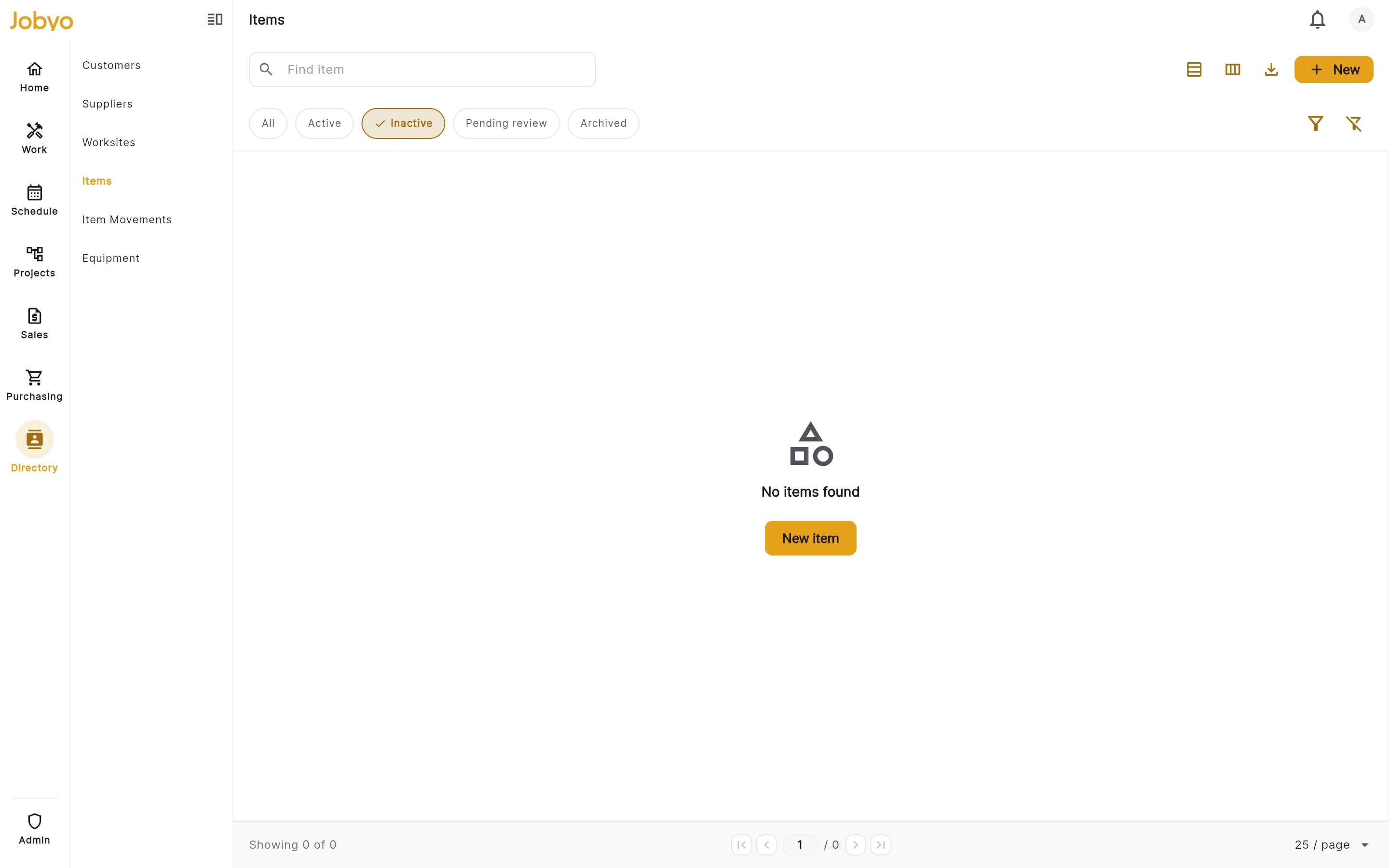
Archive confirmation — "Archive this item?" Clear any blockers first
If the item is still in use, the archive is blocked and Jobyo lists exactly what's referencing it, with counts. Resolve those, then try again.
The archive block covers item transactions, open purchase orders, and draft sale invoices — but it does not check purchase-invoice lines. Before archiving an item you think may be on a purchase invoice, review open purchase invoices manually.
Status reference
| Status | What it means | How it's set |
|---|---|---|
| Active | Normal catalog item, available in search and documents | Automatically, when the item is created |
| Archived | Retired — excluded from search and autocomplete | By the Archive action (terminal — no restore) |
| Inactive | Deactivated (legacy or migrated data only) | Not settable in the app |
| Pending review | Reserved for future use | Not settable in the app |
Inactive and Pending review only appear on items imported from an earlier system — there's no way to move an item into or out of those states through the app.
Item types reference
| Type | Typical use |
|---|---|
| Material | Raw materials consumed in field jobs |
| Part | Replacement or repair parts |
| Product | Finished or sellable goods |
| Consumable | Items used up during work (sealants, fixings) |
| Service | Labour or service-only line items |
| Equipment Part | Parts specific to a piece of equipment |
| Other | Anything that doesn't fit the above |
Type is optional — an item works in every document without one. It's used for filtering and reporting.
If it doesn't work
- No Items in the menuYour role may not include listing items, or Items isn't on your plan. Ask an administrator.
- No "New" buttonYour role doesn't include creating items. An administrator can grant it under Users & roles.
- Cost field is blank or unavailableYour role can't view or edit item cost. That's expected — sale price stays visible. An administrator can grant cost access.
- "An item with code … already exists"That code is used by another active item. Choose a different code or leave it blank.
- "Item not found" on openThe item was archived. Use the Archived status filter on the list to see it.
- "This item is archived"Archived items can't be edited, and there's no un-archive — create a new item if you need it again.
- Archive is blockedSomething still references the item. Clear the listed item transactions, open purchase orders, or draft sale invoices, then retry.