Manage equipment
Equipment is Jobyo's asset registry — the physical things you service or own (HVAC units, elevators, vehicles, tools, and more). Each asset carries a scannable tag and can be linked to a customer, worksite, and location. Work orders point back to equipment, so keeping the registry accurate makes field lookups and history reliable. Here's how to register, find, and retire assets.
Who uses this
Equipment has two audiences. Operations and admin run the back-office registry: browse the list, register assets, edit them, and retire or delete them. Technicians meet equipment in the field — they scan a tag to look one up, and they can register a new asset on the spot, which lands as a draft for an admin to approve.
What you'll need
- Permission to list and view equipment to browse the registry and open a record, and create or modify to register or edit assets.
- The remove permission to retire, reject, or delete an asset — this is separate from edit.
- The approve permission to clear field-created drafts from the review queue.
- A name for every asset. Everything else is optional.
All of this is governed by the equipments permission. There is no separate plan or add-on gate — access is controlled by your role alone.
Browse and filter
Open the equipment list
Select Equipment from the main menu. The list opens paginated, with list and tiles views you can switch between (25 rows per page by default).
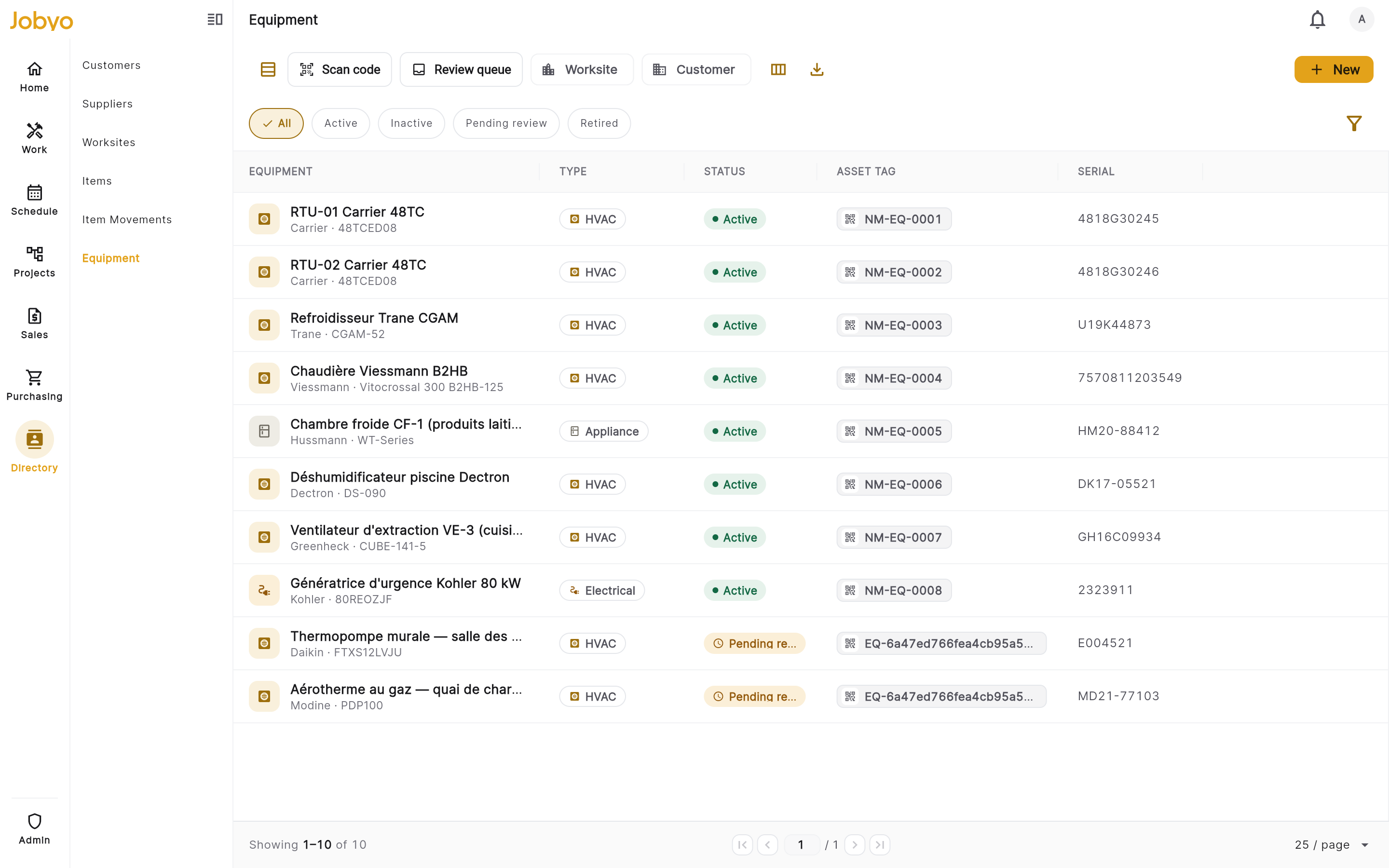
Equipment list — status pills, filter chips, Scan code / Review queue / New toolbar Filter by status, type, worksite, or customer
Use the status pills to narrow by lifecycle state (Pending review · Active · Inactive · Retired). Use the filter panel to pick an equipment type (HVAC, Electrical, Plumbing, Elevator, Fire safety, Lighting, Vehicle, Tool, Appliance, Other), and the Worksite and Customer chips to scope the list to one site or account.
There's no name search box — look up by tag insteadThe equipment list has no free-text search. That's deliberate: in the field you find an asset by scanning or typing its tag, not by typing its name. Use the filters to browse, and Scan code to jump straight to one record.
Choose columns or export
In list view, use the column chooser to show or hide columns. Export applies the filters you currently have set.
Open a record
Click any active, inactive, or retired row to open the equipment detail. A pending-review row opens the review sheet instead (drafts aren't viewable on the detail screen — see the approval queue below).
Register equipment
This is the back-office path. (Technicians register in the field — see Register from the field below.)
Open the New equipment form
From the equipment list, select New. If you don't see the button, your role doesn't include create — ask an administrator.
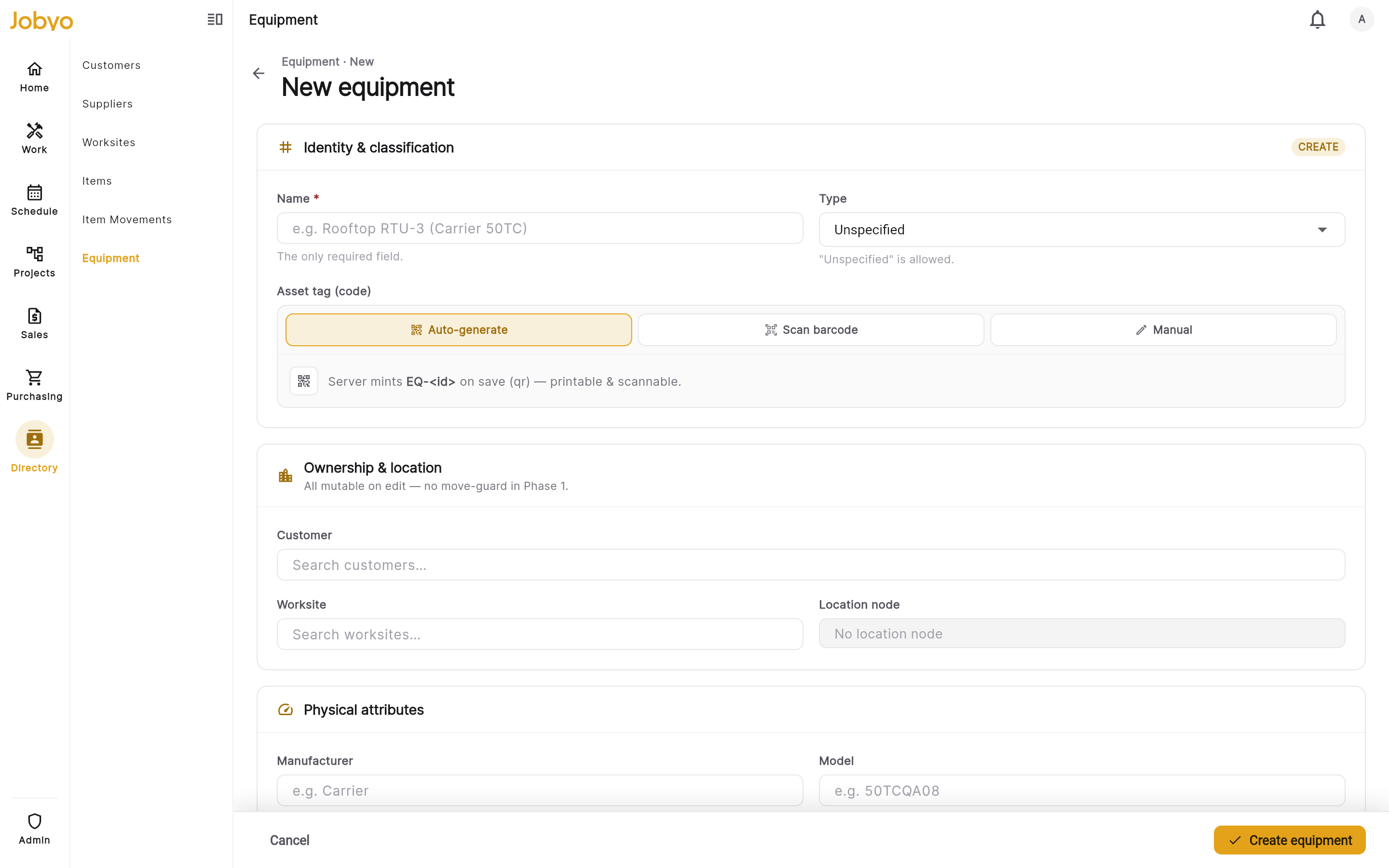
Create form — Name required, type, links, physical attributes, asset tag Name and classify the asset
Name is the only required field. Optionally choose a type (HVAC, Elevator, Vehicle, and so on) — the type drives the icon shown throughout the app.
Link it to a customer, worksite, and location (optional)
Pick the customer that owns it, the worksite where it lives, and a location node within that site. The worksite picker is scoped to the selected customer, so you only see that customer's sites.
Add physical details (optional)
Fill in any of manufacturer, model, serial number, install date, warranty start, warranty end, and notes.
Warranty dates are informational onlyJobyo stores warranty start and end dates for reference, but it does not send expiry alerts or show warranty badges. Treat them as a record, not a reminder.
Set the asset tag (or let Jobyo generate one)
Leave the asset tag blank to have Jobyo generate a unique QR tag in the form EQ-<id> when you save. Or type your own tag (QR, barcode, or a manual code) — it must be unique across your tenant.
Save
Select Save. The new asset opens on its detail page, active and ready to reference from work orders.
If the tag you typed is already used by another asset, the save is rejected with a conflict and the message appears inline on the asset-tag field. Choose a different code, or clear the field to let Jobyo generate one.
Scan an asset tag
The scan resolver turns a tag or serial number into the right record.
Open Scan code
From the equipment list toolbar, select Scan code. Point the scanner at the asset's QR or barcode, or type a code into the box.
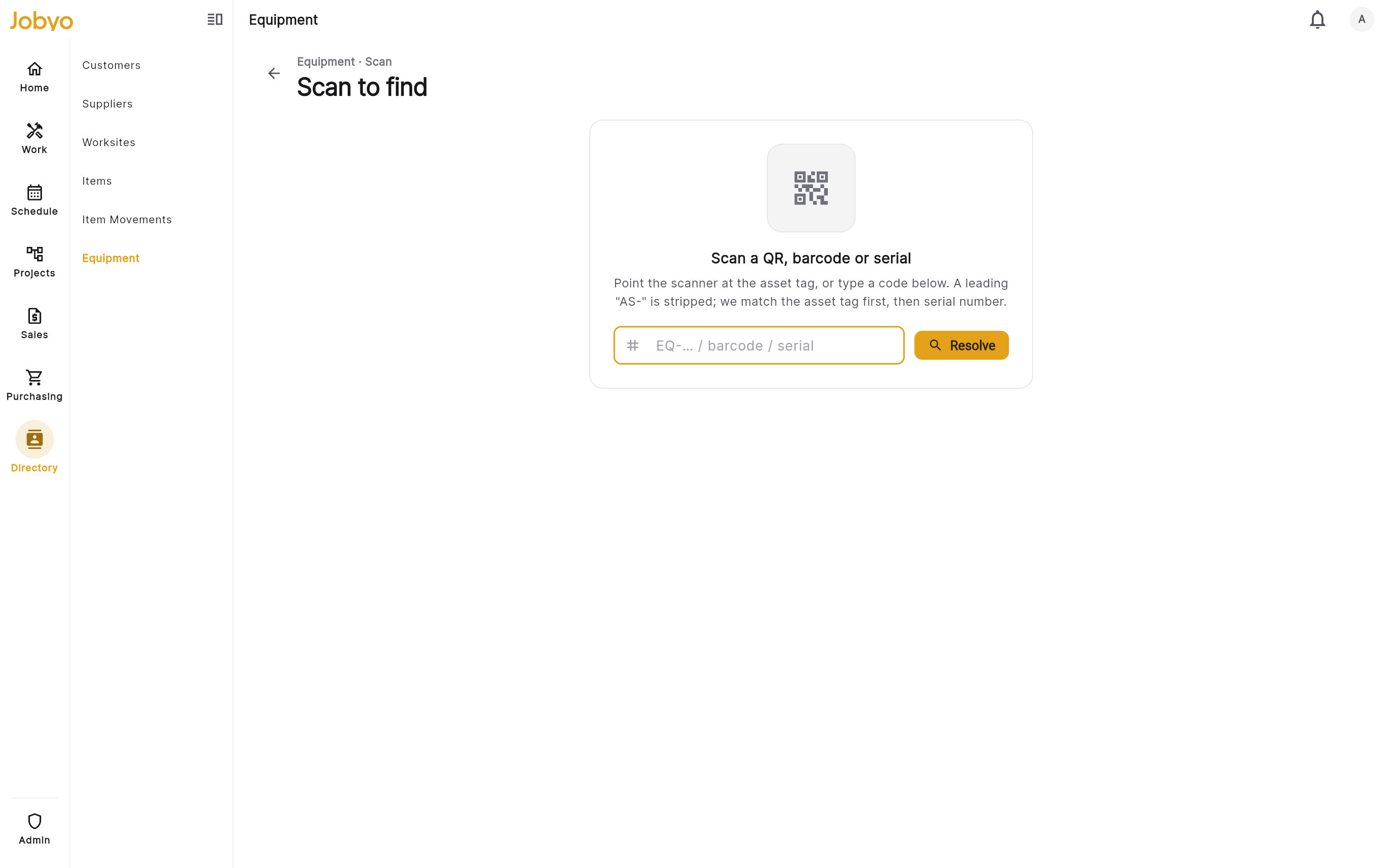
Scan to find — code box, resolves to detail or offers Create with this code Jobyo resolves the code
Jobyo strips a leading
AS-if present, then matches the asset tag first and falls back to the serial number. On a match it opens the equipment detail — or the approval queue if the resolved record is still a draft.No match? Create with this code
If nothing in your tenant uses that code, Jobyo shows No match and — if you have create permission — offers Create with this code, which opens the register form with the scanned code pre-filled. Otherwise, choose Scan another to try again.
Register from the field
Technicians can add equipment while on site — for example when they find an asset that isn't in the registry yet.
- A technician registers the asset from a work order, task, or worksite context. Because it's created in the field, the record starts as a draft (pending review) rather than going straight live.
- Field registration must be launched from real work — the draft carries the work order, task, or location it was created from, shown later as "Created from" on the record.
- The draft can attach to a worksite that is itself still pending approval, so a technician is never blocked by an un-approved site.
The draft then waits in the approval queue for an admin or manager to approve or reject it.
Approve field-created drafts
Open the Review queue
From the equipment list toolbar, select Review queue (visible only if you have approve permission). It lists every field-created draft awaiting review.
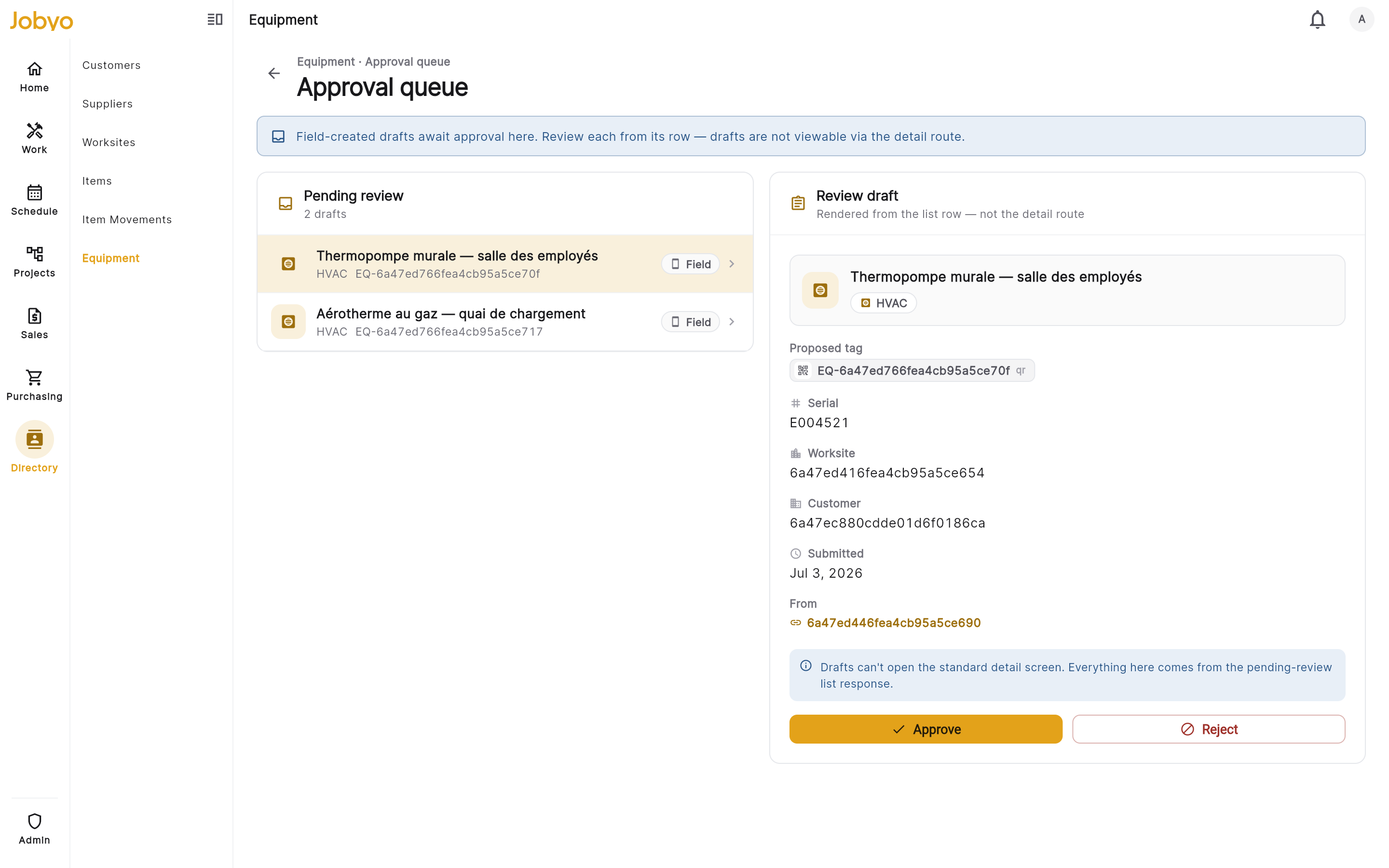
Approval queue — draft list on the left, review panel on the right Review a draft
Pick a draft to see its proposed tag, serial, worksite, customer, submission time, and the work item it was created from. On desktop the review panel sits beside the list; on mobile a row opens a review sheet.
Approve or reject
Select Approve to make the asset active and available for new work. Select Reject to mark it inactive — it stays in the system for history but can't be used for new work. Rejecting needs the remove permission, so a reviewer can approve without being able to reject.
A pending-review draft can't be opened on the normal detail page — everything the reviewer needs is shown in the review panel, built from the queue. If a draft link ever lands you on the detail screen, Jobyo points you back to the approval queue.
Show or print a QR label
Open an asset's detail and select Show QR (top right) or Print label in the Identity section. Jobyo renders a QR code for the asset tag that you can print and stick on the physical equipment — so anyone can scan it later to pull up the record.
Retire and delete
Equipment is removed in two deliberate steps: retire first, then delete. This keeps decommissioned assets in your history before they're finally hidden.
Retire an active or inactive asset
Open the detail and select Retire (needs the remove permission). The asset is marked retired — kept for history but no longer usable for new work. Closed documents that reference it are unaffected.
Delete a retired or inactive asset
From a retired or inactive record, select Delete. The asset is hidden from every list and picker. An active asset can't be deleted directly — you must retire it first.
There is no restore in the current version of Jobyo. Once an asset is deleted it can't be brought back — retire first, and only delete when you're sure you no longer need the record.
You can't retire or delete an asset while any open work order still references it. Close or reassign those work orders first. Jobyo tells you how many open work orders are blocking the action.
The equipment lifecycle
Every asset moves through a fixed set of states. The state controls which actions are available.
| Status | What it means | Retire | Delete |
|---|---|---|---|
| Pending review | A field-created draft awaiting approval | — | — |
| Active | In service, usable for new work | Yes | — |
| Inactive | A rejected draft — kept but not usable | Yes | Yes |
| Retired | Decommissioned, kept for history | — | Yes |
| Deleted | Hidden everywhere — terminal, no restore | — | — |
- A draft is approved into Active or rejected into Inactive.
- Active and Inactive assets are retired into Retired.
- Retired and Inactive assets are deleted (soft-deleted) — the terminal state.
- Retire and delete are both blocked while open work orders reference the asset.
If it doesn't work
- "Asset tag already exists" on the tag fieldAnother asset already uses that tag. Choose a different code, or clear the field to let Jobyo generate a unique EQ- tag.
- No "New" button on the listYour role doesn't include creating equipment. An administrator can grant the equipments create permission under Users & roles.
- No "Review queue" buttonThe review queue needs the equipments approve permission. Ask an administrator to grant it.
- "Cannot retire / delete — open work orders reference this equipment"Close or reassign the open work orders that reference the asset, then try again.
- Delete is disabled on an active assetActive assets must be retired before they can be deleted. Retire it first, then delete.
- "Already deleted"The asset was already deleted, possibly in another session. Refresh the list — it will no longer appear.
- Scan says "No match"Nothing in your tenant uses that tag or serial. Check the code, or use Create with this code to register it.
- A draft opens a review sheet instead of the detail pageThat is expected — pending-review drafts are reviewed from the approval queue, not the detail screen.