Project budget & variance
A project's budget is the planning figure you type in — your estimate of what the work should cost. Once a baseline is published, Jobyo compares that plan against the cost actually recorded and shows the gap as variance. Here's how the budget, the baseline, and the variance table fit together.
Three things called "cost" — keep them straight
These live on different tabs and never overwrite each other. Knowing which is which saves a lot of confusion.
| Term | What it is | Where you set / see it |
|---|---|---|
| Budget | A planning estimate you type — an overall total plus an optional per-category breakdown. Not a computed rollup. | Project Cost tab → Edit budget |
| Planned cost baseline | A frozen snapshot of the detailed cost plan at a moment in time, used as the reference the plan is measured against. | Published from the project Plan tab |
| Actual cost | What's recorded automatically from time, materials, expenses, and invoices as work happens. | Project Cost tab (see Project costs) |
The budget you edit on the Cost tab (estimated total + category rows) is a top-level planning header. It is a separate value from the detailed planned-cost lines that feed the variance table — see The planned-cost baseline below. Editing the budget does not change the variance figures, and vice versa.
Who does this
Setting the budget and publishing baselines are project-manager tasks; reading variance is for anyone following the money on the project — typically project managers and finance. This is a back-office view: technicians don't see it.
- Edit the budget and publish a baseline need permission to modify the project.
- View the variance table needs permission to view planned costs. Project managers can view and manage planned costs; finance and read-only roles can view them.
Set the project budget
The budget is your planning estimate — an overall figure and, optionally, a breakdown by cost category. You enter it; Jobyo never fills it in for you.
Open the Cost tab
Open the project workspace and select the Cost tab.
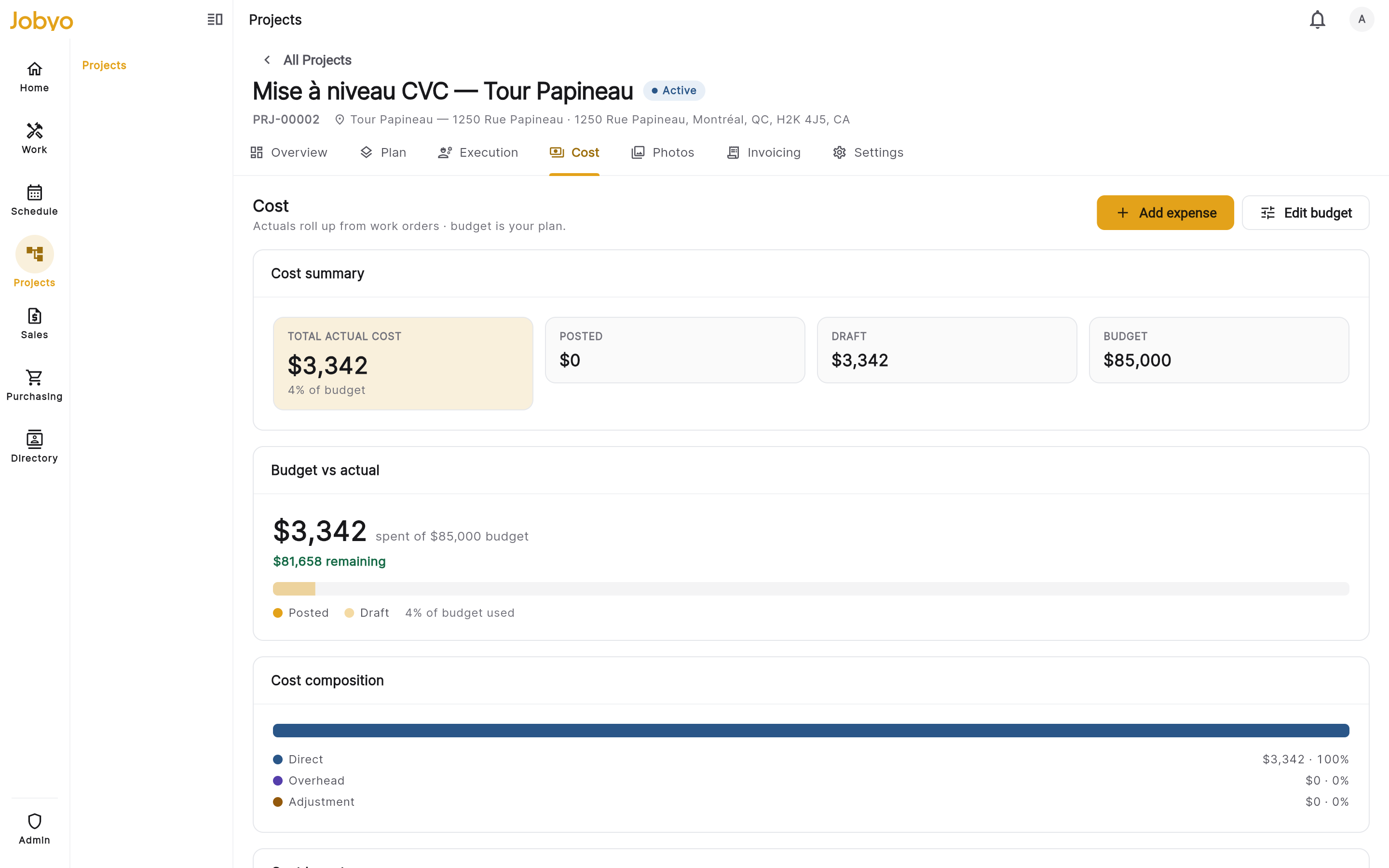
Cost tab — summary tiles, budget-vs-actual bar, Edit budget action Edit the budget
Select Edit budget. Set the estimated total — the overall planning figure for the project.
Add a category breakdown (optional)
Add one row per cost category with an amount. Each row needs a category name; the amount is optional. Use Add category for more rows.
Save
Select Save. The budget tiles and the budget-vs-actual bar update immediately to reflect the new figures.
When a project is created from an accepted quotation, its estimated total is set from the quote's sell total automatically. That conversion is a back-end capability today and has no button in the app yet — so in practice you enter the budget yourself. See the Projects overview for more on quotations and projects.
The planned-cost baseline
Variance measures actual cost against a baseline — a frozen version of the cost plan. Publishing a baseline is done from the Plan tab; full steps are in Project planning. In short:
Publish a baseline from the Plan tab
On the Plan tab, choose Publish baseline, give it a unique version name (up to 64 characters), pick a snapshot mode (Full by default, or Cost only / Dates only), and optionally add a reason.
The plan is frozen
Publishing freezes the current cost plan as that version's reference figures. A published baseline is permanent — it can't be edited or deleted. If the plan changes, publish a new version with a different name.
The line-by-line planned-cost figures that a baseline freezes are not editable in the app today. They're created through the back end — or seeded automatically when a project is converted from an accepted quotation (a back-end capability with no button yet). The Cost tab's budget editor is a different, header-level input and does not feed these lines. If no planned-cost lines exist, a baseline still publishes, but its planned figures will be zero.
Read the planned-vs-actual variance
The variance table compares the cost frozen in a baseline against the actual direct job cost recorded so far, per phase and for the project as a whole.
Open the Cost tab and find Variance
On the project Cost tab, go to the Planned vs actual variance section.
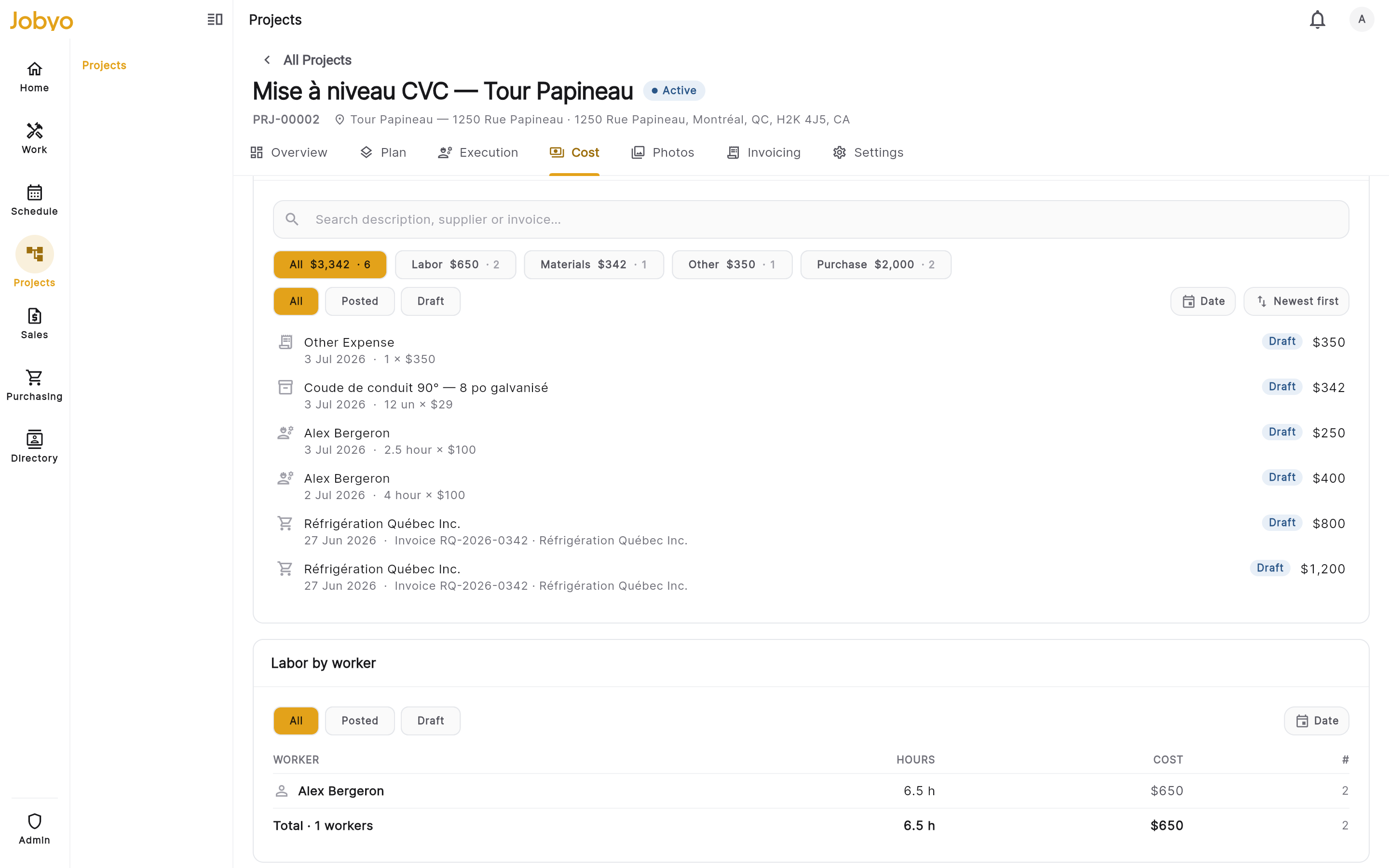
Variance section — baseline version picker, Planned / Actual / Variance columns per phase and a project total Choose a baseline version
Use the baseline version selector to pick which published baseline to compare against. Variance is only available once at least one baseline exists.
Read the table
The table shows one row per phase plus a project total. For each row:
- Planned — the cost frozen in the selected baseline.
- Actual — the direct job cost recorded so far.
- Variance ($) — actual minus planned (negative means under plan).
- Variance (%) — the relative difference; shown as a dash when planned cost is zero.
Rows where actual exceeds planned are highlighted.
The variance table uses the direct job cost lens only. A category-level or bucket-level breakdown within variance isn't available yet. For the fuller cost picture — cost by category, cost by work order, and the cost lens by worksite / location / equipment — see Project costs.
Variance stays at zero until both conditions are met: a baseline that actually contains planned-cost lines has been published, and actual costs have been recorded (time, materials, expenses, or invoices logged against the project). A brand-new project, or a baseline published with no planned-cost lines behind it, has nothing to compare — so the figures read zero until real data exists.
If it doesn't work
- No "Edit budget" buttonYour role doesn't include modifying the project. An administrator can grant it under Users & roles.
- Variance section is empty or prompts to publishNo baseline has been published yet. Publish one from the Plan tab, then choose it in the variance version selector.
- Variance figures are all zero after publishingEither the baseline has no planned-cost lines behind it, or no actual cost has been recorded yet. Both are needed for non-zero variance.
- Variance (%) shows a dashPlanned cost for that row is zero, so a percentage can't be calculated. The dollar variance still shows.
- Can't edit a published baselineBaselines are permanent by design. Publish a new version with a different name instead.