Inventory stock
Inventory stock shows how much of each catalog item is physically on hand. You don't build stock rows by hand — Jobyo creates and updates them automatically as items move through goods receipts and work orders. This is a read-mostly screen: you look up balances, and when a controller needs to correct a figure they make a manual adjustment or recompute from history.
Who uses this
Inventory stock is a back-office surface for operations and admin roles — typically whoever owns stock control. It's a read-mostly module: there is no form to create or directly edit a stock row, because quantities are system-maintained. The only write actions are a manual adjustment and a recompute, and both are gated on the modify permission.
You never type a stock quantity into an inventory record. On-hand levels are driven by item movements elsewhere in Jobyo — mainly goods receipts (stock coming in) and, in time, work-order consumption. Inventory stock is where those movements are totalled and displayed.
What you'll need
- Permission to list and view inventory stock to browse balances and open an item's detail.
- The modify permission to make a manual adjustment or recompute an item — this is separate from viewing.
- Inventory stock is part of the Inventory feature, available on Team and higher plans. On the lowest plans the screen is switched off entirely.
Key ideas
- One row per item, per warehouse. Stock is keyed by item and, optionally, by warehouse (a stock location). An item held in more than one warehouse has a per-warehouse breakdown plus an item total.
- On hand vs available. Today these are always equal — Jobyo tracks quantity only in this phase. Reservations (which would make available differ from on hand) are not built yet.
- Quantity only, no cost. This screen shows how much, not how much it's worth. Cost and valuation are deferred to a later phase and don't appear here.
- Stock is created by movement. An item that has never received stock has no row at all — opening it shows a "no stock on hand" state rather than a zero.
Browse the stock list
Open Inventory stock
Select Inventory Stock from the main menu. The list opens showing all active stock records. There is no search box here — stock isn't searched by free text; you filter and page instead.
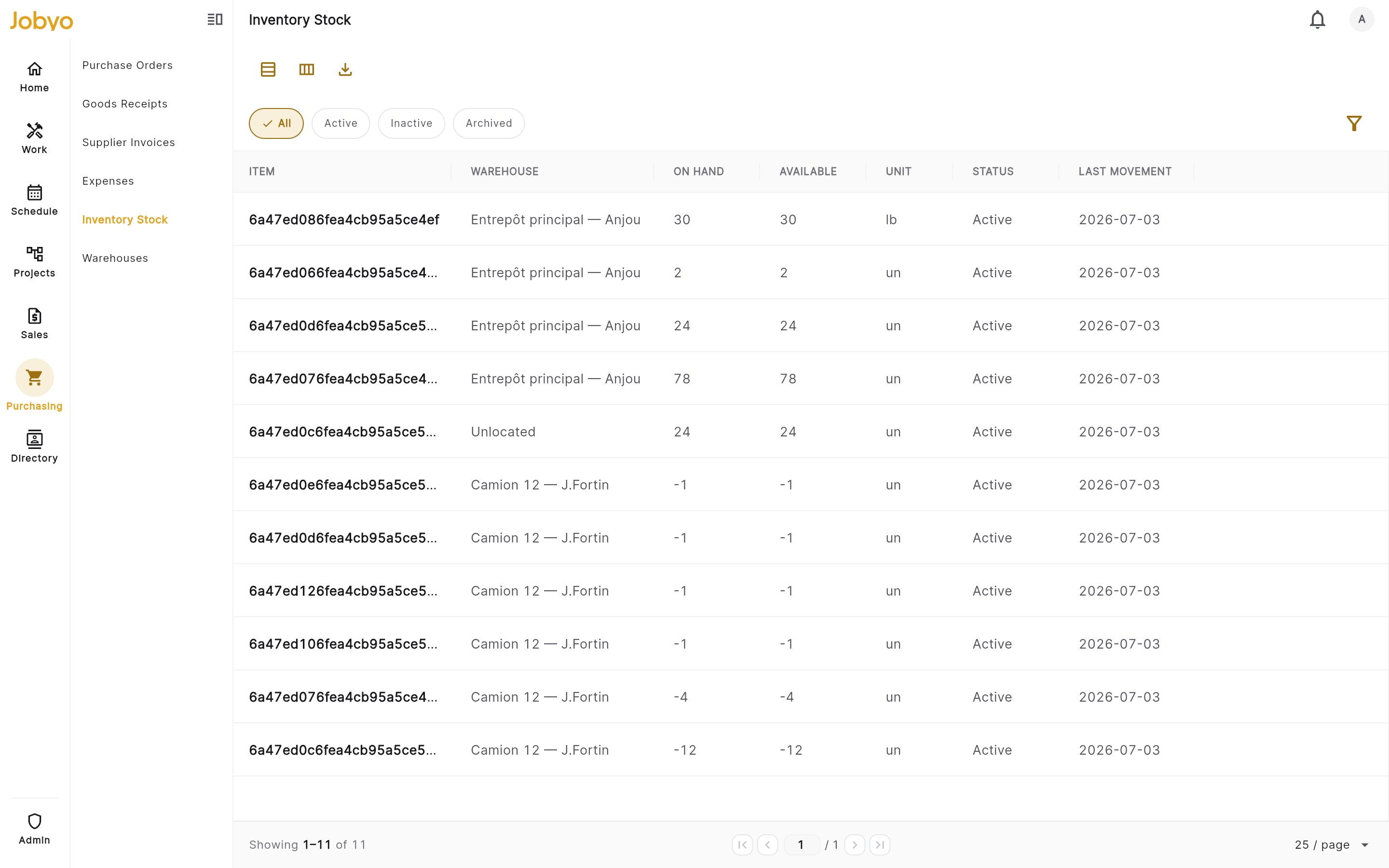
Inventory stock list — status pills, warehouse filter, export Filter by status
Use the status pills to switch between Active, Inactive, and Archived rows. Active is the default and matches most day-to-day work.
Filter by warehouse
Open the filter panel and pick a warehouse to narrow the list to stock held in that location. The warehouse picker resolves live from your stock locations, so you only see warehouses you actually have. Leave it unset to see every warehouse.
Warehouse filtering depends on set-upStock is only split across warehouses once your company has named stock locations and receiving routes stock into them. Until then, every row is "unlocated" and the warehouse filter has nothing to narrow. See Warehouses.
Switch views, page, or export
Toggle between the table and tiles views in the top right, and use the column chooser to show or hide columns in the table. Page through results at the bottom. Export downloads the current filtered list — it pages through everything server-side, up to a cap of about 5,000 rows, so very large catalogs may be truncated.
Open a record
Select any row to open the stock detail for that item.
The list is scoped by status and warehouse, not by item. To land on a single item's stock you open it from the list, or follow an inventory link from elsewhere in Jobyo — the item filter is used for those deep links, not exposed as a picker here.
Read a stock detail
The detail screen is keyed by the item and is read-only apart from the two header actions. It's laid out as a set of cards.
Quantities
On hand and Available (equal in this phase), the unit of measure, and — for an item held in a single warehouse — the warehouse it sits in.
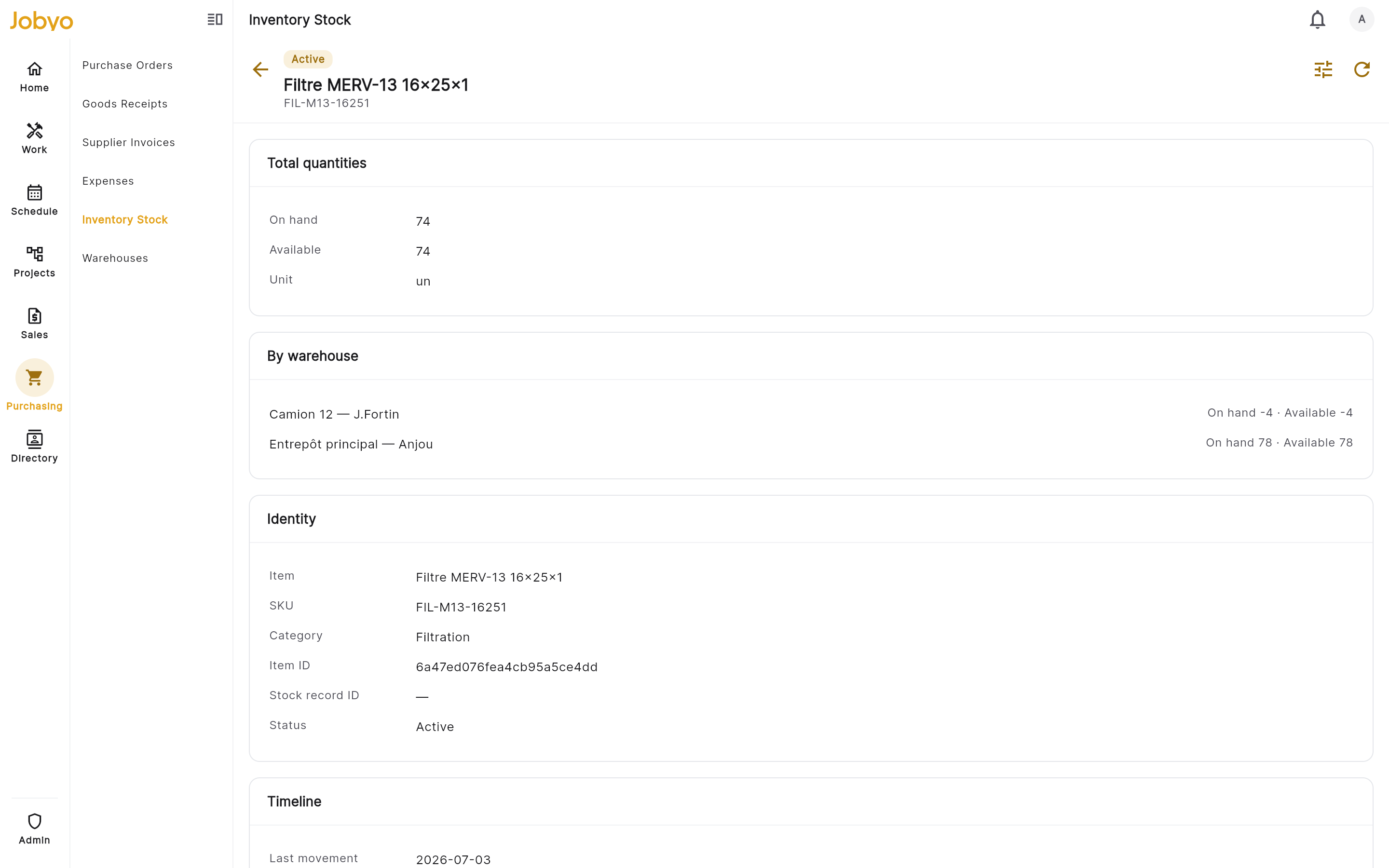
Stock detail — quantities, by-warehouse breakdown, identity, timeline By warehouse (multi-warehouse items only)
When the same item is held in more than one warehouse, the Quantities card shows the item total and a separate By warehouse card lists each location with its own on-hand and available figures. An archived or inactive location is labelled so it reads clearly.
Identity
The item name, SKU (item code), and category — pulled live from the item catalog — plus the raw Item ID, the Stock record ID, and the record status.
Item name is looked up, not storedInventory stock keeps no copy of the item's name. It fetches it from the item catalog when you open the detail. If that lookup can't resolve (or hasn't finished), the screen falls back to showing the raw item ID rather than a name.
Timeline
Last movement, Last recomputed, Created, and Updated timestamps — useful for spotting a stale balance or confirming when a correction ran.
If an item has never received any stock, opening its inventory detail shows an informational "No stock on hand for this item" message — not a failure. A stock row only exists once a movement (like a goods receipt) has touched that item.
Make a manual adjustment
A manual adjustment corrects an on-hand figure by a signed amount — for example after a physical count, breakage, or a receiving error that can't be fixed at source. You need the modify permission; the Adjust stock action appears in the detail header.
Open the adjustment dialog
From the stock detail, select Adjust stock (the tune icon in the header). A dialog opens. It won't close if you tap outside it — that's deliberate, so a half-finished adjustment can't be abandoned mid-save.
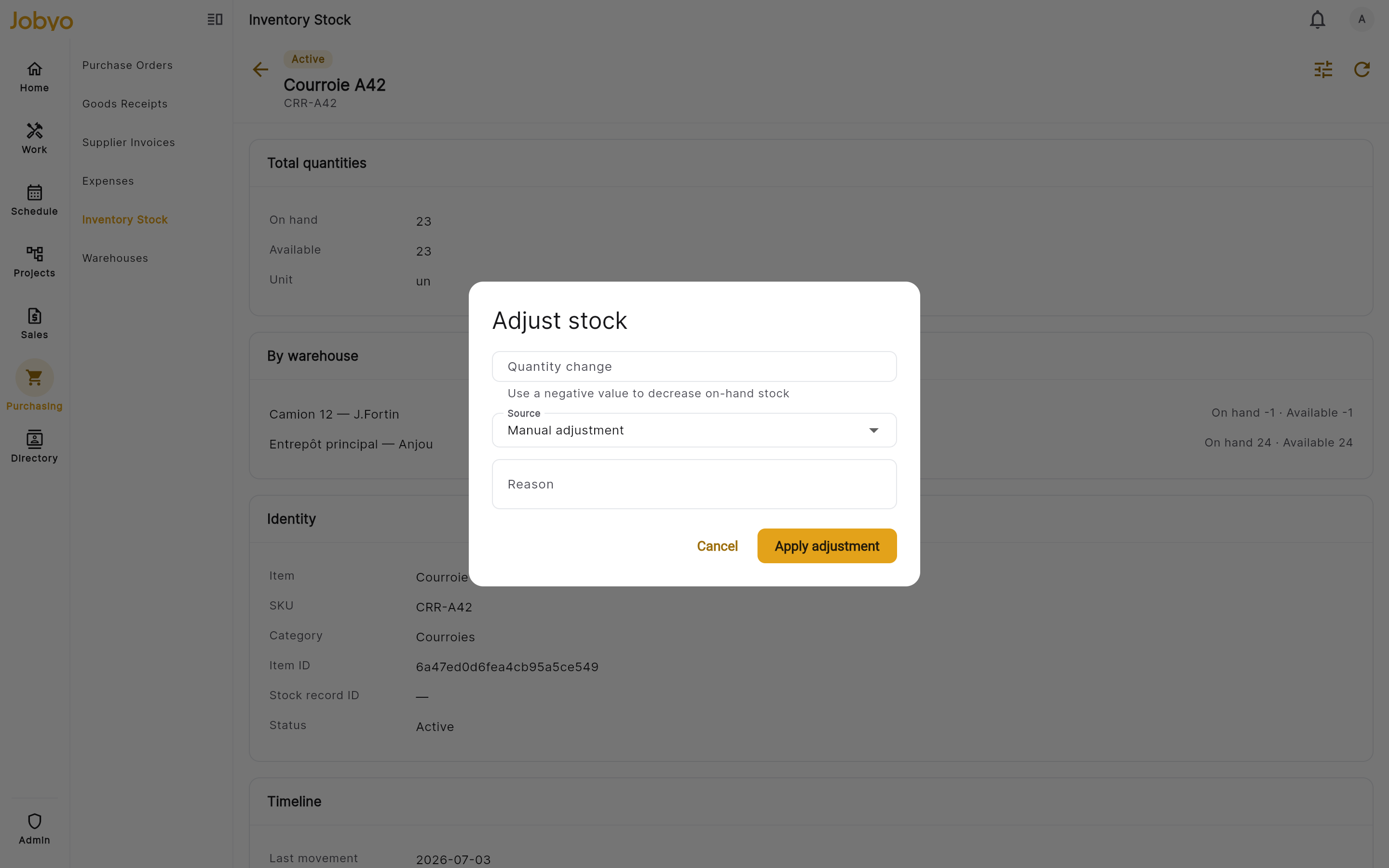
Adjust stock — signed quantity change, source, reason Enter the quantity change
Type the change, not the new total. Use a positive number to increase on-hand stock and a negative number to decrease it. Zero is rejected, and the value must be a real, finite number (decimals are allowed). The item's unit of measure is shown beside the field.
Choose a source
Pick why you're adjusting: Manual adjustment (a free-form correction) or Stock count (reconciling against a physical count). This is recorded with the movement.
Enter a reason and apply
A reason is required — free text, so write something that will make sense later. Select Apply adjustment. Jobyo records the change as an item movement and updates on-hand for that item and warehouse; you'll see an "Adjustment applied" confirmation.
There is no negative-stock guard. A negative adjustment larger than what's on hand will drive the balance below zero — Jobyo applies it anyway. Keeping stock non-negative is down to operator discipline; double-check the sign and size of your change before applying.
Each adjustment carries a one-time key generated when you open the dialog, so an accidental double-tap of Apply won't post the same change twice. (If you open the dialog again and re-enter the same numbers, though, that's a new adjustment — it will apply again.)
Recompute from history (fix drift)
If you suspect a stored balance has drifted from reality, you can rebuild it from scratch. Recompute discards the running total and re-derives on-hand for the item by summing its full item-transaction history — every non-deleted stock movement — across each warehouse the item is held in.
Open the recompute action
From the stock detail, select Recompute from history (the refresh icon in the header). You need the modify permission.
Confirm
A confirmation asks whether to rebuild the on-hand balance from the item's full transaction history. Confirm to run it. There's nothing to fill in — it takes no reason or amount.
Check the result
Jobyo recomputes every warehouse row for the item and re-reads the balance; you'll see a "Stock recomputed" confirmation and the Last recomputed time updates. If the number changed, drift was corrected; if it didn't, the stored balance already matched the ledger.
An adjustment adds a signed correction (and leaves an audit movement with your reason). A recompute doesn't add anything — it rebuilds the total from the underlying movement history, so use it when you think the running balance itself is wrong rather than the physical count.
What you can and can't do here
| Action | Available? | Notes |
|---|---|---|
| View stock list and detail | Yes | Needs list / view |
| Filter by status and warehouse | Yes | Warehouse filter needs stock locations set up |
| Export the filtered list | Yes | Capped at ~5,000 rows |
| Manual adjustment (signed delta + reason) | Yes | Needs modify |
| Recompute from history | Yes | Needs modify |
| Create / directly edit / delete a stock row | No | Rows are system-managed by movements |
| See cost or stock value | No | Quantity only in this phase |
| Reserve stock | No | Available always equals on-hand for now |
If it doesn't work
- "No stock on hand for this item"The item has never had a stock movement, so no record exists yet. Receive it through a goods receipt (or make a positive adjustment) to open a stock row.
- No Adjust stock or Recompute buttonsYour role doesn't include the modify permission for inventory stock. An administrator can grant it under Users & roles; viewing and modifying are separate permissions.
- "The change must not be zero"Enter a non-zero amount. Remember it's a change, not the new total — use a negative number to decrease on-hand.
- "Enter a reason"A reason is required on every adjustment. Add a short note describing the correction, then apply.
- Warehouse filter has no optionsYour company has no named stock locations yet, so all stock is unlocated. Set up warehouses first — see the Warehouses guide.
- Inventory Stock isn't in the menuInventory is a plan feature (Team and up). If it's missing, your plan doesn't include it, or your role lacks the list permission.