Attachments & photos
Jobyo lets you attach photos and documents to the records you work on every day — work orders, projects, and purchase invoices. Files are stored securely, keep a snapshot of the job, and can be viewed, downloaded, described, or removed from within the record where they live. Here's how attachments work.
When you'd do this
Add an attachment when you need visual or document evidence tied to a record:
- Photograph site conditions before or after work on a work order.
- Keep a delivery note, receipt, or supporting file with the job.
- Build up a project photo history you can review by date, phase, or location.
- Store a supplier's invoice document on a purchase invoice for automated data reading.
What you'll need
- Permission to add attachments — most field, ops, and admin roles include this. If you can't see an Add control, your role doesn't grant it; ask an administrator.
- The record you're attaching to must already exist. Attachments are added from inside a work order, project, or purchase invoice — never as a standalone step.
- A file within the accepted formats and size limit (see below).
For work orders and projects, you add photos and files after the record exists, from its own Attachments or Photos area — not while first creating it. This keeps uploads reliable on a phone with a patchy connection. Purchase invoices are the exception: the attachment pane is part of the invoice's creation screen, so you can upload the supplier's invoice document right away.
What you can attach
These rules apply to every role and every record type.
| Accepted | |
|---|---|
| Images | JPG, PNG, BMP, WebP, TIFF |
| Documents | PDF, Word (.docx), Excel (.xlsx, .xls) |
| Max size | 25 MB per file |
- Thumbnails: image files get a small preview generated automatically. PDFs and Office documents don't get a preview thumbnail.
- One file per upload: each upload adds a single file. Add several files by repeating the upload.
- Not accepted: video, ZIP archives, and anything outside the list above. Jobyo checks the file's extension, so an unsupported type is rejected with an error.
Phone and tablet photos often carry hidden GPS coordinates and device details (EXIF data). Jobyo automatically removes this from JPG/JPEG photos on upload, so your exact position isn't stored with the image. This applies to JPEG only.
Upload a photo or file
Open the record and find its files area
Open the work order, project, or purchase invoice. On a work order it's the Attachments section (a tab or a right-hand panel, depending on your device); on a project it's the Photos tab.
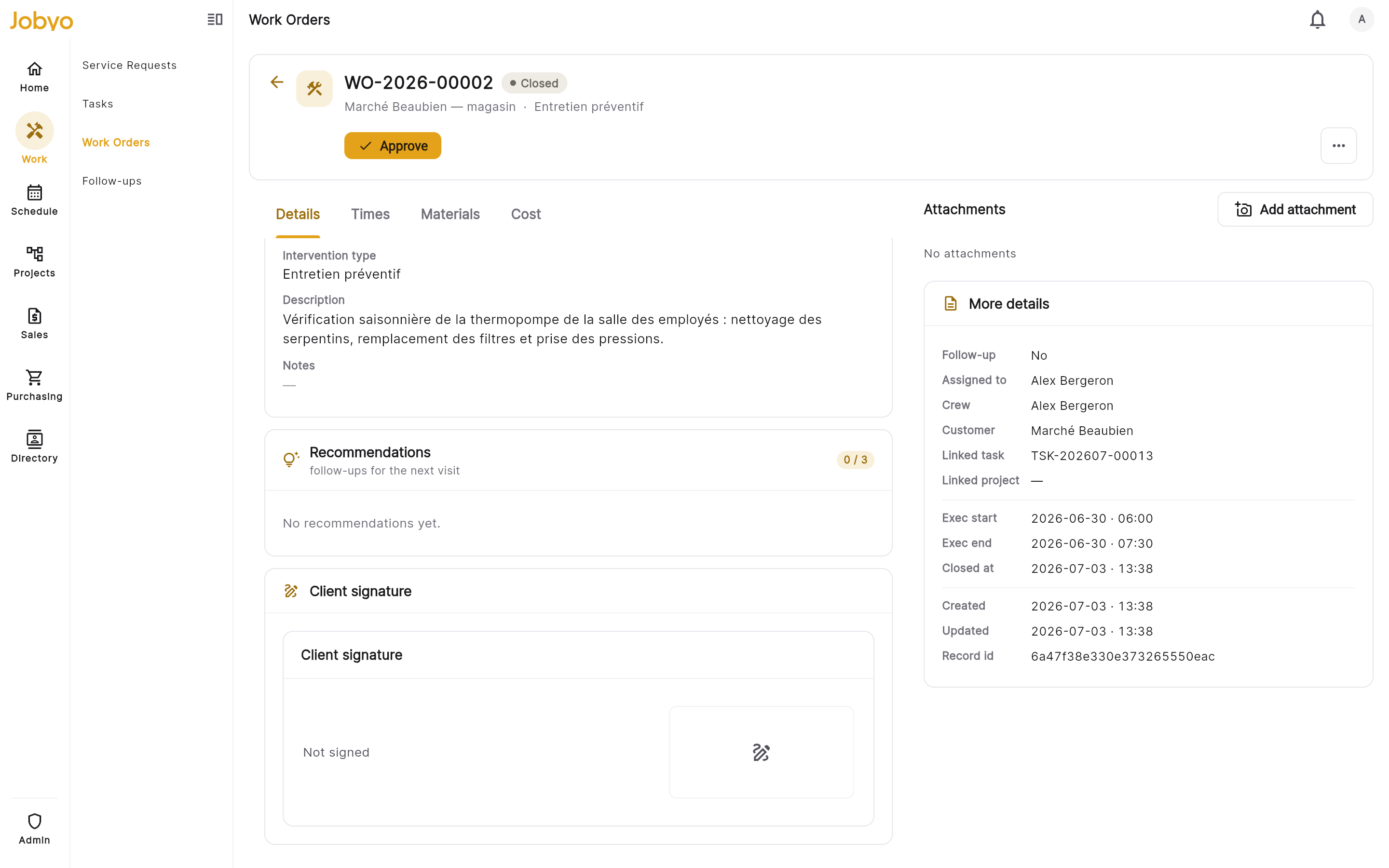
Work order detail — Attachments section with the add control Start the upload
Select Add. On a work order you can choose Camera (take a new photo), Gallery (pick an existing photo), or File (browse for a PDF, Word, or Excel document).
Pick or capture the file
Select or take the file. The upload starts automatically and shows a progress indicator — wait for it to finish before navigating away. A file that fails to upload won't appear in the list.
Add a description or date (optional)
Once the file appears, open it to add a description or set the date taken. These are the only two details you can edit later.
What you'll see: the file appears in the list with its filename, a thumbnail for images, and the date it was uploaded.
View and download
Open the files area
Go to the Attachments section on a work order, or the Photos tab on a project. Photos show as a grid or list of thumbnails.
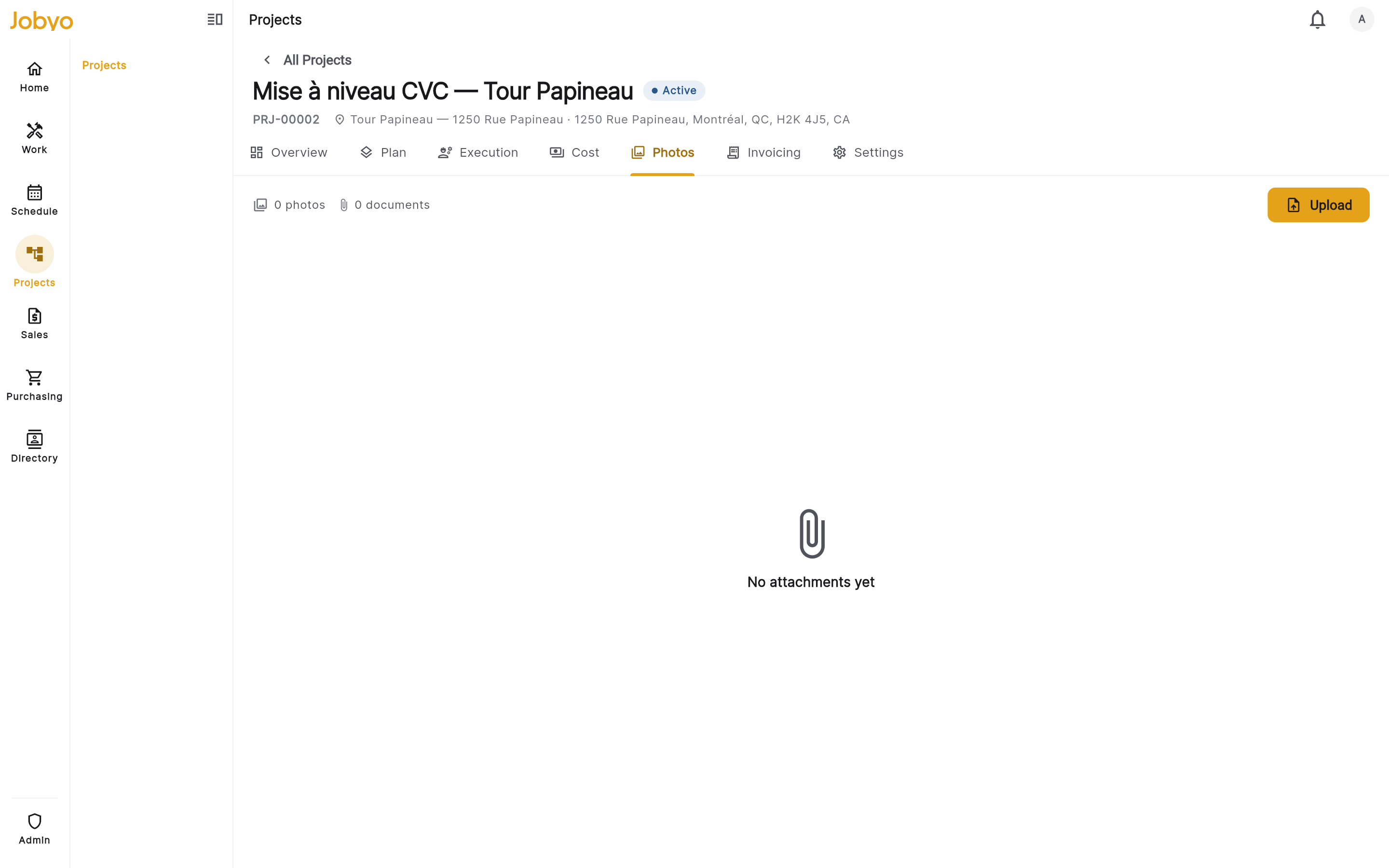
Project Photos tab — gallery grid with grouping and search Open a photo
Select a photo to open it full screen. On the project gallery you can move between photos with the filmstrip, and group by date, phase, or location, or search by description.
Download the original
Select Download. Jobyo generates a secure link that's valid for 15 minutes — open or save the file before it expires. If it lapses, select Download again for a fresh link.
Edit a description or date
You can label a photo with what it shows, or correct the date it was taken.
Open the attachment
Find it in the list or gallery and open it. Some views let you tap the description field directly; others show an Edit action.
Update and save
Change the description (free text, or clear it) or the date taken, then save. The card updates immediately.
Only the description and date are editable. There's no replace action — the file, the record it's attached to, and its stored copy are fixed once uploaded. To change the file, delete it and upload the new version.
Delete an attachment
Find the attachment
Open the record and locate the file in the Attachments section or gallery.
Delete and confirm
Open the attachment and select Delete (or long-press the thumbnail for a menu), then confirm. The file is removed from the list right away.
There's no undo button — a removed attachment leaves the list immediately. Jobyo keeps the underlying stored file for a retention period before purging it, but it's gone from your view.
Who can see and delete what
Attachment access follows your role's scope, and it's stricter than you might expect.
- Field roles can upload files and see, download, edit, and delete their own uploads. If a colleague uploaded a photo to the same work order, you may not see it — this is a current limitation, not a setting you can change.
- Company-level ops and admin roles can view, download, edit, and delete all attachments on a record, not just their own.
- Delete permission is separate. Some restricted roles can add files but not delete them — if you don't see a Delete option on a file you uploaded, your role likely omits it. Ask an administrator.
If you see "Not found" when you tap an attachment, the file may have been deleted by a manager. Contact your ops team if you expected to see it.
Purchase invoice documents are different
On a purchase invoice, the attachment pane holds the supplier's invoice document, which Jobyo reads automatically to pull in the data. Because it's treated as a fixed source record:
- You can upload and download it.
- You can't edit or delete it from the app, even though other record types allow that.
Where attachments show up today
| Record | What it's for | In-app support |
|---|---|---|
| Work order | Progress and condition photos, delivery notes, receipts | Full — upload, view, download, edit, delete |
| Project | Combined photo gallery across the project's work orders | Full — gallery with grouping, search, download, edit |
| Purchase invoice | Supplier invoice document for automated reading | Upload and download only |
Jobyo's back end can also attach files to tasks, equipment/assets, and worksites, but there's no screen for those yet — so you won't find an attachments area on those records today. A work order's client signature is captured on the work order itself and isn't an attachment.
If it doesn't work
- "File too large"The file is over 25 MB. Compress the document, split it into parts, or export the image at a lower resolution, then upload again.
- "File type not supported"The format isn't accepted (for example a video or ZIP). Use one of the listed image or document formats.
- Upload starts but never finishesCheck your internet connection and try again. A file that failed to upload won't appear in the list.
- Download does nothingThe 15-minute link expired. Select Download again to mint a fresh one.
- "Not found" when opening a fileIt was deleted by a manager. Contact your ops team.
- No Add or Delete controlYour role doesn't include that permission. An administrator can grant it under Users & roles.