From service request to paid invoice
This is the loop that pays the bills: a customer reports a problem, you turn it into scheduled work, a technician does the job, costs add up, the office raises an invoice, and the money comes in. Each step below lives in its own module — this guide walks the whole chain end to end so you can see how one job flows from a phone call to a settled invoice.
The whole loop at a glance
Field work in Jobyo runs as a relay — each module hands the job to the next, and nothing skips a link:
Service request (intake) → Task (scheduled work) → Work order (execution + costs) → Sale invoice (the bill) → Customer payment (settlement).
To keep it concrete, we'll follow one real job for the demo HVAC contractor Northline Mechanical in Québec. Their customer Les Tours Papineau phones in: "Climatisation en panne — 3e étage." We'll take that single request all the way to a paid invoice.
This page is the map, not the manual. Every step links to the module doc that covers it in depth — the how-to, the edge cases, and the permissions. Use this guide to understand the flow; use the linked pages to do the detail.
Walk the chain
Capture the request
Intake / dispatchWhen the call comes in, the office logs a service request — who's calling, what's wrong, how urgent, and where. Northline's dispatcher opens a new request, records Les Tours Papineau as the customer and the Tour Papineau worksite, gives it the title "Climatisation en panne — 3e étage", sets the priority, and saves. Jobyo stamps it with an auto number (like
SR-202607-001), sets it to New, and snapshots the customer and site so the record stays readable later.Then the dispatcher triages it — confirming it's real work that needs scheduling — which moves it to Triaged and unlocks the next move.
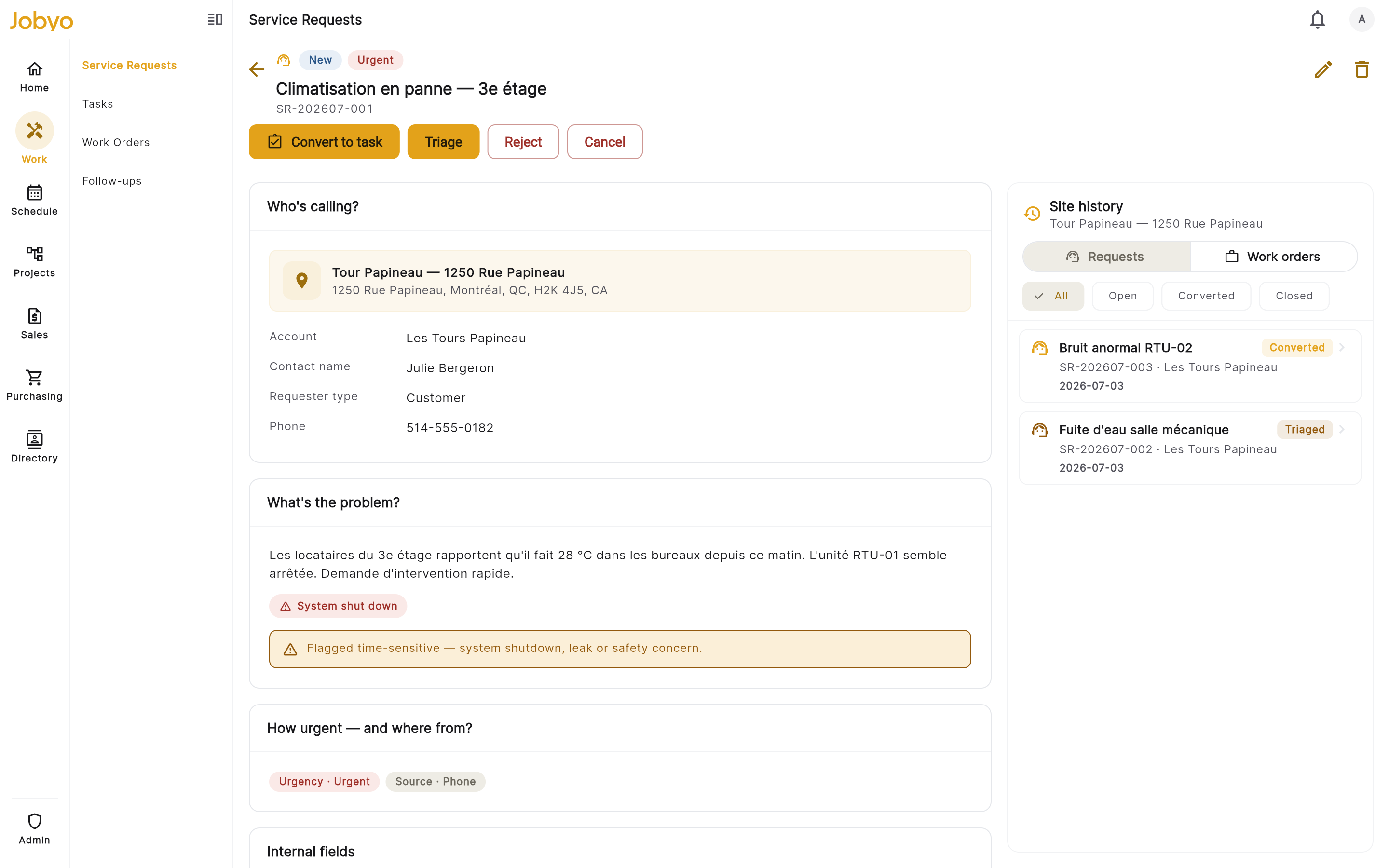
Request detail — status header, grouped problem/requester/site sections, and the triage action Turn it into scheduled work
DispatchA triaged request that's ready to schedule gets converted to a task. Jobyo creates a linked task, flips the request to Converted (locked from there — the task carries the work now), and shows a task preview back on the request. Converting needs both the edit service requests and create tasks permissions.
On the new task, the coordinator sets the assignee — technician Jonathan Fortin — a schedule (start and due dates), and plans the job: expected hours and any materials likely needed. The task now sits in Jonathan's My Schedule, ready for the day of the visit.
Converting twice is safeIf someone converts a request that's already been converted, Jobyo re-opens the existing task instead of creating a duplicate — so a double-click never spawns two jobs.
Do the work order
TechnicianOn site at Tour Papineau, Jonathan opens his task and taps Create work order. Jobyo mints a work order linked to the task, moves the task to In Progress, and drops him on the work order hub — the page where the actual job is recorded.
As he works, he logs it as he goes: time on the Times tab (a couple of hours diagnosing and swapping the part), the materials used on the Materials tab (a replacement capacitor), and photos of the fault and the finished repair. Each entry saves on its own, so nothing's lost on a patchy connection. He can also capture the client's signature on the Details tab.
When the job's done he taps Close. Closing completes the linked task and derives the work order's billing status — but it does not create an invoice. That's a separate, deliberate step for the office.
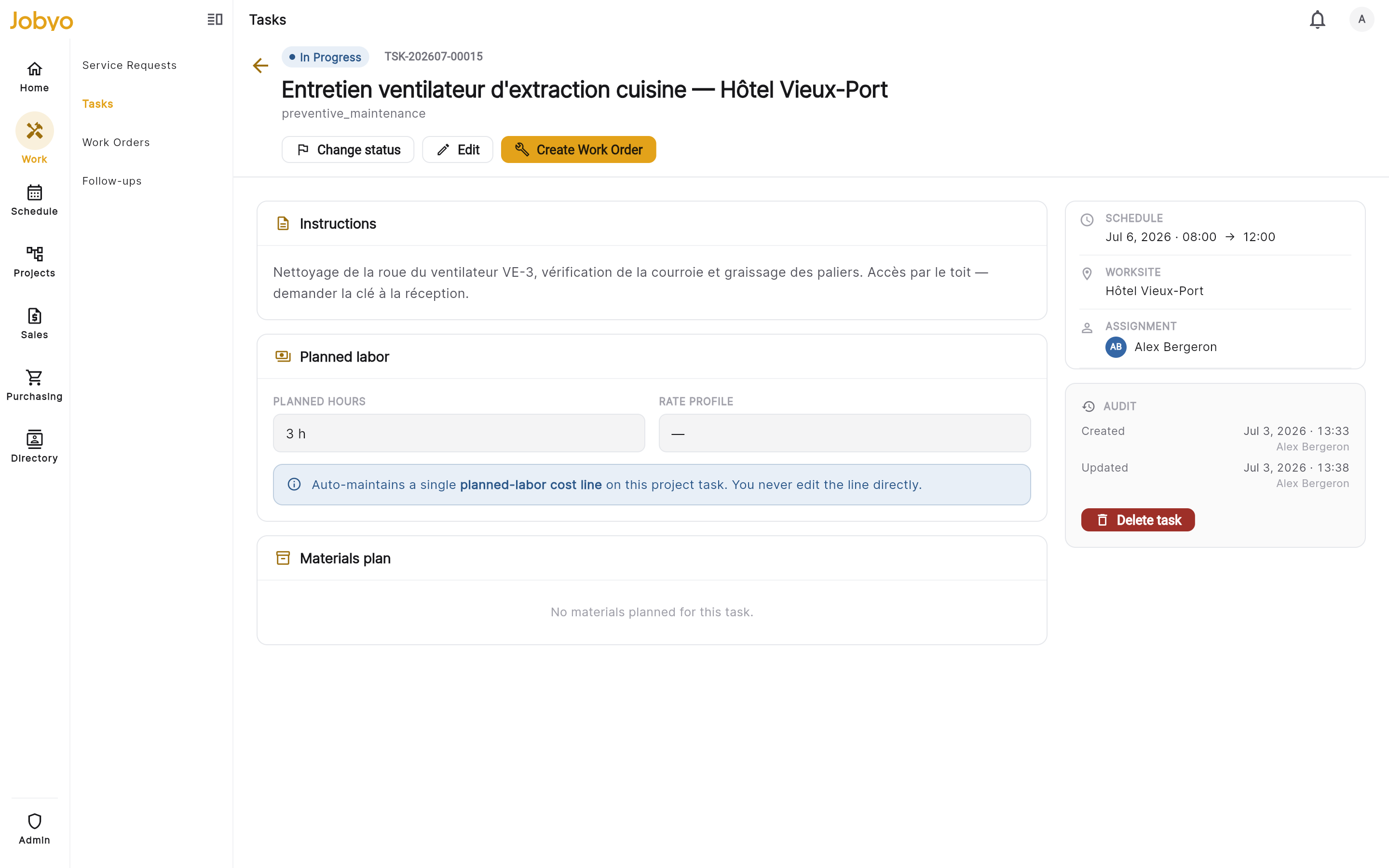
Task detail — the Create Work Order action that starts on-site execution See the cost add up
OperationsAdministratorThe Cost tab on the work order rolls the job up. Jobyo derives cost entries from what Jonathan recorded — the labour hours priced by the labour rate profile, the capacitor as a material line — and totals them into the job's cost. The office doesn't re-type any money: quantities come from the Times and Materials records, and the cost basis comes from the profiles and catalog.
This tab also holds the billing card: the derived billing status plus how the job bills (standalone / project / contract, billable or not, and the close action). For this repair it's a standalone, billable job that closed to Pending invoice — exactly the state that's ready to bill.
Cost view is permission-gatedThe Cost tab only appears for roles that can view costs. A technician sees the operational counts (hours, items) but never the dollar figures. See Roles & what you can see.
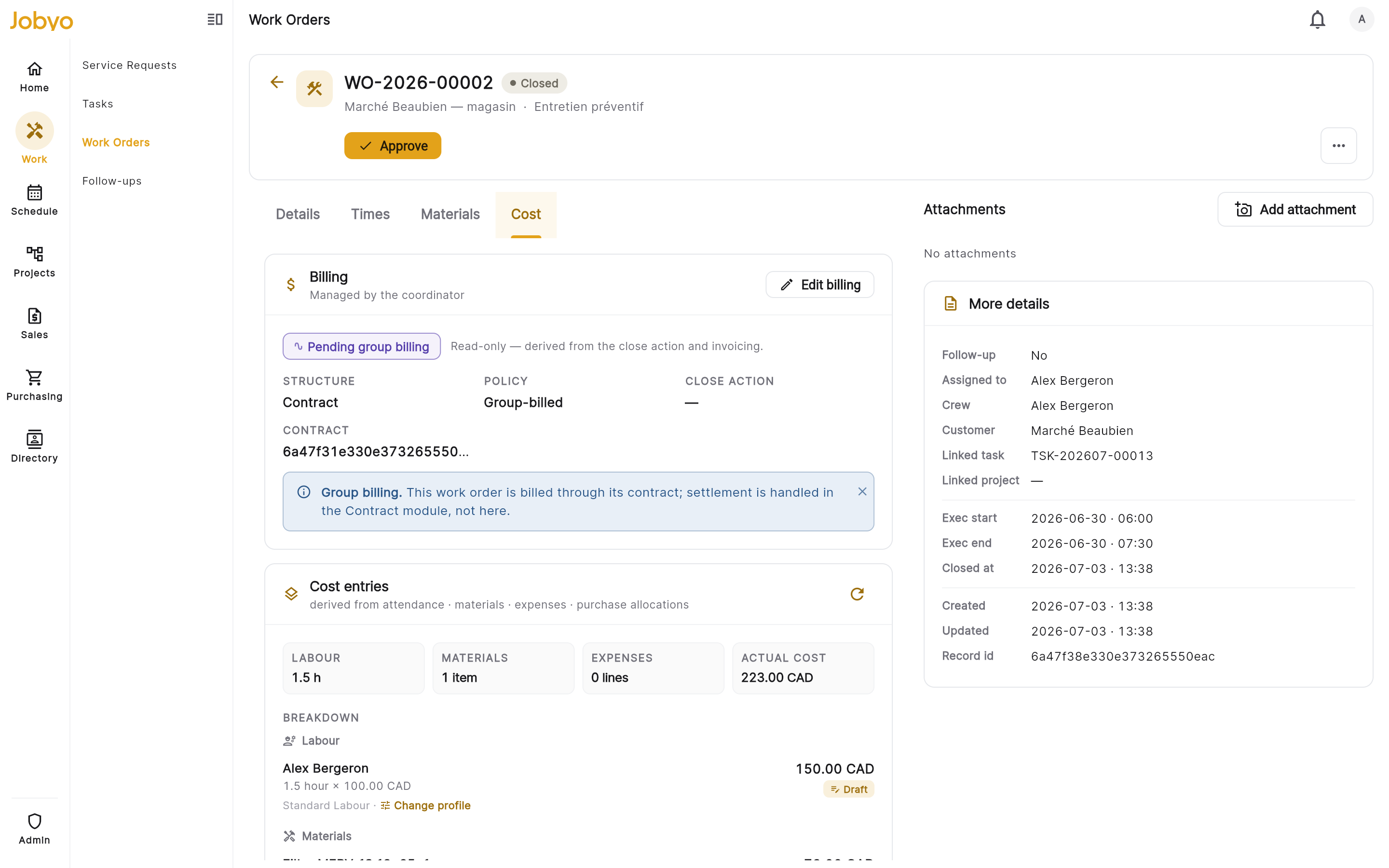
Work order Cost tab — billing card plus the labour + materials cost roll-up Bill it
Finance / billingAdministratorWith the job closed, approved, billable, and pending invoice, the Cost tab shows a Create invoice action. A coordinator approves the work order, then selects it — Jobyo builds a draft sale invoice from the job's cost entries, one line per eligible cost, and moves the work order's billing status to Draft invoice.
Work-order lines arrive without a customer-facing name, so the biller opens Edit to label each line (for example, "Diagnostic + main-d'œuvre" and "Condensateur de remplacement") and tidy the dates and notes. When it reads right, they Send it. Sending mints the official invoice number, freezes the totals and tax, and marks the source work order Invoiced. A sent invoice is permanent — there's no void or credit-note path.
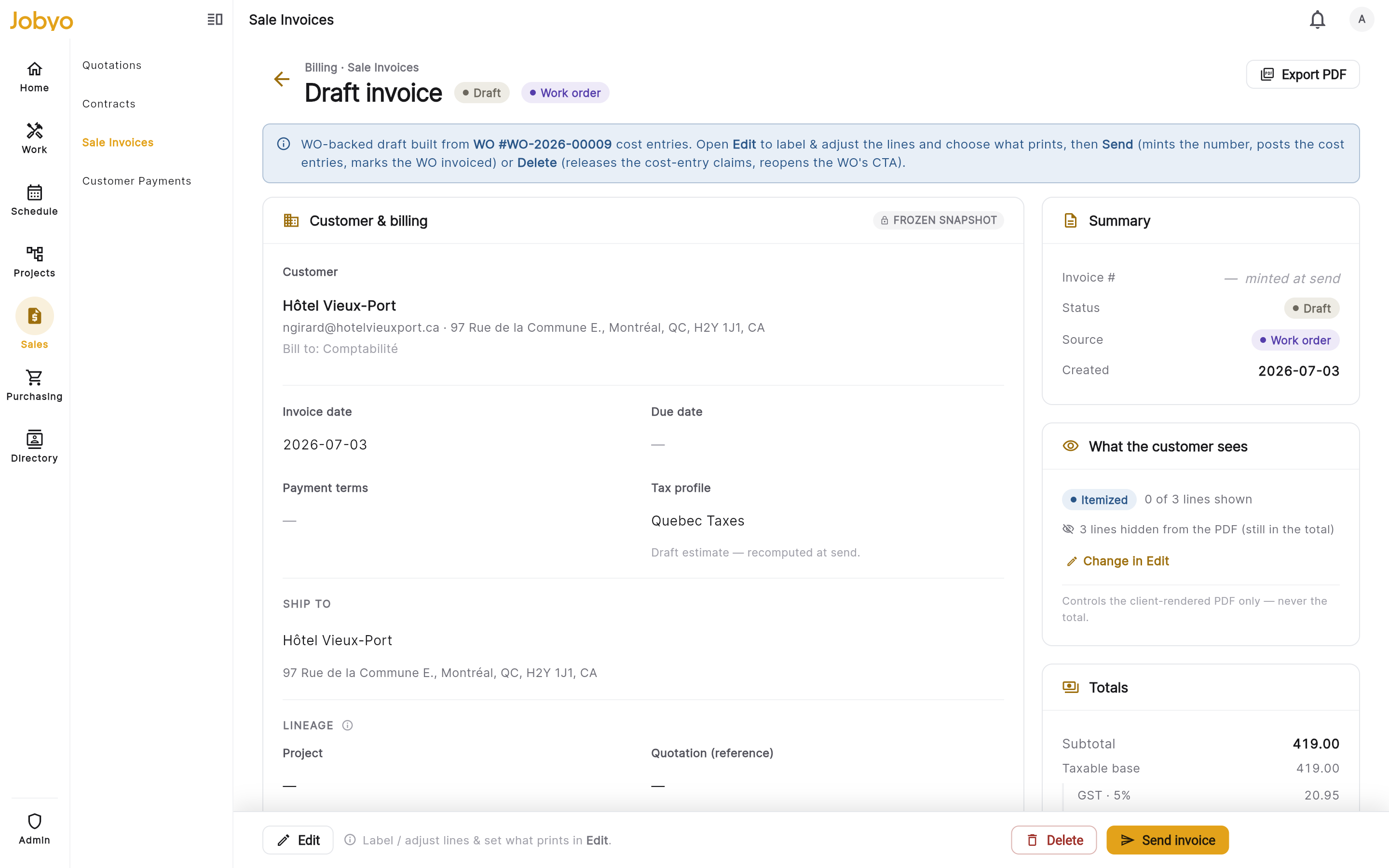
Draft invoice built from the work order — label the lines, then Send Get paid
Finance / billingAdministratorA few days later Les Tours Papineau pays by Interac. In Customer Payments, the biller records the receipt: the customer, the Interac method with its confirmation reference, the amount received, and an allocation row pointing at the sent invoice. Selecting Record payment settles it in one step and assigns a
TXNtransaction number.Jobyo advances the invoice's paid balance, and once the paid total reaches the billed total it stamps the invoice fully paid. The loop is closed — the request that started as a phone call is now a settled, paid-for job.
Payment moves the balance, not the invoice statusRecording a payment settles the invoice's paid balance and paid-date; it doesn't change the invoice's own status — a sent invoice stays sent. And recording a payment is final in this version: no edit, cancel, or refund, so double-check every field before you save.
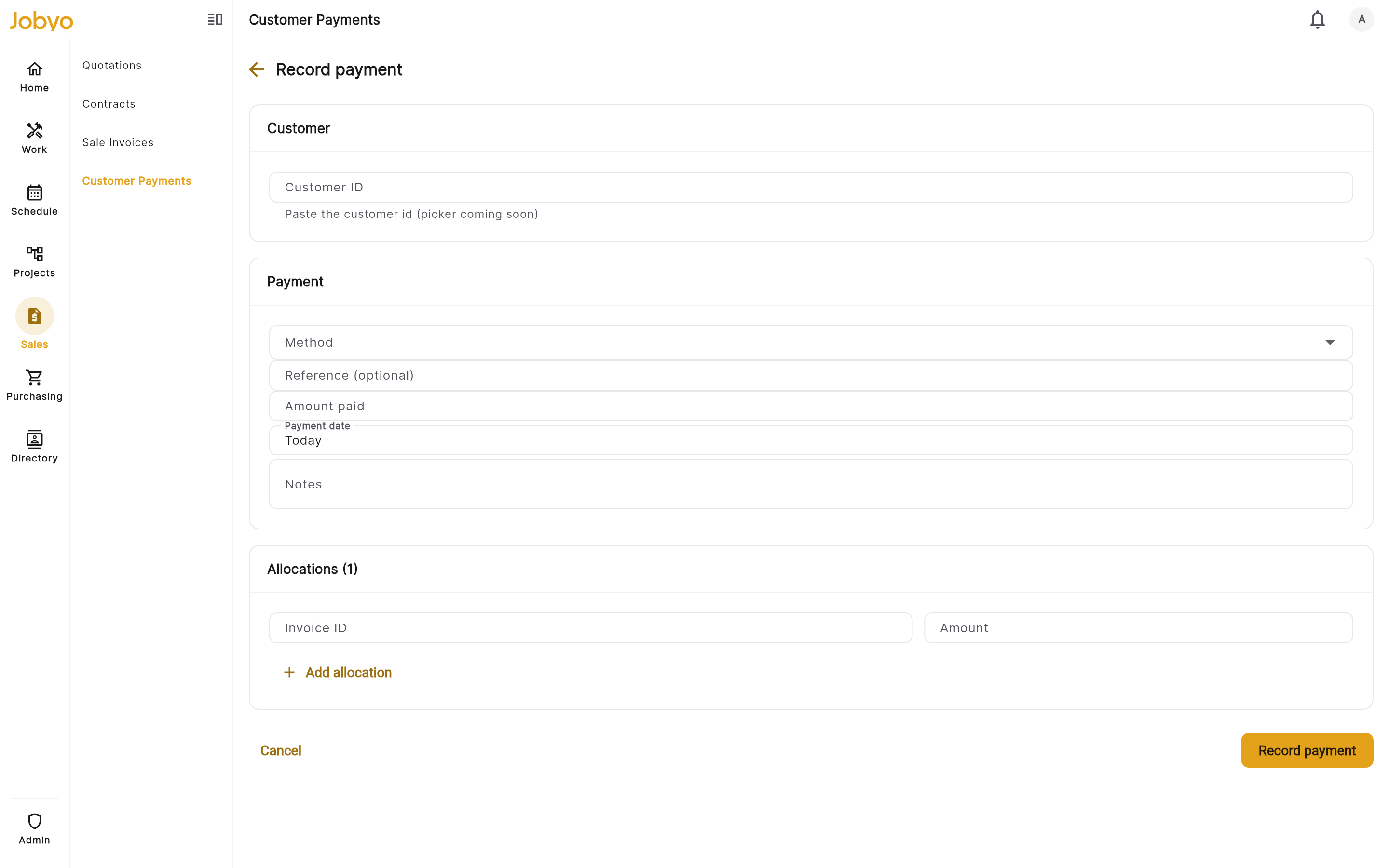
Record payment — Interac method, reference, and an allocation to the sent invoice
Where each link hands off
Two handoffs are worth remembering, because they're where jobs most often get stuck:
- Converting a request locks it. Once a request is Converted, you can't edit it — the task owns the work from there. Log it right at intake.
- Closing a work order never invoices on its own. It sets the job to Closed and derives a billing status. Billing is an explicit step, and only when the job is closed, approved, billable, and pending invoice.
Technicians run My Schedule and their own work orders; finance and admin roles run billing, invoices, and payments. If a page in this chain isn't there for you, it's usually a role or plan difference — Tasks and Work Orders need the Team plan, Sales invoices the Business plan. See Roles & what you can see.
Follow the chain into each module
Log who's calling, what's wrong, and where — then triage and convert to a task.
Field Operations · Service requestsThe converted request becomes a task: assign a technician, set the schedule, plan the job.
Field Operations · TasksRecord time, materials, and photos, then close — which derives the billing status.
Field Operations · Work ordersTurn the job's costs into a draft invoice, label the lines, and send.
Billing · Sales invoicesLog the receipt and allocate it to the sent invoice to advance its paid balance.
Billing · Customer payments