Set up recurring preventive maintenance
This walkthrough follows the contract-driven side of the business end to end: you sign a customer to a maintenance agreement, describe the sites, assets, and visit cadence it covers, let that generate the recurring work, then dispatch, carry out, and bill each visit. It ties the agreement, tasks, scheduling, work orders, and invoicing into one journey.
The scenario
Northline Mechanical, a Québec HVAC contractor, has just signed Les Tours Papineau to a preventive-maintenance contract. They'll service the Tour Papineau site — two Carrier rooftop units (RTU-01, RTU-02) and a Trane chiller — four times a year, with a set response time when the customer calls something in. We'll set that up once as an agreement, then watch each quarterly visit flow through as a task, a dispatched job, a work order, and finally a bill.
How the pieces fit
The agreement is the standing contract; everything else is the recurring work it produces. You define coverage and cadence once, Jobyo turns each covered site into recurring tasks, a coordinator dispatches those visits to a technician, each visit is carried out as a work order, and the finished work is invoiced — in the current version, through ordinary sale invoices rather than automatically from the agreement.
Building agreements and dispatching visits is work for operations and admin roles. Technicians never touch the agreement — they meet its output as ordinary tasks and work orders in their own queue.
Create the maintenance agreement
From Contracts & SLA, select New and fill in the header for the agreement "Entretien préventif 2026 — Tours Papineau". Pick the customer Les Tours Papineau (required, and snapshotted onto the agreement) and give it the agreement name. Set the term — a start date is required; end and renewal dates are optional and are recorded for reference only, so track renewals yourself. Under service level, set a response target in hours and a priority (Standard, Priority, or Emergency) — that priority also seeds any recurring tasks the agreement generates. Then declare the billing model (for a quarterly contract, Fixed recurring with a Quarterly interval fits) and Save draft.
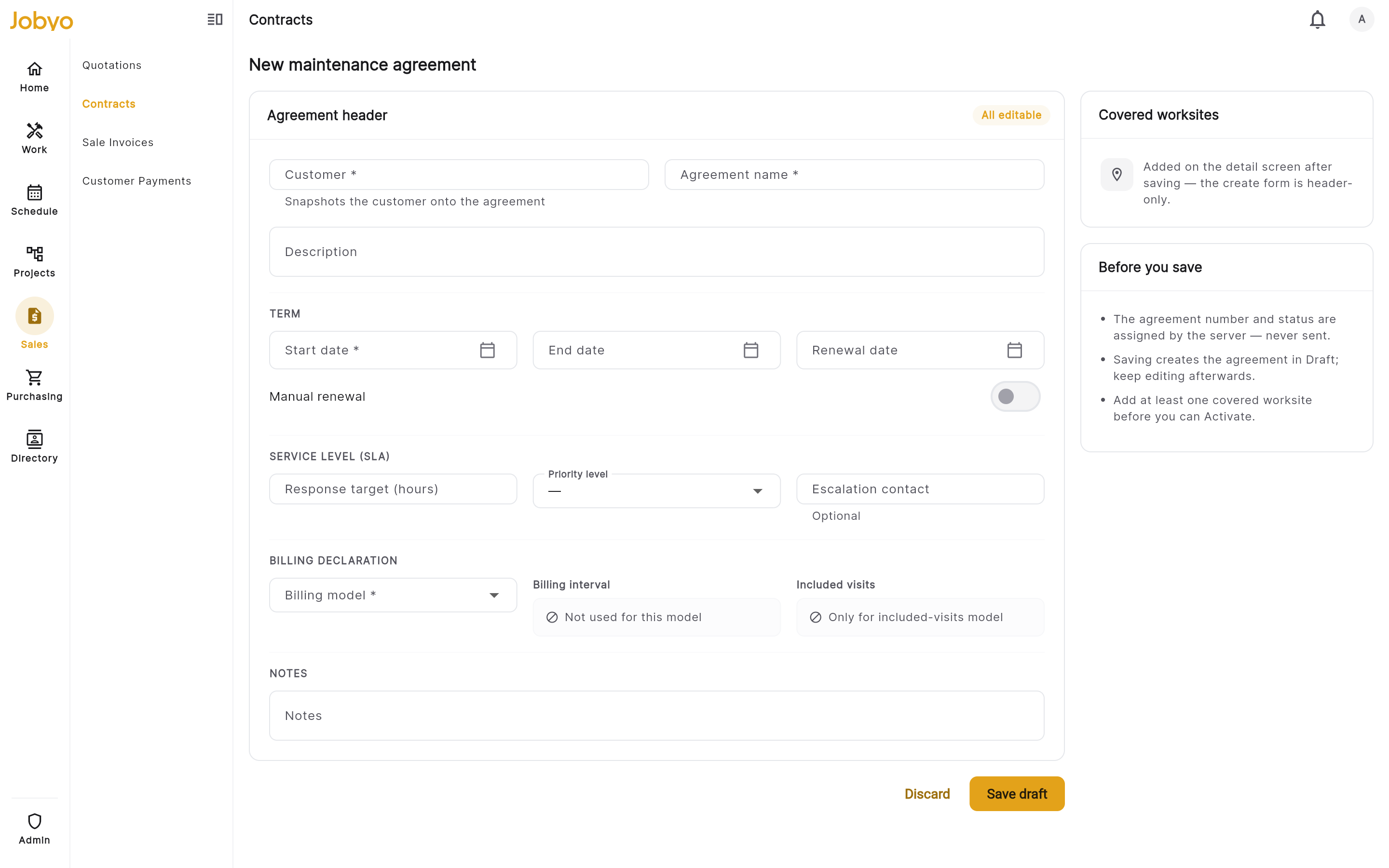
Agreement header — customer, name, term, SLA response target, and billing declaration Billing here is declarativeThe billing model, interval, and any included-visit count describe the commercial arrangement — Jobyo does not yet raise invoices from an agreement. You'll bill each visit's work order through sale invoices, covered in the last step.
Define the coverage — sites, assets, and cadence
Coverage lives in the Covered worksites & assets section on the agreement's detail page, separate from the header. Add the Tour Papineau worksite (pick the structured worksite to copy its address, or just type the site name). Set its visit frequency to Quarterly — the form then shows a visit-day field to anchor the cadence — and optionally a preferred time window, an SLA response override for this site, and access notes. Then, on the site's card, add its assets: RTU-01 and RTU-02 (type: rooftop unit) and the Trane chiller, each with an optional type, serial number, and install date.
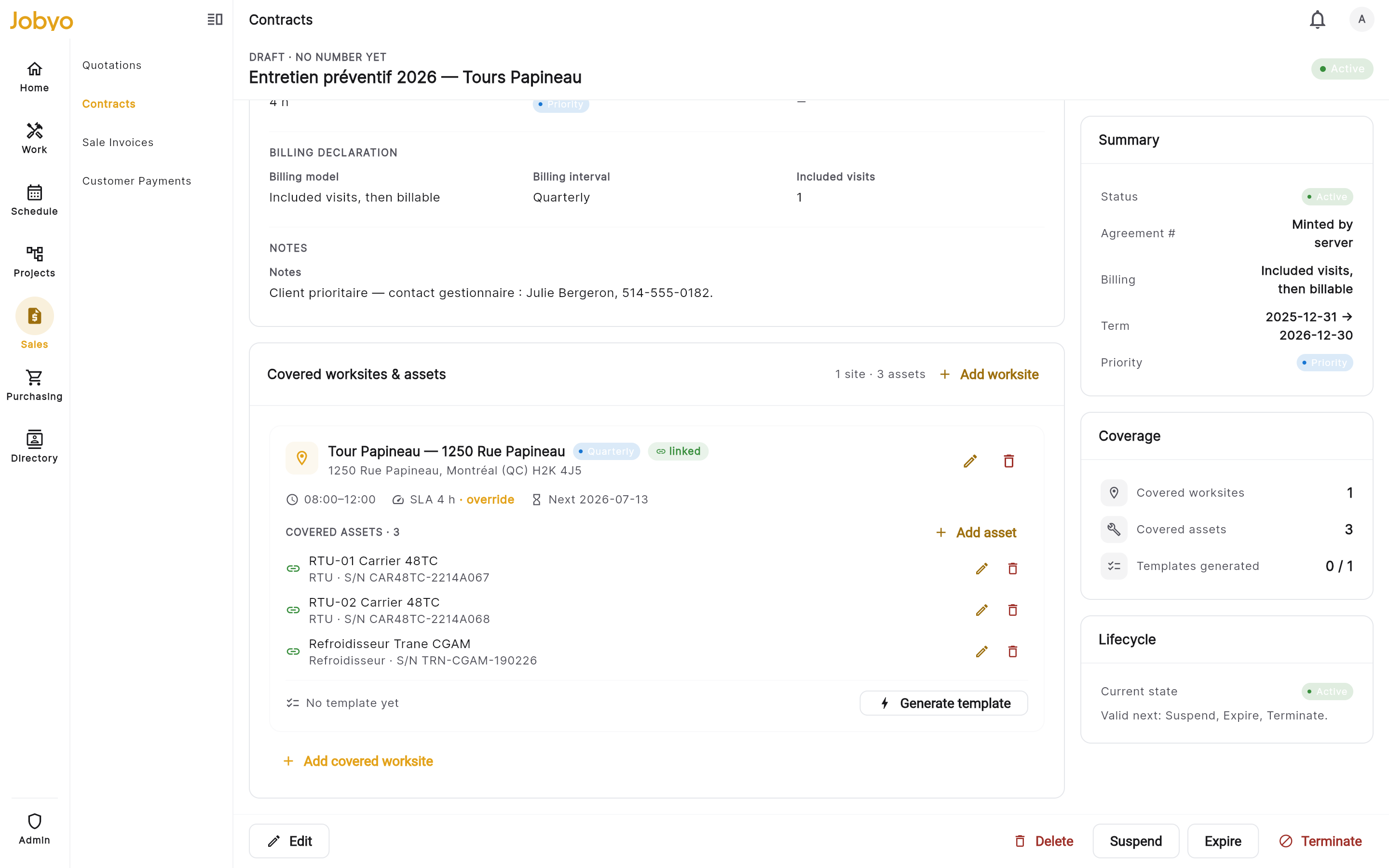
Covered Tour Papineau site with its quarterly cadence, three assets, and the Generate template action Assets are text on this formA covered asset is described in free text here — there's no equipment picker on the agreement, so an asset isn't linked to an Equipment record from this screen. Keep the fuller asset history under Equipment; use clear labels (RTU-01) so the two line up by name.
Activate, and turn the cadence into recurring tasks
A draft can't produce work until it's live. Once the agreement has at least one covered site, select Activate on the detail page — the status moves to Active. Now, on the Tour Papineau card, select Generate template: Jobyo creates a recurring task template seeded from that site's quarterly cadence and the agreement's SLA priority. From there the visits flow into your normal Tasks area — the template lives in the Recurring view, and individual visit occurrences are materialized from it, each behaving like any ordinary task in the list, board, and schedule.
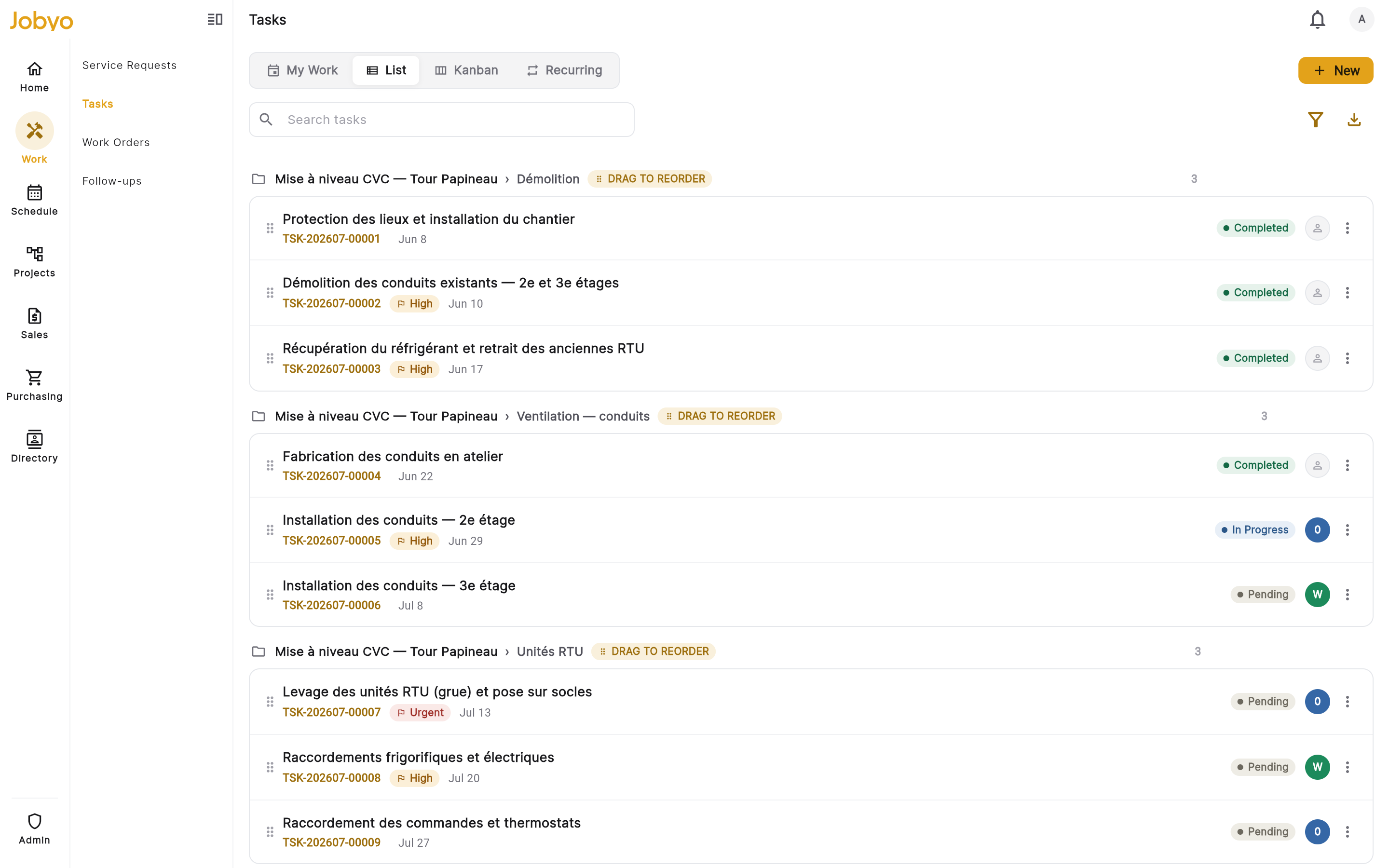
Task workspace — the generated recurring visits appear as tasks in List / Board / Recurring views Regenerating doesn't clean up the old workA site holds one template at a time; regenerating it (or removing a covered site) does not cancel a recurring task that was already generated. If the cadence changes, cancel the stale recurring task yourself in the Task area so you don't end up dispatching duplicate visits.
Schedule and dispatch each visit
Open Scheduling to place the quarterly visits on the dispatch board — one lane per technician across the days ahead. A visit that has a date but no one on it sits in the Unassigned lane; a visit with no window yet waits in the To dispatch — no date strip. Tap the visit chip, choose Assign, and put Marc-André Roy on it as primary assignee; use Reschedule to set or move its day and time. If the day would go over Marc-André's capacity, Jobyo shows a soft overbooking warning you can override or reroute — it warns, it doesn't hard-block.
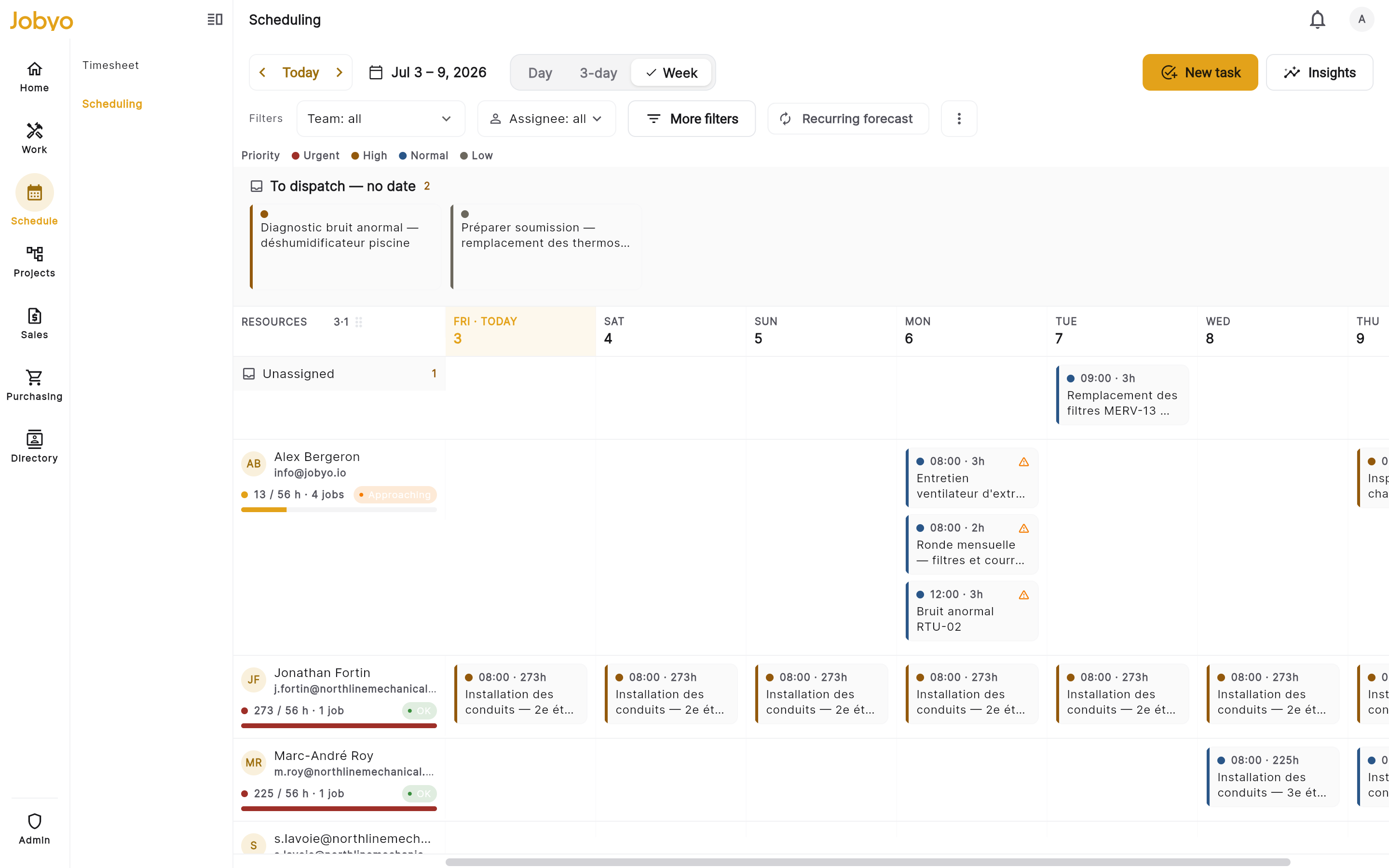
Dispatch board — the quarterly visit assigned to Marc-André Roy's lane The board plans tasks, not work ordersEvery assign and reschedule is written onto the underlying task — the board owns no schedule of its own. Work orders show only as read-only context; you dispatch the visit as a task, then launch its work order when the tech is on site.
Do the visit as a work order
When Marc-André arrives at Tour Papineau, the visit becomes a work order — the unit of field execution. He starts it from the assigned task's Create work order action (or a coordinator launches it from the task chip on the board), which links it to the task and captures a snapshot of the site. On the work order hub he records the visit: time on the Times tab, the filters and parts used on Materials, photos of each rooftop unit and the chiller, up to three recommendations for the next quarter's visit, and a client signature. When the inspection and filter change are done, he selects Close — which completes the task and derives a billing status, but does not invoice on its own.
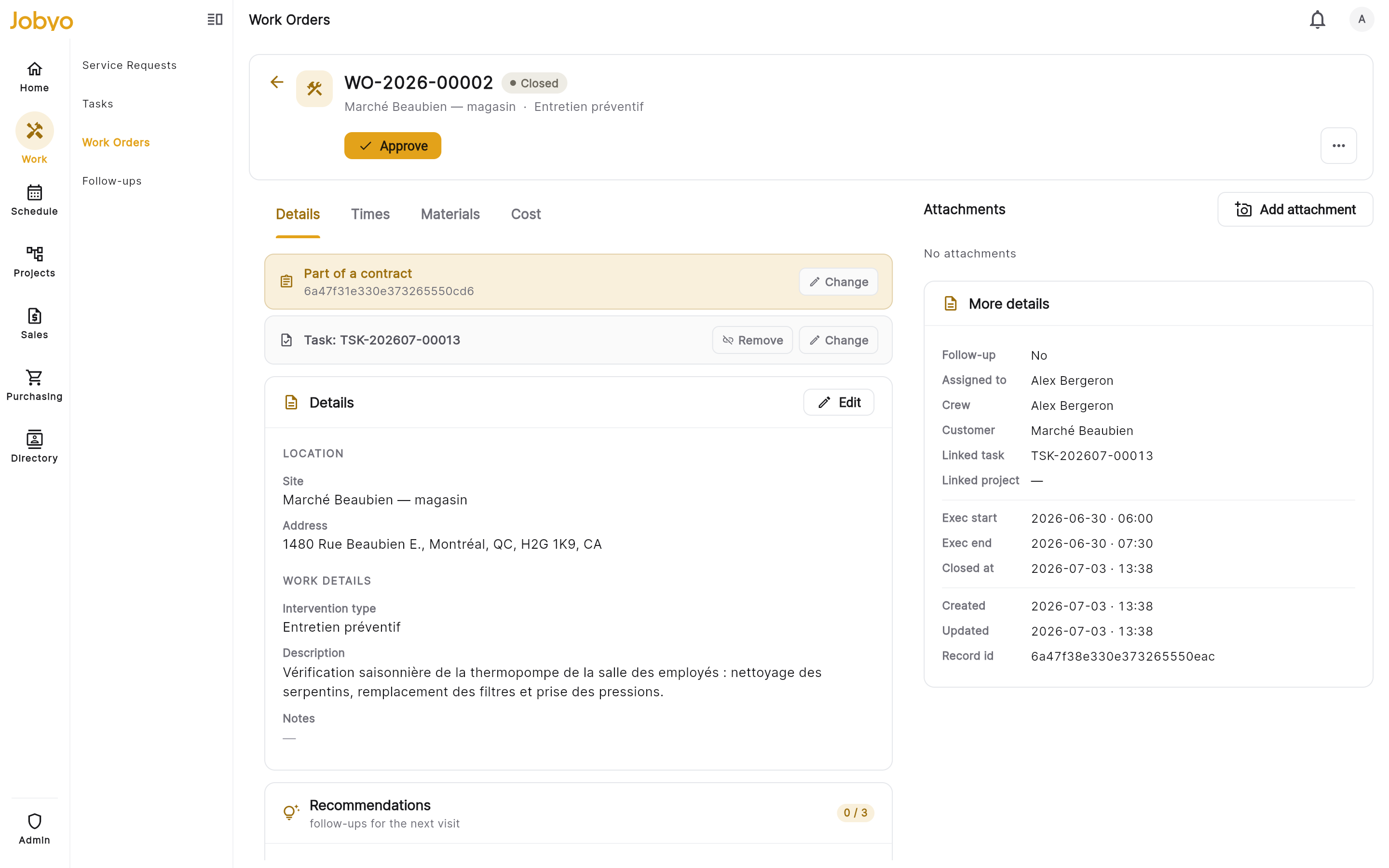
Work order hub — the quarterly RTU inspection and filter change, ready to close Two statuses, kept apartA work order carries an execution status (Open / Closed / Cancelled) in its header and a billing status derived on the Cost tab. Closing sets execution to Closed and works out the billing status; you never set billing status by hand.
Bill the visit under the agreement
Because Jobyo doesn't yet invoice from an agreement, you bill each covered visit the normal way — through a sale invoice off its work order. On the work order's Cost tab, a coordinator sets the billing so the visit charges the way the contract intends: a contract-structured job hands settlement to the agreement side and is group-billed, while a job you invoice per visit stays standalone with a billable policy. When the job is closed, approved, billable, and pending invoice, the Cost tab's Create invoice action mints a draft invoice from the visit's cost entries; send it, and it appears in the Sale invoices list under Les Tours Papineau.
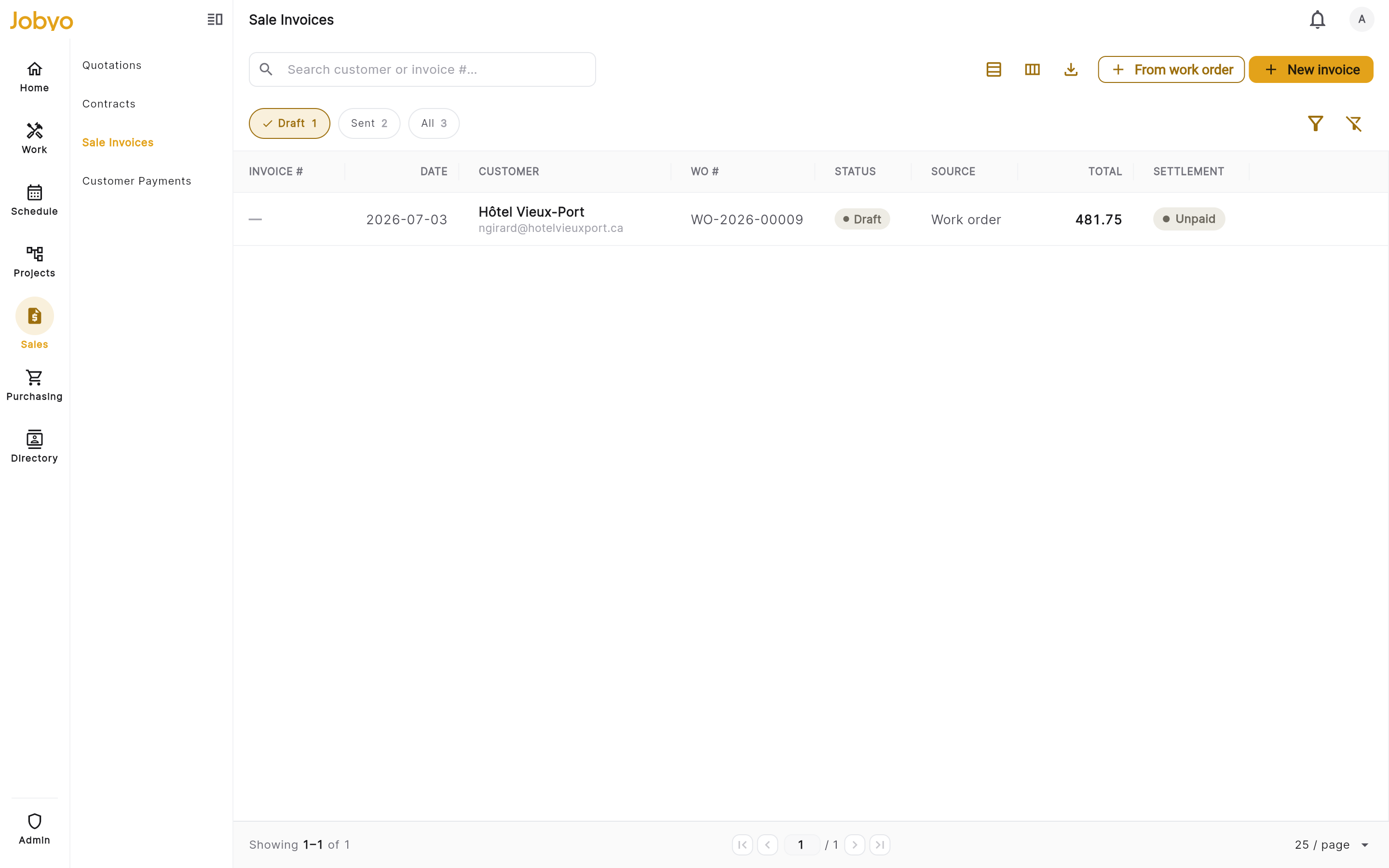
Sale invoices — the billed maintenance visit for Les Tours Papineau How the contract shapes the billSet the billing structure to match the deal: per-visit contracts invoice each closed visit; a fixed-recurring or included-visits arrangement usually groups the covered work rather than billing every visit standalone. Either way the money is settled on the work order and its invoice, not on the agreement record.
- Can't activate the agreementA draft needs at least one covered worksite. Add the Tour Papineau site, then Activate.
- "Generate template" is greyed outThe site is On demand (no cadence), the agreement isn't Active yet, or your role lacks the contracts modify permission. Set a cadence, activate, or ask an admin.
- A dispatched visit isn't on a laneUndated visits wait in the "To dispatch — no date" strip until you give them a window. Reschedule to place it on the board.
- Create invoice is missing on the visitThe work order must be closed, approved, billable, and pending invoice — the Cost tab lists which condition is unmet.
Where each step is documented in full
Build the header, add covered sites and assets, set the cadence, and generate the recurring work.
Contracts · Maintenance agreementsWhere generated visits land, and how occurrences behave.
Field Operations · TasksAssign and reschedule visits against technician capacity on the board.
Field Operations · SchedulingRecord time, materials, and photos, then close and settle billing.
Field Operations · Work orders